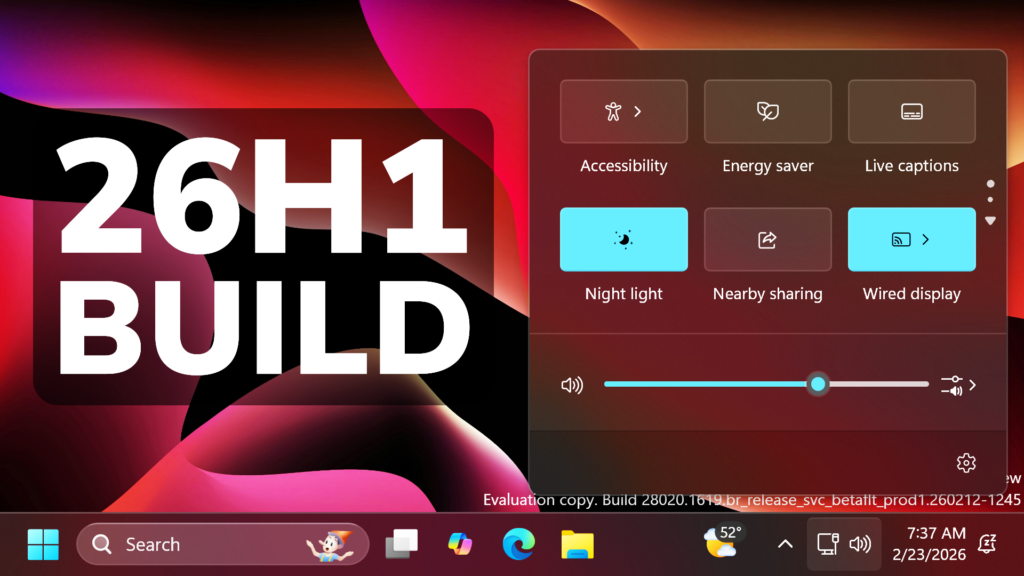
In this article, we will talk about another Preview Build for Windows 11 26H1, with the Build 28020.1619 or KB5077230 in the Canary Channel.
In the latest Build for the Canary Channel, you may notice the New Windows 11 26H1 Version, which is a New Version that Microsoft is using to test the New Platform for the upcoming Qualcomm Snapdragon X2 Devices and Nvidia N1X Processors.
26H1 is not a feature update for version 25H2 and only includes platform changes to support specific silicon. There is no action required from customers.
25H2 remains the primary place for new features. Windows 11 continues to have an annual feature update cadence, with releases in the second half of the calendar year.
As a reminder, in the Windows Insider Program, new experiences will continue to land first in the Dev and Beta Channels, with Canary primarily focused on platform changes.
New Features in this Build
New Built-in Sysmon
Previously announced here, Windows now brings Sysmon functionality natively to Windows. Sysmon functionality allows you to capture system events that can help with threat detection, and you can use custom configuration files to filter the events you want to monitor. The captured events are written on the Windows event log, enabling them to be used with security applications and a wide range of use cases.
Built-in Sysmon is disabled by default and must be explicitly enabled.
- Go to Settings > System > Optional features > More Windows features > checking Sysmon or in PowerShell or command prompt:
- Dism /Online /Enable-Feature /FeatureName:Sysmon
- To complete the installation, from PowerShell or command prompt run:
- sysmon -i
Note: If you’ve already installed Sysmon from the website, it must be uninstalled before enabling the built-in Sysmon.
New Windows Share
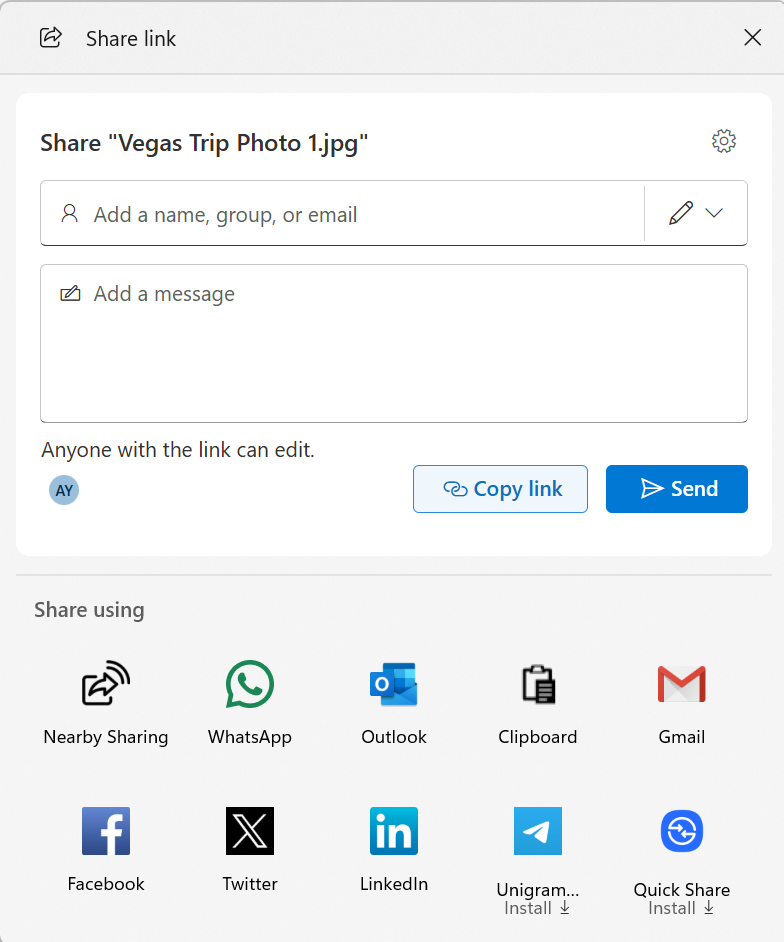
When you share a OneDrive cloud file by right-clicking to share on the file – new options for sharing that link through other apps will be provided under “Share using” when the “Copy link” button is clicked. This experience is rolling out to Windows Insiders signed in with their Microsoft accounts not in the EEA.
New Cross Device Resume
- This update expands the functionality of Cross‑Device Resume, which Microsoft first introduced in the May 2025 Windows non-security update (KB5058499). You can continue activities from your Android phone on your PC based on the apps and services you use, including resuming Spotify playback, working in Word, Excel, or PowerPoint, or continuing a browsing session.
- Vivo Android phone users can continue browsing from Vivo Browser on their PC.
- If you use an Android phone from HONOR, OPPO, Samsung, Vivo, or Xiaomi, you can resume online files that you opened in the Microsoft Copilot app on your phone and continue working on them on your PC. Files open in the corresponding Microsoft 365 app on your PC if it is installed. If the app is not installed, the files open in your default web browser. This feature does not support offline files stored only on your phone.
New Narrator Feature
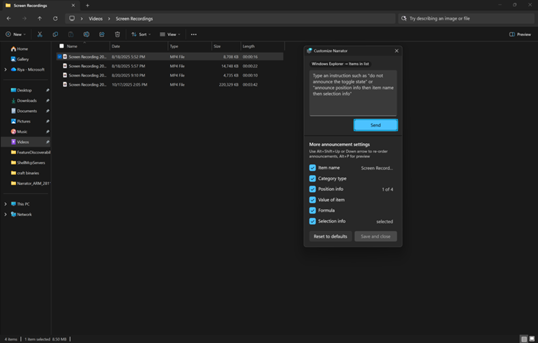
Narrator now gives you more control over how it announces on‑screen controls. You can choose which details are spoken and adjust their order to match how you navigate apps. These settings apply throughout the app to help reduce extra speech and make Narrator easier to follow.
New Windows Hello Feature
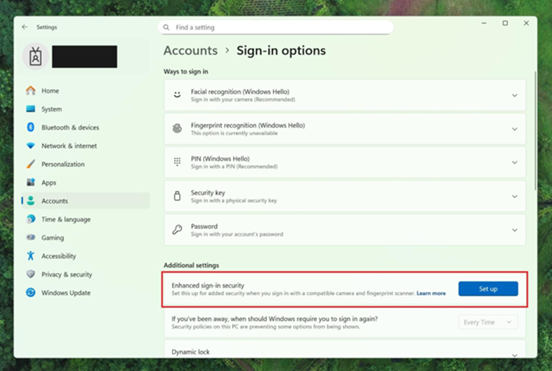
Windows Hello Enhanced Sign-in Security Now Supports Peripheral Fingerprint Sensors: Windows Hello Enhanced Sign-in Security (ESS) is expanding to support peripheral fingerprint sensors in Windows 11. Previously, ESS was only available on PCs with built-in biometric sensors, but now Windows 11 PCs, including desktops and Copilot+ PCs, can benefit from the most secure sign-in experience Windows Hello has to offer. Just plug in a supported ESS fingerprint reader, head to Settings > Accounts > Sign-in options and follow the prompts to enroll.
New Voice Typing Feature
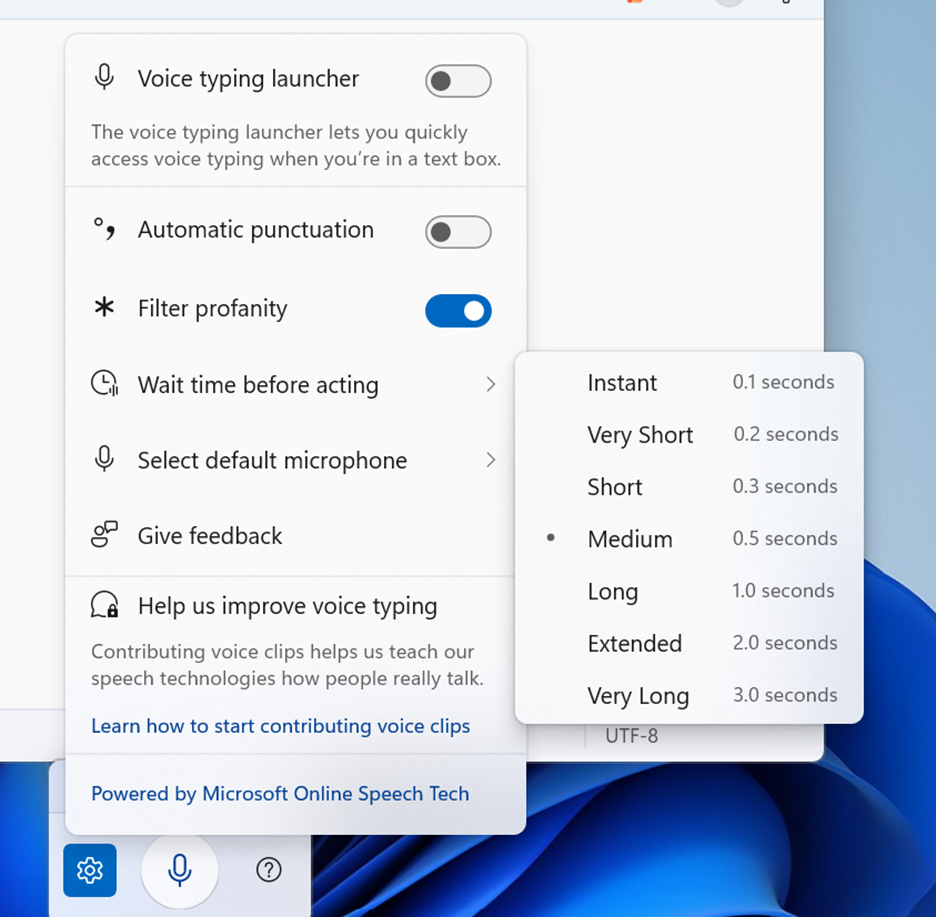
Microsoft is introducing a new ‘Wait time before acting’ setting in Voice Typing, allowing users to configure the delay before a voice command is executed. This provides greater flexibility for users with varying speech patterns, enabling more accurate recognition whether speaking slowly or quickly. (Update: This is rolling out for all desktop types, not just Copilot+ PCs.)
New Voice Access Feature
Microsoft is introducing a more streamlined setup flow to make it even easier to get started with Voice Access. The redesigned flow helps download the right speech model for your language of choice; select your preferred input microphone & highlights what Voice Access can help you do on your PC.
New Settings Agent Language Support
- The following locales and languages are supported with this release:
Current:
- English: en-gb, en-us
- French: fr-fr, fr-ca
New:
- German: de-de
- Portuguese: pt-br, pt-pt
- Spanish: es-es, es-mx
- Korean: ko-kr
- Japanese: ja-jp
- Hindi: hi-in
- Italian: it-it
- Chinese (Simplified): zh-cn
New Setup Experience
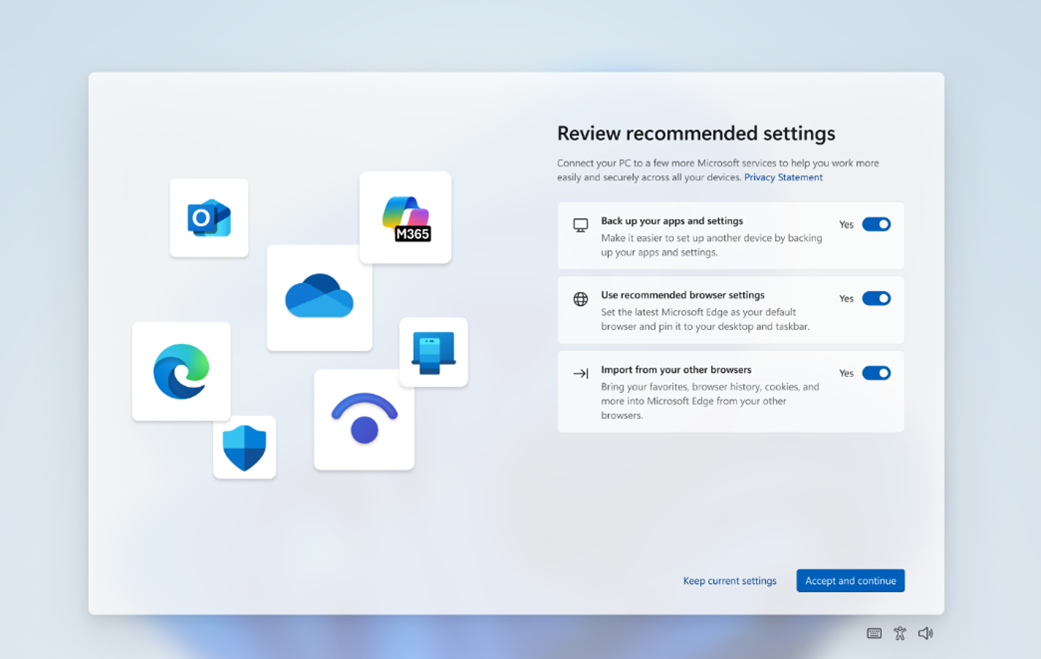
Some Windows Insiders will see a refreshed SCOOBE screen (Second Chance Out of Box Experience) for reviewing recommended settings on your PC. This redesigned screen is meant to be more intuitive and streamlined, allowing you to choose the recommended settings you want for your PC without having to navigate through multiple setup screens. If you see this screen, let us know if you have any feedback via Feedback Hub.
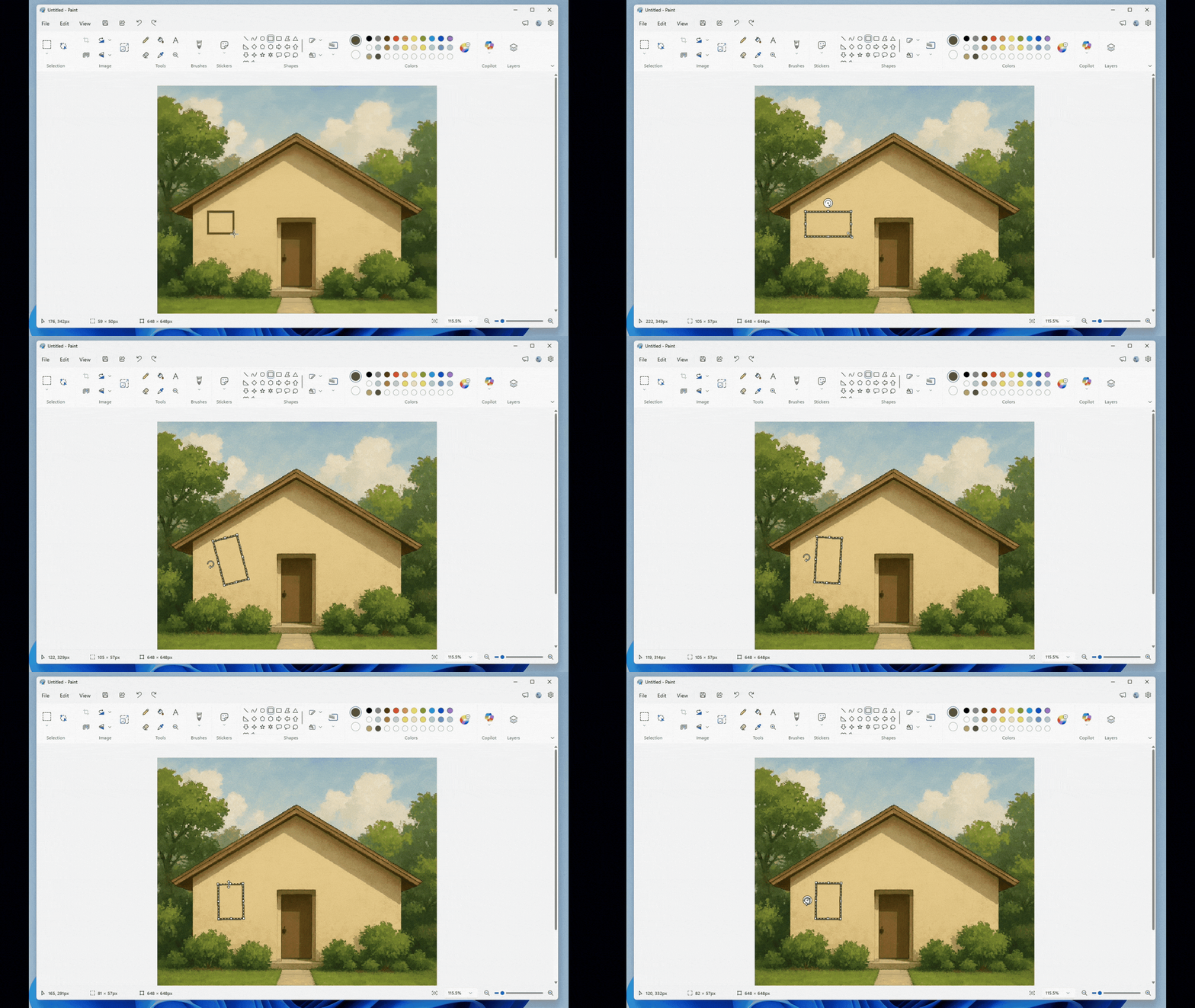
New Paint App Update
With Paint version 11.2601.391.0, Microsoft is introducing freeform rotate, a highly requested feature that gives you more control when editing your artwork. You can now rotate shapes, text, and any active selection to any angle. To get started, open Paint and select a shape, text, or selection. When the object is active, use the rotate handle above it to rotate freely in any direction. For more precise control, you can also choose Custom rotate from the Rotate menu and enter a specific angle. Try using freeform rotate in your artwork to adjust elements exactly the way you want and add more flexibility to your creative workflow.
Fixes in this Build
Watermark Fix
- Fixed the desktop watermark to show the correct build number.
For more information about this Build, you can check this article from the Microsoft Blog.
For a more in-depth presentation of the New Build, you can watch the video below from the youtube channel.
 11
11
 20
20