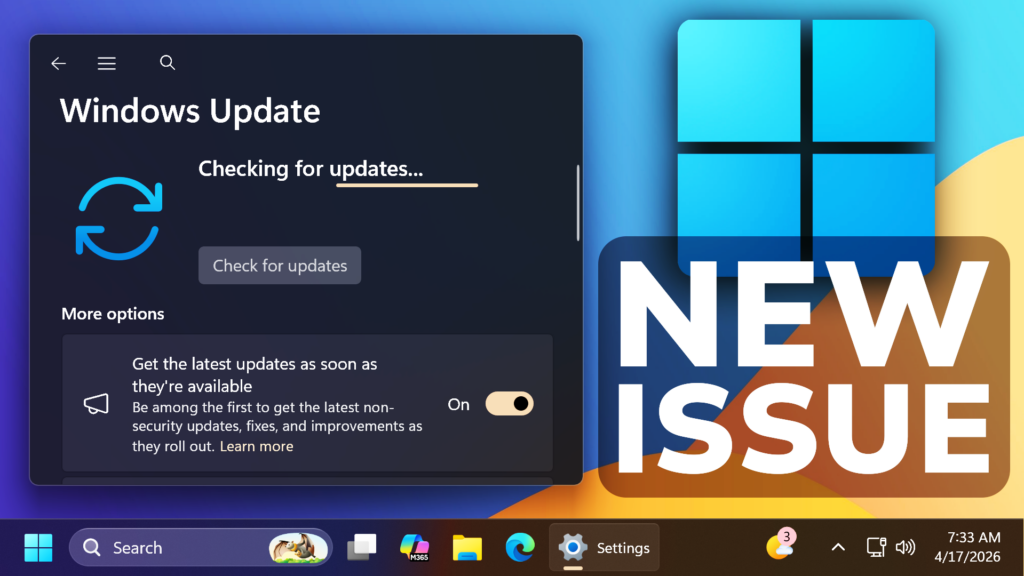
In this article, we will talk about the New Windows 11 25H2 Update KB5083769 Issue Requiring Entering BitLocker Recovery Key.
In the latest Windows 11 25H2 Update KB5083769, some devices with an unrecommended BitLocker Group Policy configuration might be required to enter their BitLocker recovery key on the first restart after installing this update.
This issue only affects a limited number of systems in which ALL of the following conditions are true. These conditions are unlikely to be found on personal devices not managed by IT departments.
- BitLocker is enabled on the OS drive.
- The Group Policy “Configure TPM platform validation profile for native UEFI firmware configurations” is configured, and PCR7 is included in the validation profile (or the equivalent registry key is set manually).
- System Information (msinfo32.exe) reports Secure Boot State PCR7 Binding as “Not Possible“.
- The Windows UEFI CA 2023 certificate is present in the device’s Secure Boot Signature Database (DB), making the device eligible for the 2023‑signed Windows Boot Manager to be made the default.
- The device is not already running the 2023-signed Windows Boot Manager.
In this scenario, the BitLocker recovery key only needs to be entered once — subsequent restarts will not trigger a BitLocker recovery screen, as long as the group policy configuration remains unchanged. For help finding your BitLocker recovery key, see the article, Find your BitLocker recovery key.
Official Workarounds from Microsoft
Option 1: Remove the Group Policy configuration before installing the update (Recommended)
- Open Group Policy Editor (gpedit.msc) or your Group Policy Management Console.
- Navigate to: Computer Configuration > Administrative Templates > Windows Components > BitLocker Drive Encryption > Operating System Drives.
- Set “Configure TPM platform validation profile for native UEFI firmware configurations” to “Not Configured“.
- Run the following command on affected devices to propagate the policy change: gpupdate /force
- Run the following command to suspend BitLocker (where BitLocker is enabled on the C: drive): manage-bde -protectors -disable C:
- Run the following command to resume BitLocker (where BitLocker is enabled on the C: drive): manage-bde -protectors -enable C:
- This updates the BitLocker bindings to use the Windows-selected default PCR profile.
Option 2: Apply the Known Issue Rollback (KIR) before installing the update
A Known Issue Rollback (KIR) is available for customers who cannot remove the PCR7 group policy before deploying this update. The KIR prevents the automatic switch to the 2023 Boot Manager, avoiding the BitLocker recovery trigger. The KIR should be deployed before installing the update on affected devices. Contact Microsoft’s Support for business to obtain this KIR.
For more information about this Known Issue, you can check this article from Microsoft Support.
For a more in-depth tutorial on how to fix this issue, you can watch the video below from the youtube channel.
 11
11
 20
20