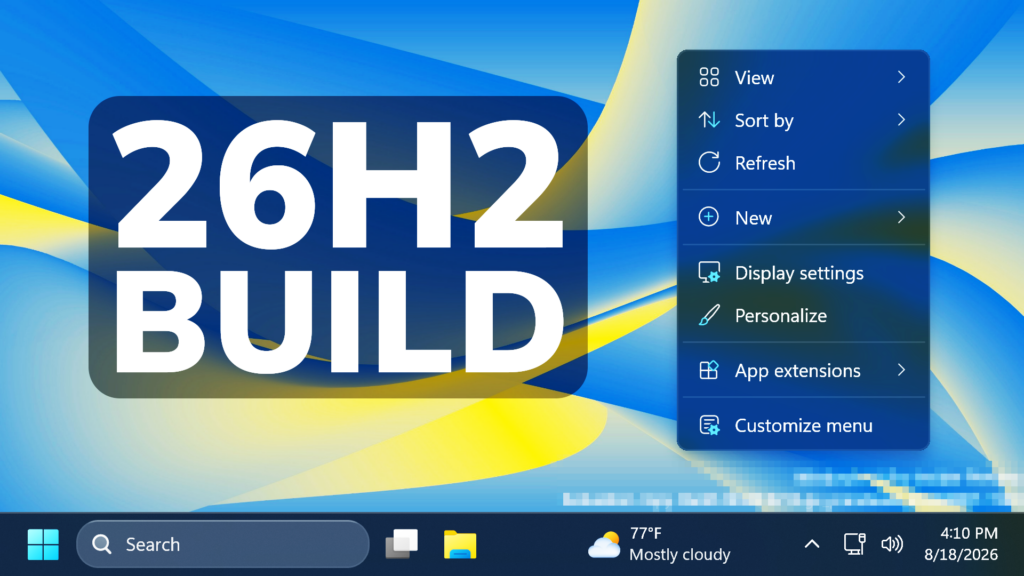
In this article, we will talk about the latest Preview Build for Windows 11 26H2 in the Dev Channel, which is the Build 26340.9212.
Windows 11, version 26H2 represents Microsoft’s yearly second half major update as part of their standard annual Windows 11 update cadence. As Windows 11, version 26H2 shares the same servicing branch as Windows 11, version 25H2, the update is implemented through an enablement package (eKB). This means your device will be updated to the next version through a single restart – providing a familiar, fast, and reliable update experience.
Devices already enrolled in the Experimental channel will begin seeing their versioning updated to version 26H2 under Settings > System > About (and winver). If you are in the Beta channel and would like to switch to the Experimental, you can easily do so under Settings > Windows Update > Windows Insider Program. Remember, you can easily switch back to Beta at any time, without having to do a full Windows reinstall.
Not currently enrolled in the Windows Insider Program and wanting to preview version 26H2? Register for WIP selecting the Dev channel, while it’s transitioning to Experimental. Once the transition is complete, the new channel name to preview version 26H2 will appear as Experimental.
New Build Number
One thing that you may have noticed first of all in this Build, Microsoft has updated the Build Number to 26340.xxx. This most likely means that Microsoft has finished the Previews for the Final Release of Windows 11 26H2 and they are now focusing on New Features for the Experimental Channel.
New Context Menu
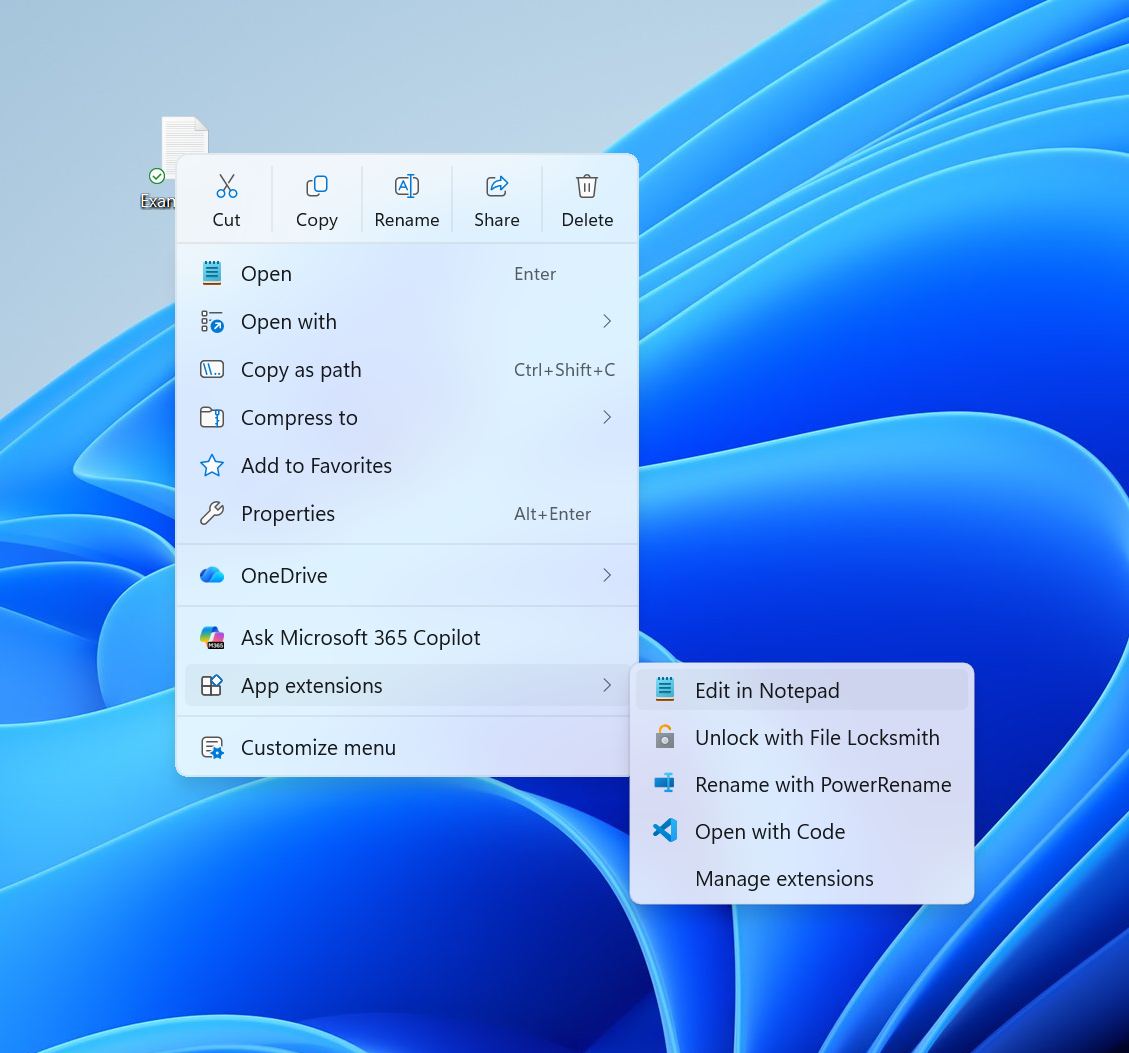
Microsoft is beginning to roll out an updated context menu experience in File Explorer, designed to feel faster, cleaner, and easier to tailor to the way you work. The new design reduces top-level clutter, keeps commonly used actions easy to access, and adds a new Settings experience that gives you more control over what appears in the menu.
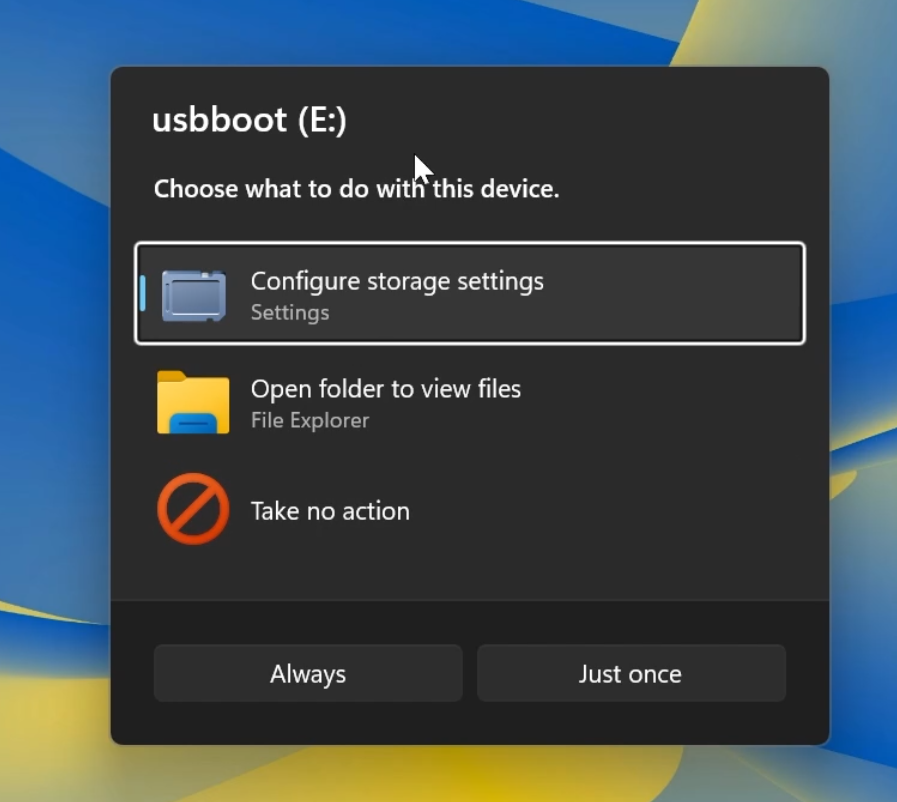
New AutoPlay Dialog
Microsoft is also adding a New AutoPlay Dialog that is completely redesigned using WinUI3 and supports Dark Mode.
New Windows Personalization
- Improved reliability of the Personalization > Background page in Settings.
- Added support for using DIB image files as desktop backgrounds.
- Improved reliability of desktop slideshow transitions on newly created accounts.
- Improved the resolution of previews when selecting a desktop background in Personalization > Background.
- Improved the desktop background preview display in Settings for users with portrait mode monitors.
- Improved reliability of processing desktop wallpaper changes when they happen in quick succession.
- Added support for using slideshow wallpapers with multiple desktops so that it won’t automatically switch you back to Picture.
New Start Menu Hover Preview
Microsoft is also starting to test showing Previews on Hover for Recent Files displayed in the Start Menu.
New Modern File Properties
The File Properties Dialog is finally getting rebuilt with WinUI 3 and Dark Mode support and at the moment it only works with Deleted Files, such as those from the Recycle Bin.
More Dialogs will be redesigned in the coming Builds for the Experimental Channel.
Run Box Improvements
- Improved first launch reliability.
- Adjusted verbosity for screen reader users.
New Get Started App
The Get Started app is updated with new pages. The pages help personalize your device and discover new features. Pages might depend on your device. Close the flow at any time, or revisit it by opening Get Started. The new pages include the app install page, the site pinning page, and the personalized theme page.
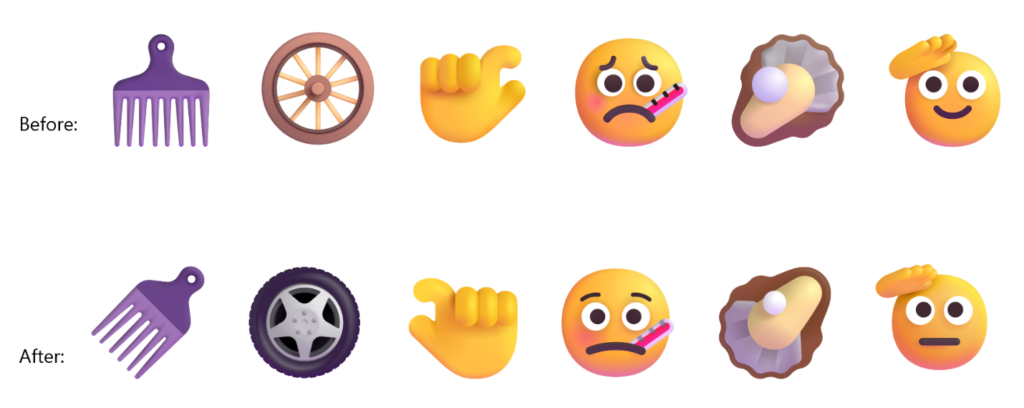
New Emojis
- Microsoft is adding support for Emoji 17.0. This includes new emoji such as distorted face, fight cloud, and hairy creature. To try the new emoji, press the Windows key plus Period (.) to open the emoji panel and insert them from there.

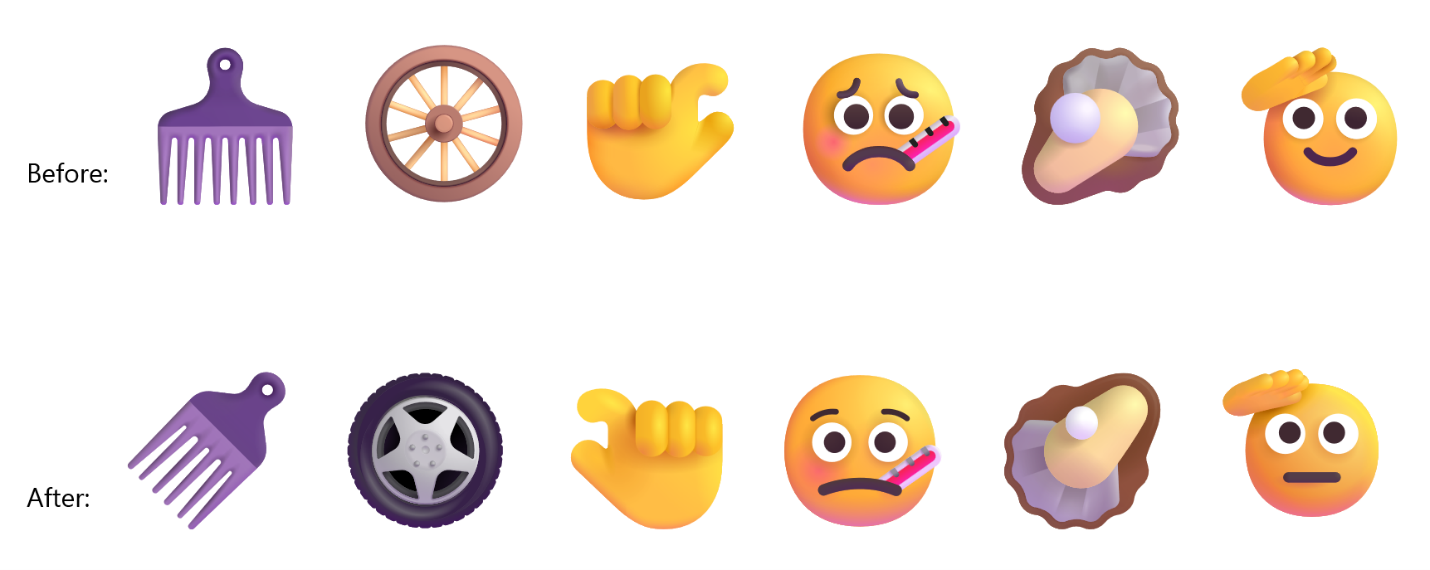
- As part of this effort, we’ve also made some slight adjustments to the design of some of our current emoji to improve consistency across platforms. This includes the saluting face, face with peeking eye, goose, lotus, and kissing cat emoji.
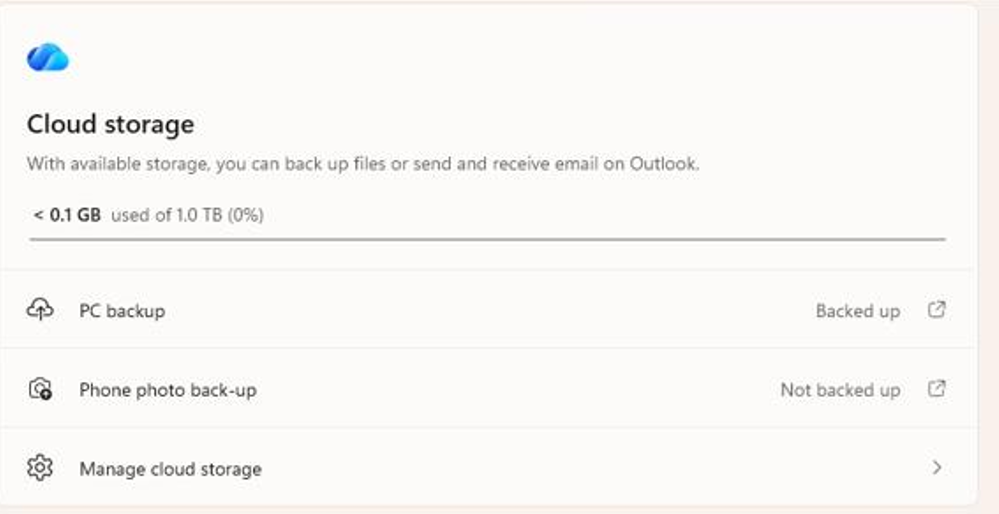
New Camera Roll Backup
New entry points on the Settings > Home and Accounts pages help you set up Camera Roll Backup and automatically back up photos and videos from your mobile device to OneDrive.
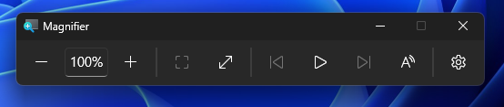
New Magnifier
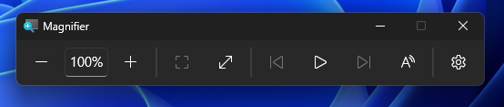
- Microsoft is giving Magnifier’s toolbar a modernized visual refresh.
- Updated icons. We’ve updated Magnifier’s toolbar icons to align with Windows 11 visual design, giving the tool a cleaner, more modernized feel.
- Refined spacing and padding. We’ve adjusted the padding and spacing across the toolbar for a more polished, consistent layout.
- What’s not changing: The way Magnifier works. Your views, zoom controls, keyboard shortcuts, and Read Aloud all behave exactly as they did in earlier versions.
Input Fixes
- Fixed an issue where some third-party keyboard input methods, including certain Chinese IMEs, might not display their status window correctly when typing in File Explorer and other parts of Windows.
- Improved reliability of typing with the Japanese IME by reducing potential hangs and deadlocks.
Start Menu Improvement
Microsoft is adjusting the rollout population for the personalized Start menu, so some Insiders might see the features temporarily disappear. If you don’t see the feature in this build, you can re-enable it through feature flags.
File Explorer Fix
Fixed an issue from the previous flight where previews in File Explorer showed an unexpected thick band across the middle.
Settings Fix
Fixed an issue causing Settings to crash in the previous flight when interacting with items on the Date & Time page.
Other Fixes
Fixed an xtajit64.dll crash, which was leading to issues with certain apps for Insiders on Arm64 PCs in the latest flights.
Drag Tray Removed
Based on user feedback, Microsoft is removing the Drag Tray Experience in this Build.
WMIC Removed
Windows Management Instrumentation Command-line (WMIC) has been removed in this release. This change is part of the ongoing deprecation and removal of WMIC from Windows.
For more information about this Build, you can check this article from the Microsoft Blog.
For a more in-depth presentation of the New Build, you can watch the video below from the youtube channel.
 11
11
 20
20