
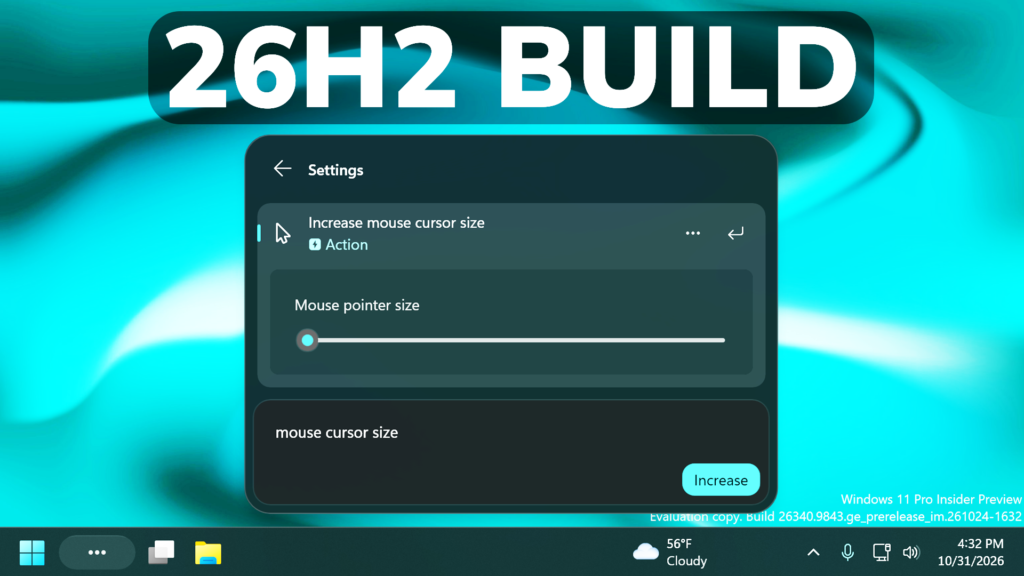
In this article, we will talk about the latest Preview Build for Windows 11 26H2 in the Experimental Channel, which is the Build 26340.9843.
Windows 11, version 26H2 represents Microsoft’s yearly second half major update as part of their standard annual Windows 11 update cadence. As Windows 11, version 26H2 shares the same servicing branch as Windows 11, version 25H2, the update is implemented through an enablement package (eKB). This means your device will be updated to the next version through a single restart – providing a familiar, fast, and reliable update experience.
Devices already enrolled in the Experimental channel will begin seeing their versioning updated to version 26H2 under Settings > System > About (and winver). If you are in the Beta channel and would like to switch to the Experimental, you can easily do so under Settings > Windows Update > Windows Insider Program. Remember, you can easily switch back to Beta at any time, without having to do a full Windows reinstall.
New Search Inline Actions
Adjust your volume, screen brightness, or cursor size with inline sliders. Actions are more clearly labeled, and suggested actions help you discover more things you can do.
New Search Phone Actions
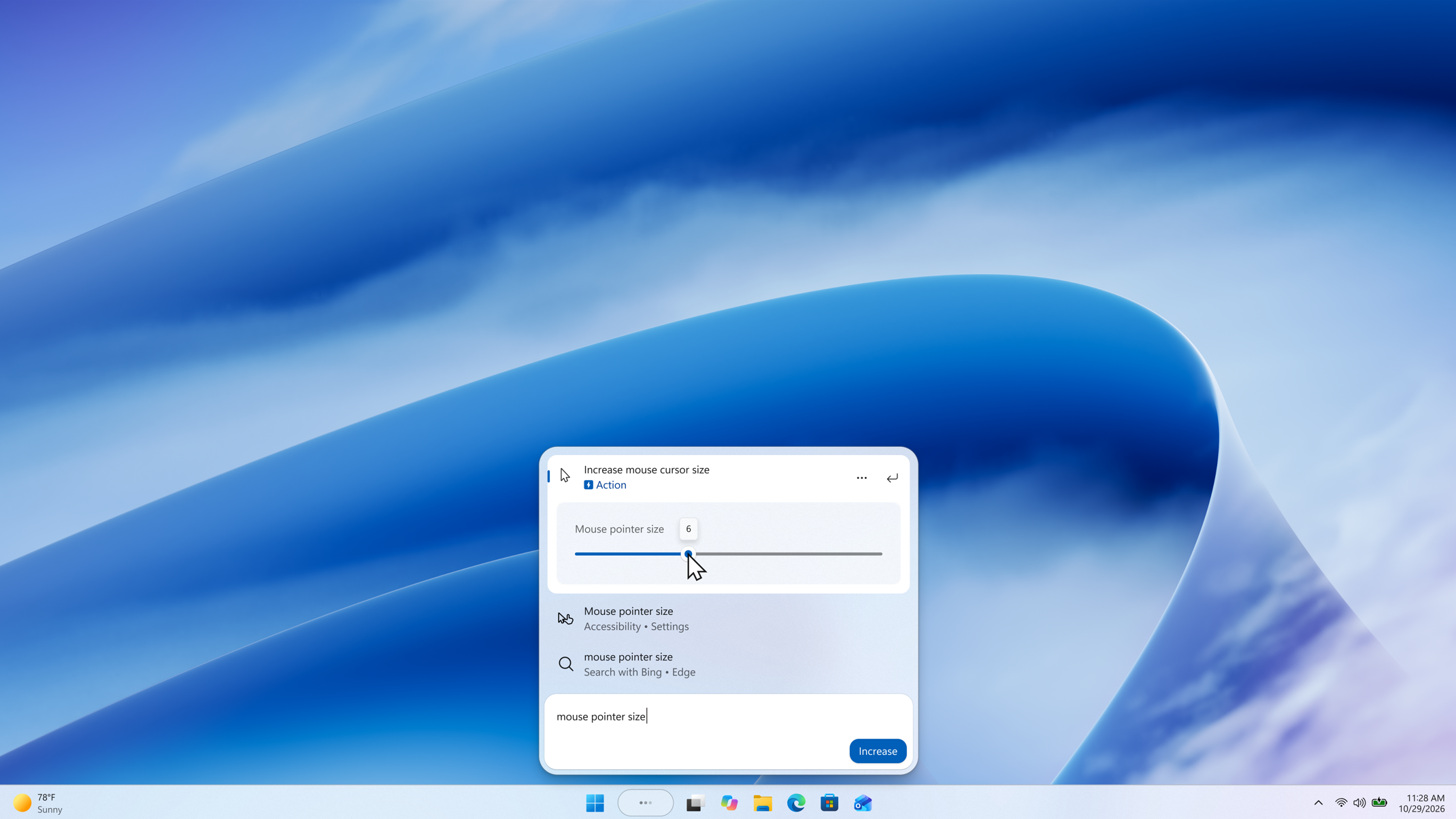
With a supported phone connected through Phone Link, you can now call or text a friend and access phone actions such as Do Not Disturb. Android support is available now with iPhone support coming early next year.
New Search Richer Results
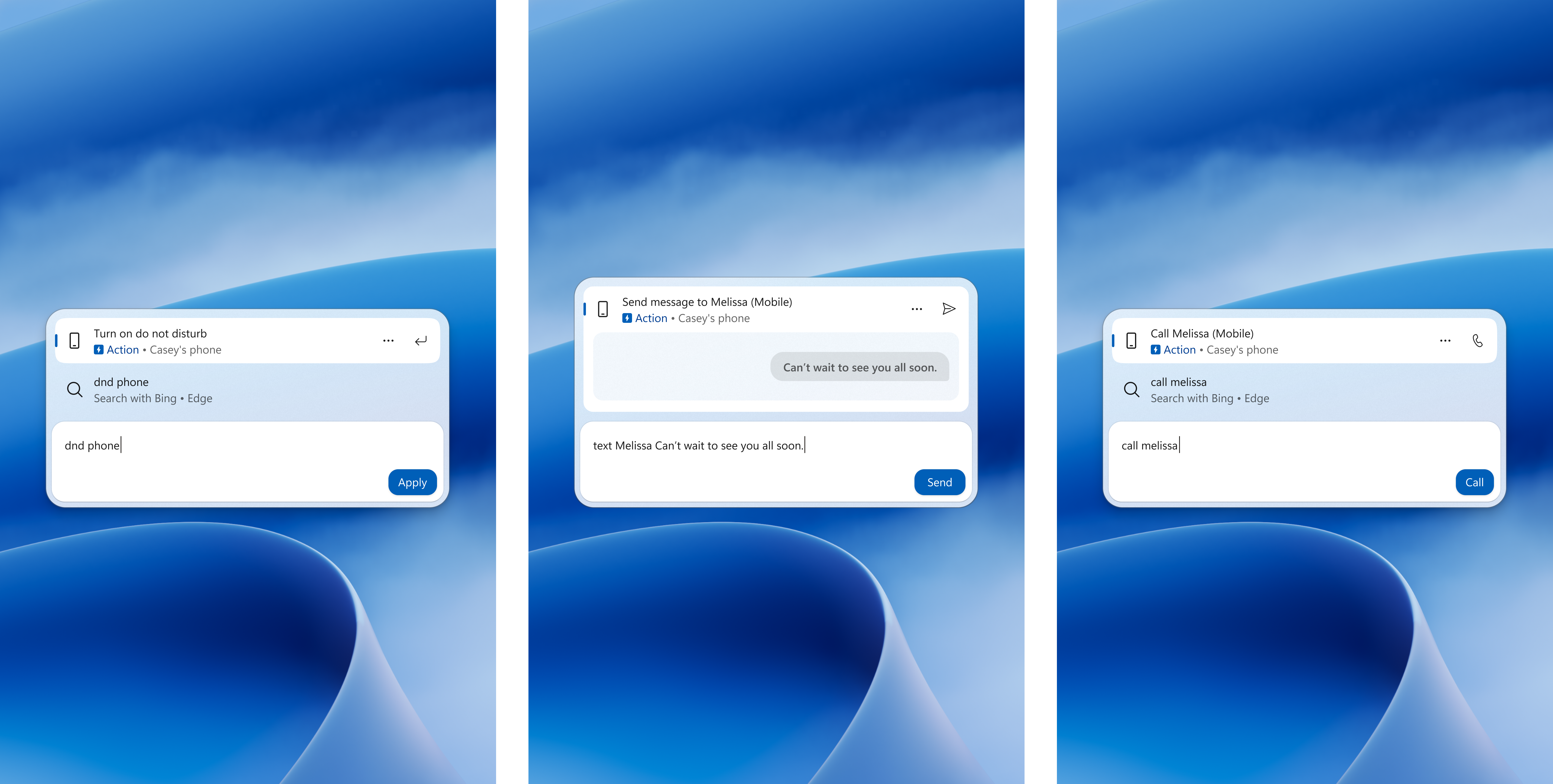
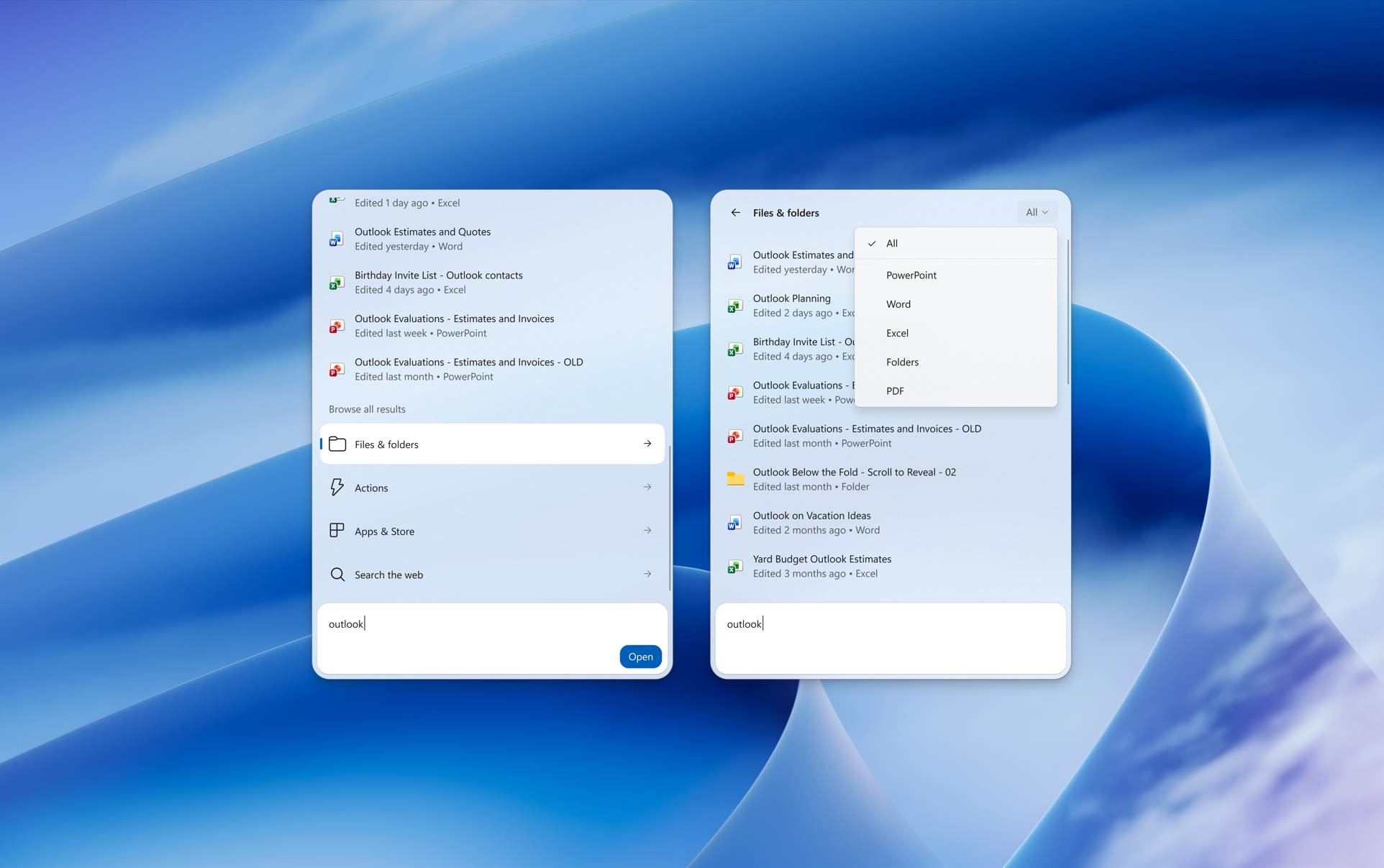
Preview files and see details such as a file’s last modified date, location, and author. Get web answers for weather, stocks, and facts, and discover apps and games from the Microsoft Store. Like web results, app results from the Store can be toggled on or off in Settings > Privacy & security > Search.
New Search Result Filters
Scroll to see more results and filter by Files & Folders, Settings, Actions, and more.
New Search Feedback Controls
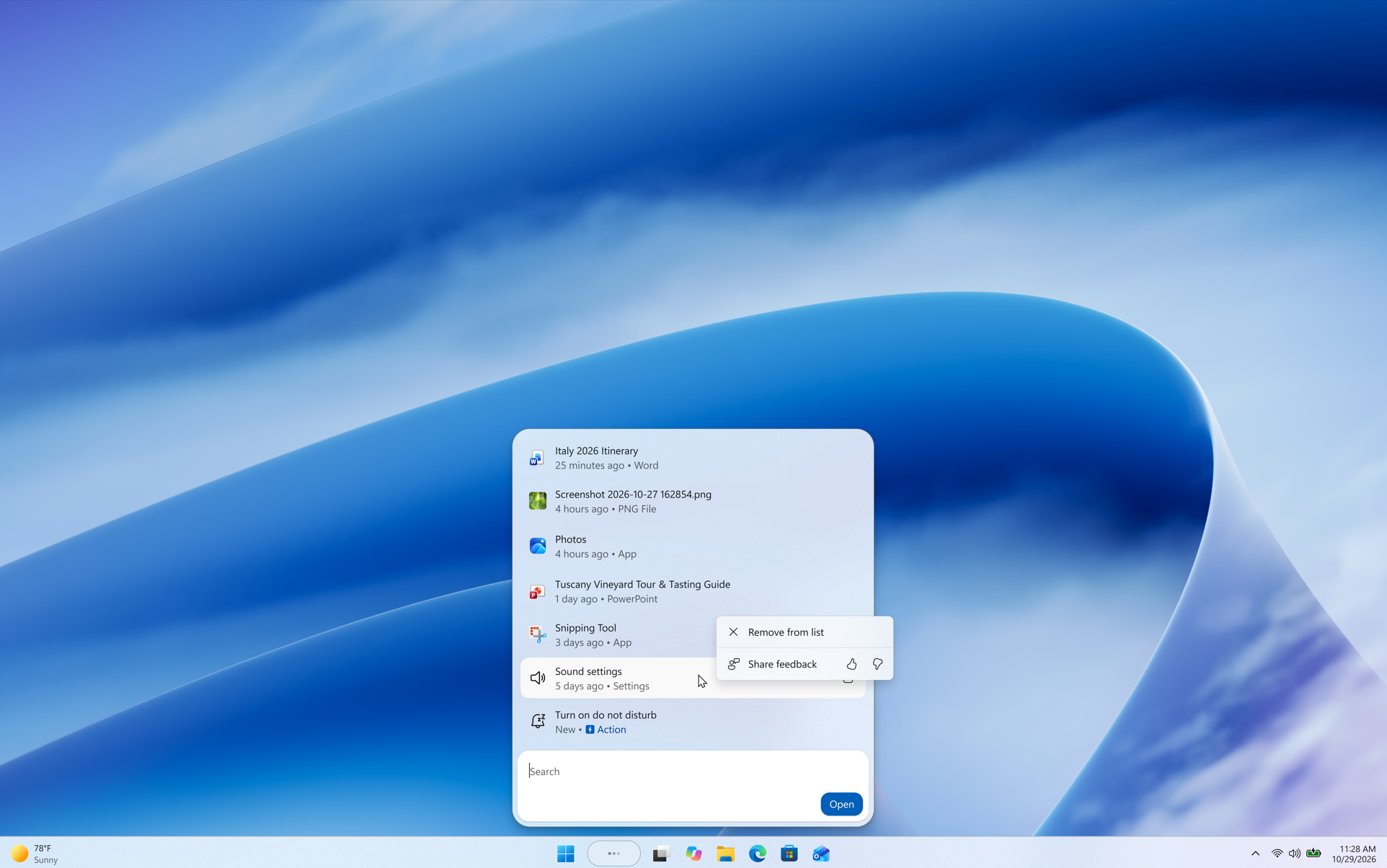
Right-click a result or suggestion and choose thumbs up or thumbs down to tell Microsoft whether it was helpful. You can also remove items from the initial Search view before you type. They’ve also made small polish improvements to the look and feel of Windows Search based on what you’ve shared.
New Search UI on All Taskbar Positions
As noted in Microsoft’s blog post, the new Windows Search opens at the bottom center of the screen. Work is underway to have it adapt to different taskbar positions and when using search from the Start menu.
New Quick Settings in Gaming Task View in XBOX Mode
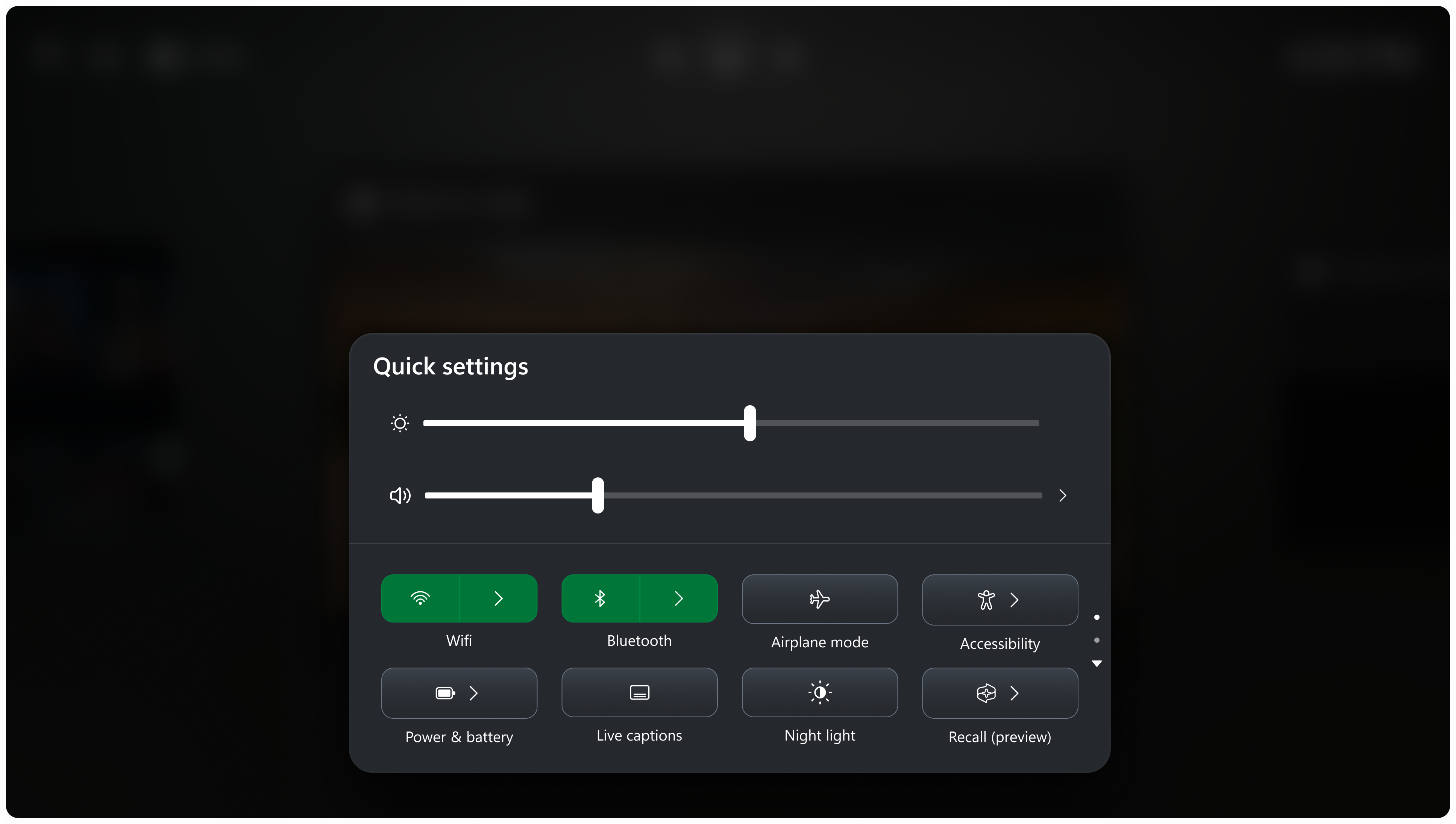
Microsoft is bringing Quick settings to the Gaming Task View navigation bar in XBOX mode, giving you access to the full set of Quick settings available on the Windows taskbar without having to leave XBOX mode.
New Settings Microsoft 265 Features
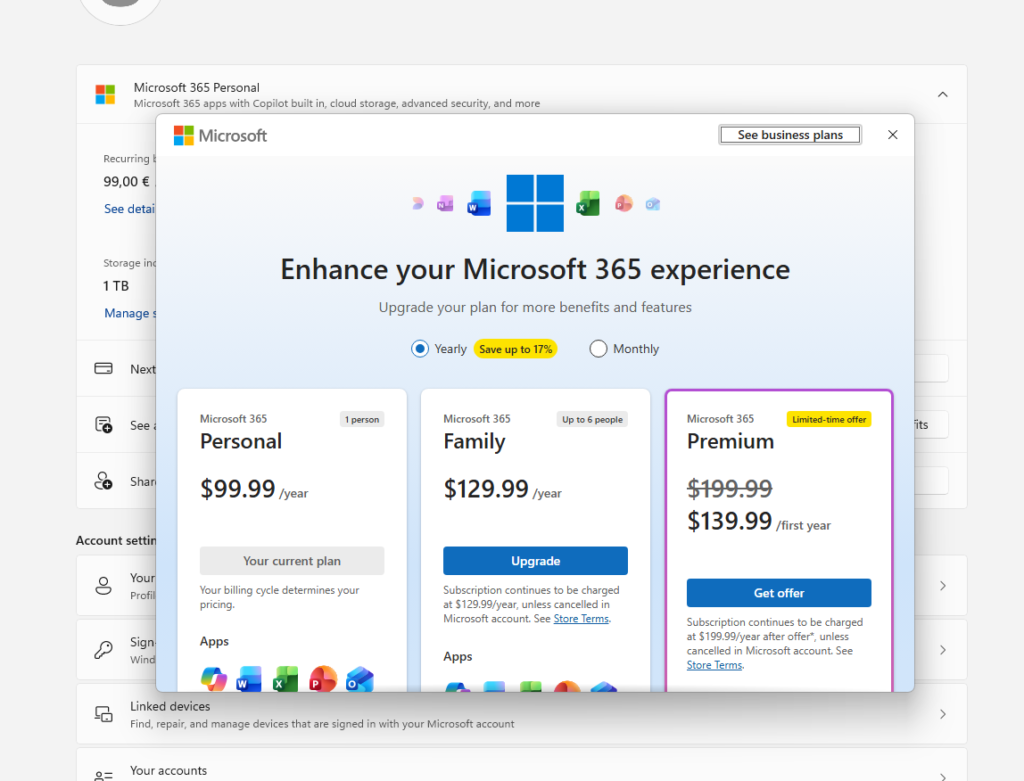
Microsoft is adding Features such as See your family’s shared Microsoft 365 cloud storage in Windows Settings and Upgrade your Microsoft 365 subscription directly in Settings.
Windows Design Changes
Microsoft is also temporarily rolling back the solid (donut) spinners across some of the key Windows scenarios including Boot, Logon, Restart, Shutdown, and Update as we work on a bug. We expect to resume rolling it out soon.
Quick Settings Phone Controls Fixed
The Quick Settings Phone Controls flickering has also been fixed in this Build, including the previews from the Settings App.
Known Issue in this Build
Microsoft is investigating reports from Insiders that the CPU speed showing in Task Manager no longer updates after the latest flights.
For more information about this Build, you can check this article from the Microsoft Blog.
For a more in-depth presentation of the New Build, you can watch the video below from the youtube channel.
 11
11
 20
20

