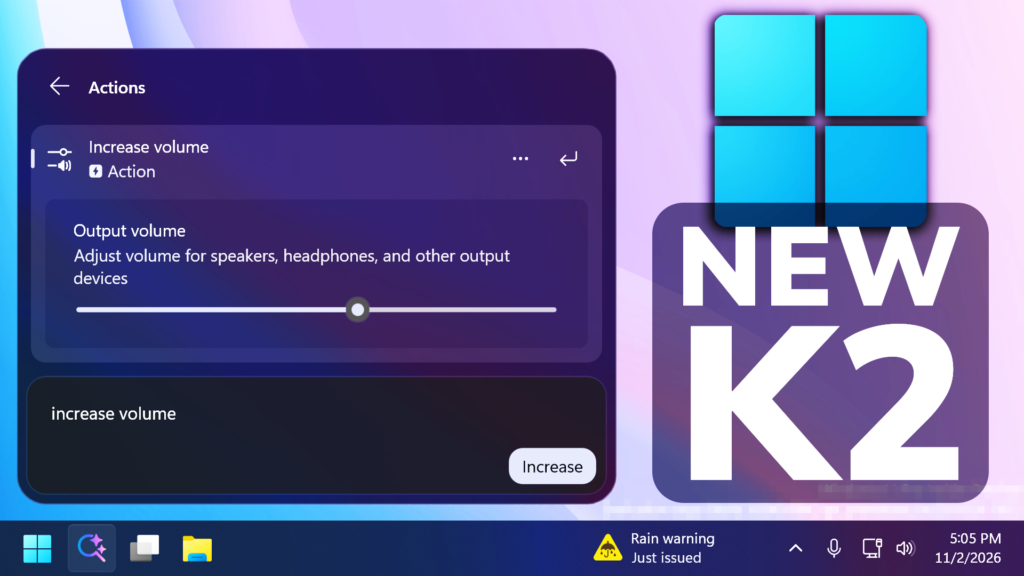
In this article, we will talk about All the New Windows K2 Features that we can test in November 2026, this including the New Search UI, File Explorer, Settings, Modern Dialogs and more.
Windows K2, for those of you who don’t know, if Microsoft Codename for the internal plan that wants to fix Windows 11 and to address the main painpoints that users have reported for years now.
New Windows Search UI
- New Windows Search experience with inline actions: Microsoft is beginning to roll out a new Windows Search experience built on WinUI 3 that is faster, more efficient, and features a streamlined design that makes results easier to scan. We’re also introducing inline actions, allowing you to quickly complete tasks directly. Turn on dark mode or Bluetooth, adjust your screen brightness, mute your device, or arrange windows from Windows Search.
- They are improving how Windows Search understands what you’re looking for, including better matching for typos and synonyms. We’ll continue fine-tuning these improvements over the coming weeks. For more information detailing the new changes, check out the Windows Insider Blog.
- English is the only supported language for this initial release.
- After upgrading to this build, restart your device before the New Windows Search Experience feature flag is visible.
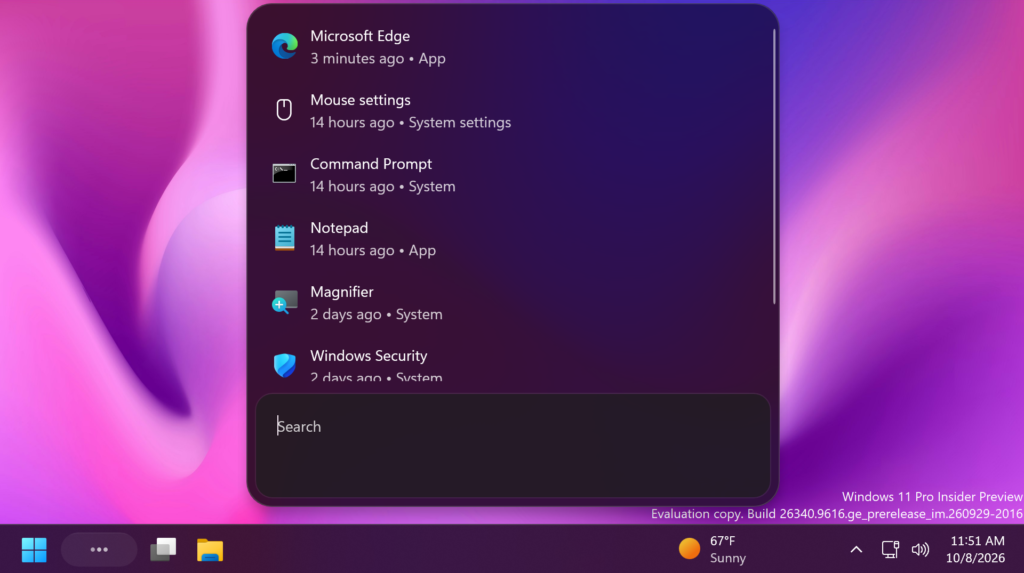
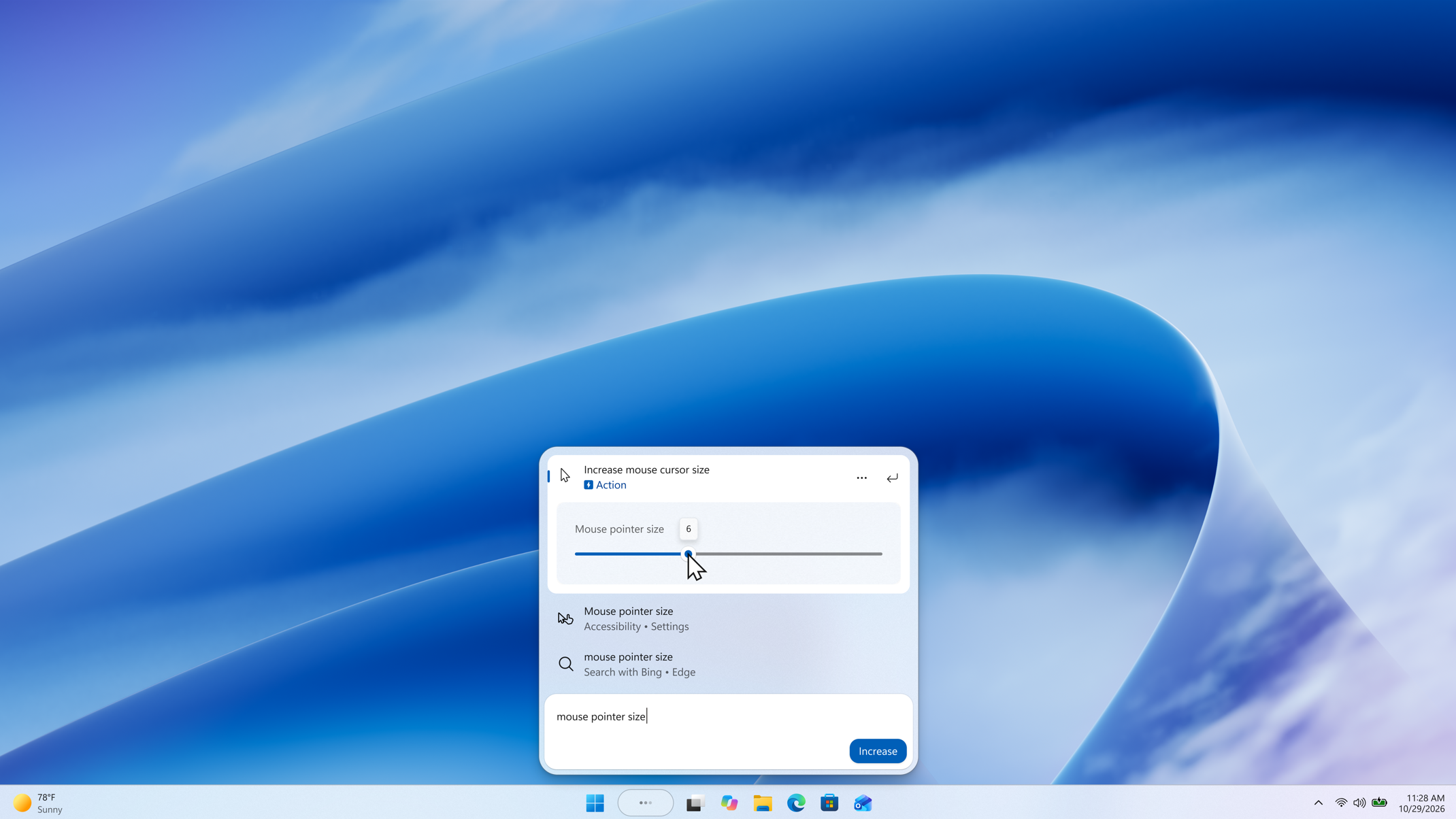
New Search Inline Actions
Adjust your volume, screen brightness, or cursor size with inline sliders. Actions are more clearly labeled, and suggested actions help you discover more things you can do.
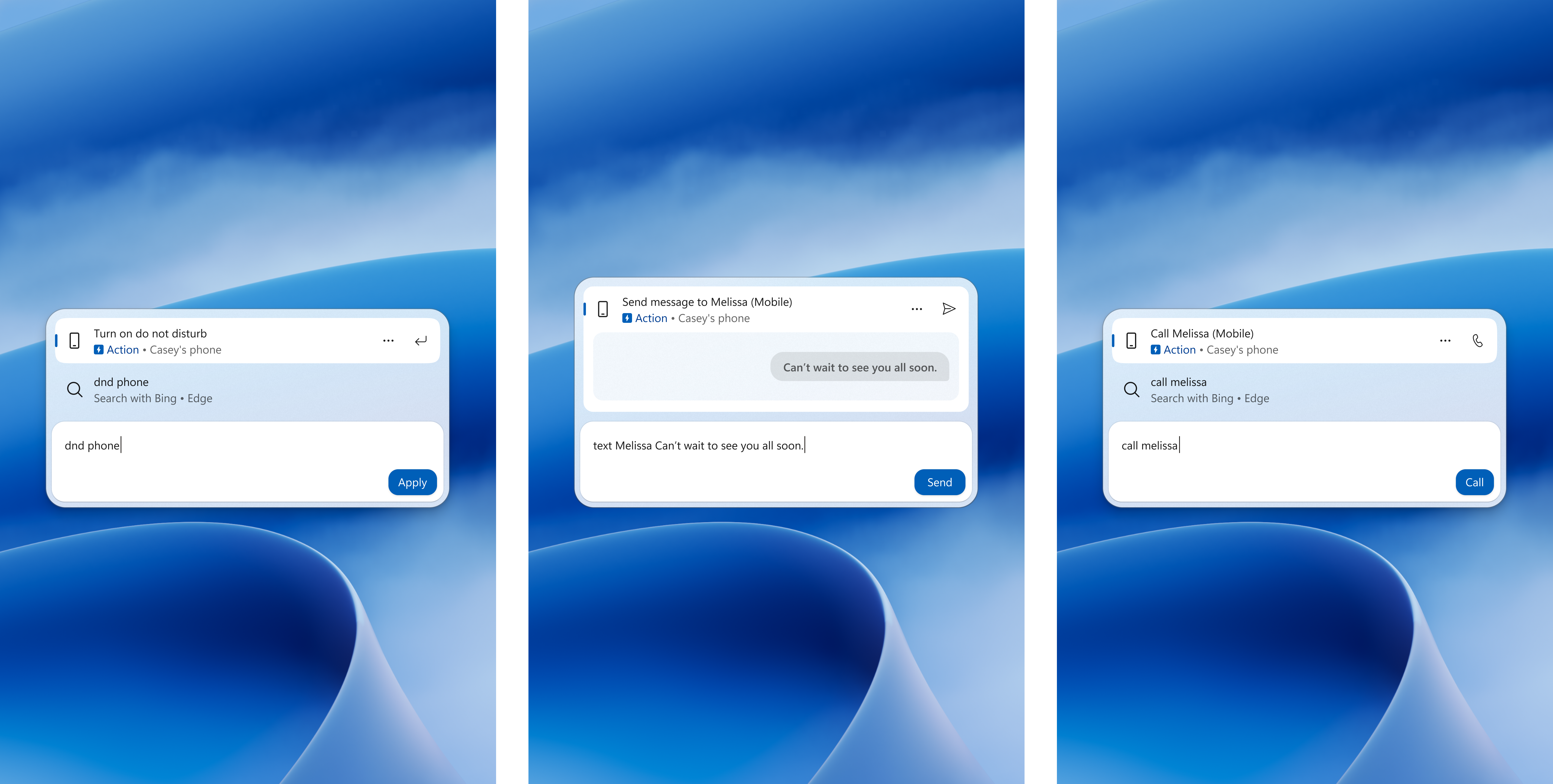
New Search Phone Actions
With a supported phone connected through Phone Link, you can now call or text a friend and access phone actions such as Do Not Disturb. Android support is available now with iPhone support coming early next year.
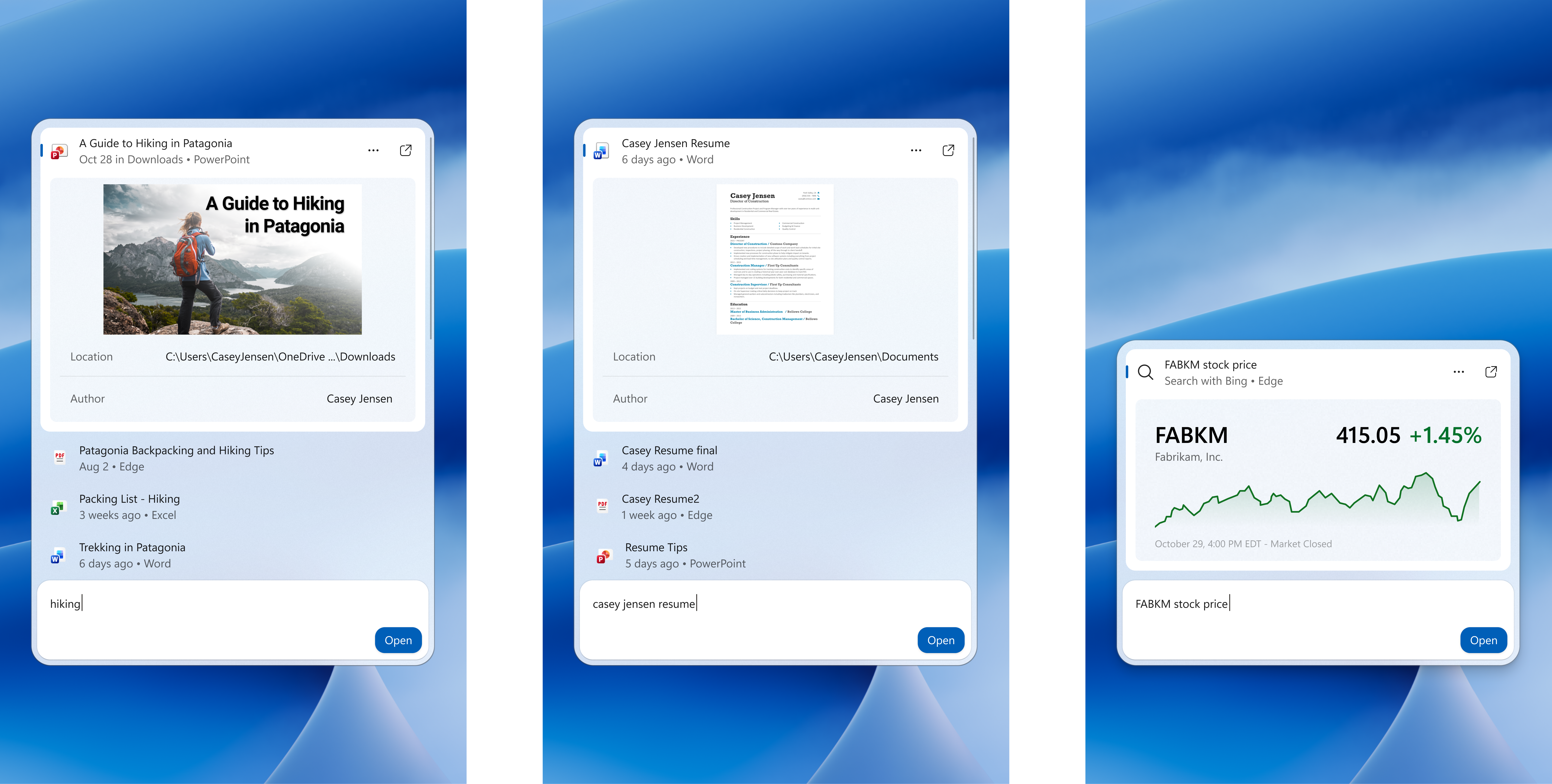
New Search Richer Results
Preview files and see details such as a file’s last modified date, location, and author. Get web answers for weather, stocks, and facts, and discover apps and games from the Microsoft Store. Like web results, app results from the Store can be toggled on or off in Settings > Privacy & security > Search.
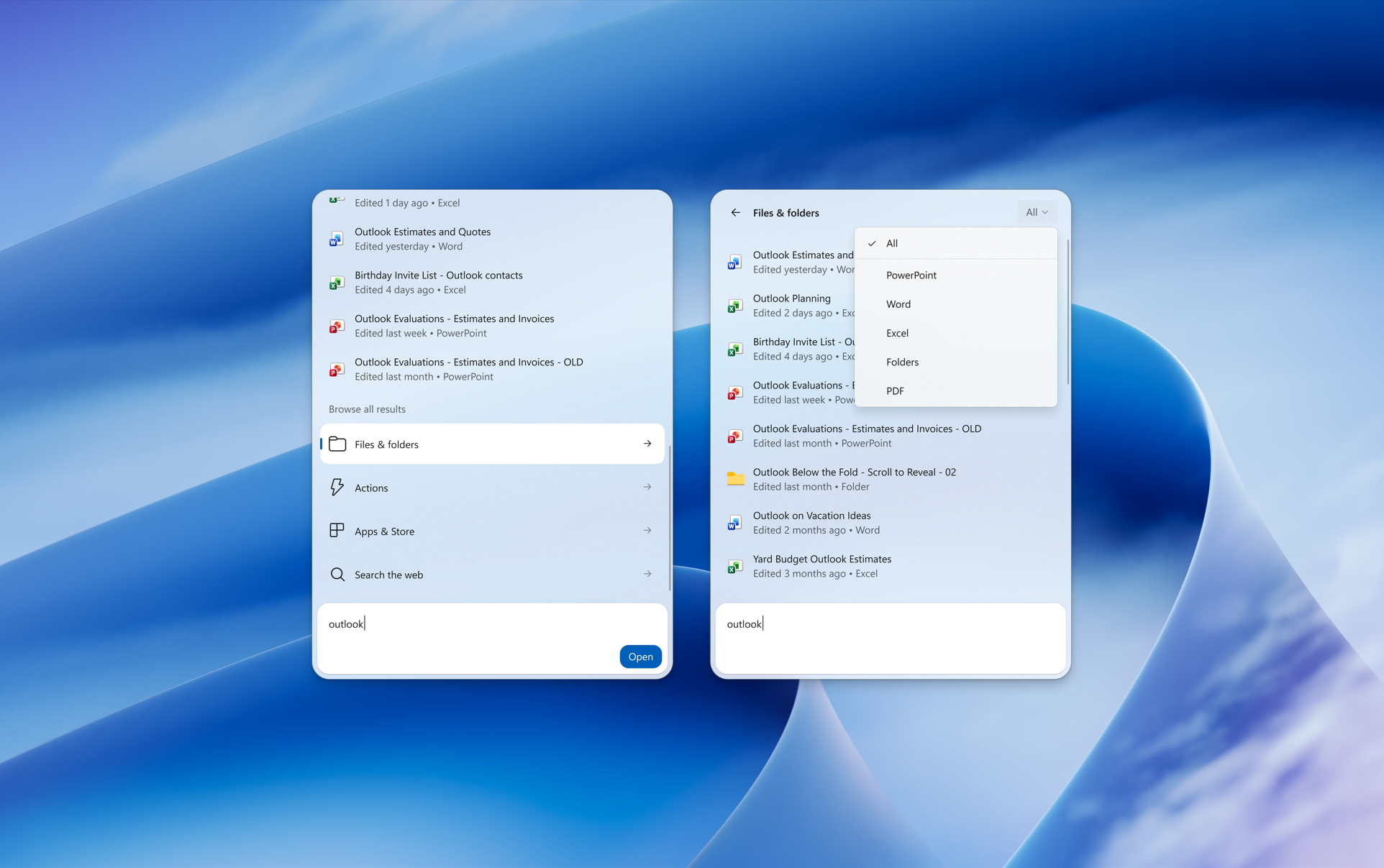
New Search Result Filters
Scroll to see more results and filter by Files & Folders, Settings, Actions, and more.
New Search Feedback Controls
Right-click a result or suggestion and choose thumbs up or thumbs down to tell Microsoft whether it was helpful. You can also remove items from the initial Search view before you type. They’ve also made small polish improvements to the look and feel of Windows Search based on what you’ve shared.
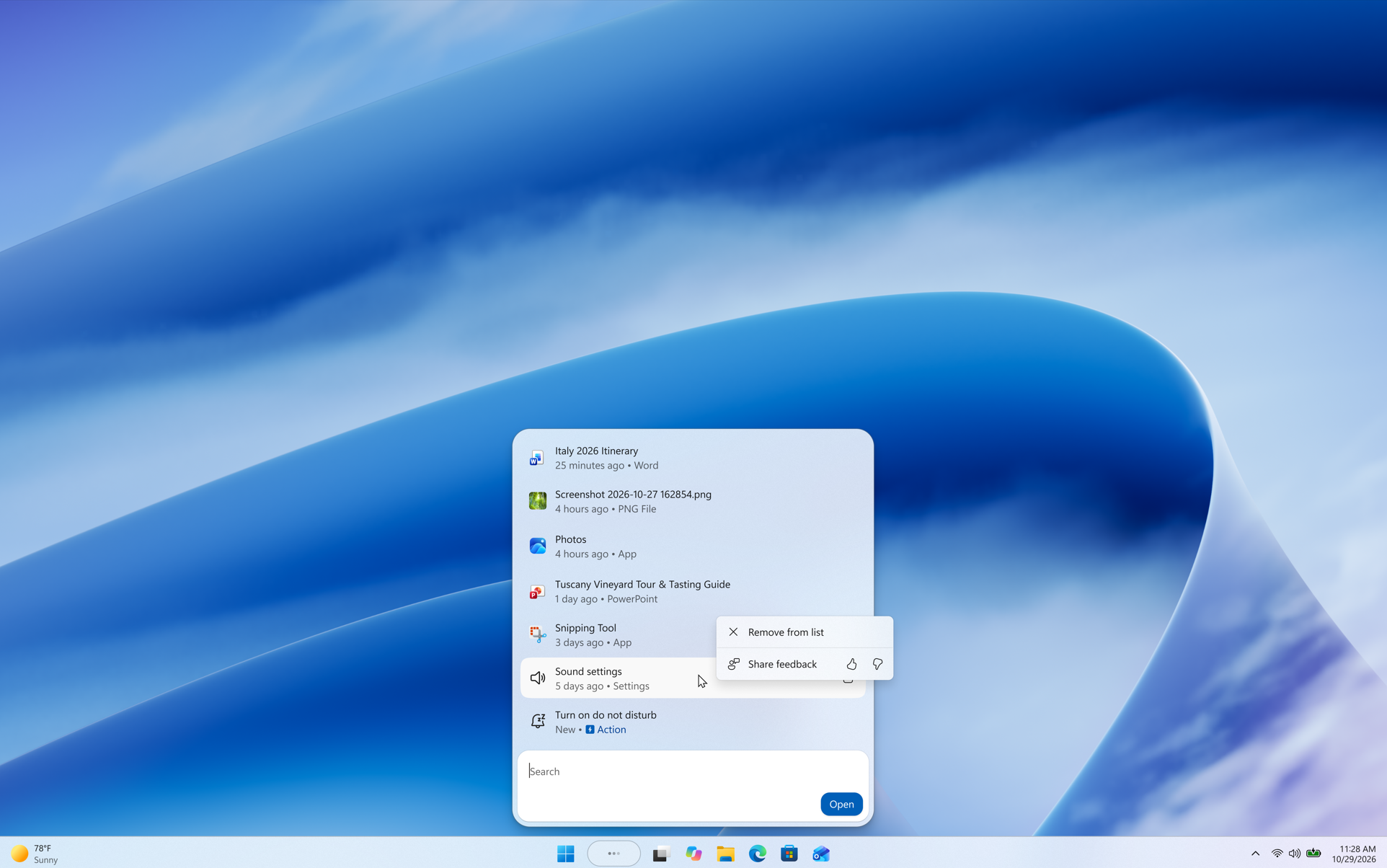
New Search UI on All Taskbar Positions
As noted in Microsoft’s blog post, the new Windows Search opens at the bottom center of the screen. Work is underway to have it adapt to different taskbar positions and when using search from the Start menu.
New Gaming Task View in XBOX Mode
Microsoft is introducing a refreshed Gaming Task View experience in XBOX mode, featuring a new navigation bar that provides quick access to Exit to Desktop and Power Options. This update makes key system actions easier to access while gaming.
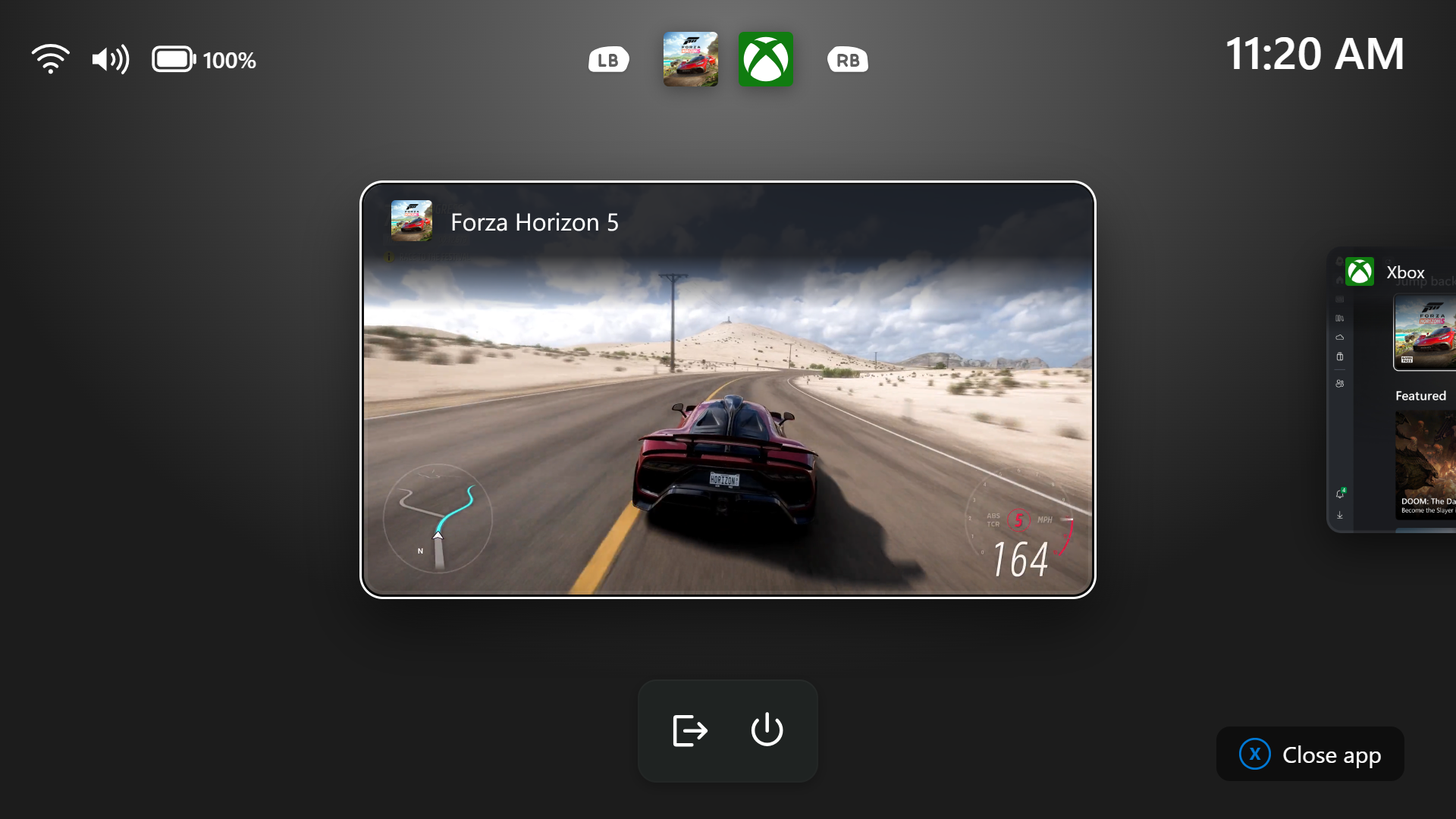
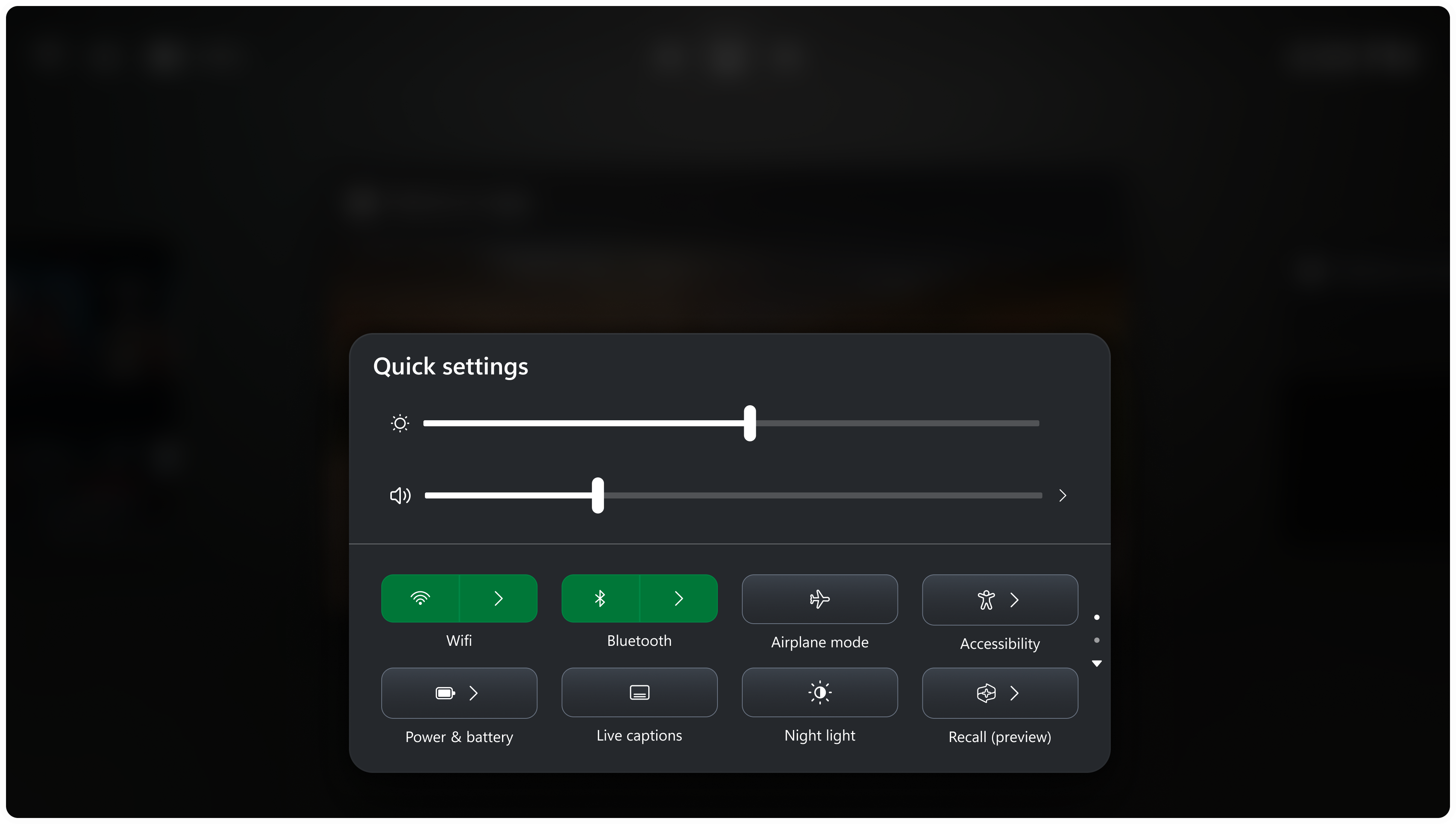
New Quick Settings in Gaming Task View in XBOX Mode
Microsoft is bringing Quick settings to the Gaming Task View navigation bar in XBOX mode, giving you access to the full set of Quick settings available on the Windows taskbar without having to leave XBOX mode.
New File Explorer Tilde Support
Address Bar now supports ‘~’ , making it quicker to navigate directly to your user profile folder and subfolders (e.g., “~\AppData”).
New File Explorer Context Menu Font Preview and Installation Options
Added support for font preview and installation in the File Explorer and desktop context menus.
Improved File Explorer Performance for Folder Views
Improved responsiveness of folder views so they update and sort correctly when files and folders are added or renamed.
New File Explorer Progress Indication
Improved progress indication when navigating to locations that take longer to load, such as network drives, making it easier to see that loading is underway.
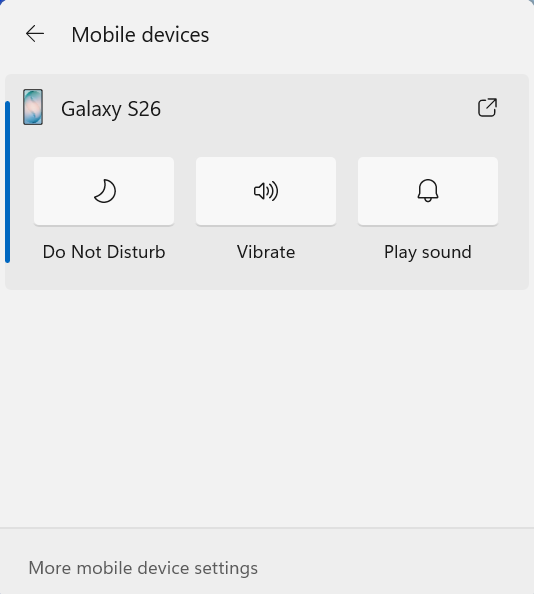
New Quick Settings Phone Control
- Microsoft is beginning to roll out a new Mobile devices experience in Quick Settings, making it easier to take quick phone actions (such as ring your phone) without breaking your flow on Windows.
- With your supported Android phone connected, everyday actions are now just a click away. You can turn Do Not Disturb on before a meeting, change your phone’s ringer mode, and play a sound to find your phone nearby.
- It’s a simpler, faster way to manage your phone from the place you already use for quick Windows actions, helping your PC and phone work better together throughout the day.
- Capabilities can vary by phone platform and device configuration. The initial experience provides the most complete set of controls for Android phones, while iPhone support starts with a more limited status-focused experience.
New Quick Settings Internet Speed Option
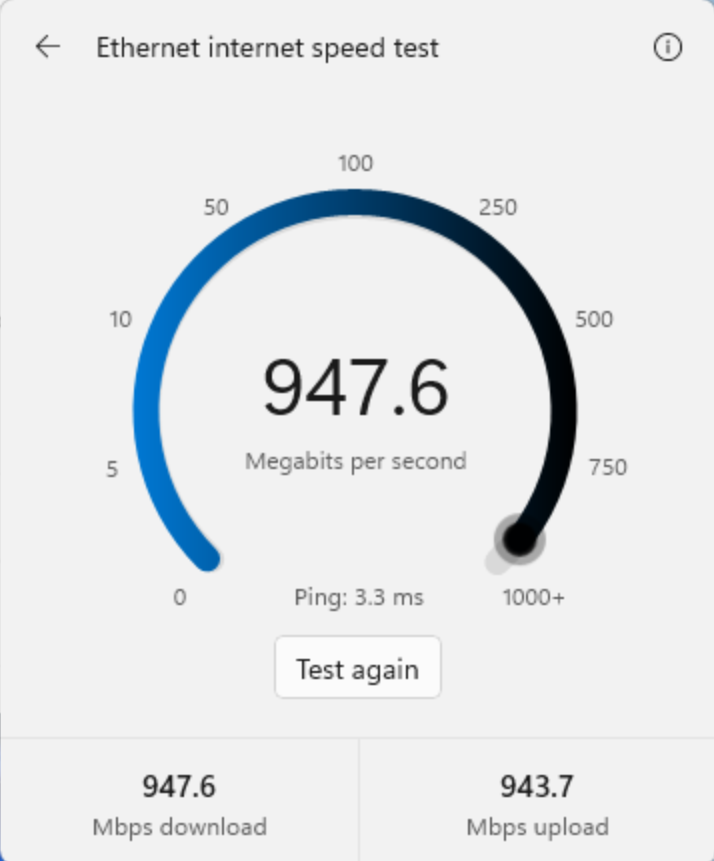
- Microsoft is also making it faster and easier to check the performance of your internet connection in Windows. Windows Insiders can now run an internet speed test and see the results directly in Quick Settings, without being redirected to a browser.
- Start a test from the new Speed test Quick Setting, from the Wi-Fi or Cellular flyout, or by right-clicking the network icon in the system tray and selecting Test internet speed. While the test runs, Quick Settings shows its progress and results, including download speed, upload speed, and ping.
- Because the test runs against your active internet connection, you can quickly understand how your current connection is performing without leaving your workflow. This updated experience builds on the internet speed test we previously introduced for Windows Insiders, bringing the test and its results directly into Windows.
Better Settings Home Performance
Microsoft is making performance improvements to the Settings home page, which should result in reduced loading times in certain scenarios.
New Cloud Rebuild in Settings
They are also adding a new entry point for Cloud Rebuild under Settings > System > Recovery, making it easier to access the feature from Settings.
New Windows Hello Automatic Screen Brightness
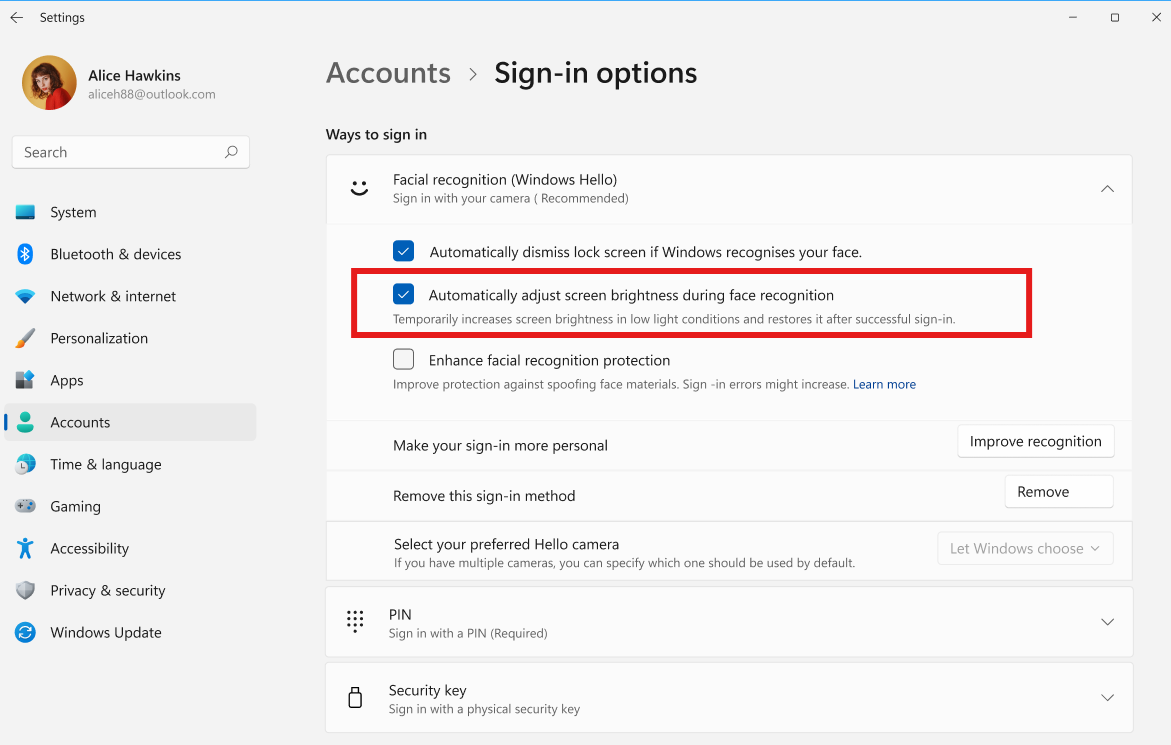
- Windows Hello facial recognition can temporarily brighten your screen to help you sign in when you’re in a dark or dimly lit room.
- To turn on this feature, go to Settings > Accounts > Sign-in options > Facial recognition (Windows Hello) and turn on Automatically adjust screen brightness during face recognition.
New Feature Flags Option
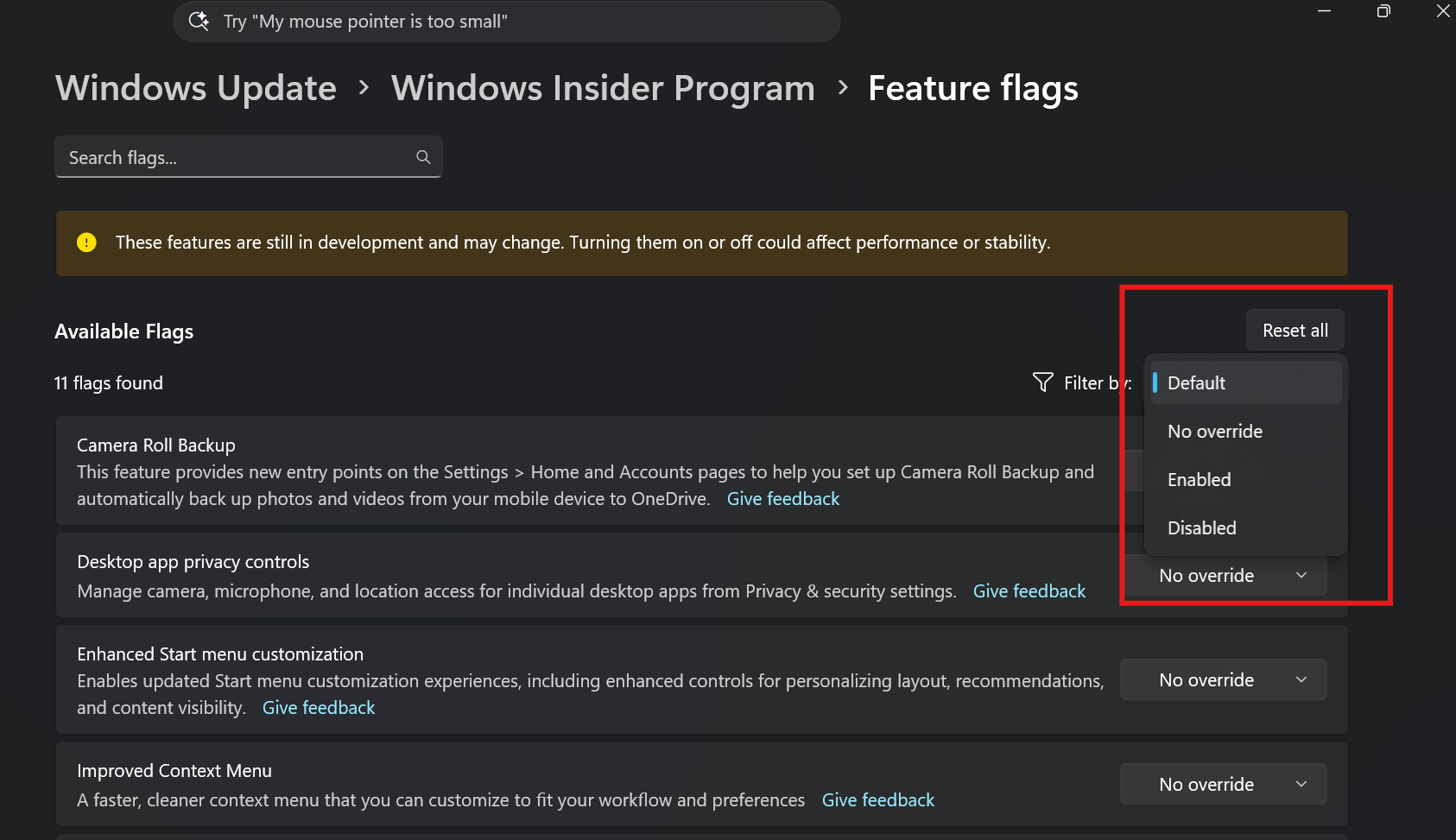
Microsoft has added the ability to filter Feature flags by enablement state.
New Magnifier Keyboard Shortcut Toggle
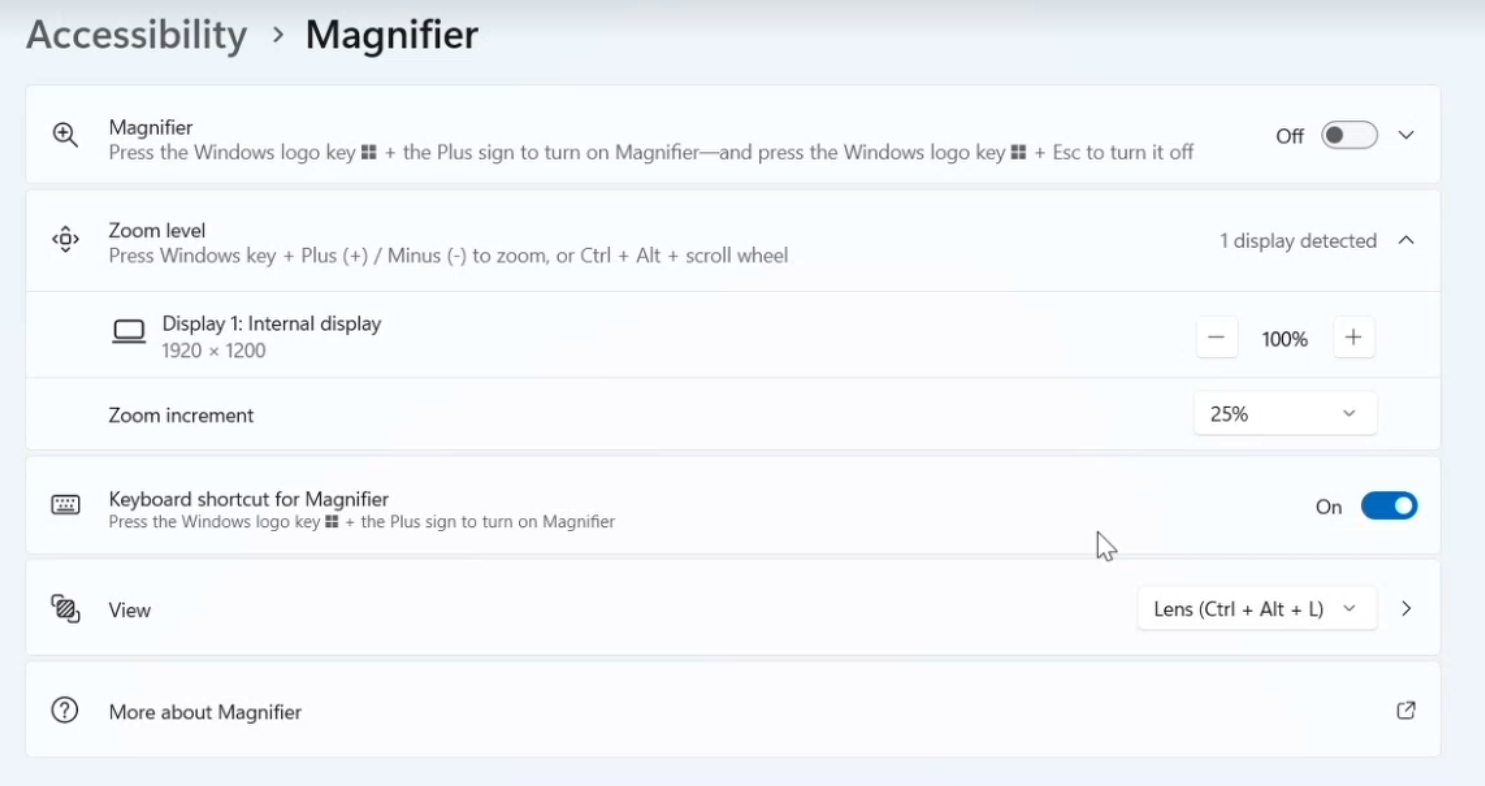
- Microsoft has also added a Keyboard shortcut for Magnifier toggle in Settings > Accessibility > Magnifier. It lets you choose whether pressing Windows logo key + Plus (+) launches Magnifier.
- The shortcut stays on by default, so nothing changes unless you want it to. If you find that Magnifier starts by accident, or the shortcut conflicts with another app or keyboard layout, turn the toggle off. You can still start Magnifier from Settings, and you can turn the shortcut back on at any time.
New Microsoft 365 Subscription Page and Features
Microsoft is introducing a new inline experience that makes it easier for Microsoft 365 subscribers to manage their subscriptions in Windows. Subscribers who have recurring billing turned off can now turn it back on directly in Windows Settings, without leaving for a separate webpage. To get started, select Turn on recurring billing or Set up recurring billing from the Windows Settings Home page, the Accounts page, or the Start menu.
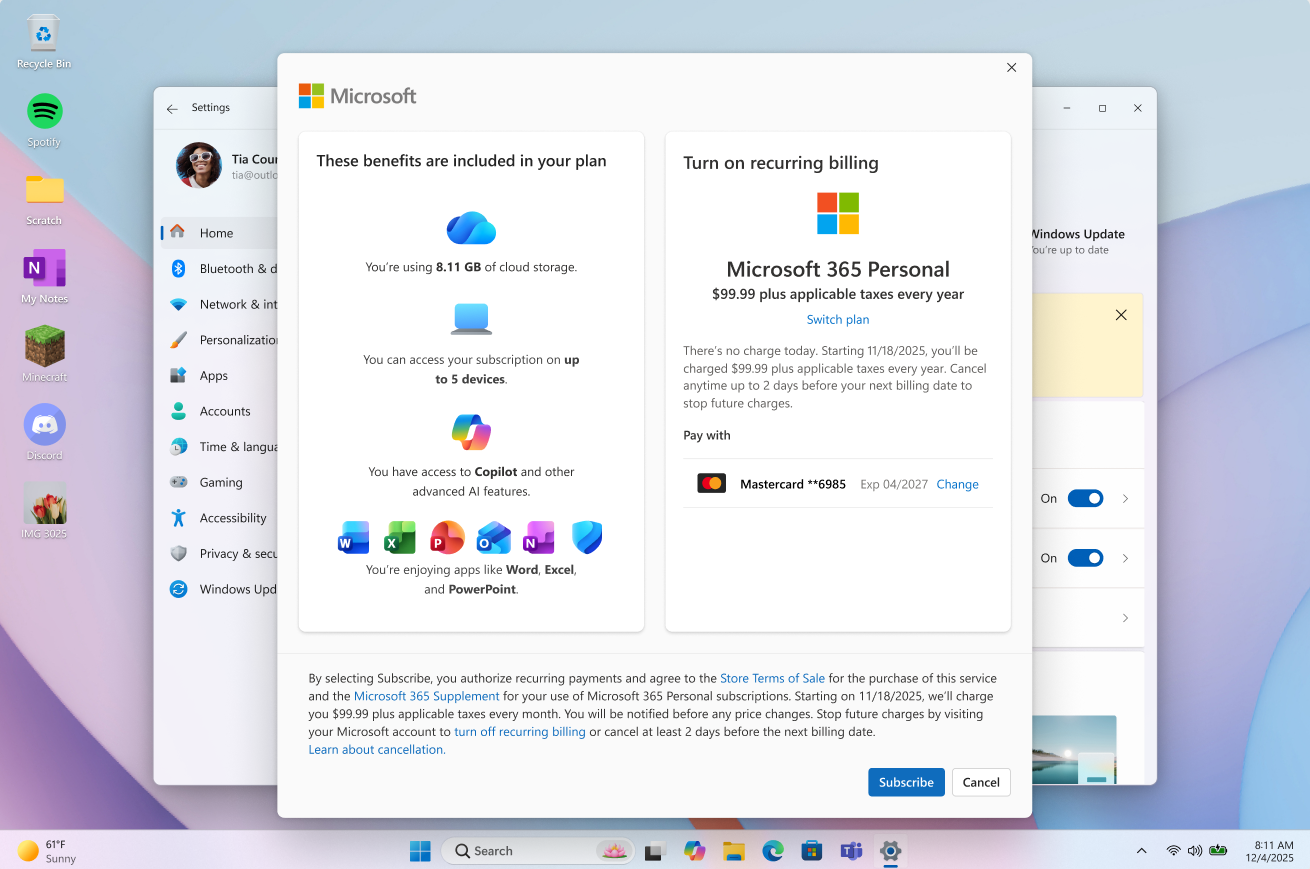
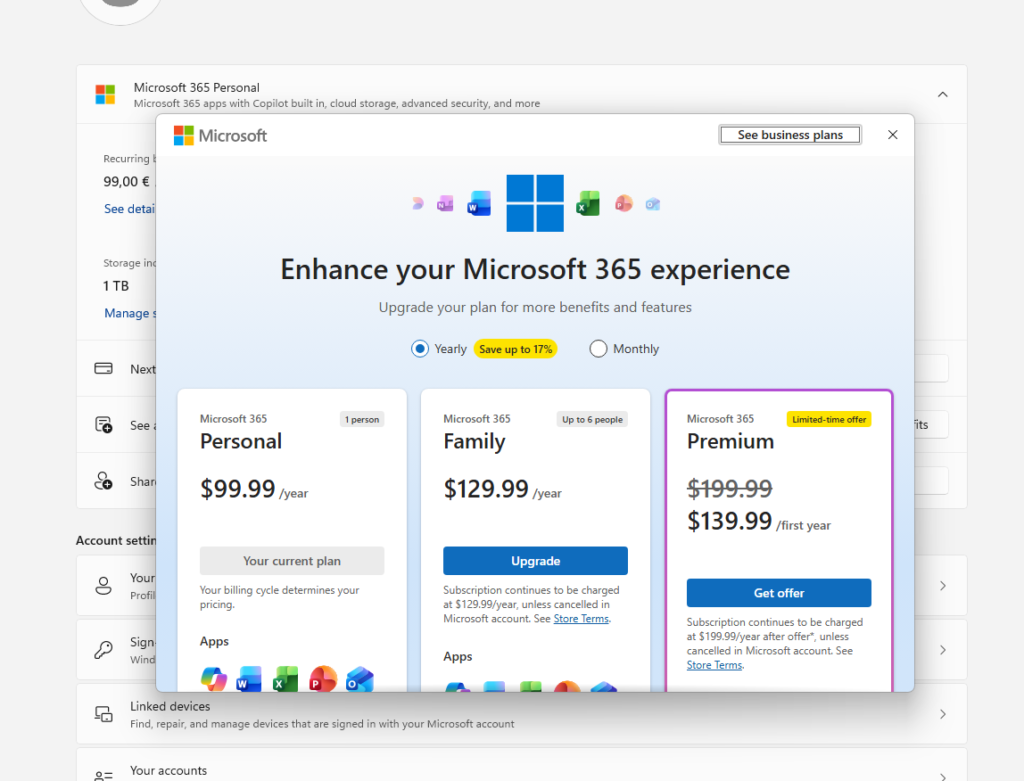
Microsoft is adding Features such as See your family’s shared Microsoft 365 cloud storage in Windows Settings and Upgrade your Microsoft 365 subscription directly in Settings.
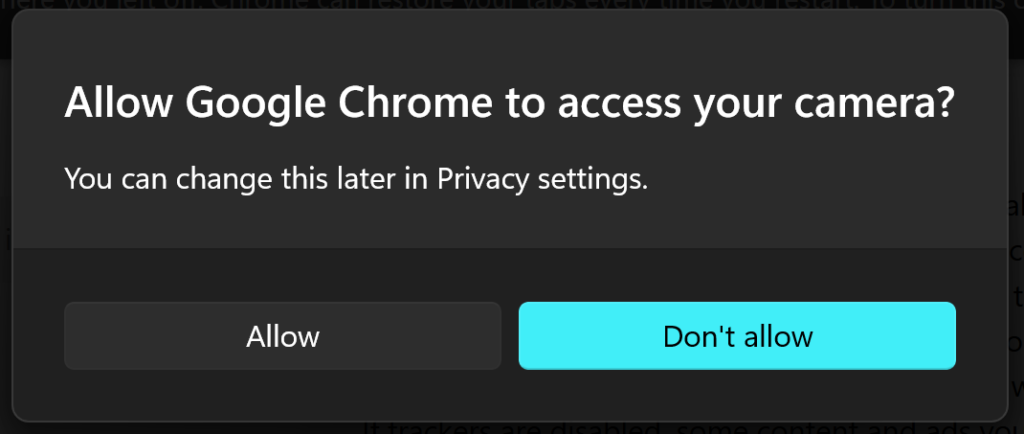
New Modern Dialogs for Low Battery and Permissions
The dialog for certain system messages, like low battery and permissions, should use the expected modern design again.
New Modern Run Box Improvements
For Insiders with the new Run dialog enabled:
- Improved the window position when using an Arabic or Hebrew display language.
- Improved performance of the Run dialog when navigating to very large folders.
- Fixed an issue where your text might unexpectedly disappear if you started typing too quickly after opening Run.
- Made a few other small visual fixes and refinements.
New Widgets Picker
The Widgets picker now has a standard Windows dialog frame and supports light and dark title bars. It also removes the blank space previously left for an icon.
New Battery Widget
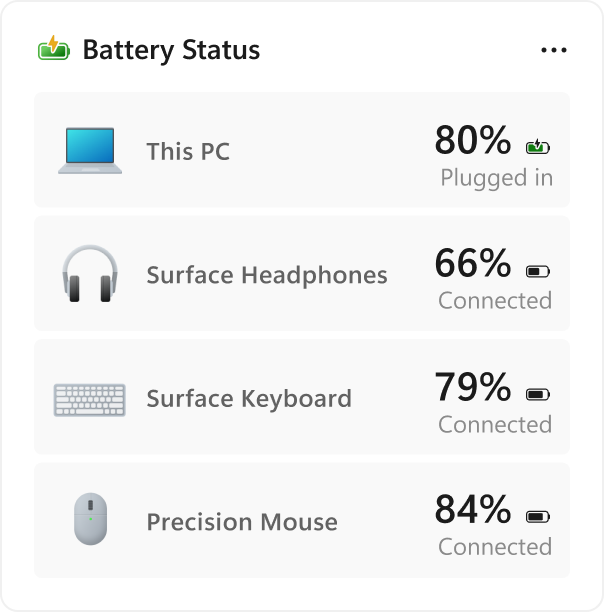
Microsoft is introducing the Battery Status widget for Insiders on newer builds. This widget provides a unified view of battery levels for your PC and peripheral devices, helping you quickly assess power status without hunting through multiple UI locations. Add it by going to Widgets board > Add widgets > Battery Status.
New Task Manager Process Grouping
Task Manager is expanding process grouping to allow apps to combine otherwise separate background processes into a single unified category rather than relying solely on traditional parent-child trees. This makes an app’s resource usage easier to understand. Microsoft Defender is the first app to use this capability.
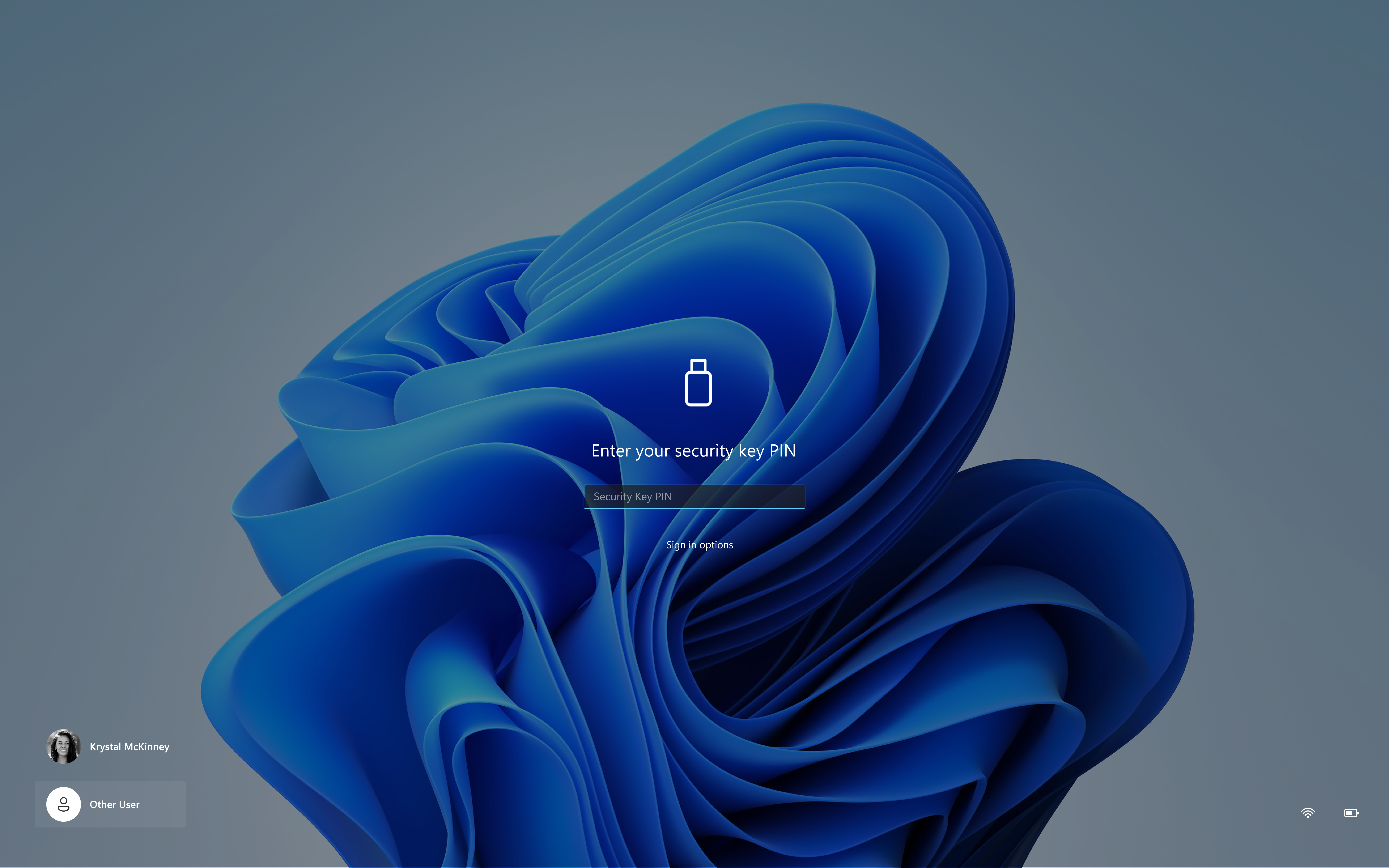
New Sign-In Experience
Microsoft has updated the security key PIN entry experience, removing the “other user” icon for a clearer sign-in experience.
New Unicode Updates
- Microsoft has updated Windows text shaping support for Unicode 17.0, helping Windows correctly display and shape newly encoded characters and scripts. Unicode 17.0 added 4,803 characters, including support for four newly encoded scripts: Beria Erfe, Sidetic, Tai Yo, and Tolong Siki.
- These updates help keep Windows text support current as the Unicode Standard evolves and improve support for languages and writing systems used by people around the world.
For a more in-depth presentation of the New Windows K2 Features, you can watch the video below from the youtube channel.
 11

 20