In this article, we will talk about the Best Windows 11 25H2 Settings to Change in 2026.
Windows 11 25H2 has been released for around 3 months and with it a lot of New Settings have been released that you can customize. In this article, we will talk about the Best Settings to Change in 2026.
New Default Debloat Method
In the Full Release of Windows 11 25H2, Microsoft is introducing a New Default Method that Users can use to Debloat their System by removing Default Microsoft Store Packages for Newly Created Users.
You will need to open the Group Policy Editor and Navigate to the following location:
Computer Configuration > Administrative Templates > Windows Components > App Package Deployment > Remove Default Microsoft Store packages from the system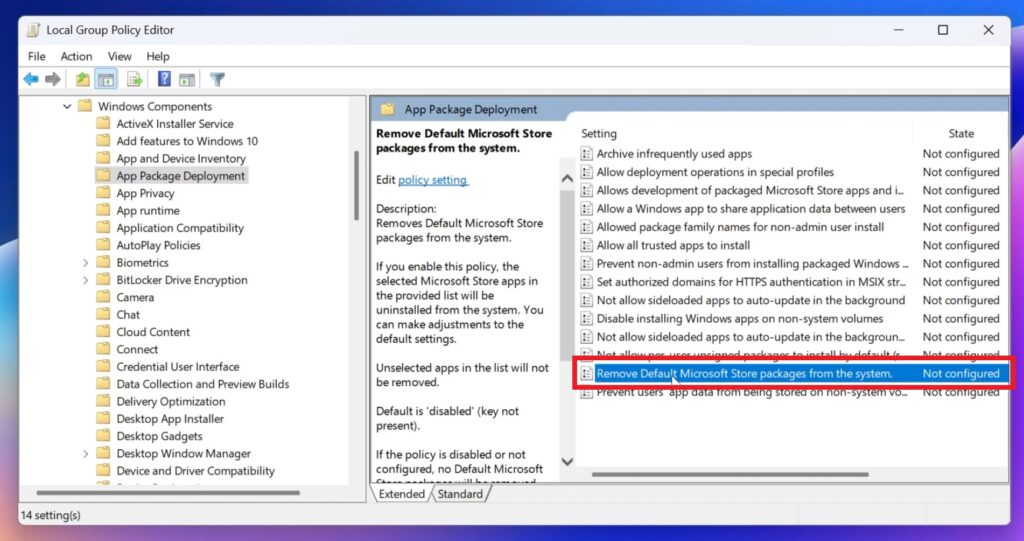
Double-click on the Policy, select Enabled and then select from the bottom, the packages that you want removed. After you’re finished, make sure to click on Apply and OK.
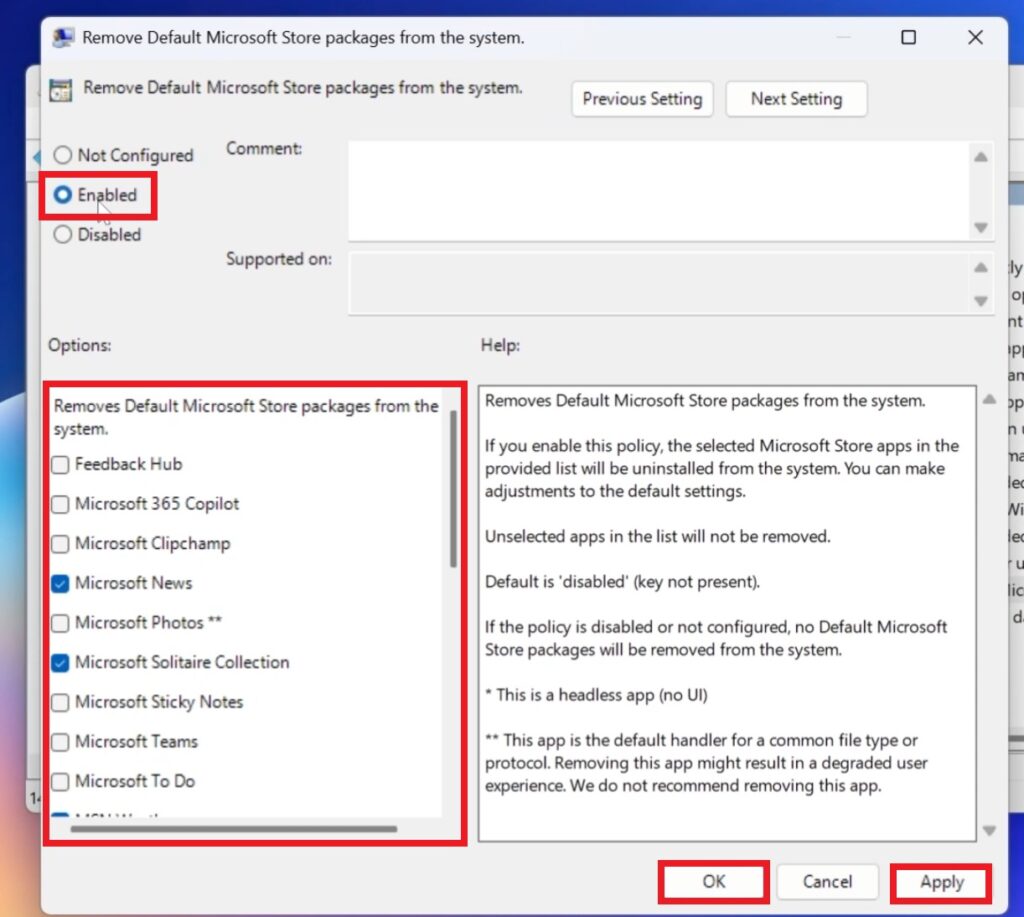
For the changes to take effect, you will need to now create a New User Account.
Go to Settings > Accounts > Other Users > Add account. Select I don’t have this person’s sign-in information, Add a user without a Microsoft Account, Input a Name and then click on Next.
Make sure to then log off and log into the New Account. You will need to wait a few minutes, before everything is setup.
After everything is done, you will notice that the New User doesn’t have those packages anymore in the system.
New Start Menu Settings to Disable Recommended and more
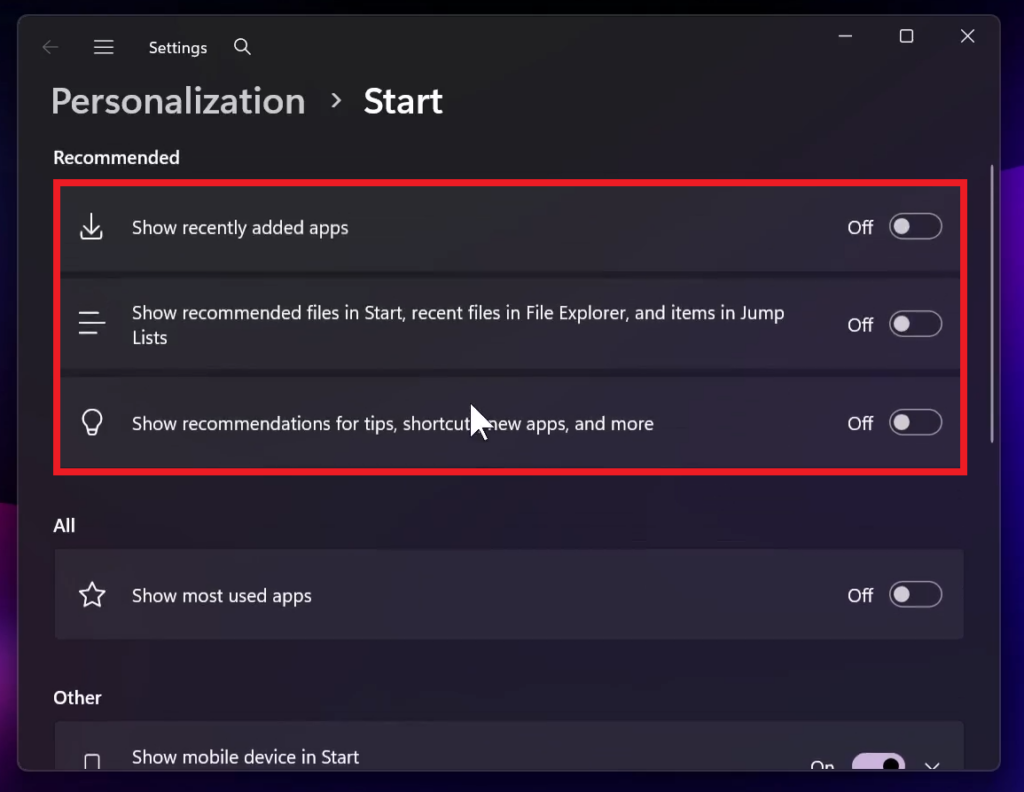
The New Start Menu from Windows 11 25H2 allows you to disable the Recommended Section and also Recent Files in the File Explorer.
For this to take effect, simply uncheck the first 3 options from the Start Menu.
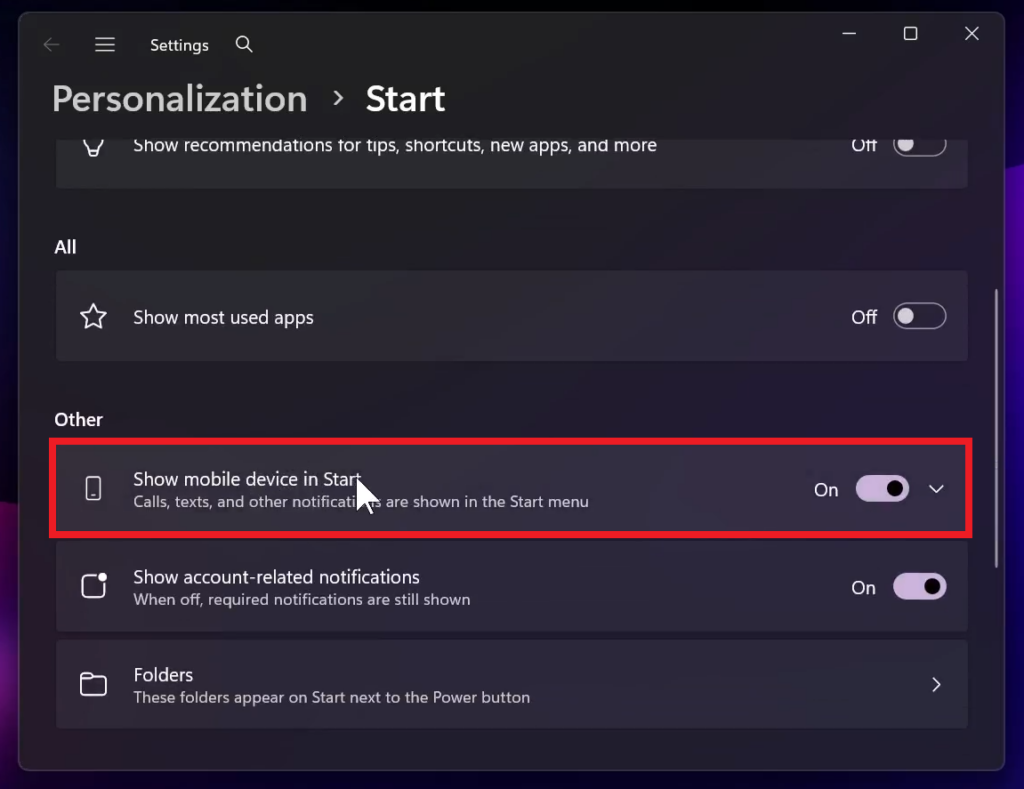
At the bottom, you also have the option to disable the Phone Sidebar permanently or temporarily by using the button from the Start Menu.
Change Desktop Flyouts Location
Microsoft is adding the option to move the hardware indicators for brightness, volume, airplane mode, and virtual desktops to different positions on your screen. We’ll support the current bottom position and new top left and top center positions on your screen.
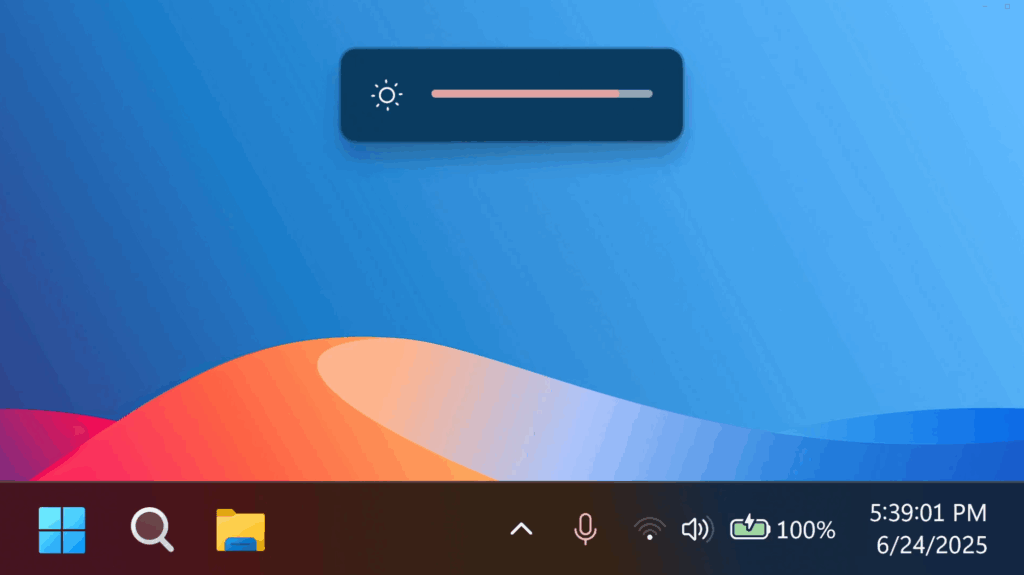
To change the position of your flyouts, go to Settings > System > Notifications and use the dropdown for Position of the onscreen pop-up.
New Bing Search History Setting
Microsoft is removing the “Manage or clear your Bing search history” entry from Settings > Privacy & security > Search under Search history. You can manage your Bing search history directly through the Privacy dashboard, accessible via the Privacy resources link under Related settings on that settings page.
New Resume Apps in the Taskbar Setting
First, start listening to one of your favorite songs or episodes in the Spotify app on your Android phone. On your PC (running the latest Insider Preview builds in the Dev or Beta Channels) a ‘Resume alert’ will appear on your taskbar. When you click on that alert, Spotify’s desktop app will open and the same track will now continue playing on your PC.
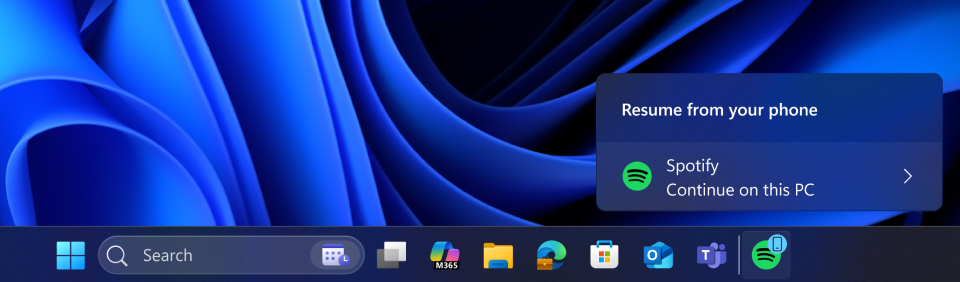
Here is how you can get set up to try this feature out:
- Turn on access to your phone.
- On your PC, go to Settings > Bluetooth & devices > Mobile devices.
- Switch “Allow this PC to access your mobile devices” to On.
- Click the “Manage devices” button and follow the steps to connect your Android phone.
- Set up the Link to Windows app on your phone.
- On your Android phone, open the Link to Windows app.
- Make sure you allow the app to run in the background (this keeps the Resume feature working reliably).
- Try the feature.
- Open Spotify on your phone and play a track or episode.
- You should see a Resume alert on your PC’s taskbar.
New Taskbar Battery Percentage Setting
Microsoft is also introducing the ability to show your battery percentage next to the battery icon in the system tray which can be enabled via Settings > Power & battery and toggling on the “Battery Percentage” setting.

New Setting to Disable the Drag Tray
If you want to disable the Drag Tray, simply open Settings > System > Nearby Share and then from here disable the Drag Tray.
Disable Edge running in the Background
A bonus Setting that is not related to Windows 11 25H2 is to stop Edge from running in the background even when it is closed.
Go to the 3 dots > Settings > System and performance > Expand System > Disable Continue running background extensions and apps when Edge is closed.
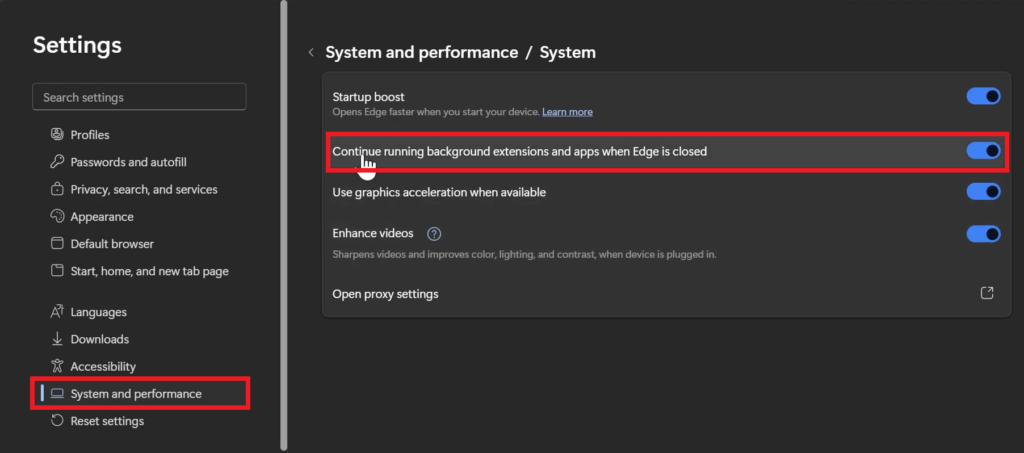
For a more in-depth tutorial, you can watch the video below from the youtube channel.
 9
9
 20
20