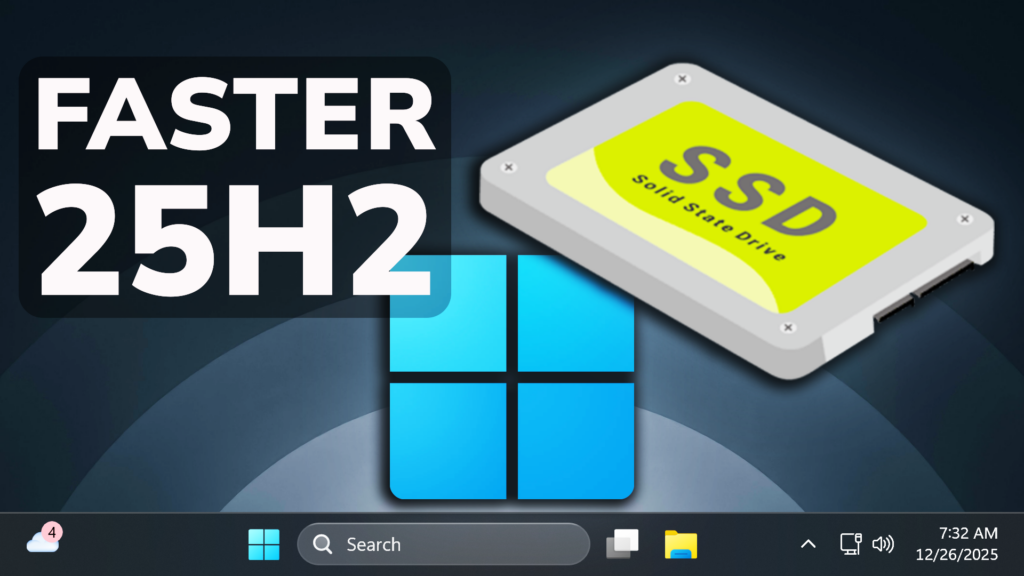
In this article, we will talk about how to Boost Windows 11 25H2 SSD Performance by Enabling the Native NVME Driver Support.
Microsoft has announced the Native NVMe in Windows Server 2025, but users have also found a way to enable it on Windows 11 25H2 Pro and Home Editions.
Some of the Main Improvements when using a Native NVME Driver:
- Massive IOPS Gains: Direct, multi-queue access to NVMe devices means you can finally reach the true limits of your hardware.
- Lower Latency: Traditional SCSI-based stacks rely on shared locks and synchronization mechanisms in the kernel I/O path to manage resources. Native NVMe enables streamlined, lock-free I/O paths that slash round-trip times for every operation.
- CPU Efficiency: A leaner, optimized stack frees up compute for your workloads instead of storage overhead.
- Future-Ready Features: Native support for advanced NVMe capabilities like multi-queue and direct submission ensures you’re ready for next-gen storage innovation.
Performance Data
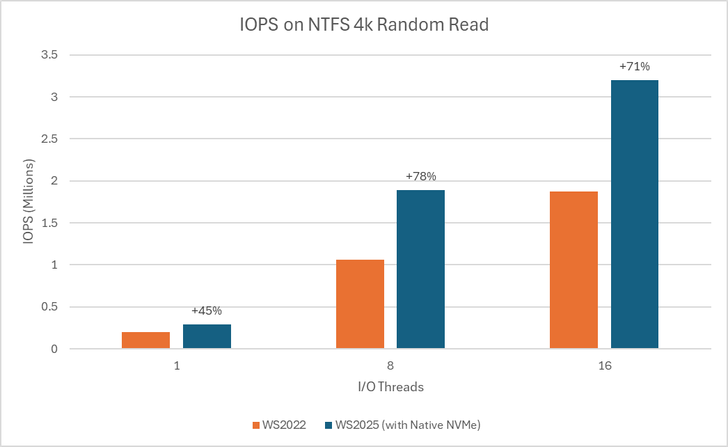
Graph showing IOPS gains on WS2025 (with Native NVMe) compared to WS2022 on 1, 8, and 16-threaded 4K random read tests using an NTFS-formatted volume.
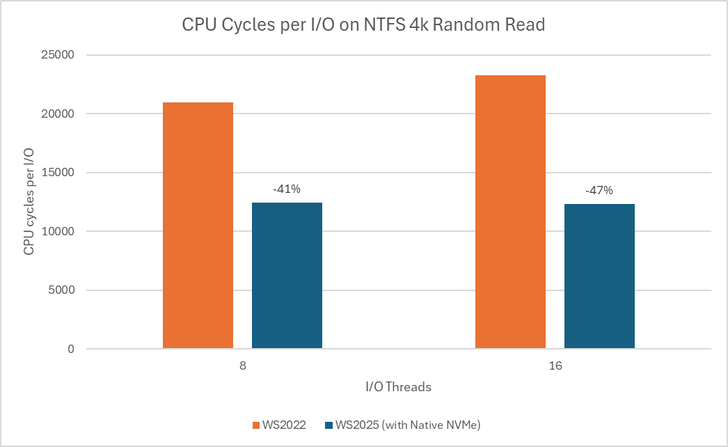
Graph showing reduction in CPU cycles per I/O on WS2025 (with Native NVMe) compared to WS2022 on 8 and 16-threaded 4K random read tests using an NTFS-formatted volume.
Also you will need to Ensure you have NVMe-capable devices that are currently using the Windows NVMe driver (StorNVMe.sys). Note that some NVMe device vendors provide their own drivers, so unless using the in-box Windows NVMe driver, you will not notice any differences.
For more information about this, you can check the Official Microsoft Blog Post.
Disclaimer: The Native NVME Driver Support hasn’t been Officially announced by Microsoft for the Pro and Home Editions. Make sure to try this at your own risk on a test machine.
To enable the Native NVME Driver Support, run the following commands in Powershell:
reg add HKEY_LOCAL_MACHINE\SYSTEM\CurrentControlSet\Policies\Microsoft\FeatureManagement\Overrides /v 1853569164 /t REG_DWORD /d 1 /freg add HKEY_LOCAL_MACHINE\SYSTEM\CurrentControlSet\Policies\Microsoft\FeatureManagement\Overrides /v 156965516 /t REG_DWORD /d 1 /freg add HKEY_LOCAL_MACHINE\SYSTEM\CurrentControlSet\Policies\Microsoft\FeatureManagement\Overrides /v 735209102 /t REG_DWORD /d 1 /f
After a restart, just check Device Manager for the New Icons to know its enabled.
For a more in-depth tutorial, you can watch the video below from the youtube channel.
 9
9
 20
20