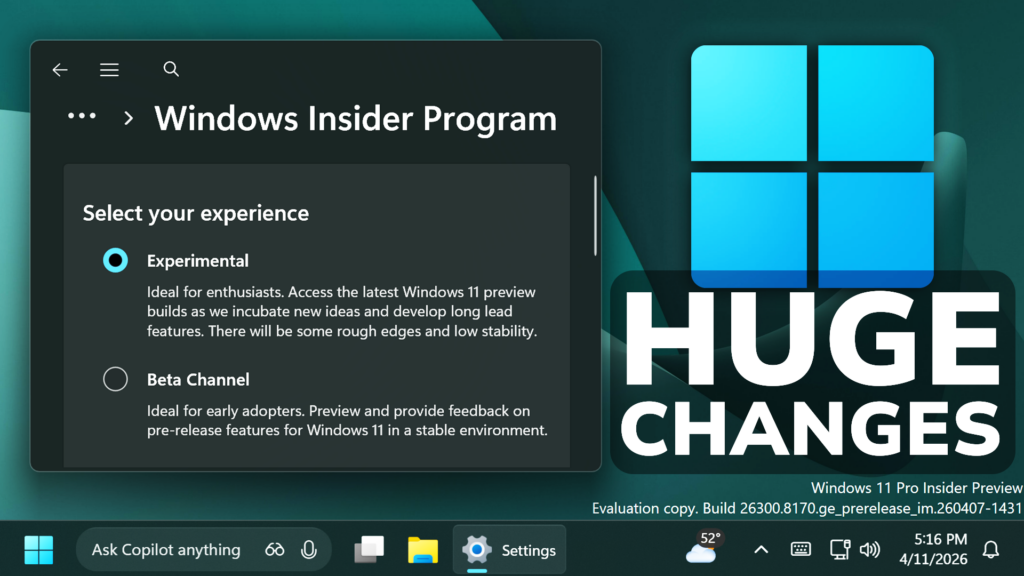
In this article, we will talk about the New Changes that Microsoft is soon applying to the Windows Insider Program.
New Windows 11 Insider Channels
Microsoft is moving to two primary channels, with the advanced option to pick specific Windows core versions within those. The new channels are Experimental and Beta.
Experimental replaces what were previously the Dev and Canary channels. The name is deliberate: you’re getting early access to features under active development, with the understanding that what you see may change, get delayed, or not ship at all. We’ve heard your feedback that you want to access and contribute to features early in development and this is the channel to do that.
Beta is a refresh of the previous Beta Channel and previews what we plan to ship in the coming weeks. The big change: we’re ending gradual feature rollouts in Beta. When we announce a feature in a Beta update and you take that update, you will have that feature. You may occasionally see small differences within a feature as we test variations, but the feature itself will always be on your device.
If you’re not sure which to pick: Experimental is where new features generally show up first and where your feedback has the most direct impact on what we build. Beta is the better fit if you want a more stable experience with features closer to shipping.
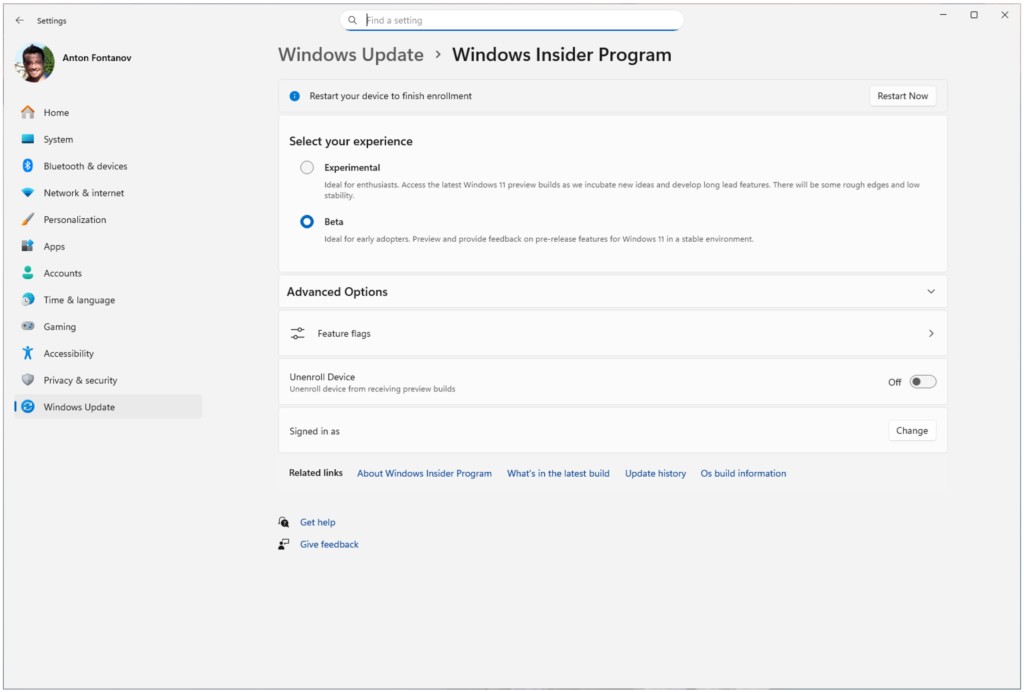
For most Insiders, picking the Beta or Experimental channel will be all you need to get set up, but for those who want to go further, we are adding an advanced option to pick your Windows core version compatible with your hardware. Most users will see these options as 25H2 or 26H1 builds.
The Experimental channel will also contain a further Future Platforms option which is our earliest preview build for Windows and is not aligned to a retail version of Windows. This is aimed at users who are looking to be at the forefront of platform development. Insiders looking for the earliest access to features should remain on a version aligned to a retail build.
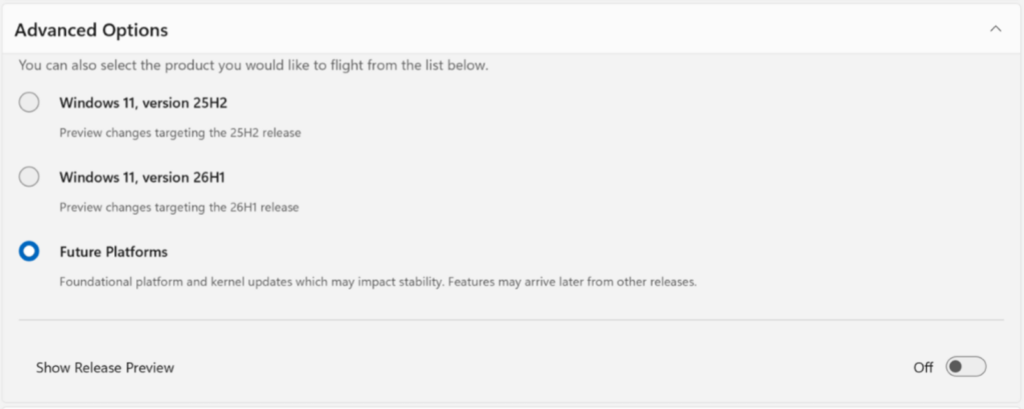
Release Preview will continue to be an advanced option aimed at commercial customers and Insiders who want early access to production builds in the days leading up to broad release. To select Release Preview, you will need to enable it in the ‘Advanced Options’ but the content remains unchanged. We’re actively talking with our commercial Insiders about how to make it better, and we want to hear from you.
New Method of Enabling New Features
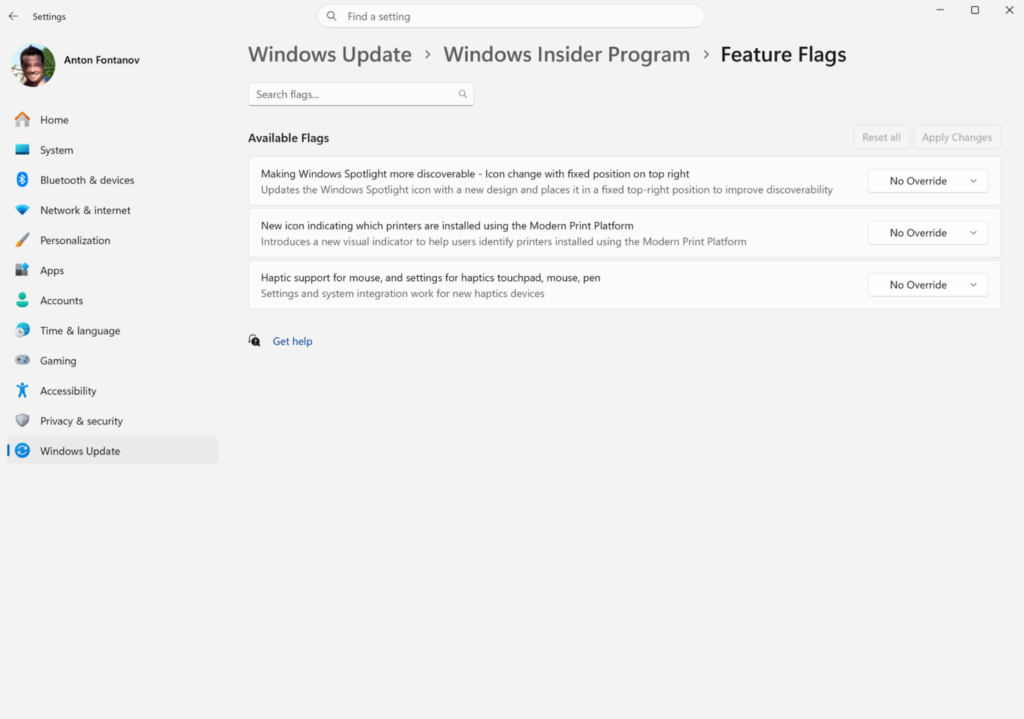
In addition to ending gradual rollout of features for Beta, Insiders in the Experimental channel will have a new ability to enable or disable specific features via the new Feature flags page on the Windows Insider Program settings page.
Microsoft will start by enabling Feature flags for visible new features announced in WIP. This means less visible changes announced in WIP, like bug fixes and system improvements, may not be present in Feature flags. Please provide feedback on the types of new features you would like to see be made available on the Feature flags page as we roll out this functionality.
Easy Switch between Channels
Depending on your channel today, leaving the Windows Insider Program or even moving between channels can sometimes require wiping your device and doing a clean install of Windows. That can be a barrier both for people considering the program and for Insiders who want to leave.
To make this a more streamlined and consistent experience, we’re making some behind the scenes changes to enable Insider builds to use an in-place upgrade (IPU) to hop between versions. This will allow in most cases Insiders to move between Experimental, Beta, and Release Preview on the same Windows core version, or leave the program without a clean install. An IPU takes a bit more time than your normal update but migrates your apps, settings, and data in-place.
As Experimental Future Platforms is our earliest preview build option and does not align to a retail production build of Windows, moving to a different channel or out of the WIP program will still require a clean install.
Lastly, Microsoft also re-engineered the Windows Insider Program settings page so it loads significantly faster, with a cleaner layout designed to make your choices clear with fewer reboots and extra steps.
Enable the New Windows Insider Program Page in Settings
Thanks to phantomofearth for discovering this, follow him for more hidden features!
You will need to download ViveTool, which is a small app that will help us enable hidden features from Windows.
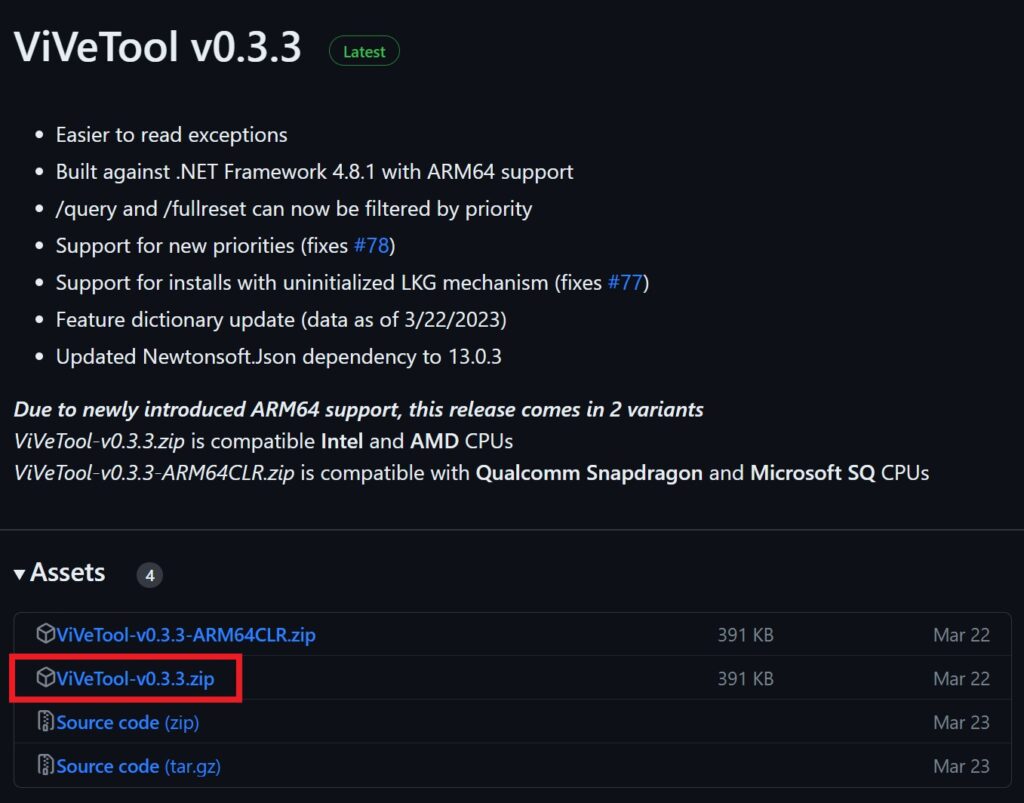
After you download ViveTool, you will need to extract the contents of the archive into a folder of your choice.
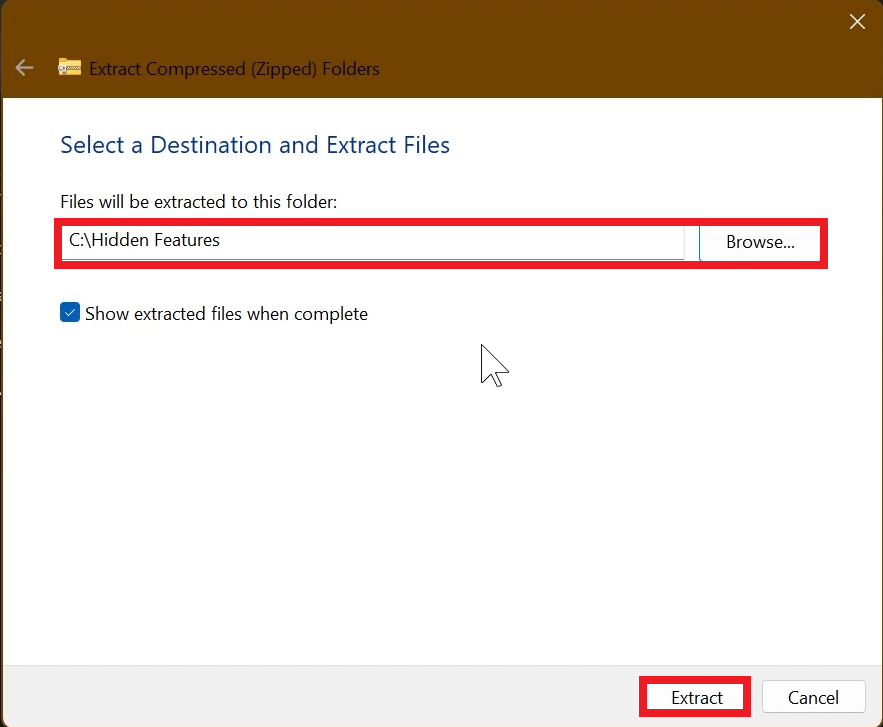
Right-click on the archive and then click on Extract all. Select Your Folder and then click on Extract. You will also need to provide some administrative privileges.
After you’ve done that, you will need to open CMD as administrator. Type the following command in CMD:
cd "your-location"Then copy and paste the following commands:
Enable New WIP Page in Settings:
vivetool /enable /id:61157505, 48433719You will now need to restart your computer, for the changes to take effect.
After the restart, you should be able to see the New Windows Insider Program Page in Settings.
For more information about the Changes coming to Windows Insider Program, you can check this article from the Microsoft Blog.
For a more in-depth presentation of the New Changes, you can watch the video below from the youtube channel.
 9
9
 20
20