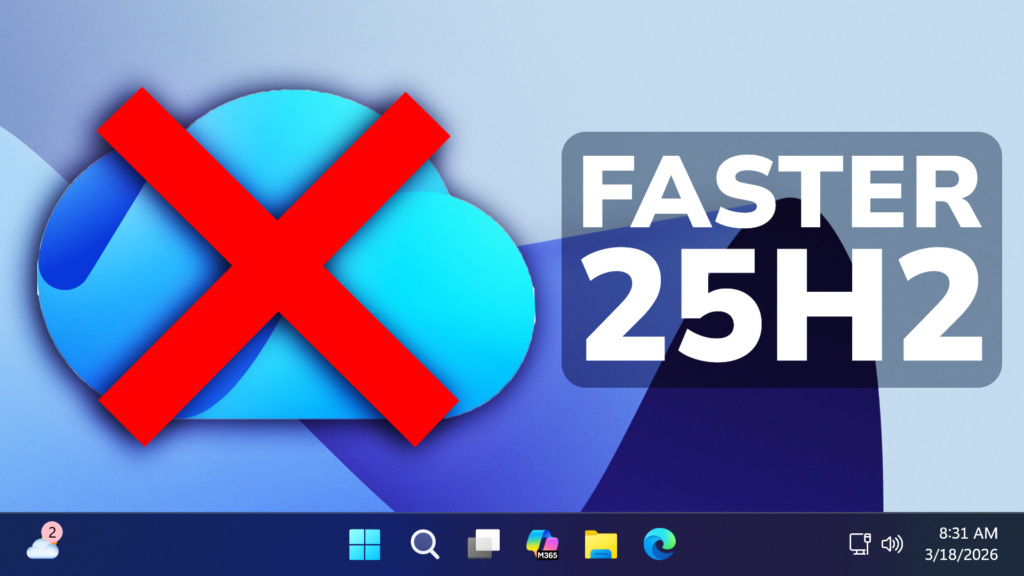
In this article, we will talk about How to Make Windows 11 25H2 Faster by Uninstalling OneDrive.
On every New Windows 11 Install, OneDrive will run in the background and use up a lot of resources, such as Network and SSD, because it is constantly trying to Sync Files to your OneDrive Account.
Also because it is constantly syncing files, OneDrive can be a Security Issue in Windows 11.
Especially if you have a lower end Computer, it is highly recommended you either Stop OneDrive Completely, or even Uninstall it.
Stop OneDrive from running at Startup
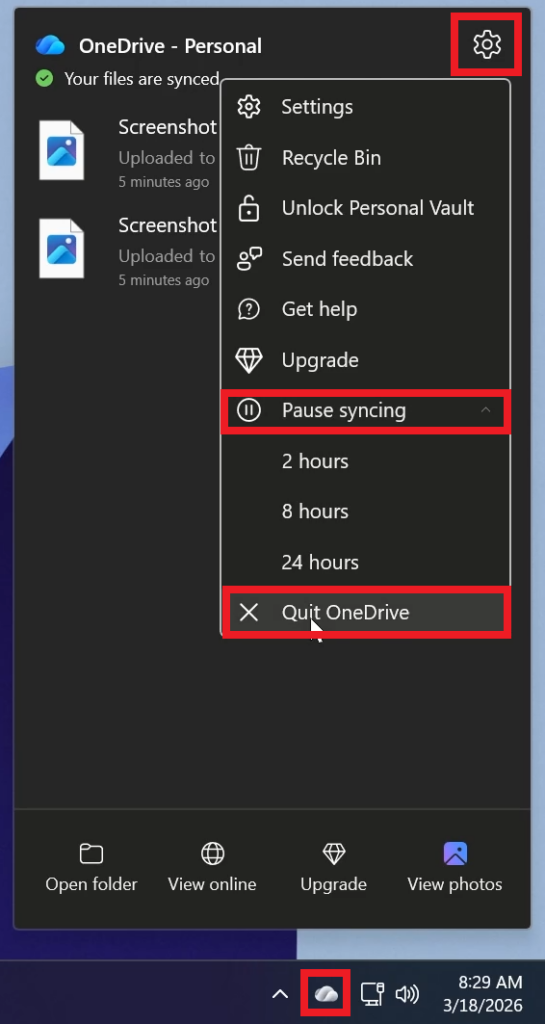
Make sure to click on the OneDrive Icon from the System Tray, then click on Settings from top right, then Pause syncing and finally Quit OneDrive.
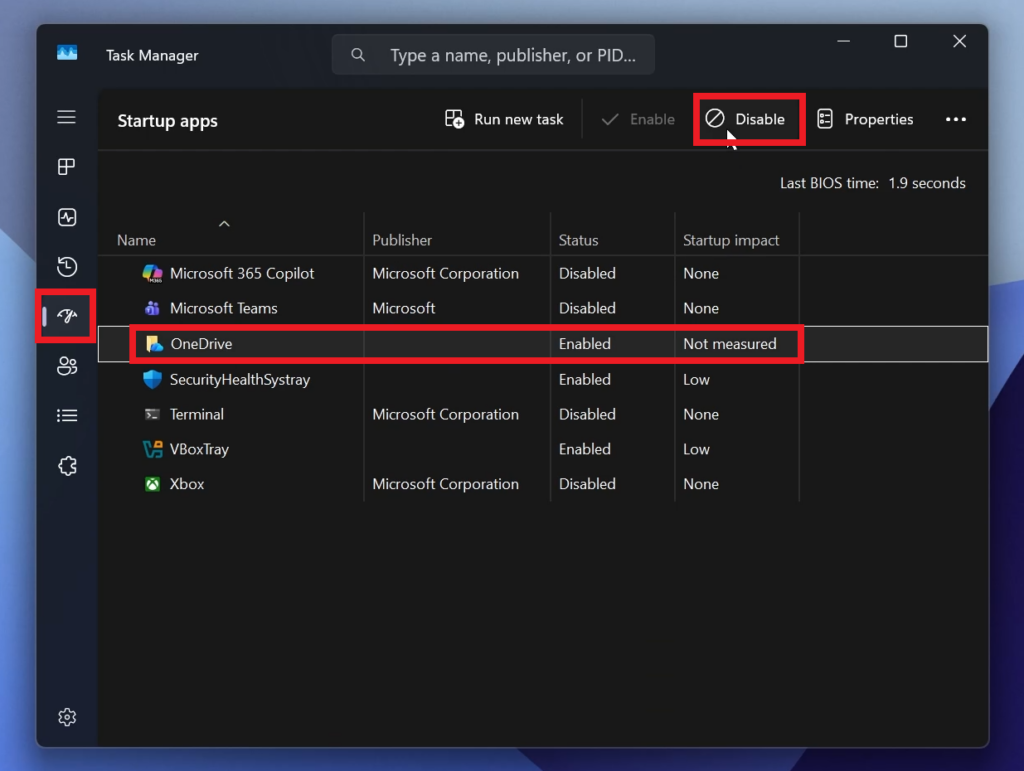
After that, right-click on the Taskbar, open Task Manager, go to Startup apps, select OneDrive and then click on Disable.
Uninstall OneDrive
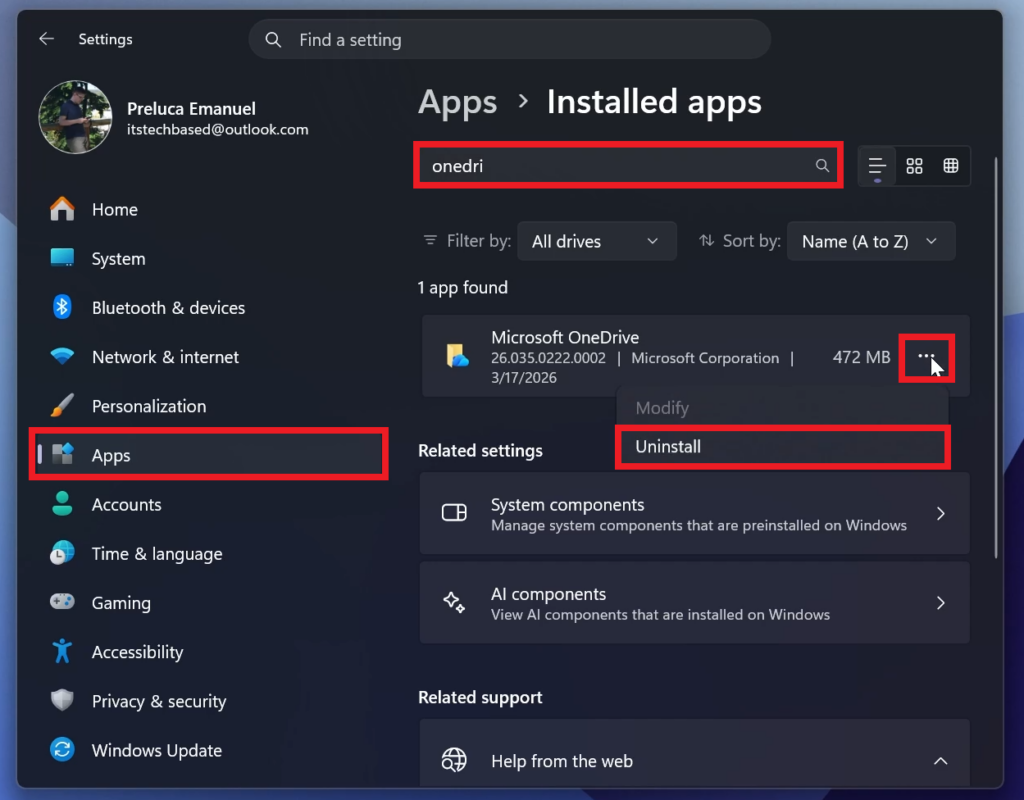
To uninstall OneDrive, make sure you open the Settings App (Windows + i), then go to Apps, search for OneDrive, click on the 3 dots and finally on Uninstall.
For a more in-depth tutorial, you can watch the video below from the youtube channel.
 9
9
 20
20