In this article, we will talk about some New App Updates in Windows 11, which include a Notepad with New Text Formatting and Paint with New AI Feature.
New Notepad with Text Formatting and AI Features
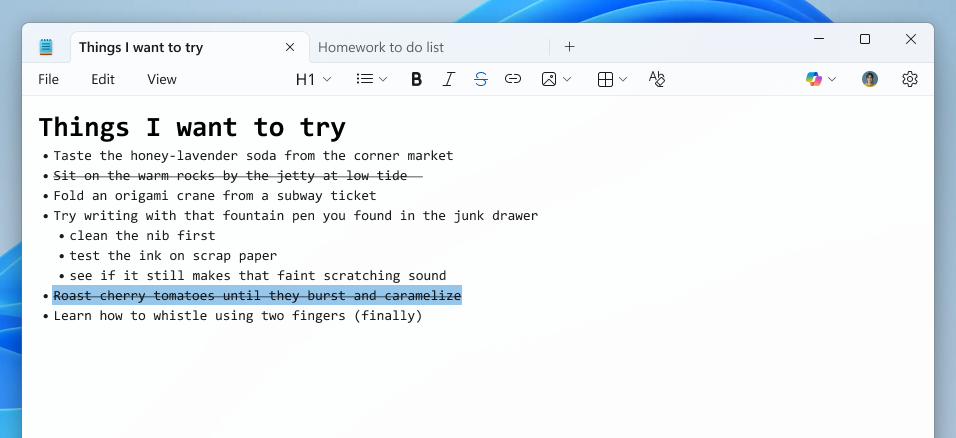
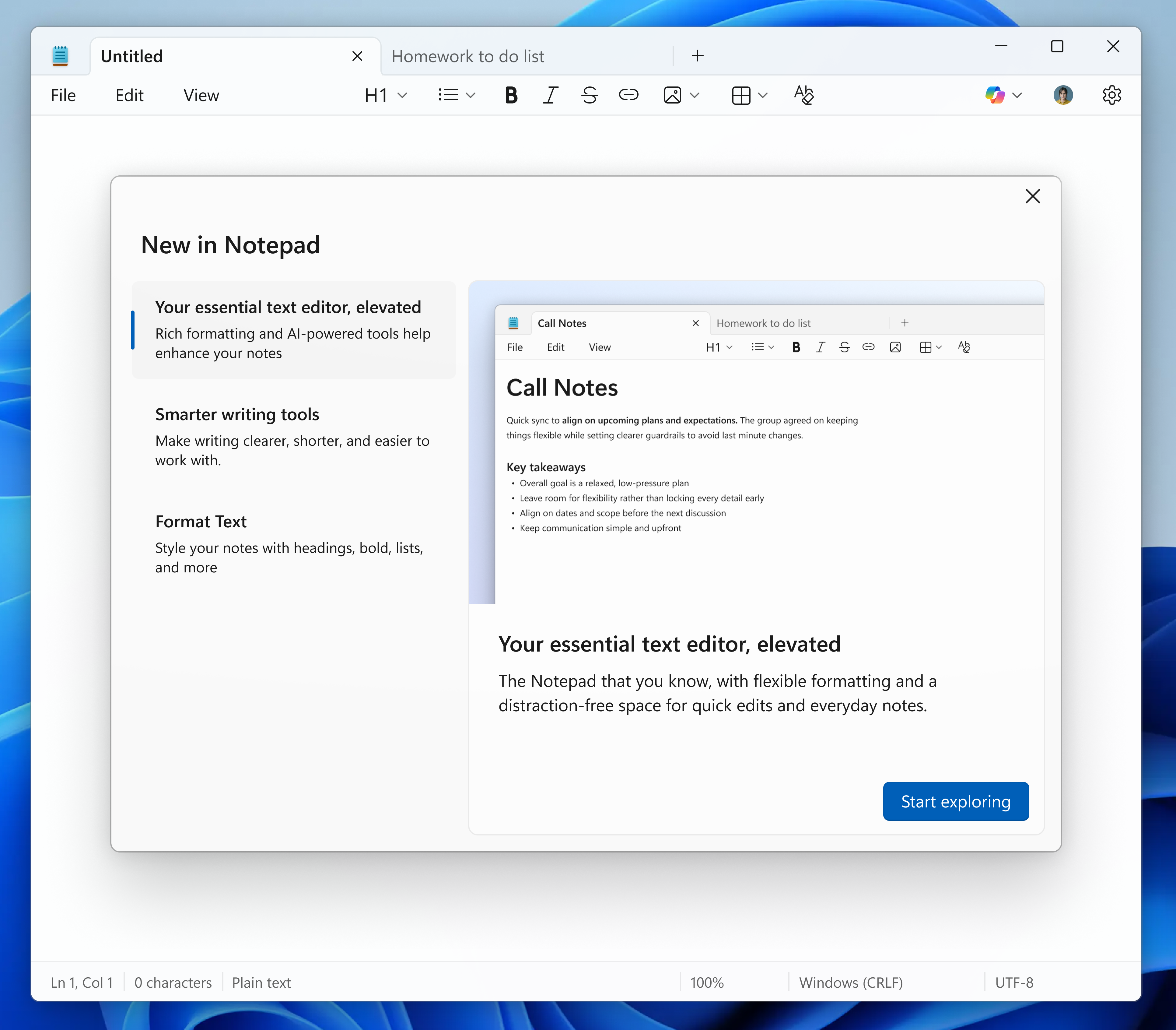
Microsoft is introducing strikethrough formatting and nested lists in the Notepad App. To get started, explore these new options in the formatting toolbar, keyboard shortcuts, or by editing the Markdown syntax directly.
They are also introducing a new welcome experience in Notepad designed to help users discover and learn about the app’s latest and most useful features. This dialog provides a quick overview of what’s possible in Notepad and serves as a helpful starting point for both new and returning users. You can close it anytime and revisit it later by clicking the megaphone icon in the top-right corner of the toolbar.
Microsoft is also expanding support for streaming results for AI text features. Whether generated locally or in the cloud, results for Write, Rewrite, and Summarize will start to appear quicker without the need to wait for the full response, providing a preview sooner that you can interact with. To use Write, Rewrite, and Summarize in Notepad, you will need to sign in with your Microsoft account.
New Paint with Fill Silder and New AI Features
Coloring book, an AI-powered feature that lets you create unique coloring book pages from a text prompt. To get started, open Paint and select the Coloring book option from the Copilot menu. Once the side panel is open, type in a description of the coloring book you want to create, like “a cute fluffy cat on a donut” or “a house with a garden and fence” and hit the Generate button. Paint will then generate a set of unique coloring book pages based on your prompt. Once the coloring book pages are generated, you can click on any one of them to Add to canvas, copy, or save it for later use.

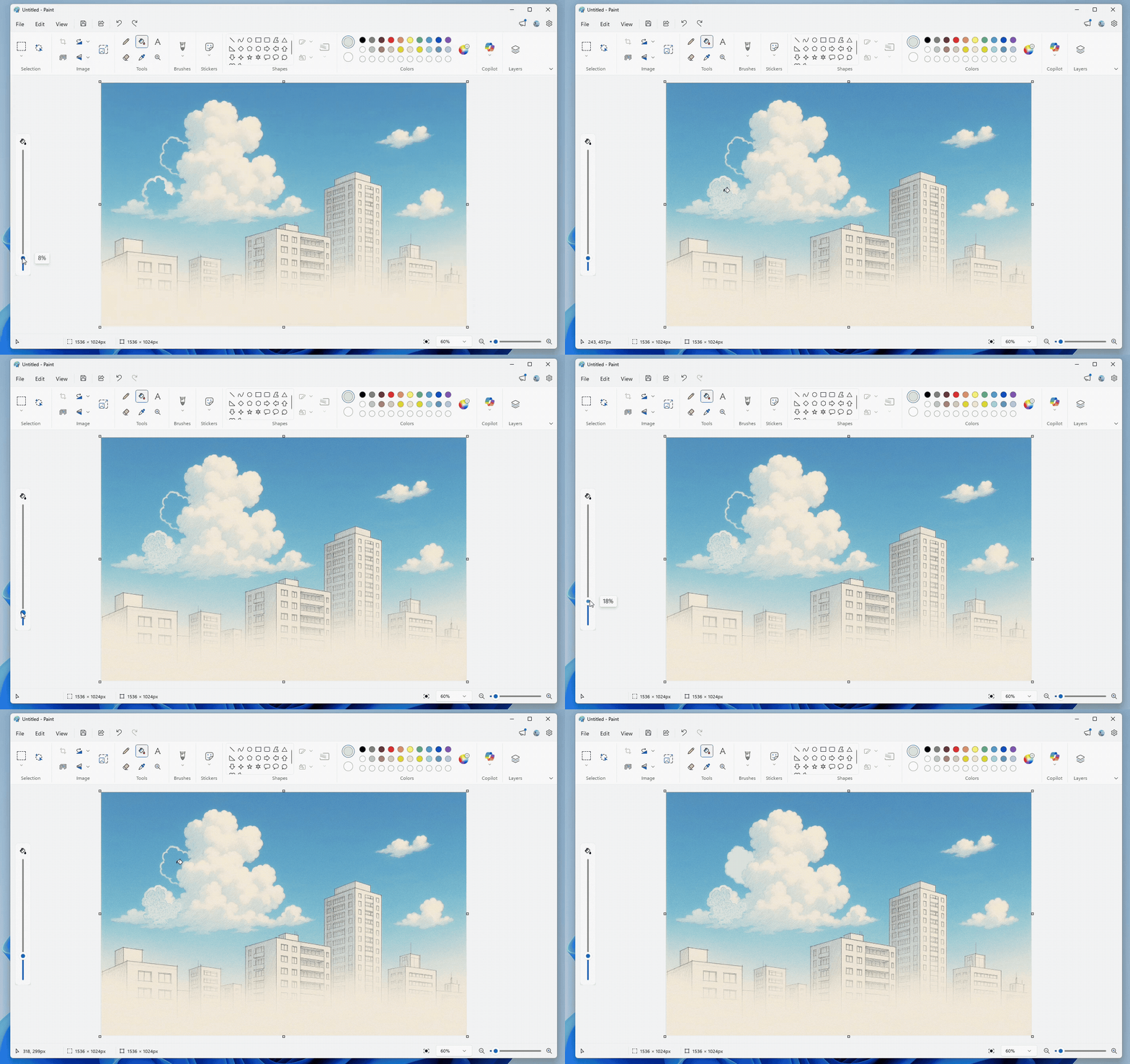
Microsoft is also adding a fill tolerance slider, giving you control over how precisely the Fill tool applies color. To get started, select the Fill tool and use the slider on the left side of the canvas to adjust the tolerance to your desired level. Experiment with different tolerance settings to achieve clean fills or creative effects.
For more information about these App Updates, you can check this article from the Microsoft Blog.
For a more in-depth presentation of these Apps, you can watch the video below from the YouTube channel.
 9
9
 20
20