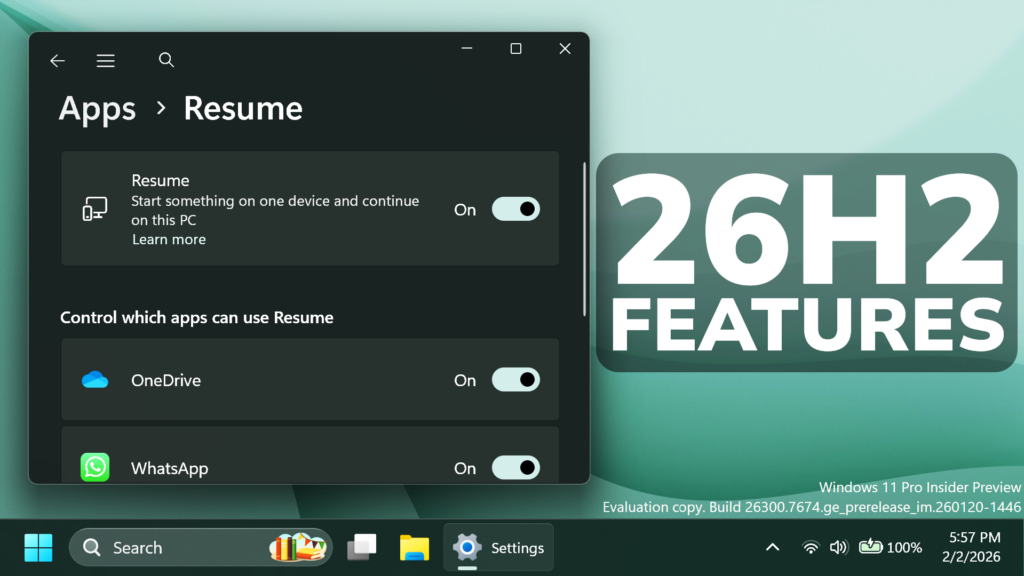
In this article, we will talk about some New Windows 11 26H2 Features which are the New Taskbar Share, New Settings and I will also show you how to Enable them.
In the latest Builds from the Dev and Beta Channels (26300.7674 and 26220.7670) of the Windows Insider Program, Microsoft is introducing some New Features such as a New Taskbar Share, New Settings and more. In this article, I will show you how to enable them.
Thanks to phantomofearth for discovering this, follow him for more hidden features!
You will need to download ViveTool, which is a small app that will help us enable hidden features from Windows.
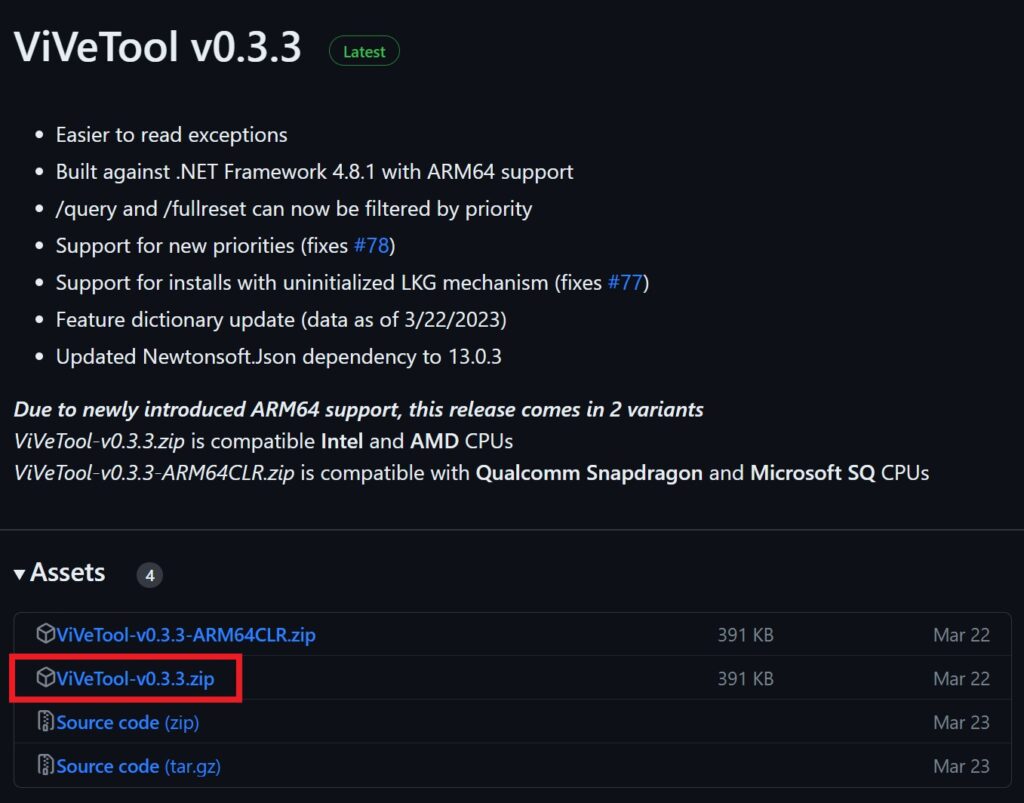
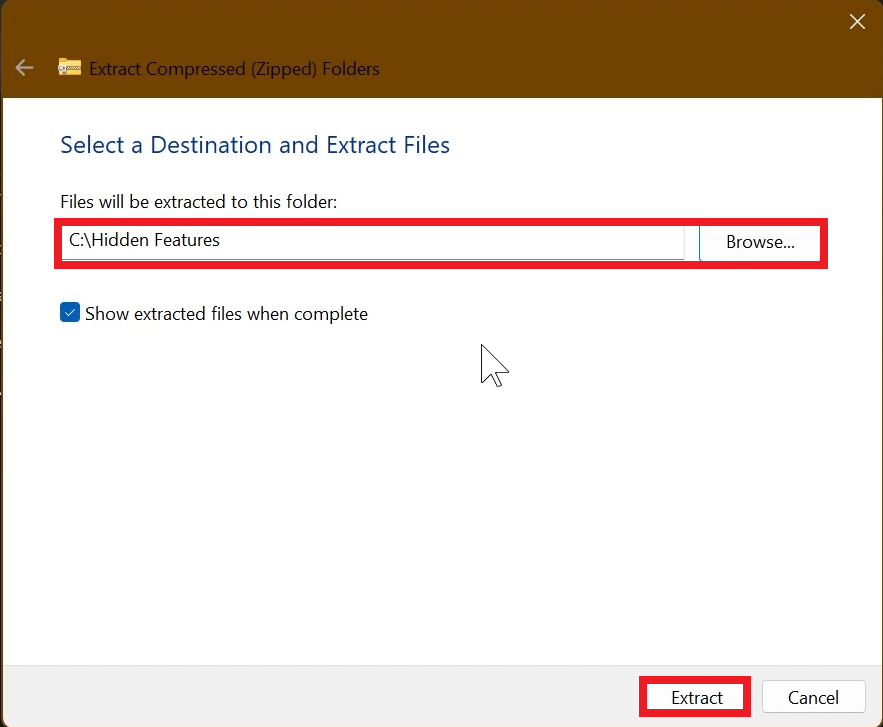
After you download ViveTool, you will need to extract the contents of the archive into a folder of your choice.
Right-click on the archive and then click on Extract all. Select Your Folder and then click on Extract. You will also need to provide some administrative privileges.
After you’ve done that, you will need to open CMD as administrator. Type the following command in CMD:
cd "your-location"Then copy and paste the following commands:
General IDs Needed:
vivetool /enable /id:48433719,58989002,58988972New Windows Subsystem for Linux Toggle:
vivetool /enable /id:58182453New Privacy & Security Settings Page:
vivetool /enable /id:57118881 New Whatsapp Resume Features:
vivetool /enable /id:49059846 New Taskbar Share with Virtual Assistant:
vivetool /enable /id:60063638 New Dialog for Windows Protected Print Mode:
vivetool /enable /id:57741219 You will now need to restart your computer, for the changes to take effect.
After the restart, you should be able to see all the New Features on your Windows 11 PC.
For a more in-depth tutorial, you can watch the video below from the youtube channel.
 9
9
 20
20