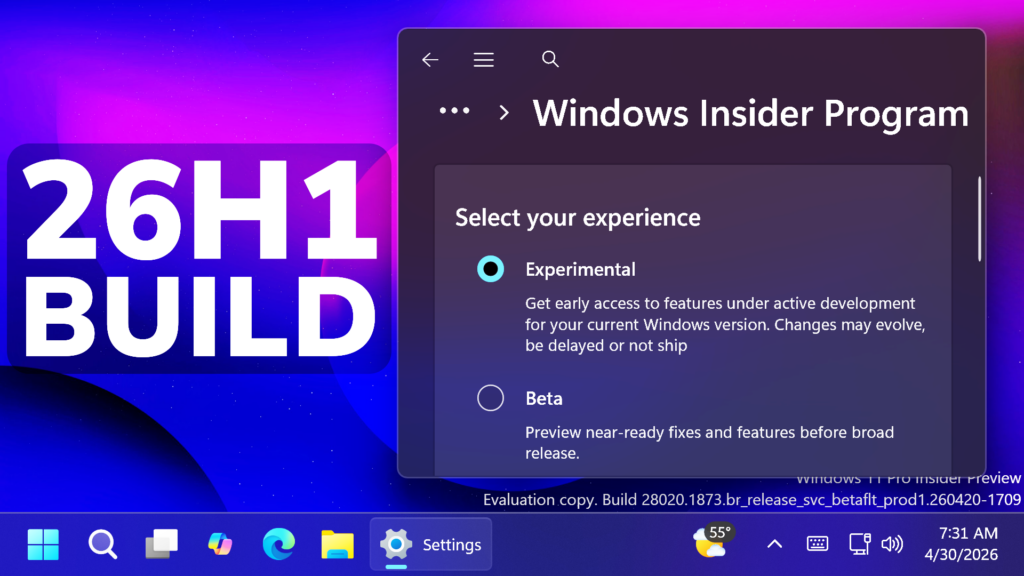
In this article, we will talk about another Preview Build for Windows 11 26H1, with the Build 28020.1873 in the Experimental Channel.
In the latest Build for the Canary Channel, you may notice the New Windows 11 26H1 Version, which is a New Version that Microsoft is using to test the New Platform for the upcoming Qualcomm Snapdragon X2 Devices and Nvidia N1X Processors.
26H1 is not a feature update for version 25H2 and only includes platform changes to support specific silicon. There is no action required from customers.
25H2 remains the primary place for new features. Windows 11 continues to have an annual feature update cadence, with releases in the second half of the calendar year.
As a reminder, in the Windows Insider Program, new experiences will continue to land first in the Dev and Beta Channels, with Canary primarily focused on platform changes.
New Windows Insider Program
Microsoft is moving to two primary channels, with the advanced option to pick specific Windows core versions within those. The new channels are Experimental and Beta.
Experimental replaces what were previously the Dev and Canary channels. The name is deliberate: you’re getting early access to features under active development, with the understanding that what you see may change, get delayed, or not ship at all. We’ve heard your feedback that you want to access and contribute to features early in development and this is the channel to do that.
Beta is a refresh of the previous Beta Channel and previews what we plan to ship in the coming weeks. The big change: we’re ending gradual feature rollouts in Beta. When we announce a feature in a Beta update and you take that update, you will have that feature. You may occasionally see small differences within a feature as we test variations, but the feature itself will always be on your device.
More info about the Changes in the Windows Insider Program, can be found in this article.
New Xbox Mode
- Xbox full screen experience is now Xbox mode
- Microsoft added an improved first run experience when entering Xbox mode
Touchpad
Microsoft is adding a new setting in Settings > Bluetooth & Devices > Touchpad so you can choose how large the right-click zone size is (this is the portion in the bottom-right of your touchpad where pressing a single finger will result in a right-click), between default, small, medium, and large. Note – this setting only appears for touchpads that have a pressable surface for this. Some manufacturers may provide customization for this in their own apps – if you’ve customized your setting using an app like this, a “Custom” entry will be added to the dropdown, which preserves that value.
Drag Tray
Based on feedback Microsoft is making some refinements to drag tray, using a smaller peek view to reduce accidental invocation and make it easier to dismiss when interacting near the top of the screen.
Windows Security App
Microsoft have recently started to roll out enhancements to the Windows Security app > Device security > Secure Boot experience, which shows green, yellow, and red icon badges as well as new text that reflects your device’s Secure Boot state and certificate status. Microsoft is updating Secure Boot certificates on consumer devices and some business PCs, and you can now check your certificate status with this new feature. This experience is disabled by default on enterprise IT managed devices and servers.
Feedback Hub
- Improved the default window size, and now it will remember window size across session.
- You can now use the mouse back button to go back between pages.
- If you were seeing less community feedback than usual, that should be addressed now.
- Upvote buttons for feedback should display correctly for Insiders using the Chinese display language now
New Voice Typing Experience in the Touch Keyboard
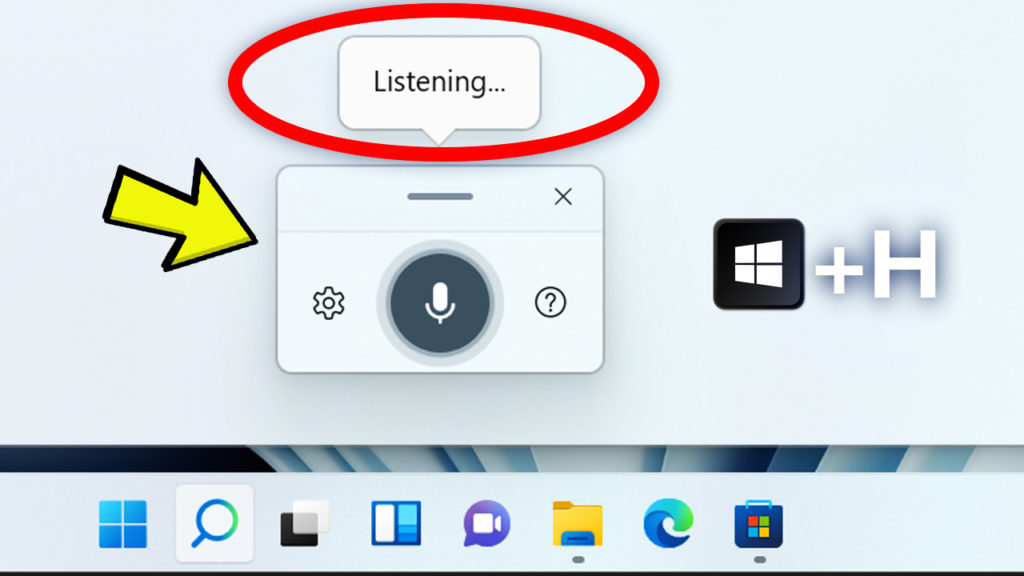
Microsoft is updating the experience when you use voice typing with the touch keyboard to make it feel more streamlined and intuitive. The new design removes the previous full‑screen overlay and instead shows voice typing animations directly on the dictation key, helping you stay focused on what you’re doing without extra visual distractions.
Storage Improvements
- Improved the performance when navigating to see storage on large volumes via Settings > System > Storage > Advanced Storage Settings > Disks & Volumes.
- Updated Settings > System > Storage, so rather than seeing a UAC prompt immediately when you go to the page, you’ll only see it when going to view temporary files.
Network Fix
Fixed issue causing Settings > Network & Internet > Data Usage to show large unrealistic values in recent Insider builds.
Startup Apps Improvement
Improved performance of launching startup apps after boot (apps which display under Settings > Apps > Startup).
General Fix
Fixed an issue that prevented some apps from signing in due to a false report of no internet connectivity.
For more information about this Build, you can check this article from the Microsoft Blog.
For a more in-depth presentation of the New Build, you can watch the video below from the youtube channel.
 11
11
 20
20