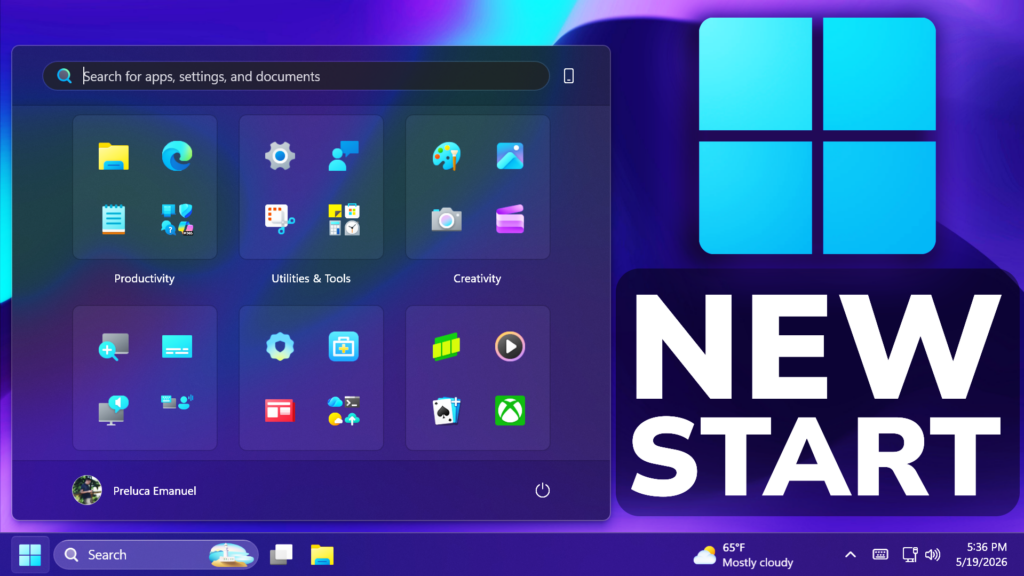
In this article, we will talk about the New Start Menu that is Coming to Windows 11 Insider over the next few weeks.
As part of Windows K2, which is Microsoft’s Internal Plan to fix Windows 11, they are also announcing some New Start Menu Changes, that will make the Start Menu more user friendly.
Changes applied to the Start Menu are focused into 2 different directions. First of all an easier way to shape the Start Menu and second of all improving the quality of what appears in the Start Menu by default.
These are some of the New Options that Insiders will get over the next few weeks:
- Section-level toggles to independently show or hide Pinned, Recommended, and All. One toggle per section that is simple and clear.
- A separate control for file recommendations. Today, turning off Recommended in Start also turns off jump lists and recent files in File Explorer. With this change, you can disable file recommendations in Start without affecting recent files in other places.
- Start menu size settings that let you choose your preferred size. Today, Start adapts to your display. With this update, you can choose Small or Large so your preference stays consistent across displays whenever possible.
- The option to hide your name and profile picture in Start for added privacy when sharing your screen, presenting, or streaming.
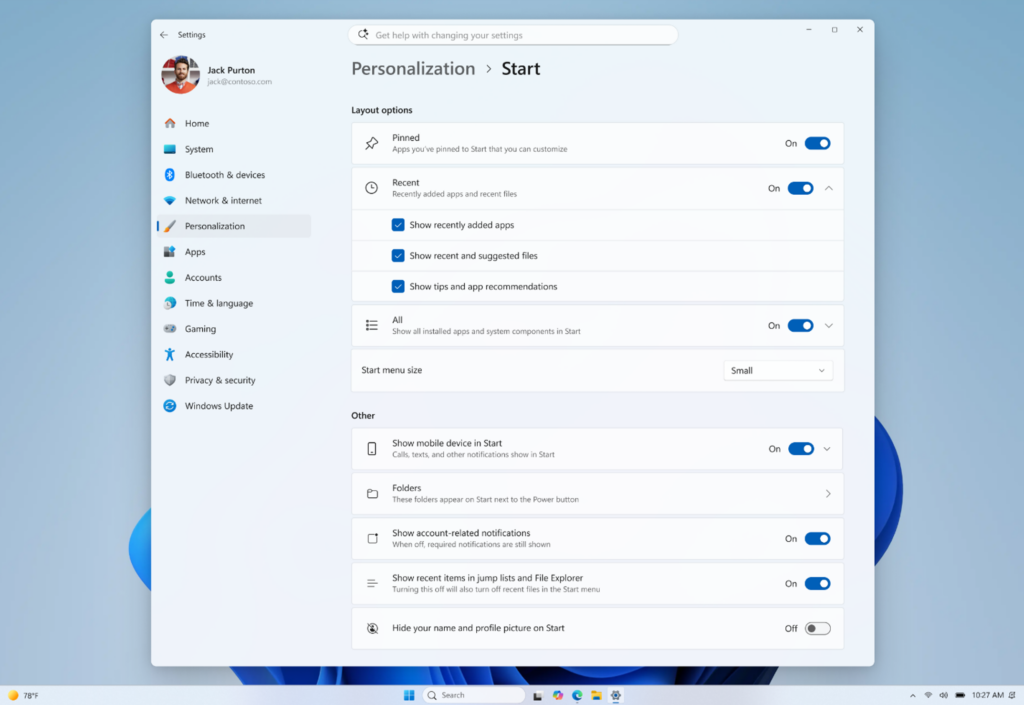
Also Microsoft is showing a Preview of how a Start Menu in a minimal “pins only” configuration with hidden name and profile picture, would look.
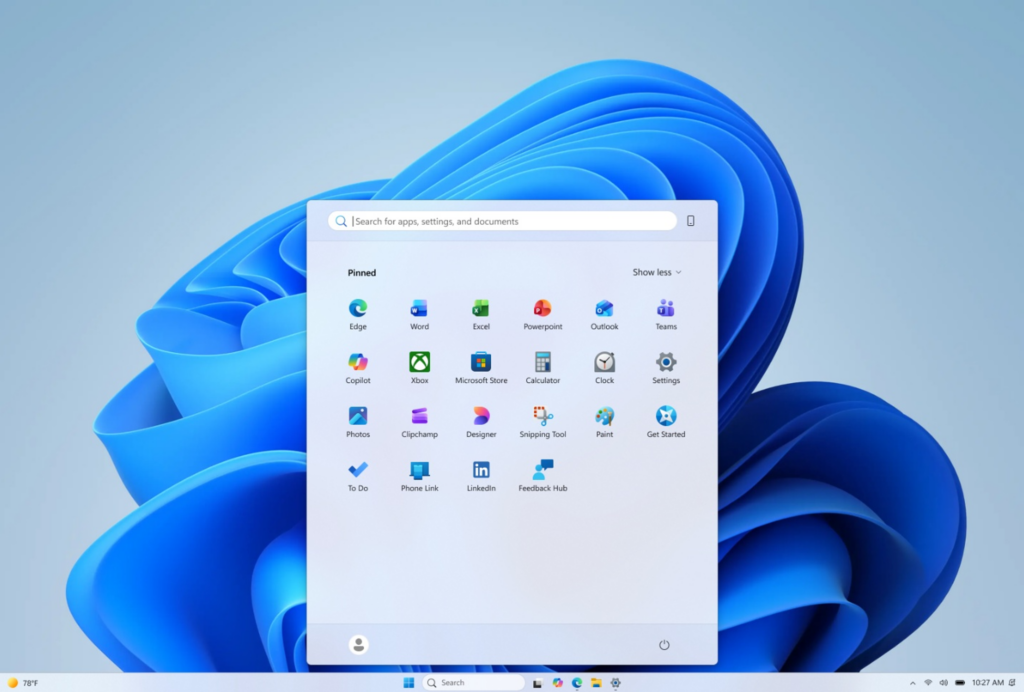
They are also renaming Recommended to Recent to better reflect what the section primarily shows, including recently installed apps and recently used files.
They are keeping recently installed apps visible, as this remains one of the primary ways people discover newly installed apps alongside the Microsoft Store. Both users and developers have told us this visibility is important.
In addition, they are improving file relevancy by refining which files appear and how they are ordered to reduce less relevant items and better reflect what you have been working on.
For more information about these Start Menu Changes, you can check this article from the Microsoft Blog.
For a more in-depth presentation of the New Start Menu, you can watch the video below from the youtube channel.
 11
11
 20
20