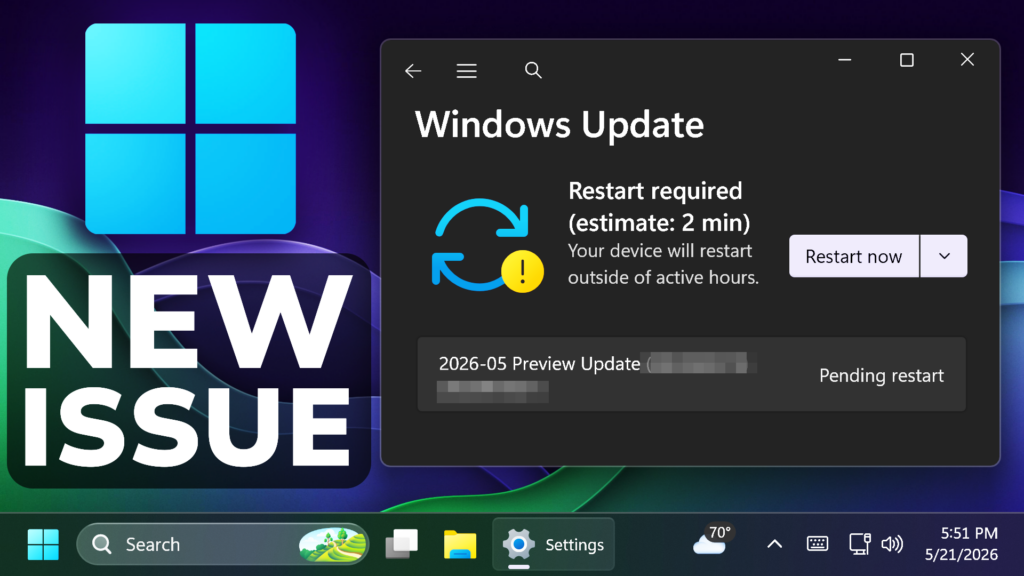
In this article, we will talk about a New Windows 11 25H2 Update Problem Causes Installation Failure in KB5089549 and How to fix it.
In the latest Windows 11 25H2 Update for the Main Release, which is the Patch Tuesday for the month of May 2026, Microsoft is stating that this security update fails to install with error 0x800f0922.
After you install this update (KB5089549), some devices might fail to complete installation with error code 0x800f0922. This issue occurs on devices that have limited free space on the EFI System Partition (ESP), especially if it has 10 MB or less available.
What you might experience on affected devices:
- The update installs successfully during the initial phases.
- The installation fails during the restart phase at approximately 35–36% completion.
- Windows then rolls back the update.
- You may see the message:
“Something didn’t go as planned. Undoing changes.” - The installation fails with error code 0x800f0922.
As a result of this issue, you might see log entries similar to the following in C:\Windows\Logs\CBS\CBS.log, indicating insufficient free space on the EFI System Partition:
- SpaceCheck: Insufficient free space
- ServicingBootFiles failed. Error = 0x70
- SpaceCheck: <value> used by third-party/OEM files outside of Microsoft boot directories
Fix 1: Allow the update to install by modifying an ESP registry setting
Important: Editing the registry incorrectly can cause serious system problems. Always back up the registry before making any changes.
Retry installing the update.
Open Command Prompt as an administrator.
Run the following command: reg add “HKLM\SYSTEM\CurrentControlSet\Control\Bfsvc /v EspPaddingPercent /t REG_DWORD /d 0 /f”
Restart the affected device.
Fix 2: Mitigate the issue by using Known Issue Rollback (KIR)
This issue is mitigated using Known Issue Rollback (KIR). The resolution has already propagated automatically to consumer devices and non‑managed business devices. Restarting your Windows device might help the resolution apply more quickly.
Enterprise-managed devices
For devices where Windows updates are managed by IT departments, administrators can apply the mitigation by installing and configuring a special Group Policy. You can find the policy at Computer Configuration > Administrative Templates > <Group Policy name listed below>.
Group Policy download
Windows 11, version 25H2 and Windows 11, version 24H2: KB5089549 260514_06221 Known Issue Rollback
More information about this Update, can be found in this article from the Microsoft Blog.
For a more in-depth tutorial, you can watch the video below from the youtube channel.
 11
11
 20
20