
In this article, we will talk about the latest Windows 11 Update for the 25H2 Main Release, which is the Build 26200.9445 or KB5124008.
For those of you who are not familiar with how Windows 11 Updates for the Main Release work, I will explain it to you in the following lines.
Every month Windows 11 has a B and a C Release for Windows 11. Usually, the B Release is launched on the second Tuesday of the month and contains all the features that were tested in the previous month’s C Release.
Microsoft is also announcing that starting with the January 2026 security update, Windows Server 2025 will have its own KB identifiers and build numbers. This change applies only to Windows Server 2025. It doesn’t change how you get or manage updates for Windows 11, version 24H2 or Windows 11, version 25H2.
New Improvements in this Update
- [Security updates] This update provides security improvements. For more information about the security vulnerabilities resolved by this update, see the Security Update Guide)
- [Secure Boot] This update includes additional high confidence device targeting data, increasing coverage of devices eligible to automatically receive new Secure Boot certificates. Certificate deployment via Windows updates continues across supported PCs and non-managed business devices in the coming months.
- [Mouse] Fixed: This update addresses an issue that prevented customized mouse cursor settings, including pointer style and color, from displaying correctly. Selected cursor options and colors now work as expected.
- [Personalization] Fixed: This update addresses an issue where desktop background and other personalization settings might not load correctly, causing the desktop background to appear black.
- [Teams and Outlook on Arm64 PCs] Fixed: This update addresses an issue that could cause Microsoft Teams and Microsoft Outlook to unexpectedly close on Arm64-based PCs.
- [Date and Time] This update adjusts Morocco Standard Time to reflect Morocco’s transition to permanent UTC+00:00 effective September 20, 2026. This change ensures that the correct local time is displayed after the transition.
- [Remote Desktop Audio Redirection] This update addresses an issue affecting Remote Desktop audio redirection that could prevent audio from a remote session from playing on the local device in certain configurations.
- [OMA-DM Client Logging] This update improves diagnostic logging for the OMA-DM client, providing additional information to help troubleshoot device management server connection issues.
For an in-depth list of other features and fixes that are rolling out, you can check this article.
How to Enable All New Features
You will need to download ViveTool, which is a small app that will help us enable hidden features from Windows.
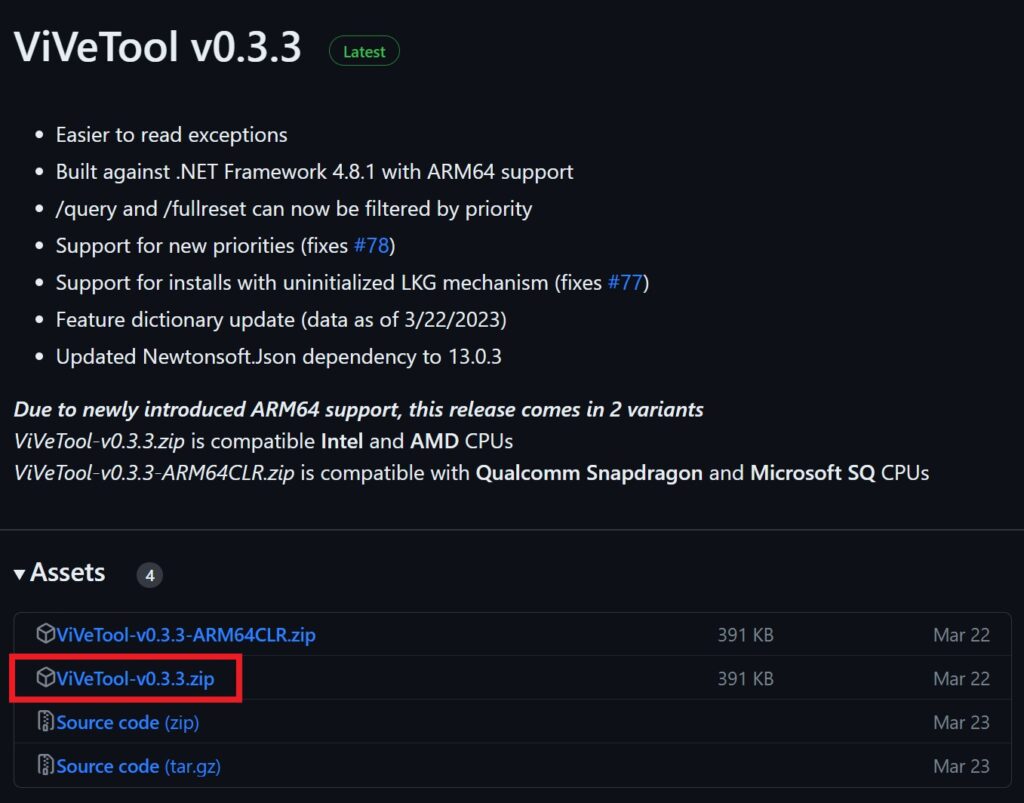
After you download ViveTool, you will need to extract the contents of the archive into a folder of your choice.
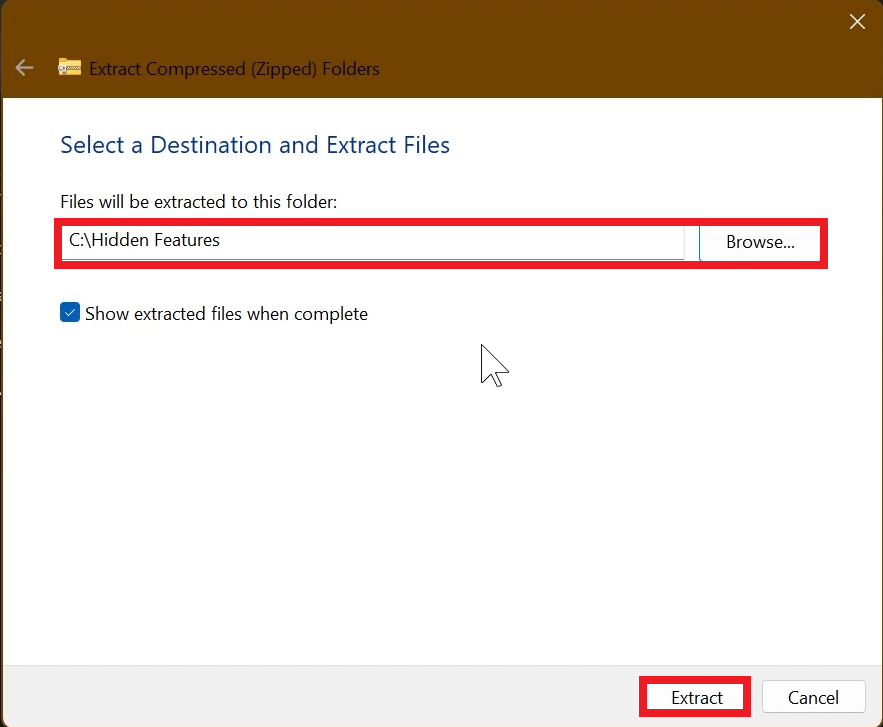
Right-click on the archive and then click on Extract all. Select Your Folder and then click on Extract. You will also need to provide some administrative privileges.
After you’ve done that, you will need to open CMD as administrator. Type the following command in CMD:
cd "your-location"Then copy and paste the following commands:
Main Feature Bundle:
vivetool /enable /id:61161244New Start Menu Customization:
vivetool /enable /id:61754985New Search UI:
vivetool /enable /id:62762248You will now need to restart your computer, for the changes to take effect.
After the restart, you should be able to see all the New Features on your Windows 11 25H2 PC.
For more info about this Update, you can check this article from the Microsoft Blog.
For a more in-depth presentation of the New Update, you can watch the video below from the YouTube channel.
 11
11
 20
20

