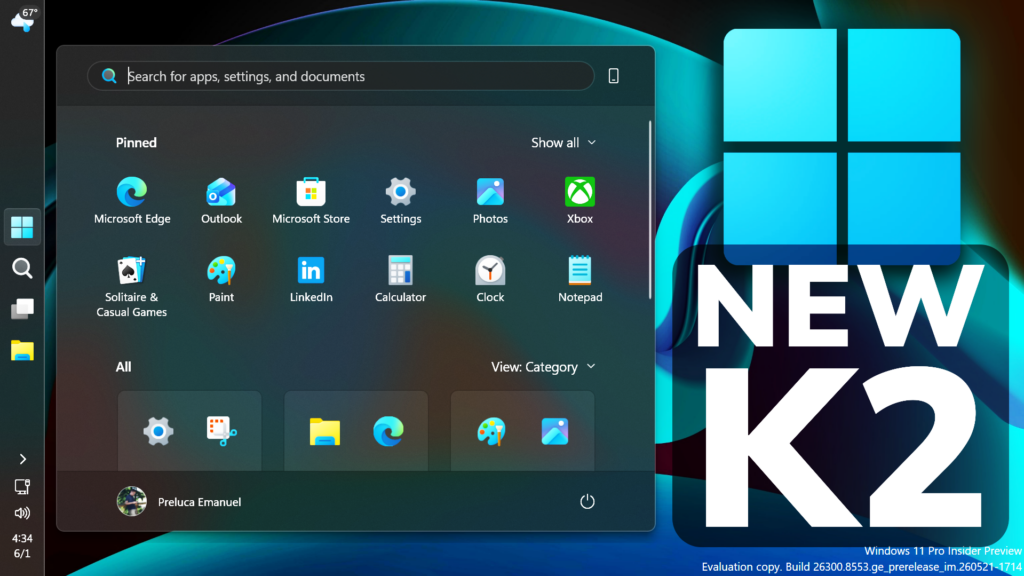
In this article, we will talk about All the New Windows K2 Features that we can test in June 2026, this including the New Taskbar, New Start Menu, New CPU Boost and more.
Windows K2, for those of you who don’t know, if Microsoft Codename for the internal plan that wants to fix Windows 11 and to address the main painpoints that users have reported for years now.
New Widgets Changes
Microsoft is introducing a New Set of Default Settings for Widgets:
- Disabling Open on hover by default
- Turning off taskbar badging by default
- Opening to widgets experience on first launch
- Limiting taskbar alerts until you choose to open and engage with the Widgets experience
New Performance Boost Feature
The New Low Latency Profile, uses the CPU to its Max frequency in short periods of time to launch apps or use Windows Features (Start Menu, Context Menu etc.)
This New Feature can improve launch speed for Apps by 40% and Windows in general by 70%.
The only downsides that we can name are a small heat increase for the CPU and lower battery life for laptops.
New File Explorer Context Menu and Improvements
- We’ve eliminated a grey flash on load and unexpected scrolling to the top on the Home page in certain cases.
- We’ve cleaned up the Favorites section, so OneDrive files no longer appear duplicated in some cases.
- We’ve sharpened file thumbnails in the Recommended section on the Home page so they’re crisper and easier to read.
- Address Bar improvements
- More readable file size formatting
- File sizes in the Details view now display using appropriate units (KB, MB, GB) instead of KB-only, making them easier to understand at a glance.
- Refinements to the rename experience
- Fixed an issue where text would be repeatedly selected while renaming items in folder views.
- Fixed an issue where updated names (case-only changes) were not immediately reflected in folder views across local and cloud storage.
- Improved keyboard navigation of File Explorer context menu in flyouts.
New Windows Search
- Files and apps more reliably appear ahead of web suggestions when your content is a stronger match
- Search by Substring: Files with compound names or content (e.g., MeetingNotesApril, ProjectStatusReport) are now easily discoverable by typing “april” or “status”.
New Movable and Small Taskbar
- You can now change the position of taskbar on your screen. In Settings > Personalization > Taskbar > Taskbar Behaviors, you can select the side of the screen you want your taskbar on: bottom, top, left, or right. In these other positions, tooltips, flyouts, and animations will still come from the taskbar, and most customization settings like small taskbar and never combine taskbar icons will work with all locations.
- Support for touch gestures, Search box, and Ask Copilot in alternate locations is in progress. Auto-hidden taskbar and touch optimized taskbar are not yet supported.

- Microsoft is introducing a smaller taskbar for users who want to maximize screen space, especially on smaller devices. While the default taskbar remains unchanged, this setting provides a more compact experience with smaller icons and a reduced taskbar height, giving you more room for your apps. Core elements like Start, Search, and the system tray scale appropriately to stay aligned and consistent.
- To change your taskbar size, go to Settings > Personalization > Taskbar > Taskbar behaviors > Show smaller taskbar buttons. When set to Always, both the icons and the taskbar height become smaller.

New Start Menu
New Start Menu Customizable Sections
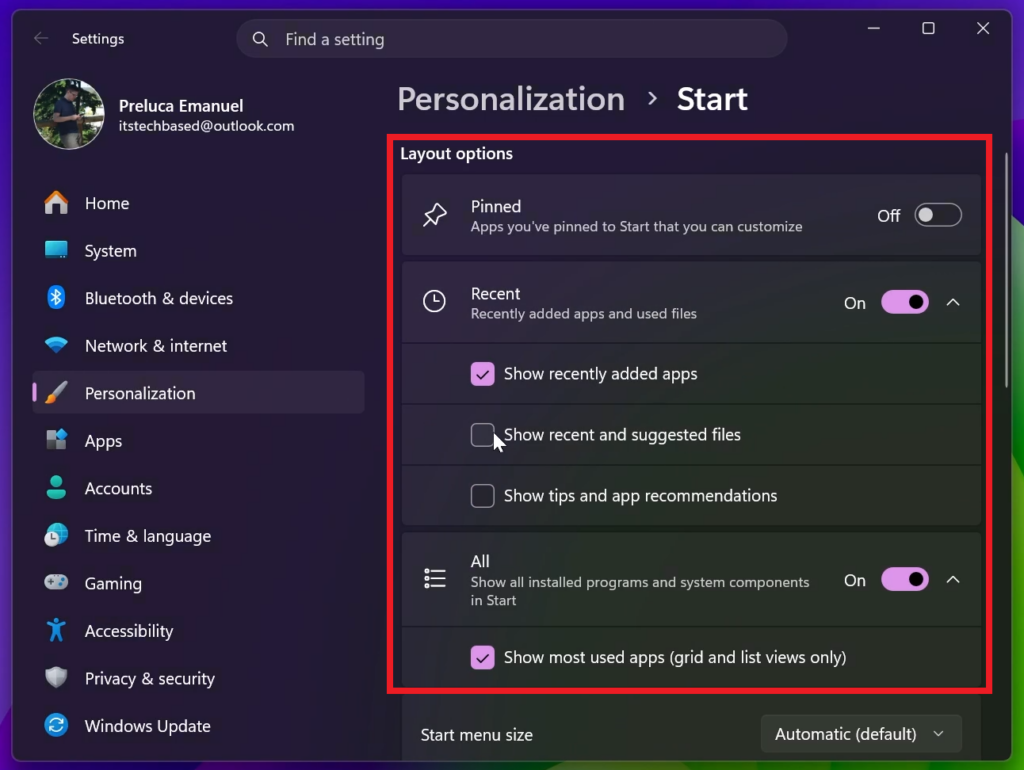
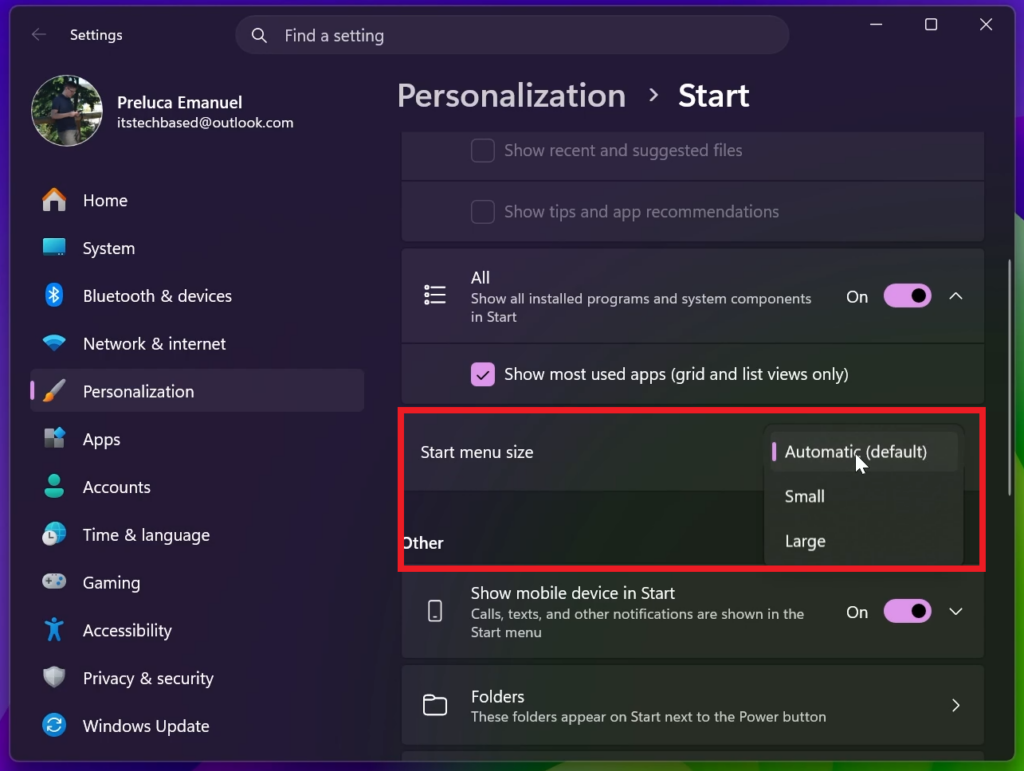
Microsoft has renamed Recommended section to Recent in Start and Settings page and have added section-level toggles to independently show or hide Pinned, Recommended, and All.
They have also redesigned the Start menu settings page.
New Start Menu Sizes: Small, Large and Auto
You can now also choose between a small and large Start menu, in addition to “Automatic (default)” setting option that’s already available today.
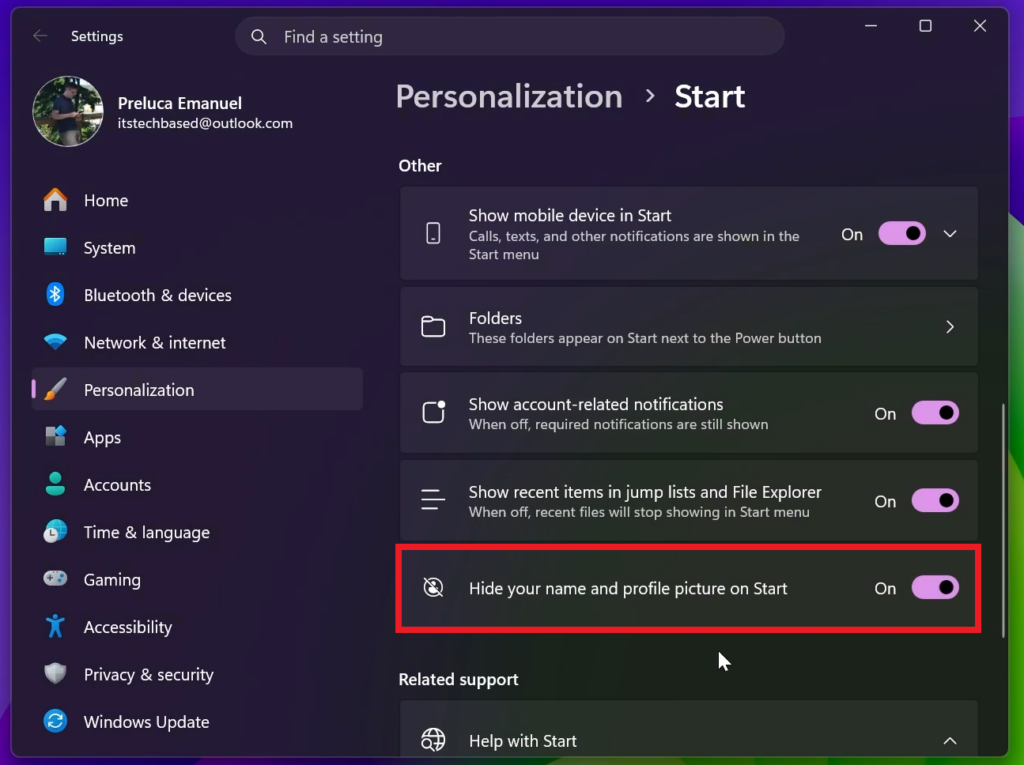
New Start Menu Options to Hide Name and Profile Picture
You now also have the option to hide your name and profile picture in Start.
New Screen Tint
- Microsoft is introducing screen tint, a new accessibility setting that applies a color overlay across your entire display, softening its intensity so it’s easier on your eyes throughout the day. If bright, saturated screens leave you with tired or sensitive eyes by the end of a long session, screen tint can help.

- To get started, open Settings > Accessibility (or press Win + U) and look for screen tint under the Vision section. From there you can:
- Pick from six preset colors or choose a custom color of your own.
- Adjust the tint strength slider from a subtle wash to full intensity.
- Night light warms your display to reduce blue light that can interfere with sleep. Screen tint reduces overall screen intensity to ease eye fatigue and light sensitivity during the day. They tackle different problems and you can use both at the same time, one working on warmth and the other on intensity.
- Note that turning on screen tint will disable color filters, and vice versa. If you currently rely on color filters, you may need to keep screen tint turned off.
New Drivers
Microosft introduced the Driver Quality Initiative (DQI), a comprehensive effort designed to improve driver quality, reliability, and security across Windows.
They also rolled out new changes with Cloud Initiated Driver Recovery to improve how drivers are validated, delivered, and maintained. By catching issues earlier, targeting updates more precisely, and enabling automatic recovery when needed, devices can stay reliable over time with fewer disruptions and a better path back to a known-good state.
For more information, you can check this article from the Microsoft Blog.
For a more in-depth presentation of the New Windows K2 Features, you can watch the video below from the youtube channel.
 11
11
 20
20