
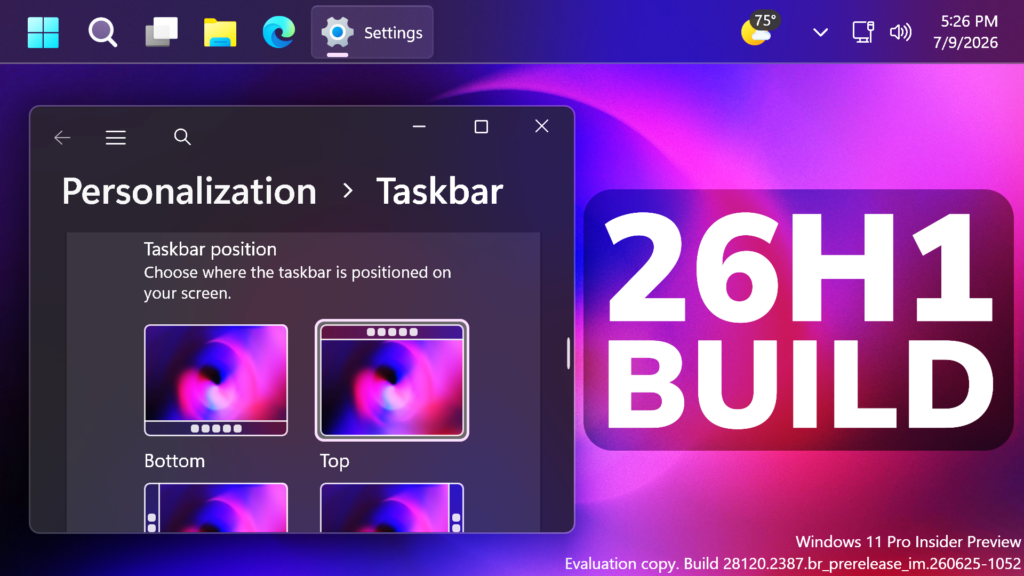
In this article, we will talk about another Preview Build for Windows 11 26H1, with the Build 28120.2242 in the Experimental Channel.
Insiders in the Experimental (26H1) channel will begin receiving a new 28100 series build number, while we officially introduce a new Beta (26H1) channel based on the 28000 series builds. This enables our goal of giving Windows 11 26H1 Insiders the same choice between Beta and Experimental development branches, with the associated differences outlined in our original blog announcing the program changes. As part of that commitment, Insiders in Experimental (26H1) can easily switch to Beta (26H1), or vice versa, by simply switching the experience selection in Settings > Windows Update > Windows Insider Program. This entails a simple in place upgrade (IPU), meaning no clean reinstallation of Windows is required.
As a reminder, while Insiders do have the ability to specifically select Windows 11 version 26H1 under the Advanced options tab in the Windows Insider settings, Windows 11 26H1 is a targeted release of Windows supporting specific silicon launching this year, including Qualcomm Snapdragon X2 Series devices. It is generally otherwise recommended to stick with the default Windows core version selected within Advanced options.
New Movable Taskbar
- You can now change the position of taskbar on your screen. In Settings > Personalization > Taskbar > Taskbar Behaviors, you can select the side of the screen you want your taskbar on: bottom, top, left, or right. In these other positions, tooltips, flyouts, and animations will still come from the taskbar, and most customization settings like small taskbar and never combine taskbar icons will work with all locations.
- Support for touch gestures, Search box, and Ask Copilot in alternate locations is in progress. Auto-hidden taskbar and touch optimized taskbar are not yet supported.

New Smaller Taskbar
- Microsoft is introducing a smaller taskbar for users who want to maximize screen space, especially on smaller devices. While the default taskbar remains unchanged, this setting provides a more compact experience with smaller icons and a reduced taskbar height, giving you more room for your apps. Core elements like Start, Search, and the system tray scale appropriately to stay aligned and consistent.
- To change your taskbar size, go to Settings > Personalization > Taskbar > Taskbar behaviors > Show smaller taskbar buttons. When set to Always, both the icons and the taskbar height become smaller.

Accessibility
This update improves caption style responsiveness by redrawing captions immediately for caption style changes. If no current caption is visible, a sample caption string is displayed.
Audio
This update improves the reliability of the inbox HD Audio driver.
Phone Control
You can add and manage your mobile devices in Settings under Bluetooth & Devices > Mobile Devices. On this page, you can manage features such as using your device as a connected camera or accessing your device’s files in File Explorer.
Remote Recovery Management
Added a recovery remote management plug-in to extend WinRE management capabilities for MDM providers.
Input
The emoji panel (Windows key + period (.)) now uses GIPHY as the GIF provider, delivering a smoother GIF browsing and sharing experience following the deprecation of the Tenor API.
New Free Upgrade to Windows 11 Pro Education
- Free upgrade path to Windows 11 Pro Education for K-12.
- Windows Insiders in K-12 education environments can now experience a seamless upgrade path from Windows 11 Home to Windows 11 Pro Education edition, at no additional cost. This enables educational organizations to procure Windows 11 Home devices, upgrade them to Windows 11 Pro Education, and bring devices under school management.
- To get started:
- Sign in to the device using a local account.
- Launch an elevated Command Prompt and initiate the upgrade by running
Clipupgrade.exe. - Sign in with your K-12 organization account to validate eligibility.
- The device prepares the upgrade and completes after a restart.
- This upgrade is one-way only. Reverting to Windows Home is not supported without a clean OS reinstall.
File Explorer
Fixed an issue where the OneDrive shortcut in File Explorer stops working when File Explorer is run in administrative mode.
Other Fixes
If you were having issues with Outlook not responding to the close button last week, that should be addressed now.
For more information about this Build, you can check this article from the Microsoft Blog.
For a more in-depth presentation of the New Build, you can watch the video below from the youtube channel.
 11
11
 20
20

