
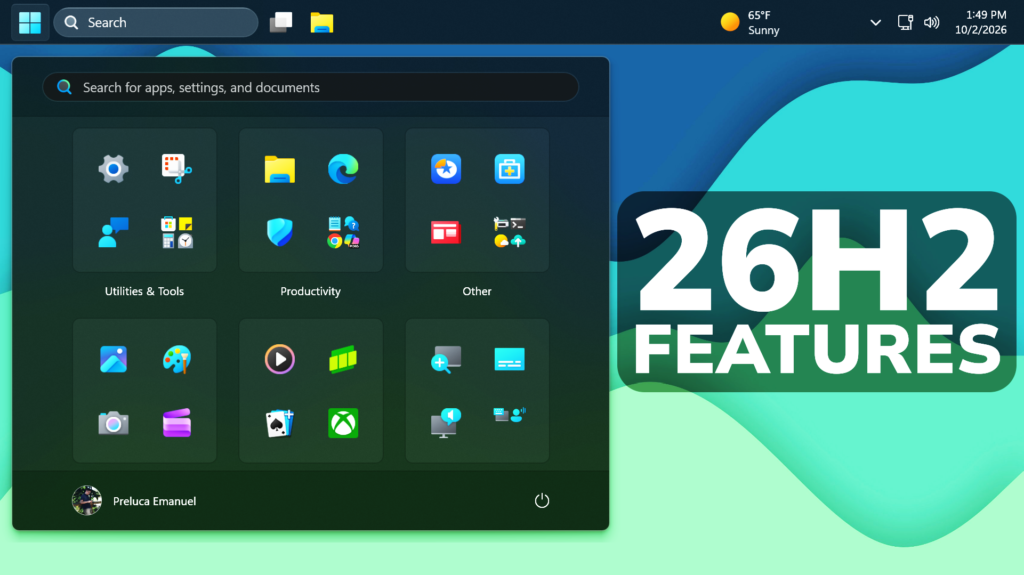
In this article, we will talk about the New Windows 11 26H2 Official Release and all its New Features.
On the 29th of September 2025, Microsoft has released the 2026 Update or the 26H2 Version for Windows 11.
Windows 11 26H2 Information you need to know
Windows 11, version 26H2 represents Microsoft’s yearly second half major update as part of their standard annual Windows 11 update cadence. As Windows 11, version 26H2 shares the same servicing branch as Windows 11, version 25H2, the update is implemented through an enablement package (eKB). This means your device will be updated to the next version through a single restart – providing a familiar, fast, and reliable update experience.
New Movable Taskbar
- You can now change the position of taskbar on your screen. In Settings > Personalization > Taskbar > Taskbar Behaviors, you can select the side of the screen you want your taskbar on: bottom, top, left, or right. In these other positions, tooltips, flyouts, and animations will still come from the taskbar, and most customization settings like small taskbar and never combine taskbar icons will work with all locations.
- Support for touch gestures, Search box, and Ask Copilot in alternate locations is in progress. Auto-hidden taskbar and touch optimized taskbar are not yet supported.

New Small Taskbar
- Microsoft is introducing a smaller taskbar for users who want to maximize screen space, especially on smaller devices. While the default taskbar remains unchanged, this setting provides a more compact experience with smaller icons and a reduced taskbar height, giving you more room for your apps. Core elements like Start, Search, and the system tray scale appropriately to stay aligned and consistent.
- To change your taskbar size, go to Settings > Personalization > Taskbar > Taskbar behaviors > Show smaller taskbar buttons. When set to Always, both the icons and the taskbar height become smaller.

Taskbar Improvements
- The Taskbar behaviors section of the Taskbar settings page is now expanded by default for improved discoverability.
- This update improves reliability when loading the system tray area of the taskbar on non-touch PCs.
New Start Menu Customizable Sections
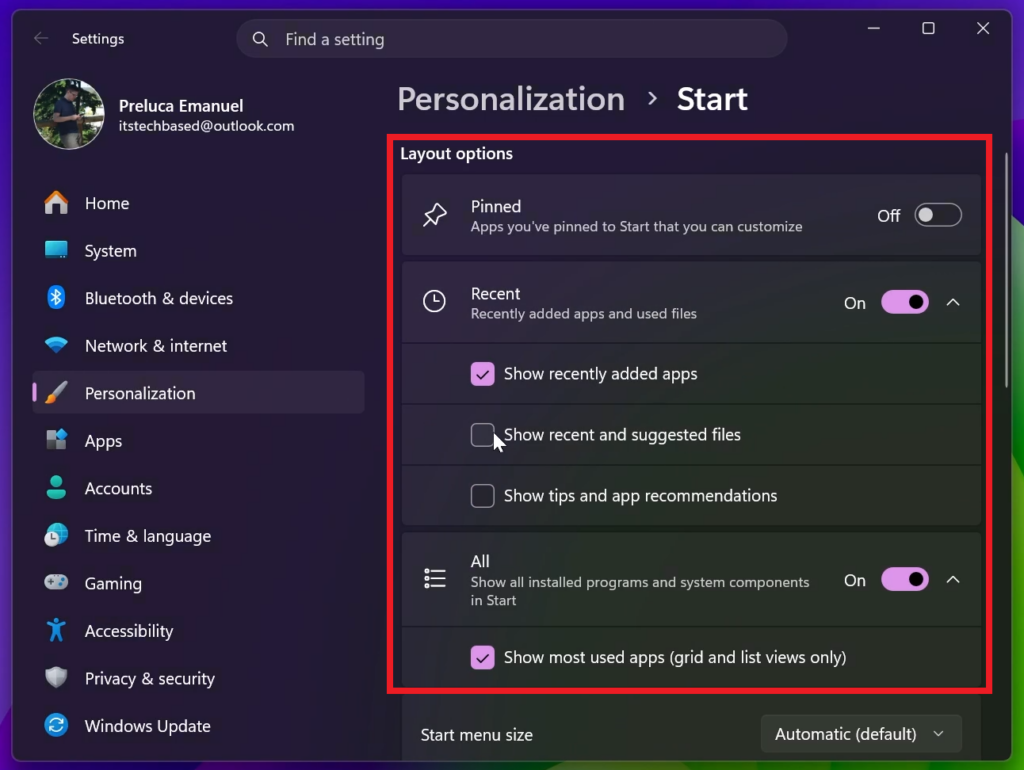
Microsoft has renamed Recommended section to Recent in Start and Settings page and have added section-level toggles to independently show or hide Pinned, Recommended, and All.
They have also redesigned the Start menu settings page.
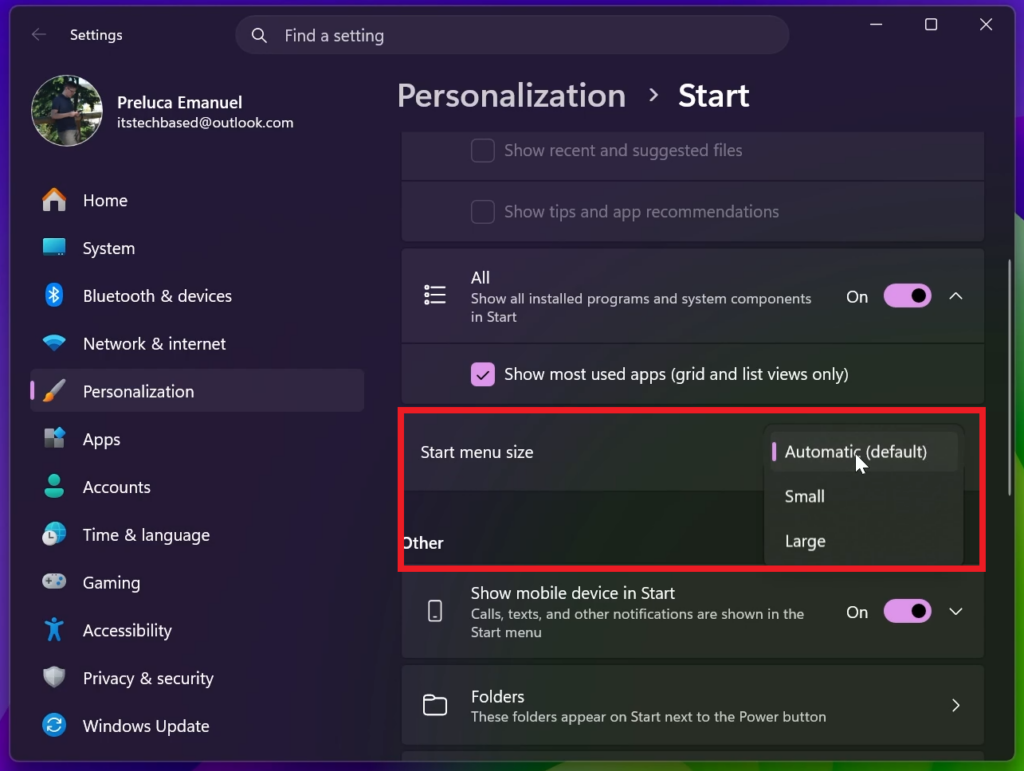
New Start Menu Sizes: Small, Large and Auto
You can now also choose between a small and large Start menu, in addition to “Automatic (default)” setting option that’s already available today.
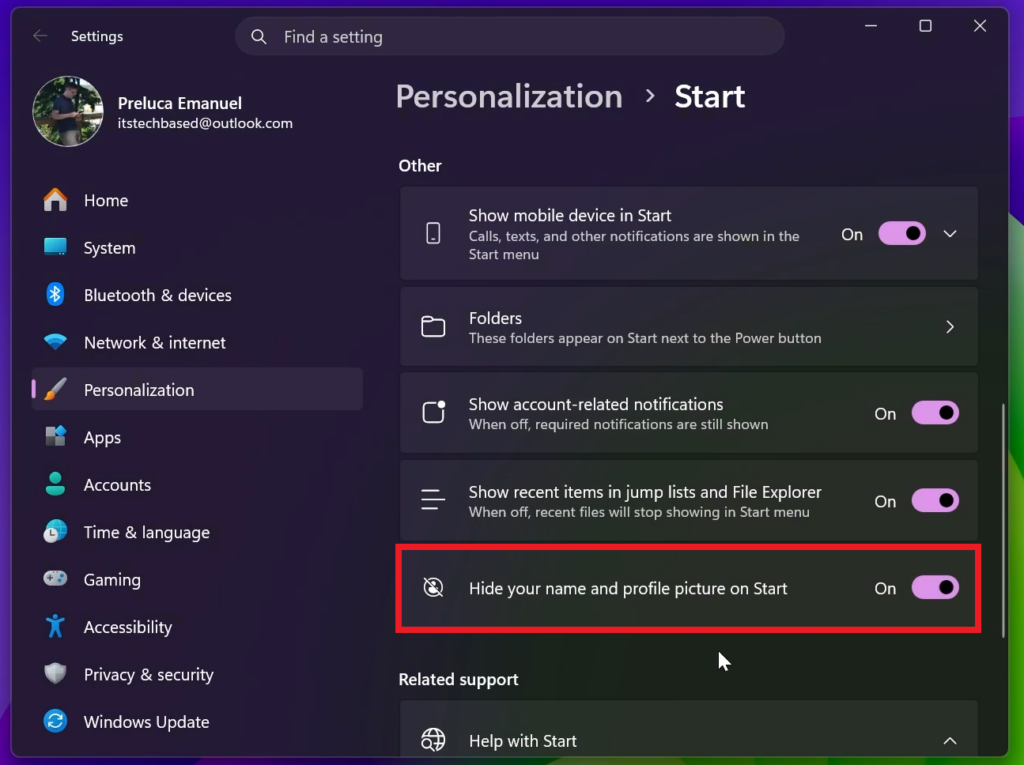
New Start Menu Options to Hide Name and Profile Picture
You now also have the option to hide your name and profile picture in Start.
New Search Home
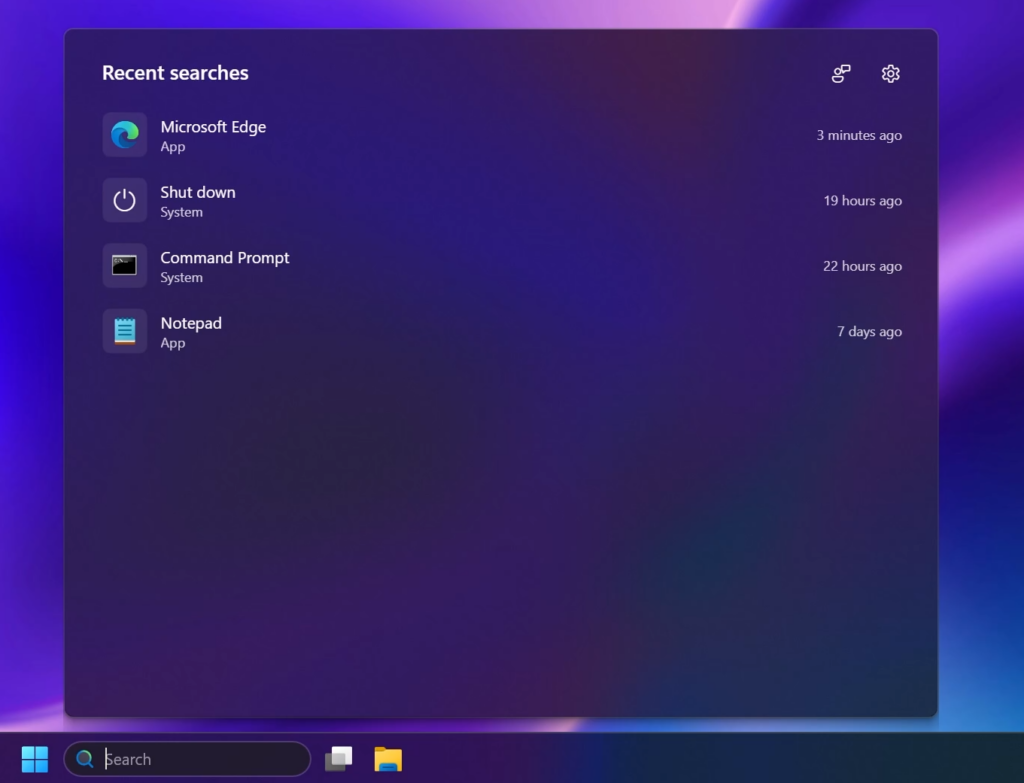
Search home has been simplified to reduce visual clutter and make it easier to get back to recent searches quickly.
New Search UI
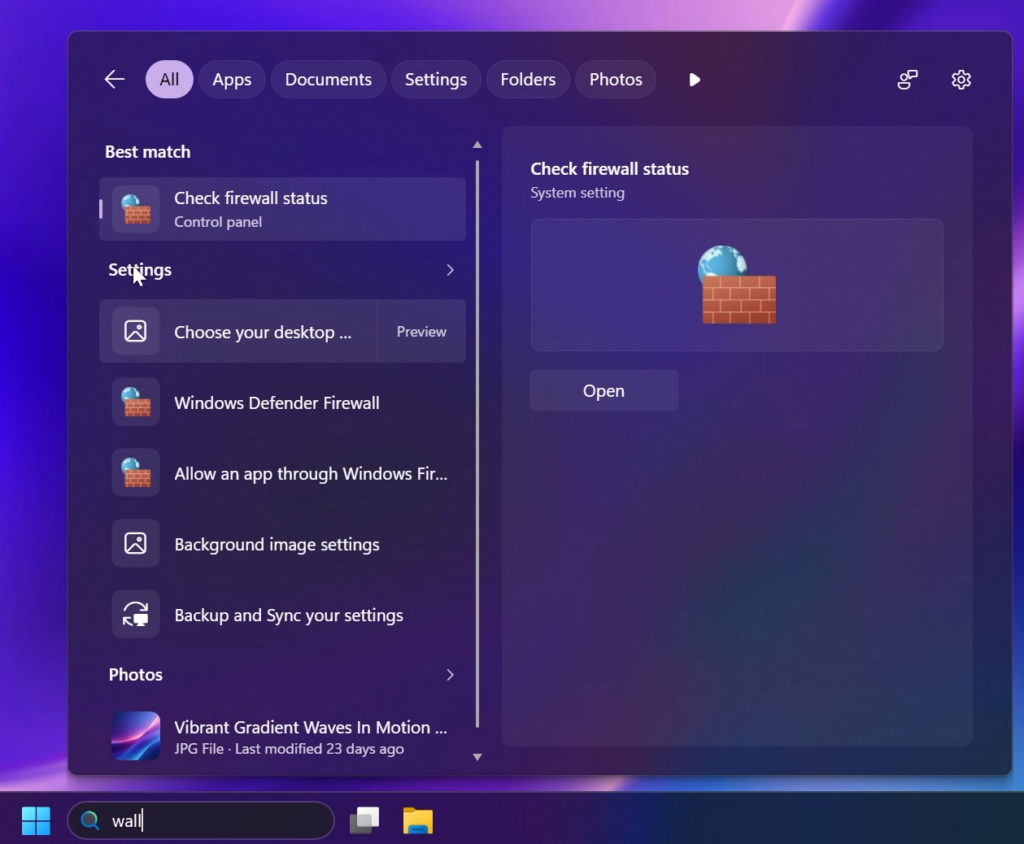
Search does a better job showing where a result comes from—app, setting, file, web result, or Store suggestion—so it’s easier to tell what you’re looking at and where you will go before you click.
New Search Option to Remove Web and Microsoft Store Search Results
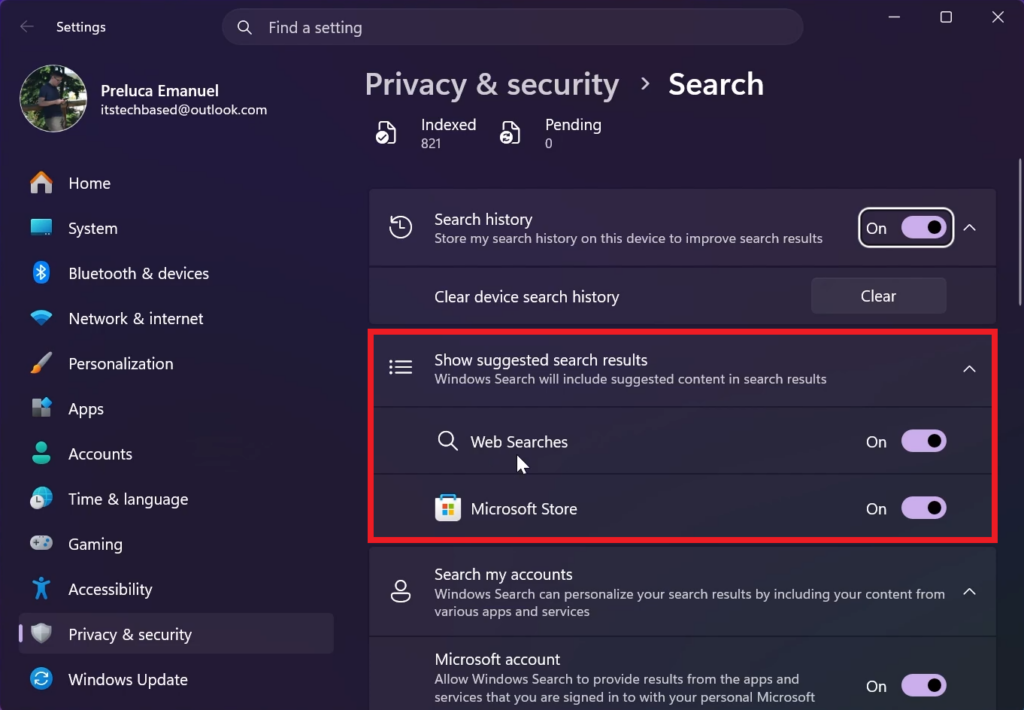
You’re in control of web and Microsoft Store results. A new setting in Settings > Privacy & Security > Search lets you choose whether web and Microsoft Store suggestions appear alongside local results.
New Search Indexing Toggle
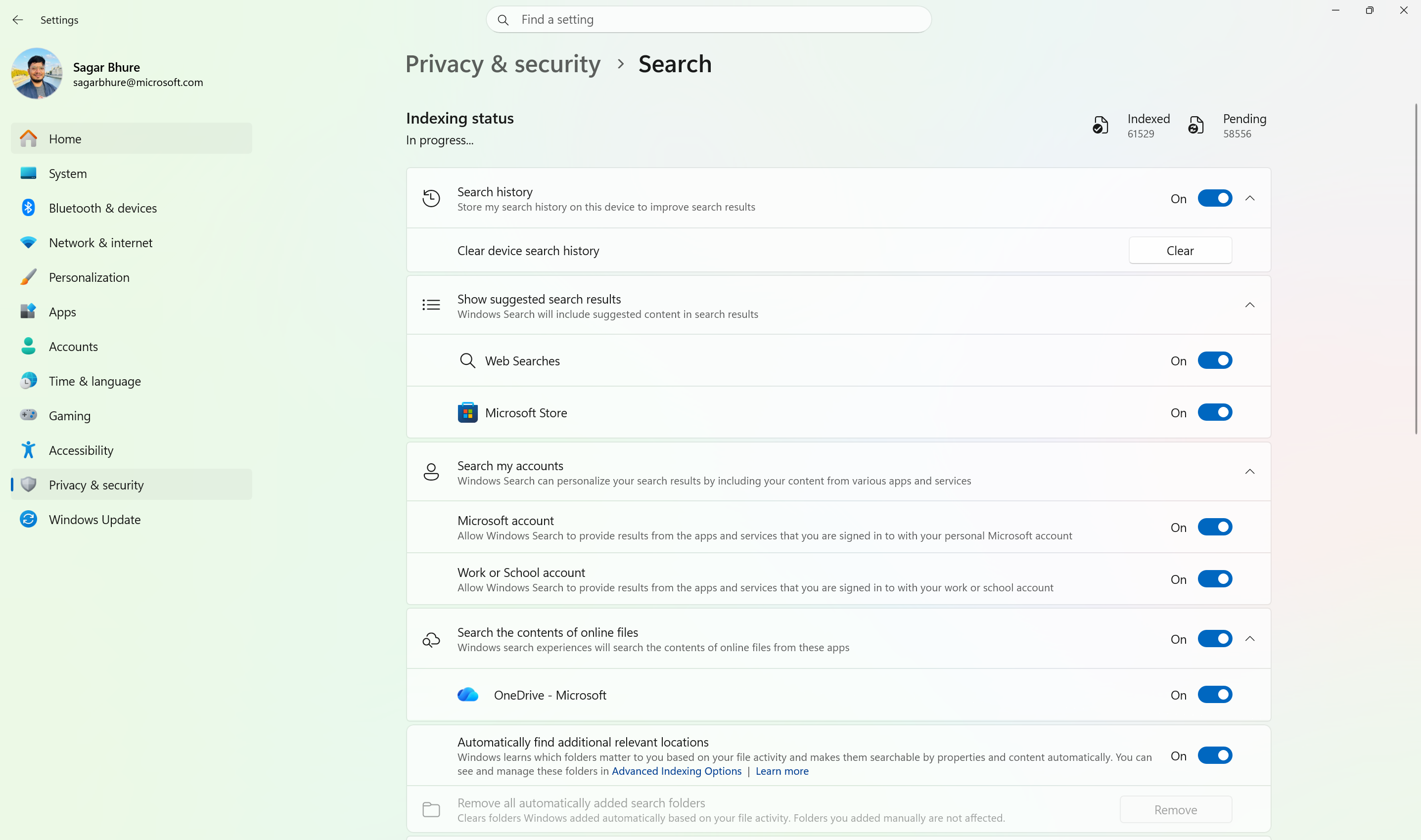
- Windows Search can now automatically expand its indexing scope based on your activity, using signals like recent files and frequently accessed locations. This helps ensure that relevant files across your device are discoverable without requiring manual indexing configuration.
- To manage this feature, go to Settings > Privacy & security > Search.
New Security Improvements
- Administrator protection provides just-in-time administrative privileges and profile separation to help harden Windows against elevation-of-privilege attacks. You can enable it through Microsoft Intune or Group Policy.
- Built-in Sysmon functionality in Windows enables you to capture system events that security tools can use for threat detection. Sysmon is off by default. You can configure it to capture the events your organization needs.
- Smart App Control can now be turned on or off without requiring a clean installation of Windows, making it easier to block untrusted or potentially harmful apps.
- Windows Hello Enhanced Sign-in Security expands support to compatible peripheral fingerprint sensors. As such, enhanced biometric sign-in protection is available on more Windows 11 PCs.
- Post-quantum cryptography improvements include API support for NIST-standardized ML-KEM and ML-DSA algorithms. They include support for key exchange, signing, and decryption through CNG and .NET.
- Driver security enhancements change how the Windows kernel trusts third-party drivers. They remove default trust for cross-signed drivers while maintaining support for WHCP and designated trusted legacy drivers.
New Task Manager Improvements
Task Manager provides greater visibility into NPU usage, including NPU utilization and memory information. You can also identify applications running in an AppContainer.
New Management and Deployment Enhancements
- Windows Autopilot device preparation supports device association. It helps organizations identify trusted devices before enrollment and enabling device-targeted policies, automatic corporate device enrollment, and additional OOBE customization.
- Windows settings backup and restore expands first sign-in restore to Microsoft Entra hybrid joined devices, Cloud PCs, and multi-user environments. Use it to restore user settings and Microsoft Store apps during device refreshes, upgrades, and migrations.
- Point-in-time restore for Windows provides another recovery option. Roll back a PC, including apps, settings, and personal files, to a recent automatic restore point.
- Policy-based app removal gives organizations more flexibility to remove preinstalled Microsoft apps on Enterprise and Education devices. Just specify additional MSIX and APPX packages through Group Policy.
- RSAT on Arm64 enables IT administrators to use tools including Server Manager, Group Policy Management Tools, DNS Server Tools, DHCP Server Tools, and Active Directory management tools on Windows 11 Arm64 devices.
- App update orchestration allows participating applications to coordinate updates with Windows Update for improved scheduling and a more streamlined update experience
New File Explorer Previews
This update adjusts how the preview pane handles files downloaded from the web. For HTML files, a new Preview anyway button lets you acknowledge the warning and preview the file. Non-HTML files, such as PDFs, are now previewed automatically.
New File Explorer Home
File Explorer Home now preserves the state of sections (expanded or collapsed), so you can pick up where you left off.
New File Explorer Details Pane
This update improves the reliability of thumbnail previews for cloud files in the Details pane. The pane has also been reorganized so file properties are easier to find and review at a glance.
File Explorer Fix
The update addresses an issue that could clear the address bar contents when entering edit mode by clicking near the right side of the address bar.
New Emoji 17.0
- This update adds support for Emoji 17.0, including new emoji such as distorted face, fight cloud, and hairy creature. To insert them, press Windows + . to open the emoji panel.
- This update also refines the design of several existing emoji for better consistency across platforms, including saluting face, face with peeking eye, goose, lotus, and kissing cat.
New Tips Widget
This update introduces the Tips widget, which provides short, helpful guidance about Windows features. To add it to your Widgets board, open the board, select Add widgets, and then choose Tips. To add it to your lock screen, go to Settings > Personalization > Lock screen and add Tips to your lock screen widgets.
New Personalization Improvements
- This update improves the reliability of the Personalization > Background page in Settings.
- This update adds support for using DIB image files as desktop backgrounds.
- This update improves reliability of desktop slideshow transitions on newly created accounts.
- This update improves resolution of previews when selecting a desktop background in Personalization > Background.
- This update improves desktop background preview display in Settings for users with portrait mode monitors.
- This update improves reliability of processing desktop wallpaper changes when they happen in quick succession.
- This update adds support for using slideshow wallpapers with multiple desktops, so that it won’t automatically switch you back to Picture.
New Bluetooth Improvements
- This update contains several enhancements to improve reliability and experience when connecting to and using Bluetooth devices:
- During voice calls, the Windows shell volume flyout now appears when adjusting the volume of a Bluetooth Classic Audio accessory via the volume controls on the accessory, providing visual feedback of the new volume level.
- This update improves the accuracy of the connection state displayed by Windows for accessories that have disconnected from the PC.
- This update improves stability of the Bluetooth and devices page in Settings when managing Bluetooth and audio devices.
- This update resolves an issue where the Bluetooth radio could be turned off, but the state of the radio control toggle in the Bluetooth and devices page in Settings shows as on.
- This update improves Bluetooth audio stability and compatibility:
- This update improves microphone compatibility with certain Bluetooth Classic audio accessories.
- This update resolves an issue that could result in a crash (error code 0x139) while streaming Bluetooth audio.
- This update improves reliability and performance with LE Audio accessories.
- This update improves the reliability of shared audio.
New Maximised Apps by Default
This update introduces Open apps maximized, an accessibility setting that automatically maximizes app windows as they open. It removes a bit of everyday friction whether you use a screen reader or magnification, work in tablet mode, or simply prefer a consistent, full-screen workspace. To turn it on, go to Settings > Accessibility > Visual effects and turn on Open apps maximized.
New Magnifier
- This update brings a modernized visual refresh to the Magnifier taskbar.
- Updated icons Magnifier’s toolbar icons align with Windows 11 visual design, giving the tool a cleaner, more modernized feel.
- Refined spacing and padding The padding is adjusted with spacing across the toolbar for a more polished, consistent layout.
New Settings App Improvements
- This update improves the reliability of Settings when interacting with the contents of the Settings > Bluetooth & Devices > Printers & Scanners page.
- This update updates Settings > Apps > Installed apps to show the version number at the top level for packaged apps, as it already does for other apps.
- This update improves the time picker control in Settings so that it reflects your preferred time format when you switch between 12-hour and 24-hour time. This applies in places such as setting active hours and scheduling Night light.
- This update improves persistence of the Allow multiple apps to use camera at the same time option in Settings > Bluetooth & Devices > Camera settings.
New Touchpad Improvements
- Additional gesture controls for precision touchpads are available in Settings > Bluetooth & devices > Touchpad:
- Single-finger scrolling — Scroll vertically with one finger starting from the left or right side of the touchpad.
- Automatic scrolling — Keep scrolling without lifting your fingers by moving them near the edge of your touchpad while scrolling.
New Copilot Key Option
This update introduces a new Windows 11 setting that lets you remap the Copilot key to function as the Right Ctrl or Context Menu key, helping preserve familiar keyboard shortcuts and accessibility workflows. For more information, see Understand updates to the Copilot key on Windows devices.
New Camera Roll Backup
This update introduces Camera roll backup in Settings, helping eligible users protect their photos with OneDrive. You can turn on the feature from the Settings Home or Accounts page and complete setup on a mobile phone using a QR code.
New Fonts
- This update adds support for the Garay and Beria Erfe scripts to the Ebrima font, the first Microsoft font to support both. Garay was encoded in Unicode 16.0 and Beria Erfe in Unicode 17.0.
- This update also refines the Adlam glyph designs in Ebrima to align with the current Unicode standard and improve consistency.
New Windows Recovery Environment Features
This update adds a recovery remote management plug-in for extending WinRE management capabilities for MDM providers. For more information, see Recovery Remote Management Overview.
New Kiosk Mode Changes
- The Windows + Tab keyboard shortcut is now disabled when using a restricted UX kiosk.
- The Windows + A and Windows + C keyboard shortcuts are now disabled when using single-app kiosk mode.
New Windows Backup Changes
PC-to-PC Migration is no longer available. This feature, introduced through a phased rollout, previously allowed you to transfer files and settings directly from your previous PC when setting up a new Windows PC. To back up and restore your files, settings, and other supported items when moving to a new PC, use Windows Backup. For more information, see Backup and restore with Windows Backup.
New Power and Battery Improvements
This update improves display and performance in certain scenarios where a plugged-in laptop incorrectly detects a transition from AC power to battery power.
Camera Fix
This update addresses an issue where the built-in camera might stop working in the Camera app and other apps that use the camera.
File History Fix
This update addresses an issue where File History might fail to back up or restore files to an external drive or network location. Affected devices might incorrectly display a “Reconnect your drive” message even when a compatible backup drive is connected and working properly.
System Monitor Fixes
- This update fixes an issue with header validation for executable files. Truncated or malformed files could cause unpredictable memory use and result in unreliable tampering detection.
- This update fixes an issue with the Sysmon file system filter driver. If the archive directory failed to open during file monitoring, closing an uninitialized handle could cause a stop error.
- This update fixes an issue with process tampering detection. Sysmon incorrectly generated Event ID 25 alerts for the Windows Session Manager (smss.exe) process.
More Features Coming in the Next Months
In the Next Few Months, Microsoft will continue to Release Other New Features in the Monthly Updates, such as the New Customizable Context Menu and New Features to Quick Settings, Start Menu and Taskbar.
For more information about the first Windows 11 26H2 Build on the Main Release, you can check this article from the Microsoft Blog or this article from Microsoft’s Tech Community.
For a more in-depth presentation of the New Windows 11 26H2 Features, you can watch the video below from the youtube channel.
 11
11
 20
20

