
In this article, we will see how to Install Windows 11 26H2 On Any PC using 2 Easy Methods.
As with every New Major Windows 11 Version, to upgrade or install, you’ll have to pass some Microsoft requirement checks and only after that you will be able to upgrade or install. In the case where you have an unsupported computer, there are still ways to upgrade/install Windows 11 26H2. In this article, I will show you how to do that really easily.
Upgrade with the Enablement Package
If you already have Windows 11 24H2 or 25H2 installed on your unsupported system, you will notice that Microsoft won’t show the 26H2 Update in Windows Update. That’s because they are doing additional system requirements checks to see if you have a compatible computer.
Even though you don’t get the update, if you have the latest version of 25H2, you can use the Enablement Package to manually upgrade.
- AMD64 PCs (Intel/AMD): Direct download link (.msu)
- Arm64 PCs (Qualcomm): Direct download link (.msu)
The upgrade process will be very fast and similar to the Windows Update Method, but done manually.
Clean Install with Bootable USB Drive
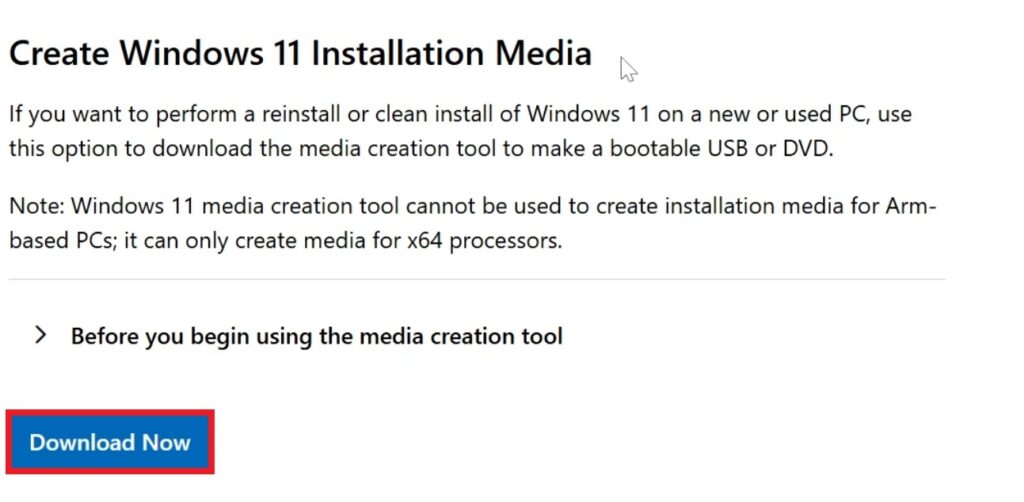
Make sure you go to the Official Windows 11 26H2 Microsoft Download Page and in the Create Windows 11 Installation Media Section click on Download Now.
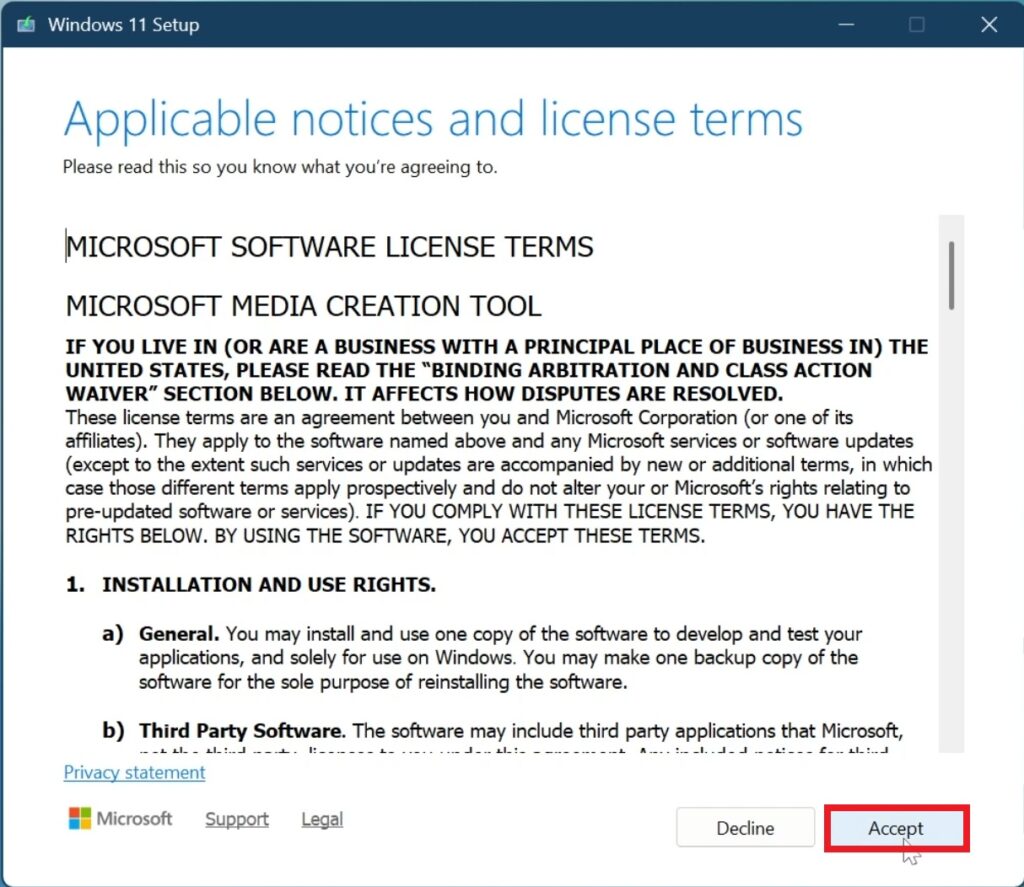
Once opened, you will need to Accept the License Terms in the Windows 11 Installation Media.
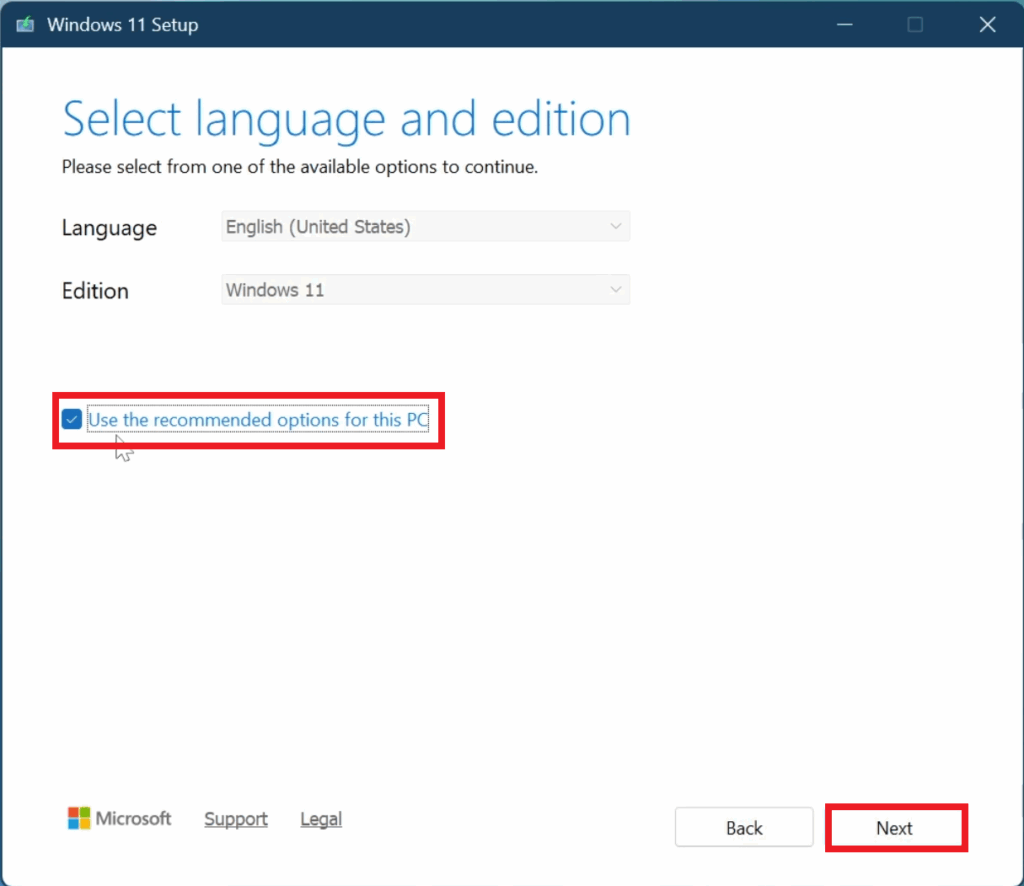
Next up, select Use the recommended options for this PC and then click on Next.
Then select ISO file, click on Next and select the location where you want the ISO to be downloaded.
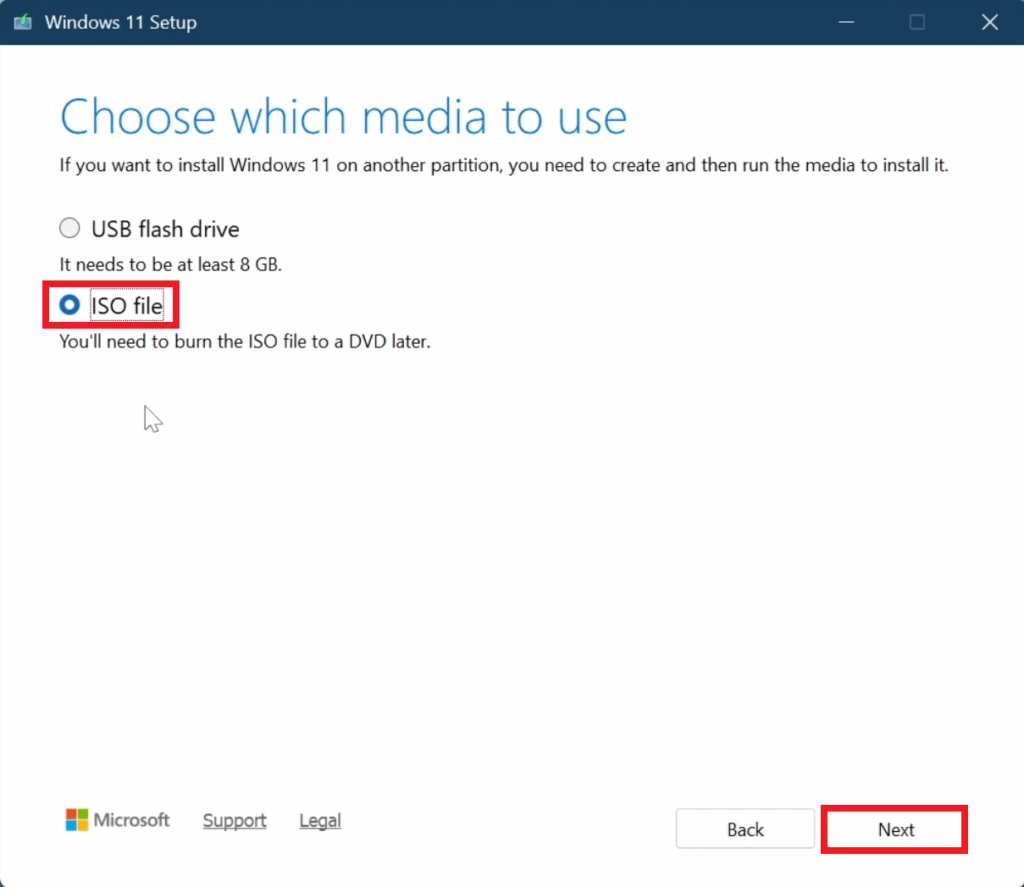
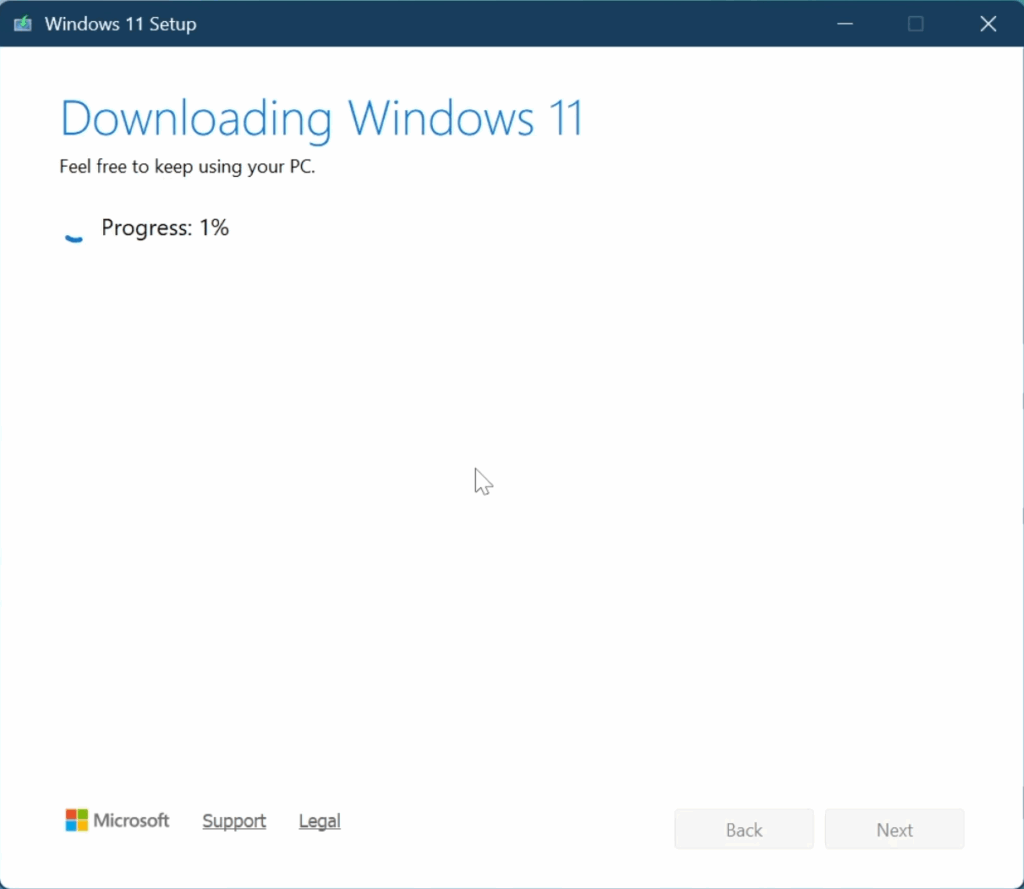
After this, just wait for the Download Process to be finished and then click on Finish.
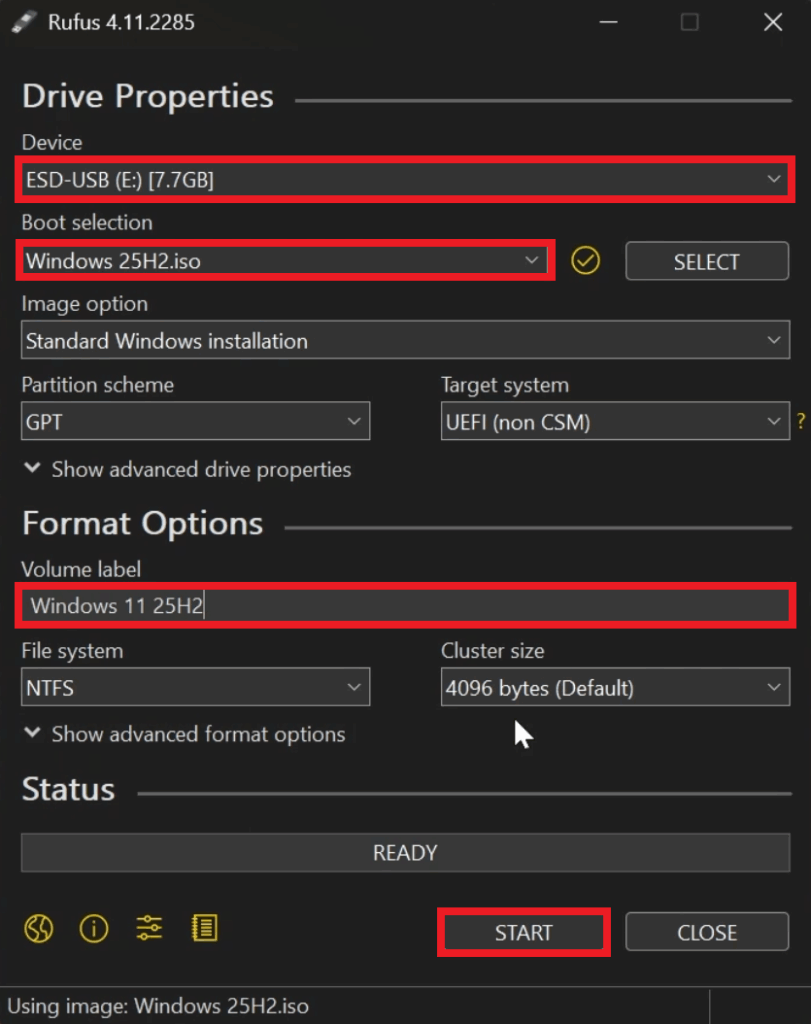
After that, make sure to Download Rufus.
Once opened, select the USB, the ISO, Change the Volume Label and then click on Start.
A window will appear where you need to select Remove requirement for 4GB+ RAM, Secure Boot and TPM 2.0.
Additionally, you can also Automatically Create a Local Account, Skip the Privacy Questions and Disable Bitlocker.
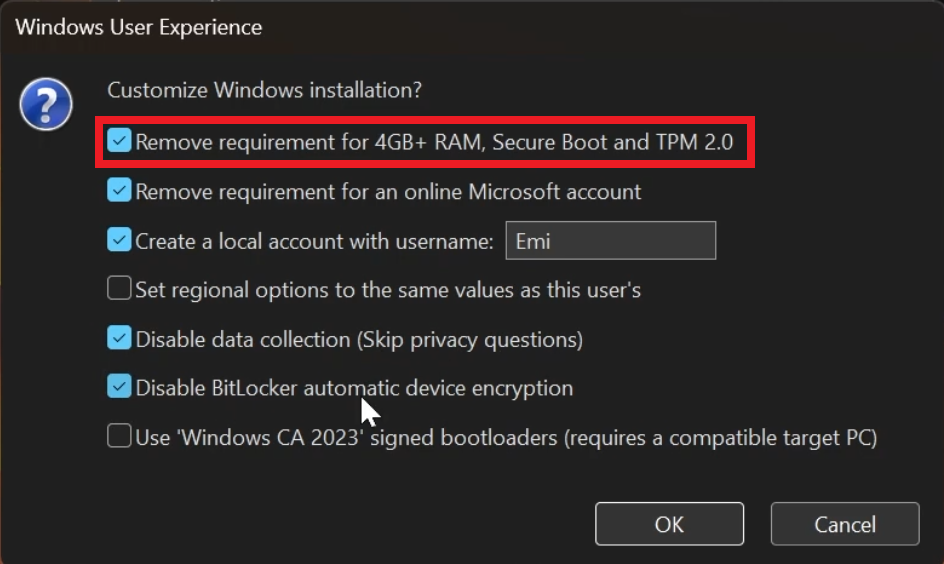
Once finished, click on OK and wait for the process to be finished.
After this, you can start the Clean Install process of Windows 11 26H2.
For a more in-depth tutorial, you can watch the video below from the youtube channel.
 11
11
 20
20

