
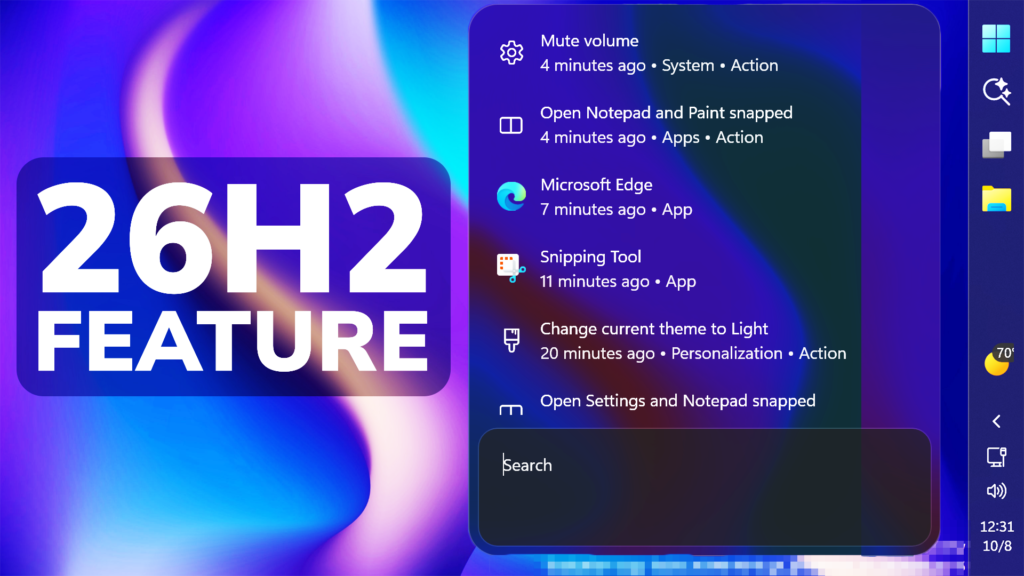
In this article, we will talk about How to Enable a New Windows 11 26H2 Feature which is the New Search UI with Custom Actions.
In the latest Windows 11 Build for the Experimental Channel (Old Dev Channel) which is the Build 26340.9616, Microsoft is testing a New Windows 11 26H2 Feature which is the New Search UI with Custom Actions. In this article, I will show you how to enable it.
Thanks to phantomofearth for discovering this, follow him for more hidden features!
You will need to download ViveTool, which is a small app that will help us enable hidden features from Windows.
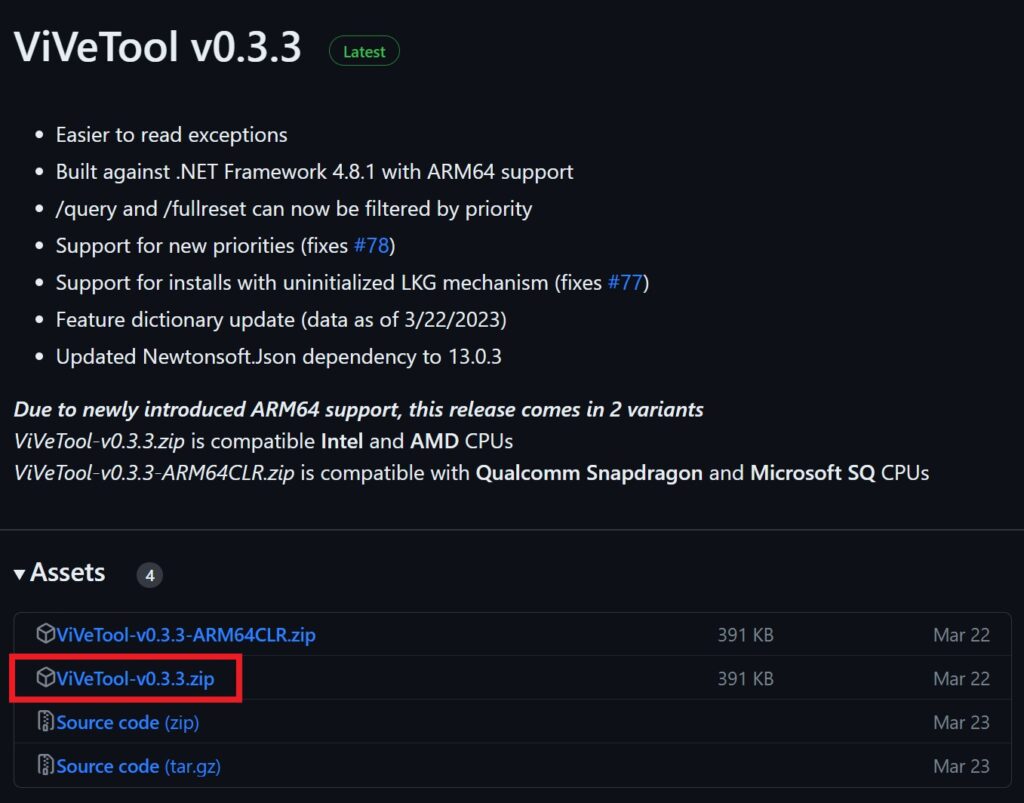
After you download ViveTool, you will need to extract the contents of the archive into a folder of your choice.
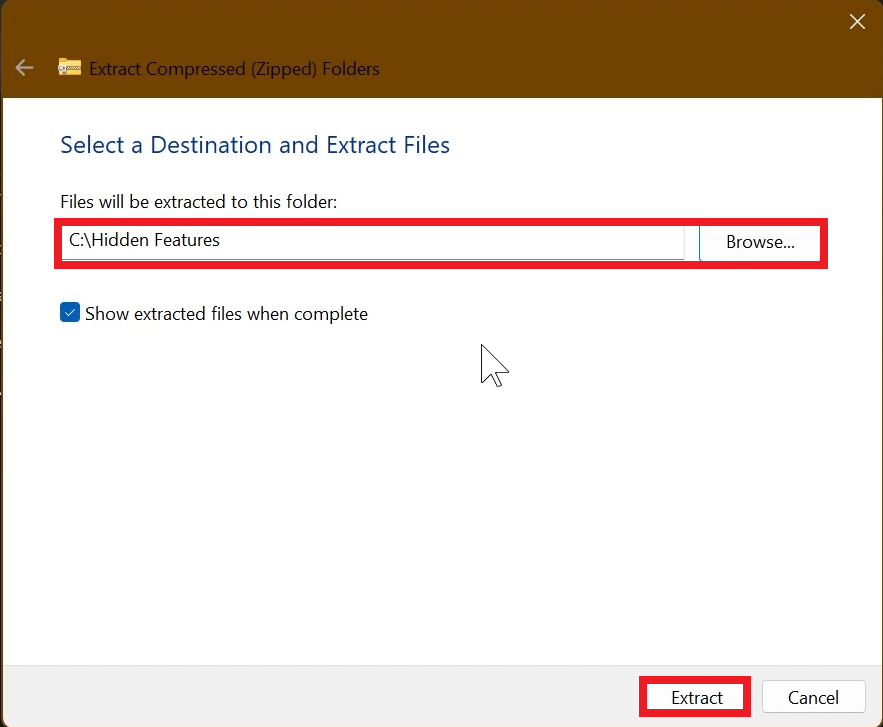
Right-click on the archive and then click on Extract all. Select Your Folder and then click on Extract. You will also need to provide some administrative privileges.
After you’ve done that, you will need to open CMD as administrator. Type the following command in CMD:
cd "your-location"Then copy and paste the following commands:
New Search UI with Custom Actions:
vivetool /enable /id:57739723,58381341,59210767,59210771You will now need to restart your computer, for the changes to take effect.
Additionally, you can go to Settings > Windows Update > Windows Insider Program > Feature Flags > Set Refined Windows Search to Enabled
After the restart, you should be able to see the New Windows 11 26H2 Feature on your Windows 11 PC.
For a more in-depth tutorial, you can watch the video below from the youtube channel.
 11
11
 20
20

