
In this article, we will talk about a New Windows 11 26H2 Microsoft Account Bypass that was blocked by Microsoft and I will also show you 2 different methods that still work which allow you to install Windows 11 26H2 with a Local Account.
New MSA Bypass Blocked
While installing Windows 11, when you got to the “Let’s add your Microsoft account” Section, you had to click on the small Learn more button, below the text that explains you the advantages of a Microsoft Account.
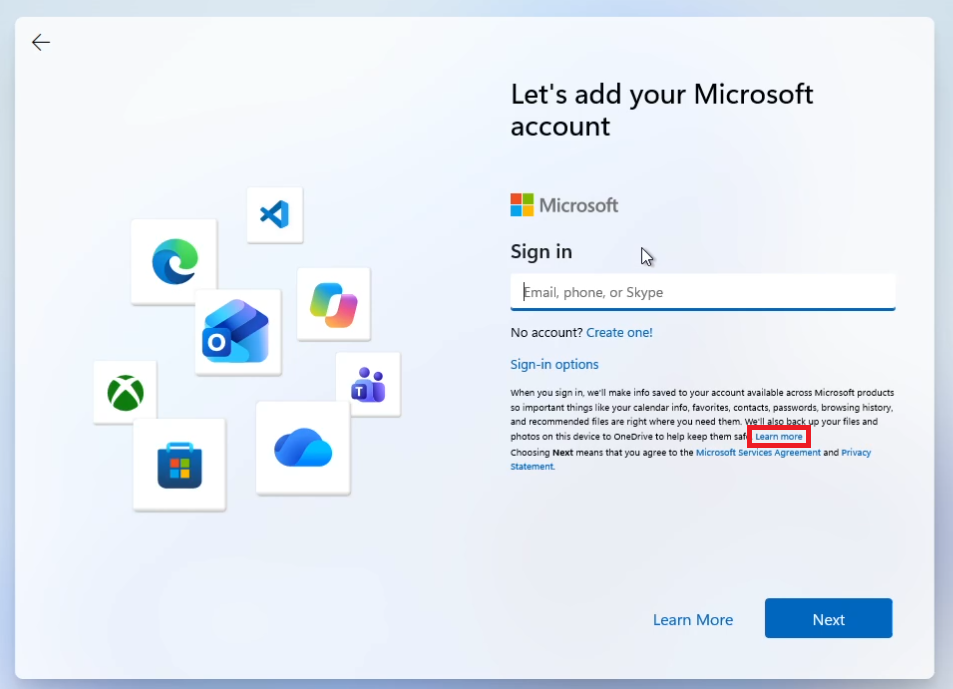
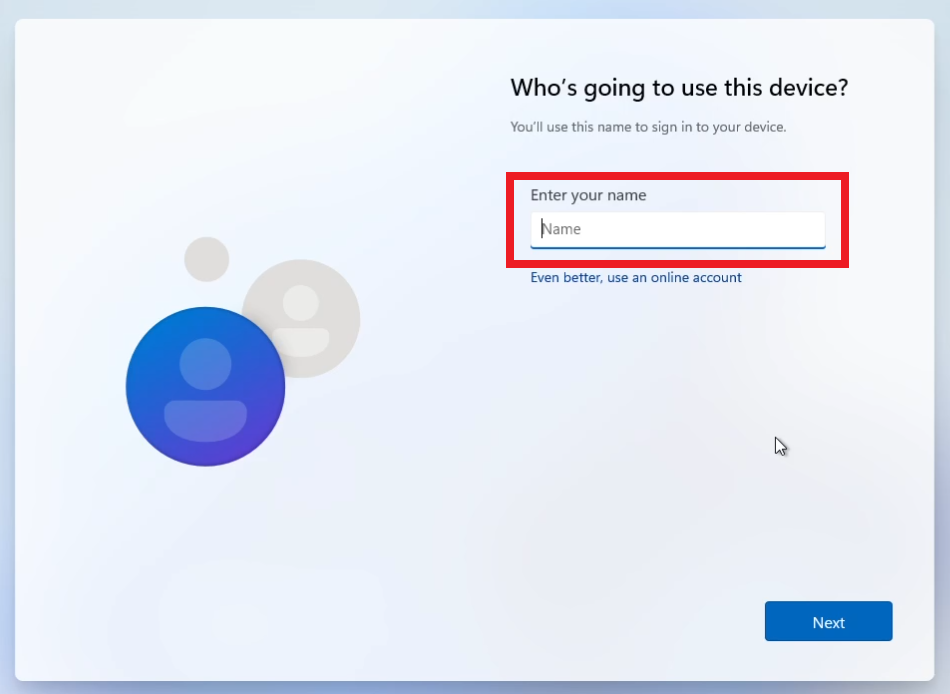
Once you clicked on that, the Setup would’ve Skipped directly to the Local Account Username part and you could’ve easily installed Windows 11 with a Local Account. This will also skipped all the ads from the Setup.
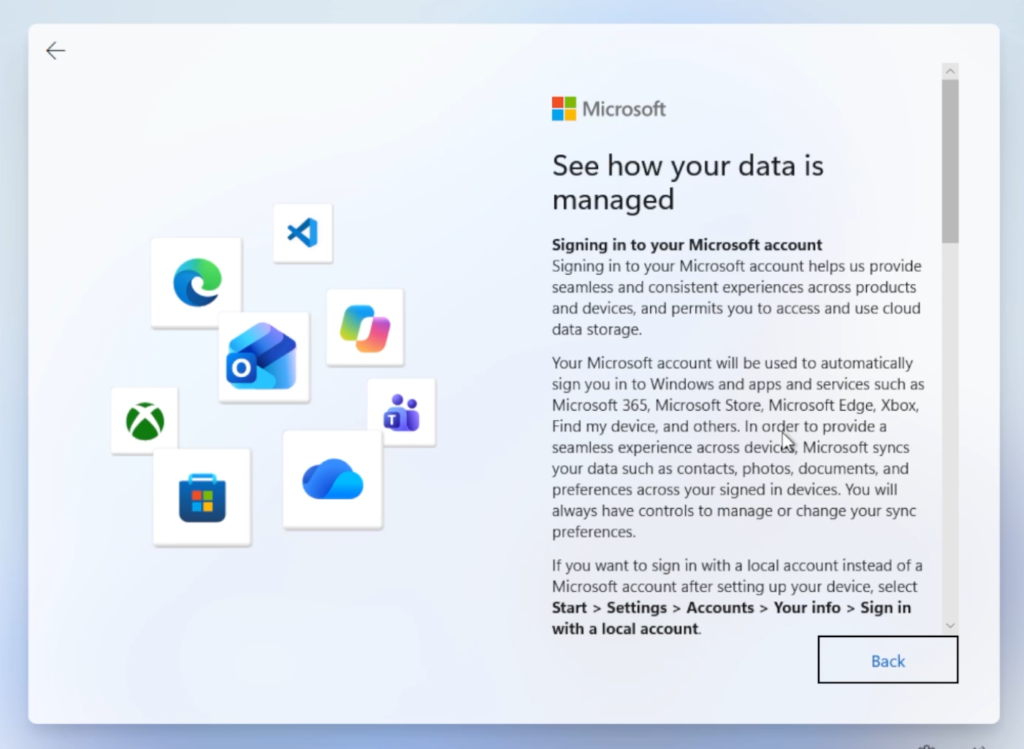
In the latest Updates that is now fixed, and when clicking on the Learn more button, the normal interface appears which guides on how to Create a Local Account after you finished setting up Windows 11 26H2.
Install 26H2 with Local Account in OOBE
A very reliable method that still works is to manually create the Local Account using commands directly on the MSA Login Page.
First of all press Shift + F10 and run the following commands:
net user "User Name" /add

net localgroup "Administrators" "User Name" /add

cd OOBE

msoobe && shutdown -r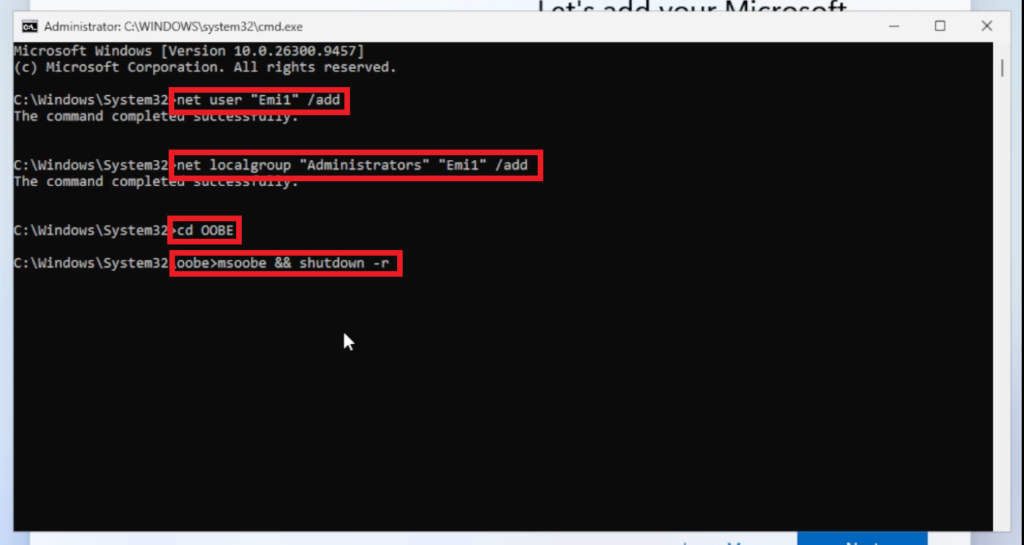
After this, the PC will restart and the install will be finished very quickly.
Create 26H2 Bootable USB with MSA Bypass
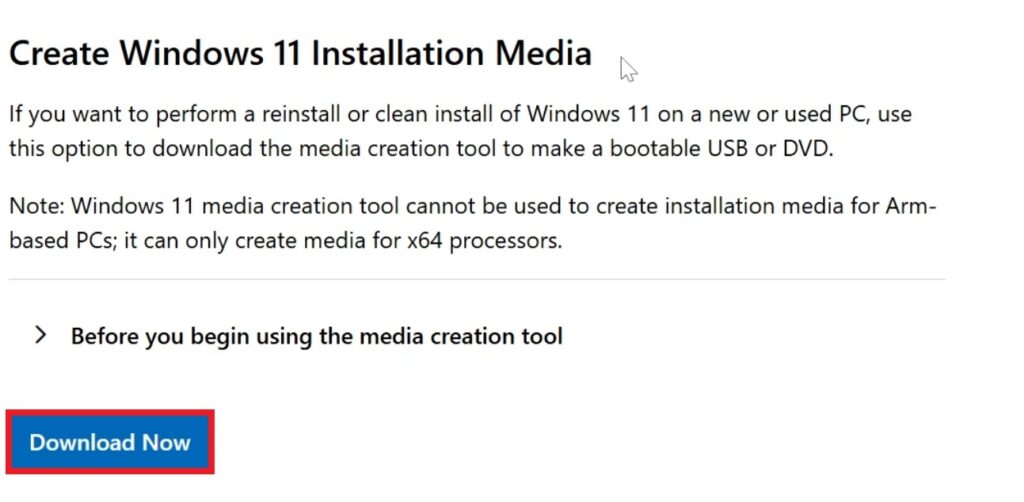
Make sure you go to the Official Windows 11 26H2 Microsoft Download Page and in the Create Windows 11 Installation Media Section click on Download Now.
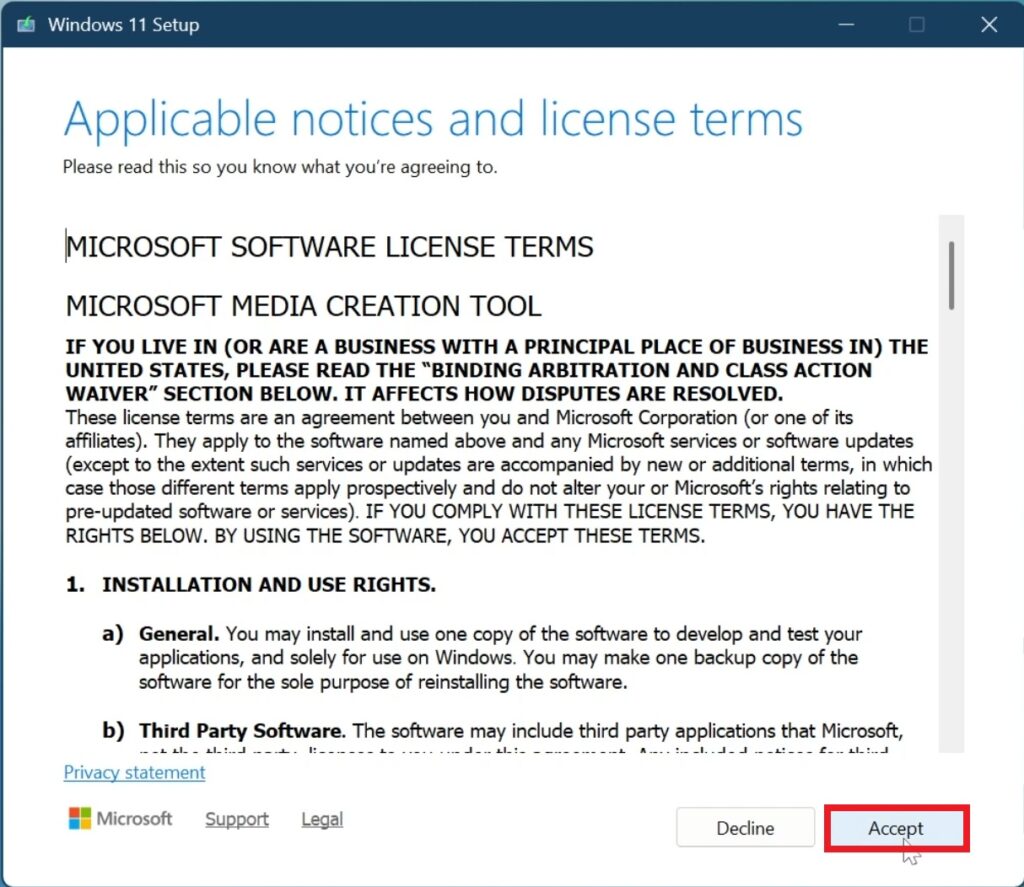
Once opened, you will need to Accept the License Terms in the Windows 11 Installation Media.
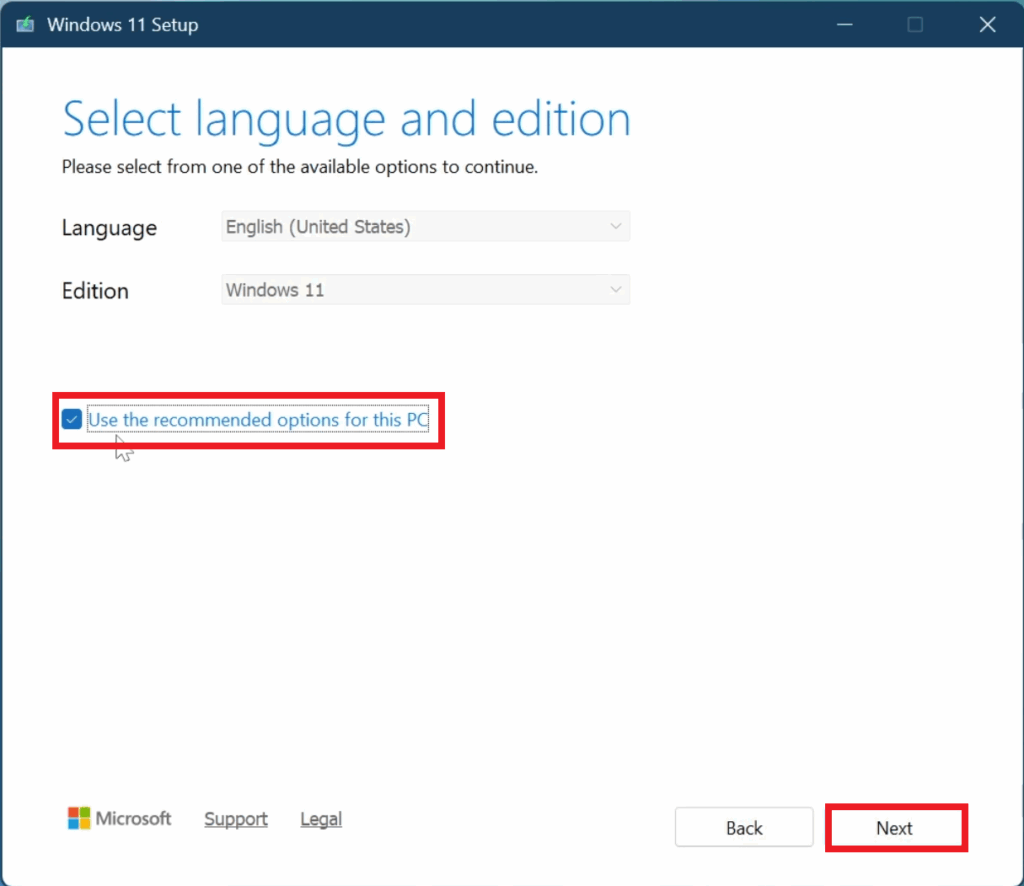
Next up, select Use the recommended options for this PC and then click on Next.
Then select ISO file, click on Next and select the location where you want the ISO to be downloaded.
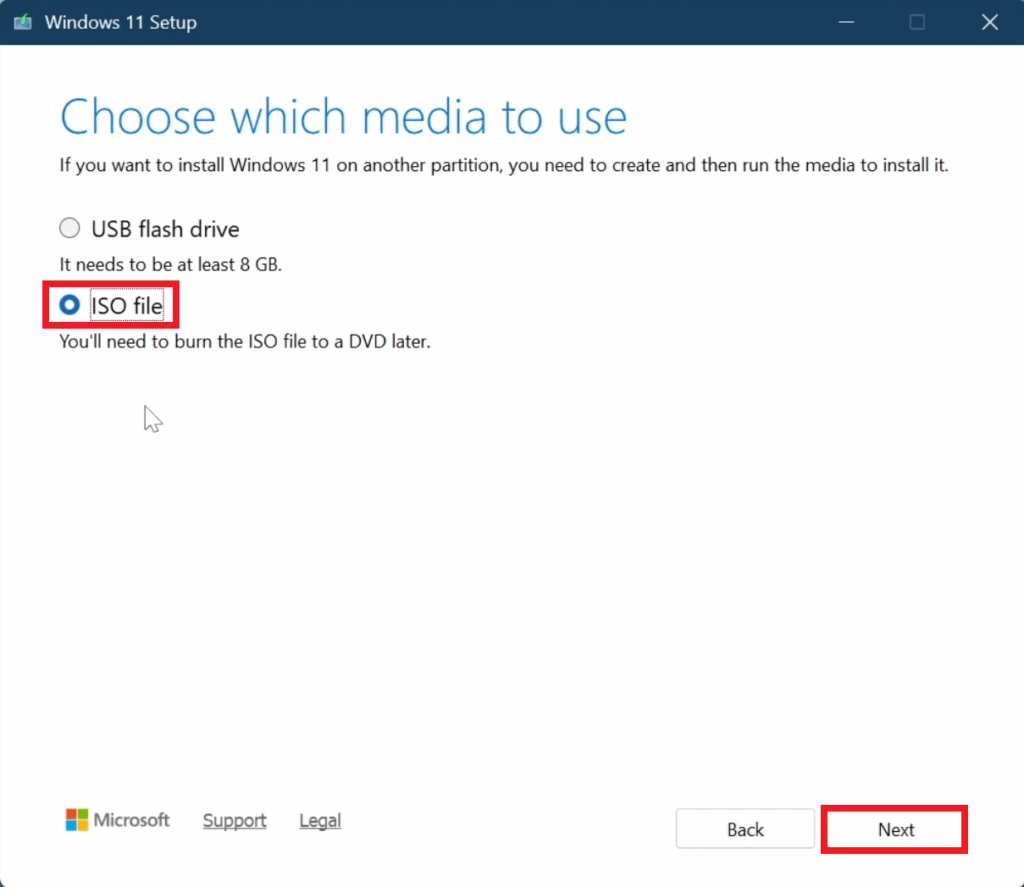
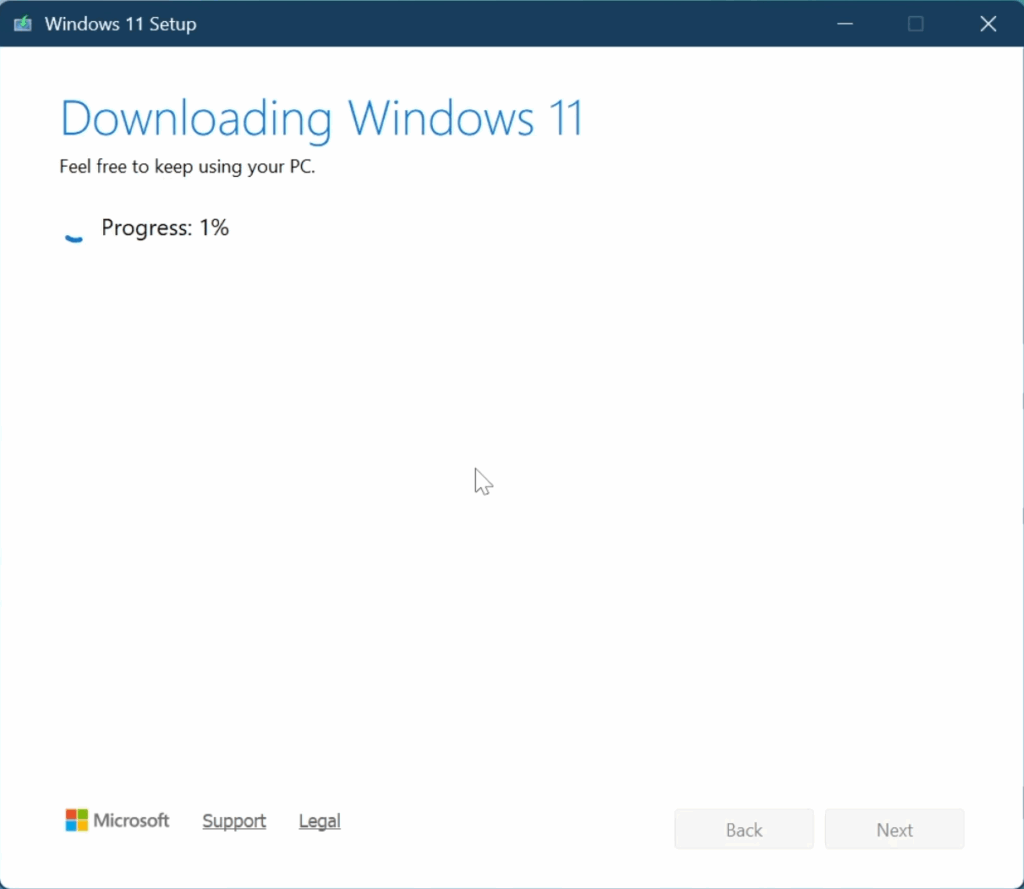
After this, just wait for the Download Process to be finished and then click on Finish.
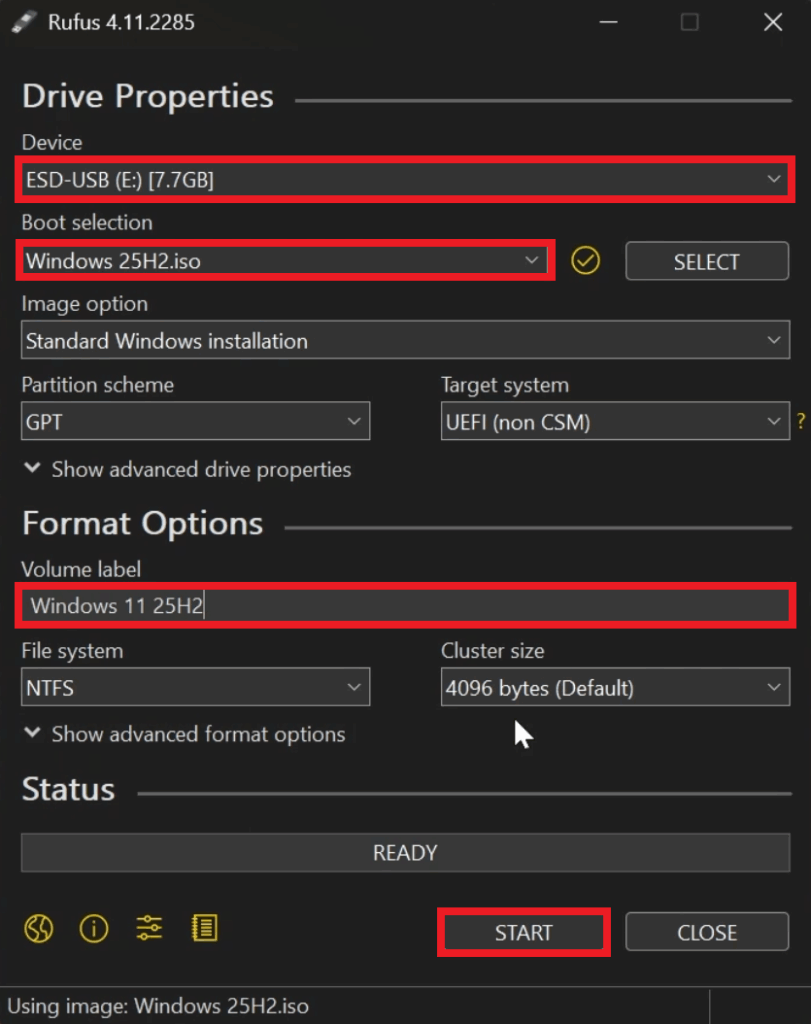
After that, make sure to Download Rufus.
Once opened, select the USB, the ISO, Change the Volume Label and then click on Start.
A window will appear where you need to select Remove requirement for an online Microsoft Account and you also Create a local account with a specific username.
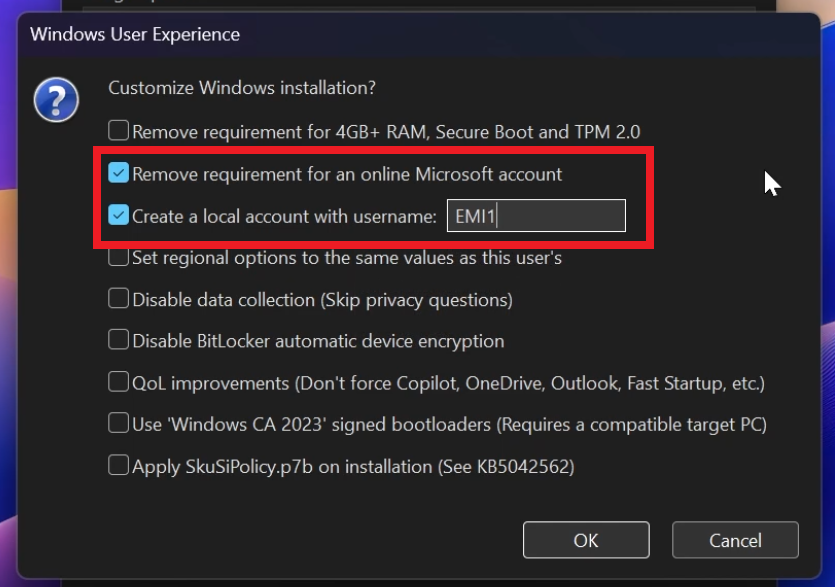
Once finished, click on OK and wait for the process to be finished.
After this, you can start the Clean Install process of Windows 11 26H2.
For a more in-depth tutorial, you can watch the video below from the youtube channel.
 11
11
 20
20

