In this article, we will talk about the New Windows 11 Updates Changes that will be applied gradually over the next few months in Windows 11.
New Skip Updates Option in OOBE
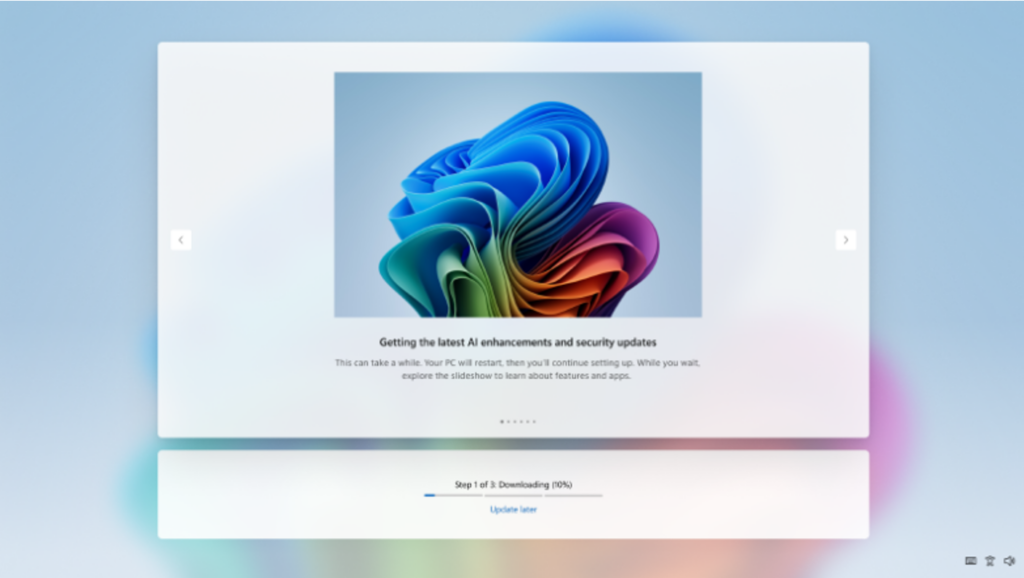
Earlier this year, Microsoft added the control to immediately skip updates during device setup—giving you the option of landing on the desktop faster and getting updates later or getting updates right away and landing on a PC that has all the latest features and fixes.
If you choose to skip updates, the latest features and security updates won’t be available until you take the update(s). With immediate choice built into setup, you decide when updates happen.
New Pause Updates Option in Settings
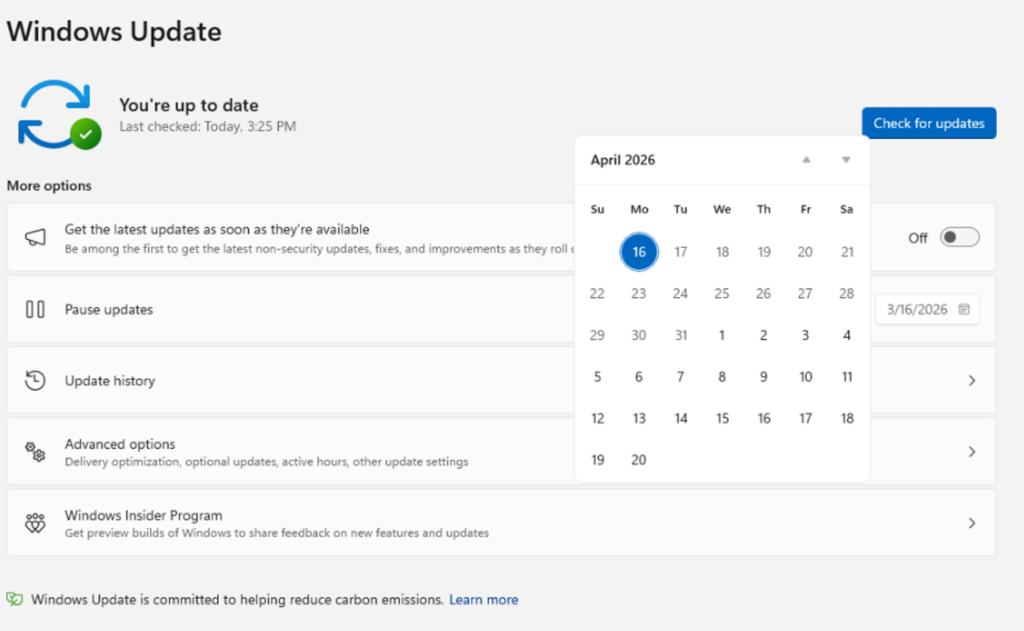
The Pause updates experience for Windows Update now puts you more in control. First, with a new calendar experience, you can choose a specific day of the month you want to pause until, up to 35 days, enabling you to plan around expected travel, conferences, exams, or even just busy weeks.
When 35 days just isn’t long enough, we are also enabling you to extend the pause end date as many times as you need. This means you can now re-pause for up to 35 days at a time, with no limits on how many times you can reset the pause end date.
Shutdown and Restart without Update Install
Microsoft is improving this experience by clearly separating power actions from update actions. With this change, the Power menu will always show the standard Restart and Shut down options, meaning you will always have a choice to just restart or shut down your device without having to install the pending update. At the same time, update‑specific choices like Update and restart and Update and shut down will still be available when applicable. This gives you four clear options—and full control over what your device does next.
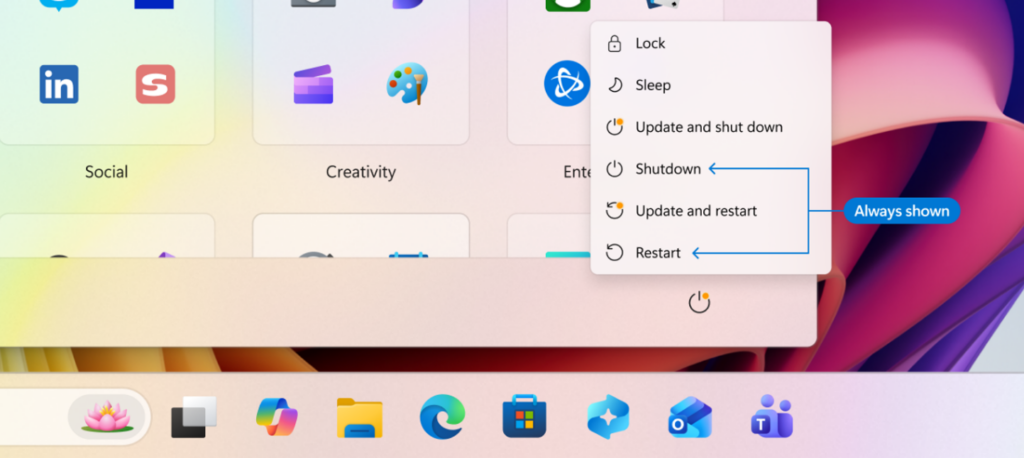
If you choose Restart or Shut down, Windows will perform exactly that action, without unexpectedly starting an update. If you’re ready to install updates, you can explicitly choose one of the update options.
After a restart, Windows will attempt to restore previously opened applications faster, allowing users to return more easily to what they were working on.
New Insights on Available Updates
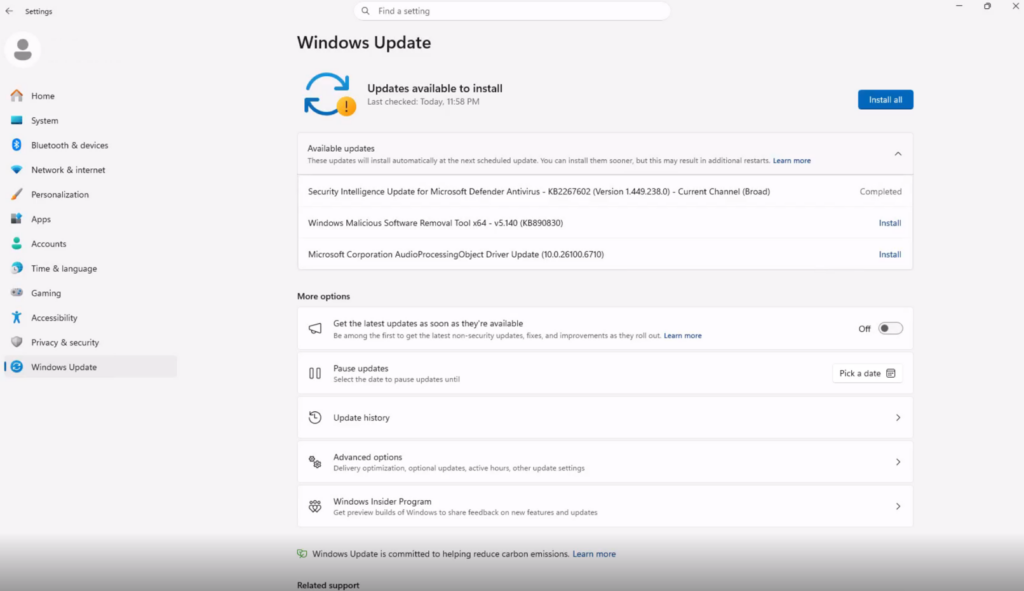
Often, driver updates would have similar, if not identical, titles. To help provide you with more insights, Microsoft have added the device class to the driver title – ensuring pending or installed driver updates clarify whether they apply to display, audio, battery, extension, HDC, or other applicable driver update classes.
Less Restarts
Microsoft is now coordinating driver, .NET, and firmware updates to align with the monthly quality update, reducing update experience to a single monthly restart.
Windows quality updates include monthly security updates, emergency out-of-band (OOB) updates, and optional non-security updates if initiated by the user. For Windows Insiders in Experimental and Beta you will note weekly updates, Persistent Seekers in retail will see bi-monthly updates, and retail users who have not opted to get any updates early will see monthly reboots.
For users checking out the Settings > Windows Update page, you will see all of these updates collapsed into a single Available updates section.
Improved Updates Security
Microsoft is ensuring devices stay secure by default through automatic recovery for update failures – taking additional steps in the background to help the update complete successfully without user intervention. This means your device will automatically attempt to recover from installation failures in real time – causing some updates to take longer to complete, but ensuring they have a higher success rate.
For more information about Windows 11 Updates, you can check this article from the Microsoft Blog.
For a more in-depth presentation over the New Changes, you can watch the video below from the youtube channel.
 11
11
 20
20