In this article, we will talk about the latest Windows 11 26H2 Insider Preview Build for the Release Preview Channel, which is the Build 26300.10066 or KB5132057.
New Features in this Update
[Windows Search]
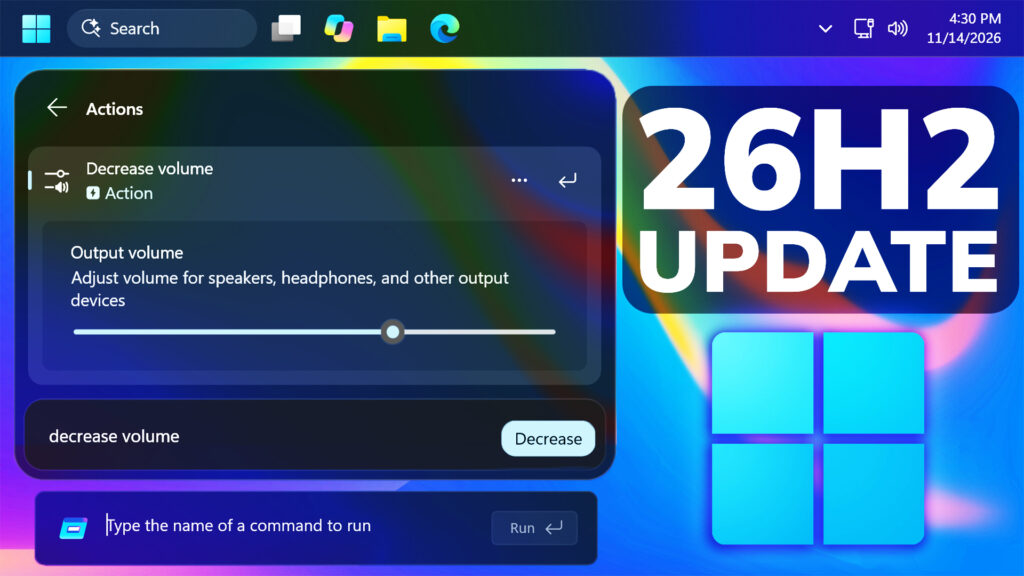
- This update introduces a new Windows Search experience with a streamlined design, improved performance, and new ways to complete tasks directly from search.
- Streamlined design: Windows Search now displays results in a single, simplified list, making it easier to scan and find what you need. The updated experience also improves performance and memory efficiency.
- Inline actions: You can now complete common tasks directly from Windows Search. For example, you can turn on dark mode or Bluetooth, adjust screen brightness, mute your device, or arrange open windows.
- Richer, more relevant results: Preview files directly in Windows Search and see details like when a file was last modified, where it’s saved, and who created it. You can also get quick answers about weather, stocks, and facts without leaving search. Windows Search also better recognizes typos and synonyms, so you’ll find what you need even when your search terms aren’t an exact match.
- The new Windows Search experience is initially available in English. For more information, see From searching to doing: Building a faster, more streamlined Windows Search.
[Windows Hello]
- Windows Hello facial recognition can now temporarily brighten your screen to help you sign in when you’re in a dark or dimly lit room. To turn on this feature, go to Settings > Accounts > Sign-in options > Facial recognition (Windows Hello) and turn on Automatically adjust screen brightness during face recognition.
[Run dialog]
- The Run dialog has been updated with a more modern design and improved usability. You can try the new experience by going to Settings > System > Advanced and turning on New Run dialog. For more information, see The new Run dialog: faster, cleaner, and more capable.
[XBOX mode]
- This update brings Quick settings to the Gaming Task View navigation bar in XBOX mode, giving you access to the full set of Quick settings available on the Windows taskbar without having to leave XBOX mode.
[Widgets]
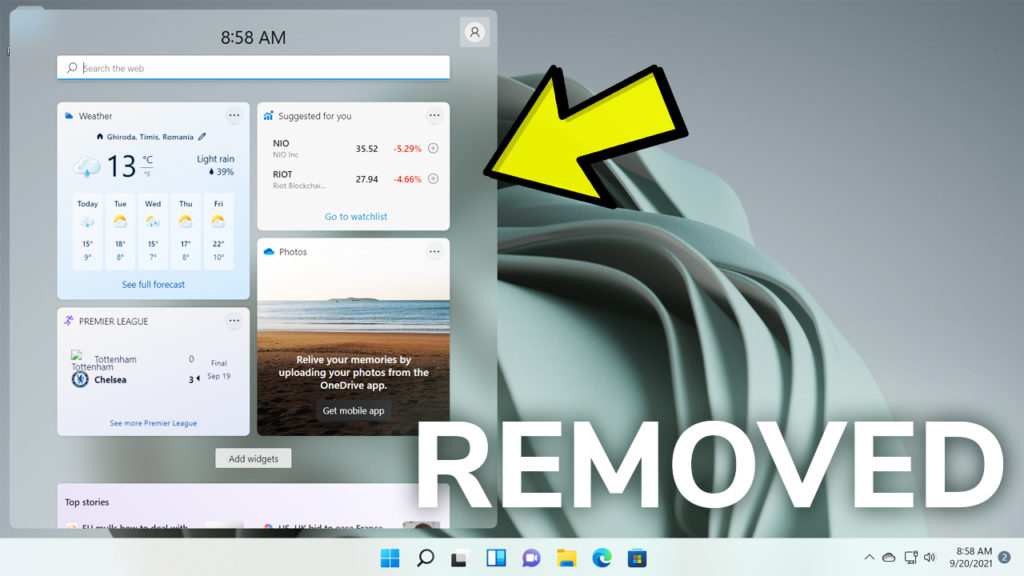
- Windows can now notify you when a new widget becomes available after you install an app. Select the notification to open the Widgets Board, where the new widget is highlighted so you can quickly add it to your board.
[File Explorer]
- Search from This PC in File Explorer is now indexer-based, making it much faster and consistent with search from File Explorer Home.
[Settings]
- Discover your account benefits. Windows Settings now makes it easier to find the benefits and services available with your Microsoft account.
[Screen capture]
- This update changes the border displayed during screen capture from yellow to red, making it easier to identify when a capture session is active.
[Mouse cursor]
- The new Pointer indicator makes it easier for people with low vision to locate and use the mouse pointer. To turn it on, go to Settings > Accessibility > Mouse pointer and touch and turn on Pointer indicator. After you turn on the setting, press Windows logo key + Ctrl + Shift + X to turn the pointer indicator on or off. This update also improves mouse pointer performance during screen captures, reducing visible cursor latency in scenarios such as game streaming.
[Magnifier]
- This update adds a Keyboard shortcut for Magnifier toggle in Settings > Accessibility > Magnifier. It lets you choose whether pressing Windows logo key + Plus (+) starts Magnifier. The shortcut is on by default.
- Magnifier now includes a help menu that makes it easier to discover key features and access relevant support resources. You can also open Feedback Hub directly from Magnifier to share feedback.
[Narrator]
- Narrator now supports math reading in additional languages: Greek, Hungarian, Indonesian, Norwegian (Bokmål), Polish, Russian, Swedish, and Vietnamese.
[Keyboard shortcuts]
- If you accidentally trigger the keyboard shortcut for Sticky Keys, Filter Keys, or Toggle Keys, you can now turn it off directly from the prompt that appears. You can still manage notifications and sounds for these features under Settings > Accessibility > Keyboard > Notification preferences.
[Voice typing]
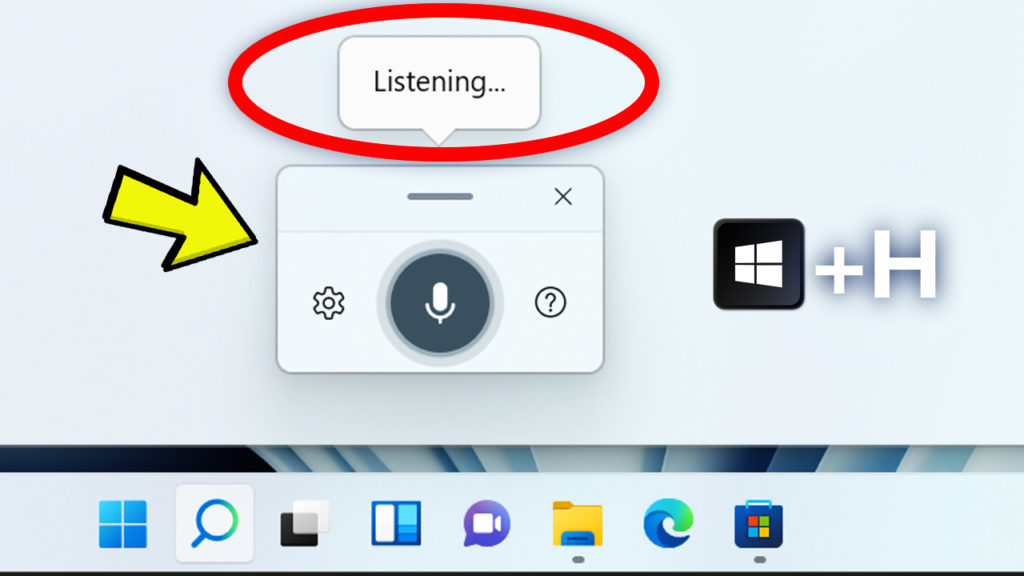
- This update improves the reliability of configuring voice typing settings.
[Web sign-in]
- Web sign-in is now supported on Microsoft Entra hybrid joined devices, in addition to Microsoft Entra joined devices. At the lock screen, you can sign in without a password by using a FIDO2 security key, a passkey on your phone, or a Temporary Access Pass (TAP). After you sign in, Windows gets a Kerberos ticket, so access to on-premises file shares and internal sites continues to work. For more information, see Web sign-in for Windows.
[RemoteApp]
- This update fixes an issue that might cause an extra character to appear at the beginning of Japanese text entered in RemoteApp applications.
[TPM]
- This update fixes an issue that might cause boot failures or TPM initialization errors on Arm-based systems that use a TPM 2.0 Command Response Buffer (CRB) interface.
[Display]
- This update fixes an issue that might cause Miracast connections to default to a lower resolution when connecting to certain wireless display receivers.
[Settings]
- This update fixes an issue where the option to upgrade your Microsoft 365 subscription might remain visible after a successful upgrade, causing an error if you select it again.
[Restart and shutdown]
- This update fixes an issue that might incorrectly display the “Someone else is using this PC” warning when restarting or shutting down, even when no other user is signed in.
[Applications]
- This update addresses an issue that might cause Sage 50 Accounting to close unexpectedly when you select options in the application.
[Passkeys]
- This update fixes an issue that caused cross-device passkey authentication on Android devices to display a “Something went wrong” error.
For more information about this Update, you can check this article from the Microsoft Blog.
For a more in-depth presentation of the New Build, you can watch the video below from the YouTube channel.
Share the article:
 11

 20