
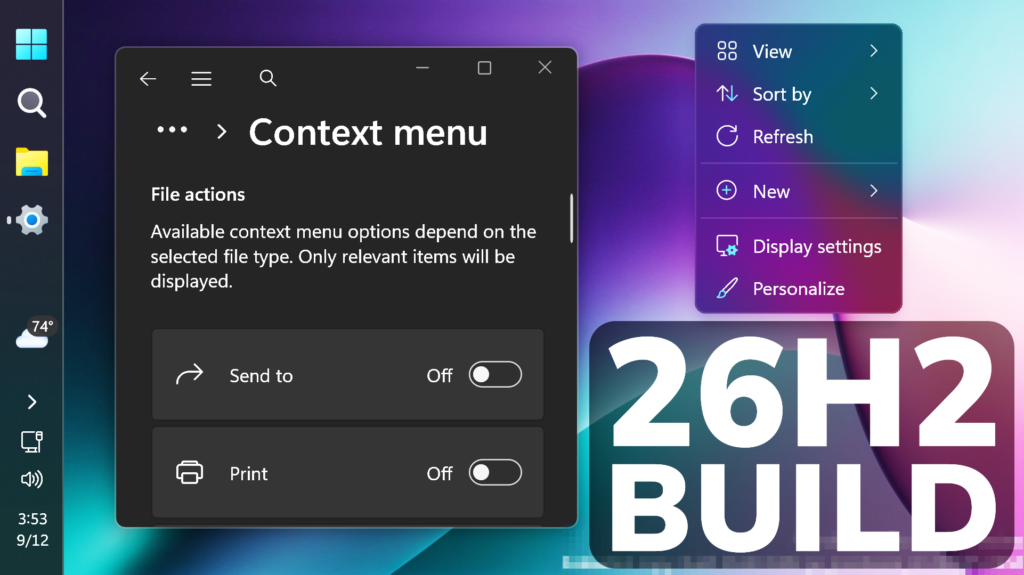
In this article, we will talk about the latest Preview Build for Windows 11 26H2 in the Dev Channel, which is the Build 26340.9482.
Windows 11, version 26H2 represents Microsoft’s yearly second half major update as part of their standard annual Windows 11 update cadence. As Windows 11, version 26H2 shares the same servicing branch as Windows 11, version 25H2, the update is implemented through an enablement package (eKB). This means your device will be updated to the next version through a single restart – providing a familiar, fast, and reliable update experience.
Devices already enrolled in the Experimental channel will begin seeing their versioning updated to version 26H2 under Settings > System > About (and winver). If you are in the Beta channel and would like to switch to the Experimental, you can easily do so under Settings > Windows Update > Windows Insider Program. Remember, you can easily switch back to Beta at any time, without having to do a full Windows reinstall.
Not currently enrolled in the Windows Insider Program and wanting to preview version 26H2? Register for WIP selecting the Dev channel, while it’s transitioning to Experimental. Once the transition is complete, the new channel name to preview version 26H2 will appear as Experimental.
Memory Integrity Automatically Enabled
Memory Integrity protection expands automatically to more eligible devices. As outlined in our recent blog, Windows might now enable Memory Integrity (HVCI) during updates on supported PCs to help improve security and prepare devices for advanced Windows security features, while respecting existing user or IT administrator choices.
New Context Menu Improvements
- Microsoft has added a new teaching tip you might see as a first-time experience to help you learn about the customization options.
- In theme with giving you more control, you can also now turn off the customize context menu entry in the new context menu settings.
- They’ve fixed a few small issues with the Send To option in the context menu not working as expected.
Faster File Explorer Search
Search from This PC in File Explorer is now indexer-based, making it much faster and consistent with search from File Explorer Home.
New Visual Indicator during Screen Capture
Microsoft updated the visual indicator shown during screen capture, changing the capture border from yellow to red to make active capture sessions easier to identify.

New Temporary Files Page in Settings
Made some small visual adjustments to improve the design of the Temporary files page under Settings > System > Storage.
Settings Fixes
- Fixed an issue causing mouse cursor customization to not work correctly after the latest flights.
- Fixed an issue causing desktop background customization to not persist after a reboot after the latest flights.
Taskbar Improvement
Improved how the IME icon scales in the taskbar when using small taskbar icons.
Brightness Fix
Fixed an underlying issue resulting in some Insiders experiencing issues with brightness after the latest flights, including brightness settings being unexpectedly grayed out.
For more information about this Build, you can check this article from the Microsoft Blog.
For a more in-depth presentation of the New Build, you can watch the video below from the youtube channel.
 11
11
 20
20

