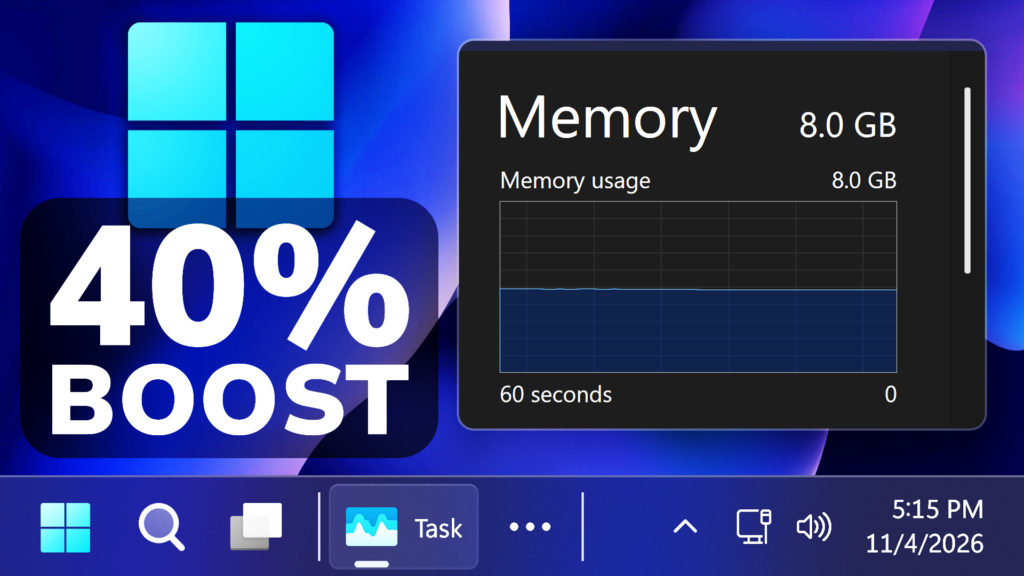
In this article, we will discuss the latest Microsoft announcements related to Memory Optimization on Windows 11 26H2 which is 40% Faster in Multitasking for 8 GB PCs.
One of the main Microsoft points that they are focusing on recently and in the near future, is Memory Optimization. They are approaching this topic in 3 ways:
- make better use of the memory in every Windows 11 PC
- protect the interactions that need to feel instant even under load
- ensure key apps and Windows require less memory
As a result of recent improvements in Windows 11 26H2, on 8 GB PCs, Windows is now up to 20% more responsive based on telemetry measurements of Search, Start, right-click, Settings, Snipping Tool and File Explorer response times on PCs with 8 GB of memory, using Windows 11 OS build 26300.9550 compared with OS build 26200.7628.
Also Multitasking is up to 40% faster in their lab test, based on tests done on a HP OmniBook 3 with 8 GB of memory and Snapdragon X Plus 8-Core processor, comparing Windows 11 OS build 26200.7623 with OS build 26200.9445 on the same device.
As a result, Windows can now keep up to 2 GB more of your active data in memory instead of moving it to slower storage, so an app or tab you left open is less likely to reload when you return.
Opening Start, searching, right-clicking, opening Settings, launching Snipping Tool, and opening File Explorer are all moments when you’re asking Windows to respond right now. Compared with the January 2026 update, those interactions respond up to 20% faster.
Windows delivers these improvements by briefly prioritizing the work you ask for and backing off background tasks such as search indexing while you’re active. The first few minutes after you restart from an update are a good test of this. Windows has setup work to finish, and it should get on with that without making you wait to open your browser.
It also avoids unnecessary work where it can. When you click a link or open Edge from Start, Edge is often already running in the background, so Windows connects to it directly instead of searching for it first, which can open it up to 33% faster.
Apps like Microsoft Teams are also doing their part. Teams can turn on Efficiency Mode by default on 8 GB PCs, helping it launch up to 20% faster and reducing the system resources it uses while it runs. During meetings, it can adjust camera resolution to preserve processor capacity for audio, so your call stays clear when the PC is working hard.
Multitasking is where an 8 GB PC can feel the most pressure. To measure the difference, Microsoft has shared a video, where they tested a demanding scenario on the same 8 GB PC: opening 20 tabs in Microsoft Edge, a 4K video, large Word, PowerPoint and Excel files, Outlook and File Explorer one after another, keeping everything open as we went. With today’s update, this workflow completed up to 40% faster than with the January 2026 builds.
You can see the video in this Microsoft Blog Post.
Across Windows, Microsoft Edge and Microsoft 365 apps, those improvements add up: in multitasking tests on 8 GB PCs, they reduced committed-memory growth by up to 900 MB.
A significant part of those savings comes from Microsoft 365 apps. Improvements across Word, PowerPoint, Excel and Outlook add up to 360 MB savings, thanks in part to more efficient ways of organizing and allocating memory that reduce the overhead required to manage it.
On PCs with 8 GB of memory or less, Widgets now loads only when you open it, reducing memory commitment by roughly 200 MB while it’s closed. In Microsoft Edge, inactive tabs go to sleep after 15 minutes by default, down from two hours, reducing the memory used by tabs you aren’t actively using.
New Improvements coming up related to Memory Optimization:
- Microsoft is making it even smarter and more efficient to get the most out of your system performance.
- Windows features and apps will share common parts instead of each carrying its own. Search and Widgets will share one web engine, and so will OneDrive and Photos for memory savings across all four apps.
- Apps and experiences built on WinUI 3, including File Explorer, Notepad, Paint, and the new Windows search are being designed to open faster and use less memory.
- Together with PC makers and silicon partners, Microsoft is optimizing how much memory your PC needs to reserve for its hardware, leaving more available for Windows and the apps you use.
- They are also working with third-party app developers to help their apps use memory more efficiently.
To get the latest performance and memory improvements, update to Windows 11, version 26H2, build 26300.9818 or later.
For a more in-depth explanation, you can watch the video below from the youtube channel.
 11

 20