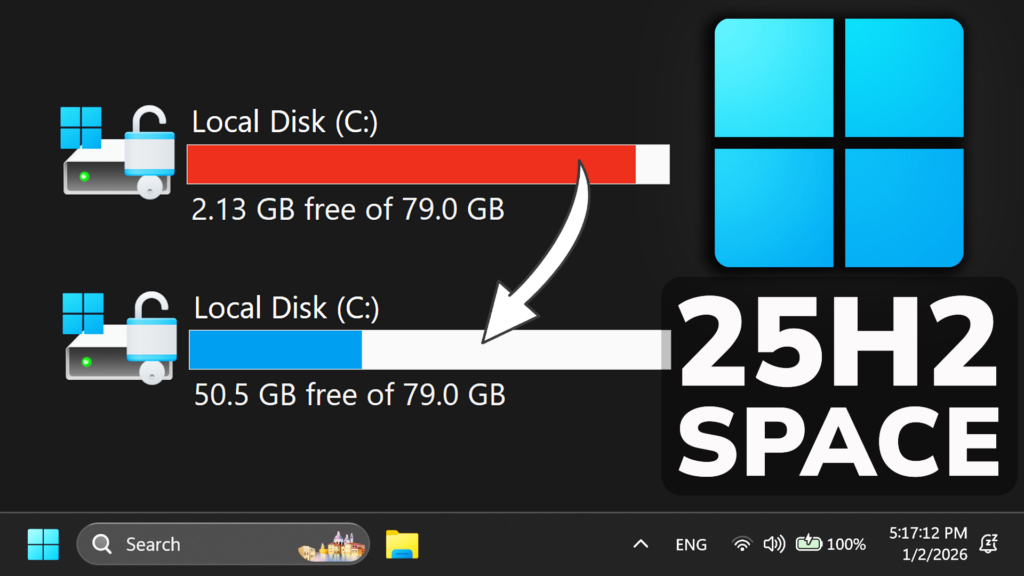
In this article, I will show you how to Save Windows 11 25H2 Disk Space with One Command.
In this article, we will talk about how to disable a Windows 11 Feature that uses a lot of Disk Space and that is the Hibernate Features, mainly available on laptops and certain PCs.
In the “Hibernate” state, the system current data is dumped to the hard disk, and then the power to all devices is cut off, and when the system recovers, the system re-reads the previous data from the hard disk and returns to the pre-Hibernate state.
The Hibernate file can take from 5GB up to 50GB from your Disk Space, so if you want more. disabling it, might be the best option.
How to Disable Hibernate in Windows 11
To disable the Hibernate Feature, first of all open the Old Control Panel, click on Power Options, then Choose what the power buttons do, then Change settings that are currently unavailable and deselect Hibernate from below. Finally click on Save changes.
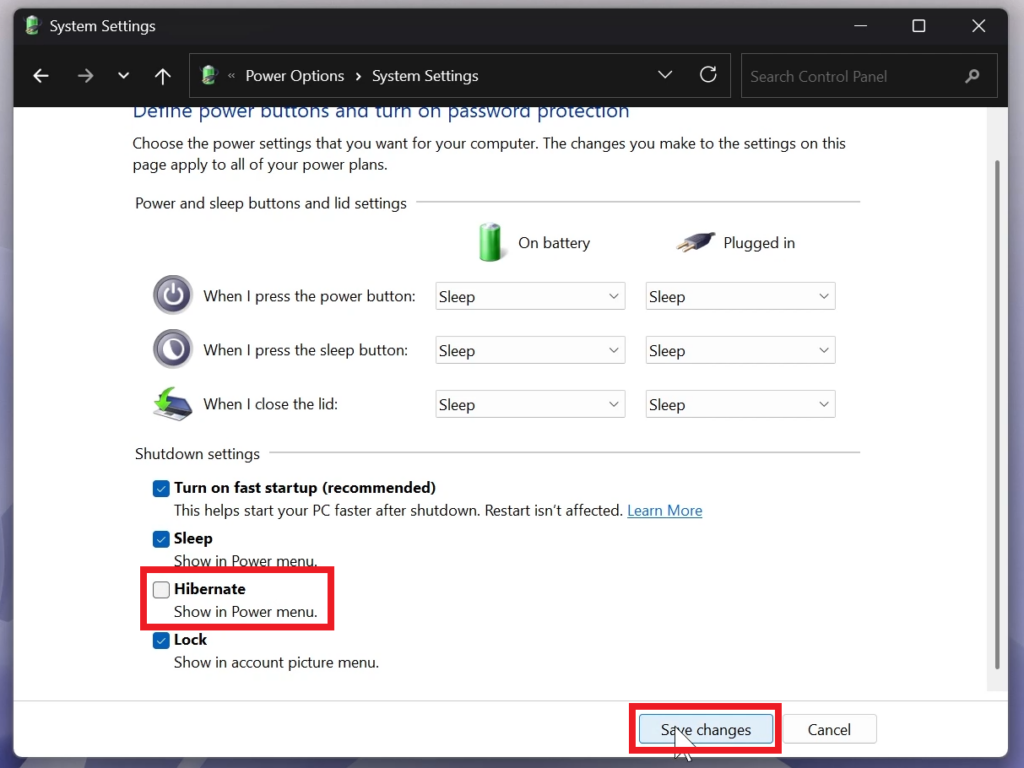
After this, open Powershell as Admin and type the following command:
powercfg /hibernate off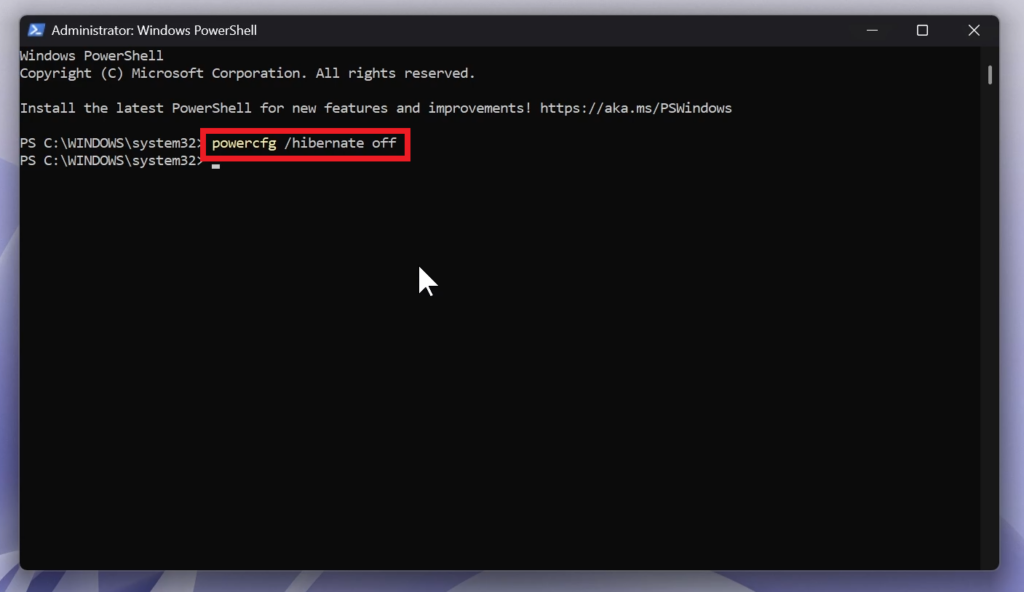
Additionally, if you want to double-check if Hibernate is disabled you can run the following command:
powercfg /availablesleepstates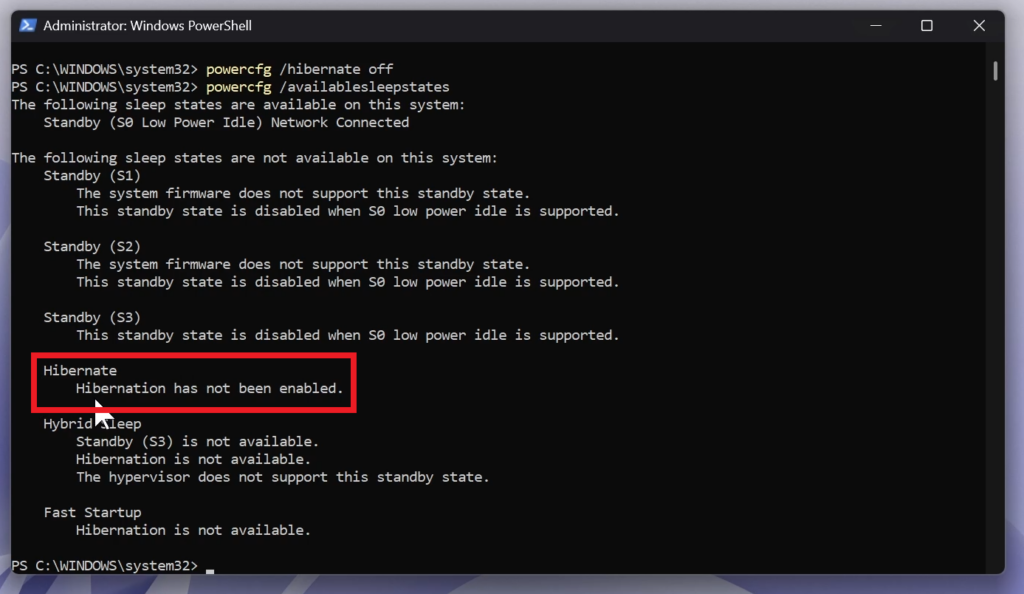
For a more in-depth tutorial, you can watch the video below from the youtube channel.
 11
11
 20
20