
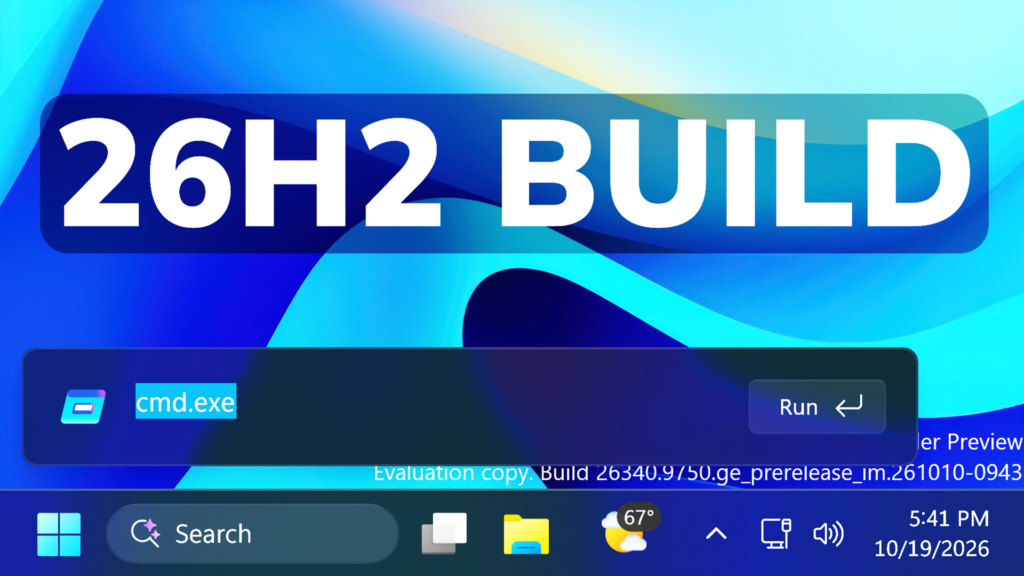
In this article, we will talk about the latest Preview Build for Windows 11 26H2 in the Experimental Channel, which is the Build 26340.9750.
Windows 11, version 26H2 represents Microsoft’s yearly second half major update as part of their standard annual Windows 11 update cadence. As Windows 11, version 26H2 shares the same servicing branch as Windows 11, version 25H2, the update is implemented through an enablement package (eKB). This means your device will be updated to the next version through a single restart – providing a familiar, fast, and reliable update experience.
Devices already enrolled in the Experimental channel will begin seeing their versioning updated to version 26H2 under Settings > System > About (and winver). If you are in the Beta channel and would like to switch to the Experimental, you can easily do so under Settings > Windows Update > Windows Insider Program. Remember, you can easily switch back to Beta at any time, without having to do a full Windows reinstall.
Not currently enrolled in the Windows Insider Program and wanting to preview version 26H2? Register for WIP selecting the Dev channel, while it’s transitioning to Experimental. Once the transition is complete, the new channel name to preview version 26H2 will appear as Experimental.
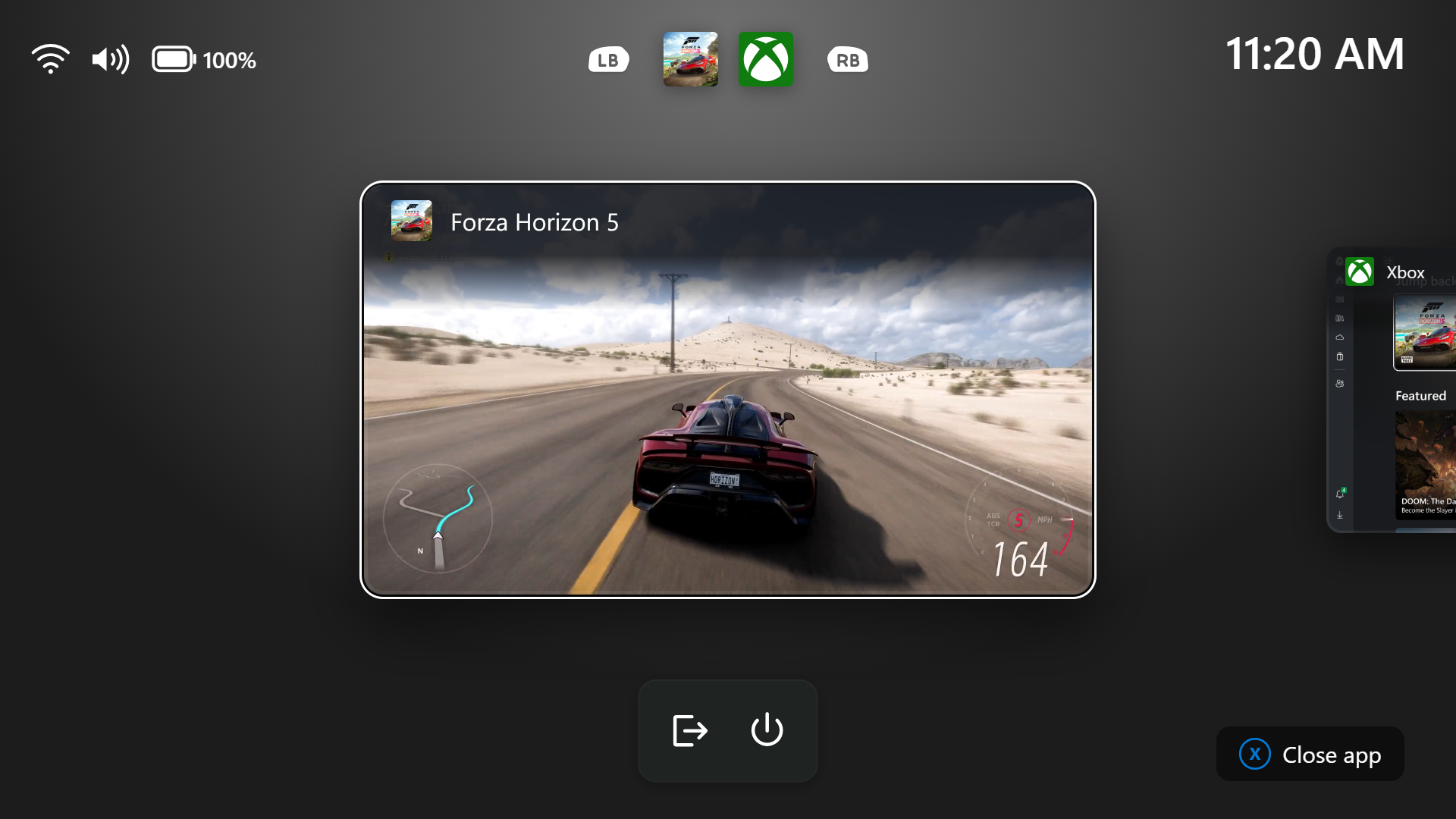
New Gaming Task View in XBOX Mode
Microsoft is introducing a refreshed Gaming Task View experience in XBOX mode, featuring a new navigation bar that provides quick access to Exit to Desktop and Power Options. This update makes key system actions easier to access while gaming.
New Windows Hello Feature
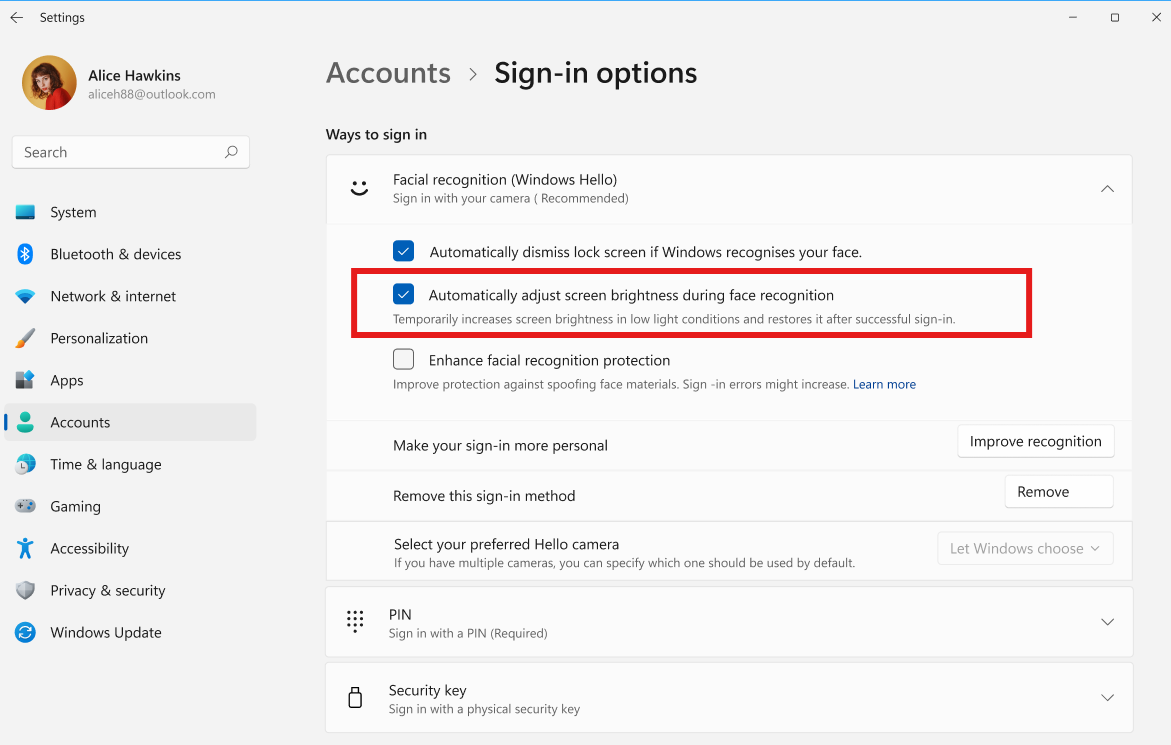
- Windows Hello facial recognition can temporarily brighten your screen to help you sign in when you’re in a dark or dimly lit room.
- To turn on this feature, go to Settings > Accounts > Sign-in options > Facial recognition (Windows Hello) and turn on Automatically adjust screen brightness during face recognition.
Improved File Explorer Performance
Improved responsiveness of folder views so they update and sort correctly when files and folders are added or renamed.
New Modern Run Box Improvements
For Insiders with the new Run dialog enabled:
- Improved the window position when using an Arabic or Hebrew display language.
- Improved performance of the Run dialog when navigating to very large folders.
- Fixed an issue where your text might unexpectedly disappear if you started typing too quickly after opening Run.
- Made a few other small visual fixes and refinements.
New Modern Dialogs for Low Battery and Permissions
The dialog for certain system messages, like low battery and permissions, should use the expected modern design again.
New Web Sign-In
Web sign-in now works on Microsoft Entra hybrid joined devices. Before this update, it was only available on Microsoft Entra joined devices. You can sign in to Windows at the lock screen with a passwordless credential: a FIDO2 security key, a passkey on your phone, or a Temporary Access Pass (TAP). You don’t need a password. Once you’re signed in, Windows gets a Kerberos ticket, so on-premises file shares and internal sites keep working. For more information, see Use web sign-in to enable passwordless sign-in in Windows.
Windows Search Fix
Addressed underlying issues that could cause search to appear missing or stop working after the previous update, including if you rapidly clicked the search icon repeatedly.
Shutdown Fix
Improved shutdown reliability, reducing the chance of a hang on shutdown in certain cases.
New Known Issue (How to Fix)
On this Build, you may notice that explorer.exe doesn’t work if you have all the IDs that enable the New Search UI enabled.
A quick fix to this, is to run this command using CMD:
vivetool /disable /id:57739723,58381341,59210767,59210771After that you can go to Settings > Windows Update > Windows Insider Program > Feature Flags > Set Refined Windows Search to Enabled.
For more information about this Build, you can check this article from the Microsoft Blog.
For a more in-depth presentation of the New Build, you can watch the video below from the youtube channel.
 11
11
 20
20

