
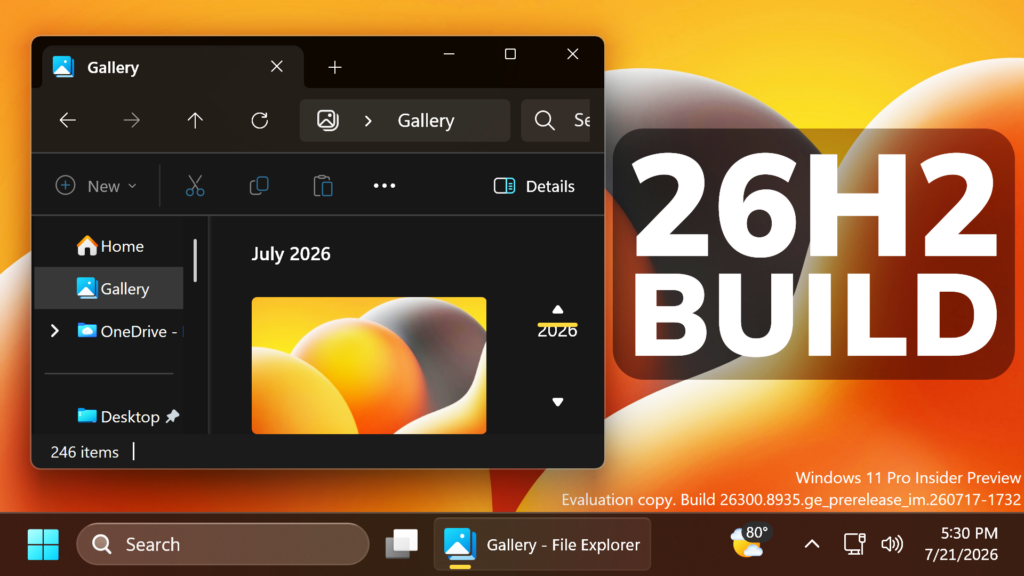
In this article, we will talk about the latest Preview Build for Windows 11 26H2 in the Dev Channel, which is the Build 26300.8935.
Windows 11, version 26H2 represents Microsoft’s yearly second half major update as part of their standard annual Windows 11 update cadence. As Windows 11, version 26H2 shares the same servicing branch as Windows 11, version 25H2, the update is implemented through an enablement package (eKB). This means your device will be updated to the next version through a single restart – providing a familiar, fast, and reliable update experience.
Devices already enrolled in the Experimental channel will begin seeing their versioning updated to version 26H2 under Settings > System > About (and winver). If you are in the Beta channel and would like to switch to the Experimental, you can easily do so under Settings > Windows Update > Windows Insider Program. Remember, you can easily switch back to Beta at any time, without having to do a full Windows reinstall.
Not currently enrolled in the Windows Insider Program and wanting to preview version 26H2? Register for WIP selecting the Dev channel, while it’s transitioning to Experimental. Once the transition is complete, the new channel name to preview version 26H2 will appear as Experimental.
New Search UI and Settings
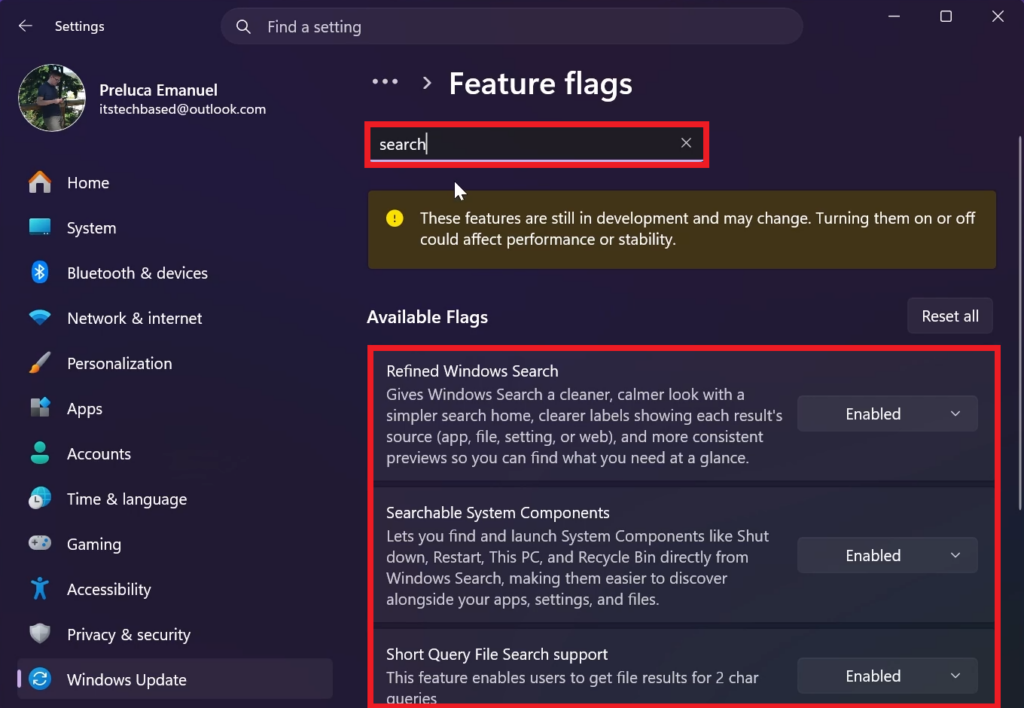
Enable New Search
To enable the New Windows Search, you will need to be on the latest Build from the Experimental Channel, which is the Build 26300.8772 and enable all relevant Search Feature Flags.
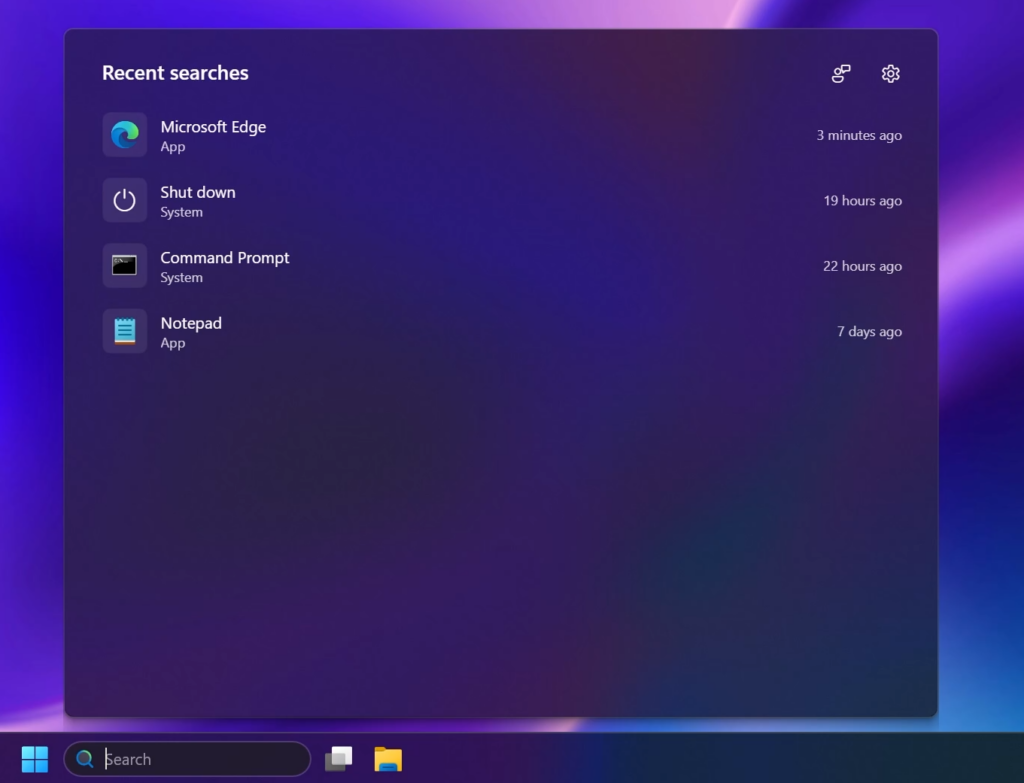
New Search Home
Search home has been simplified to reduce visual clutter and make it easier to get back to recent searches quickly.
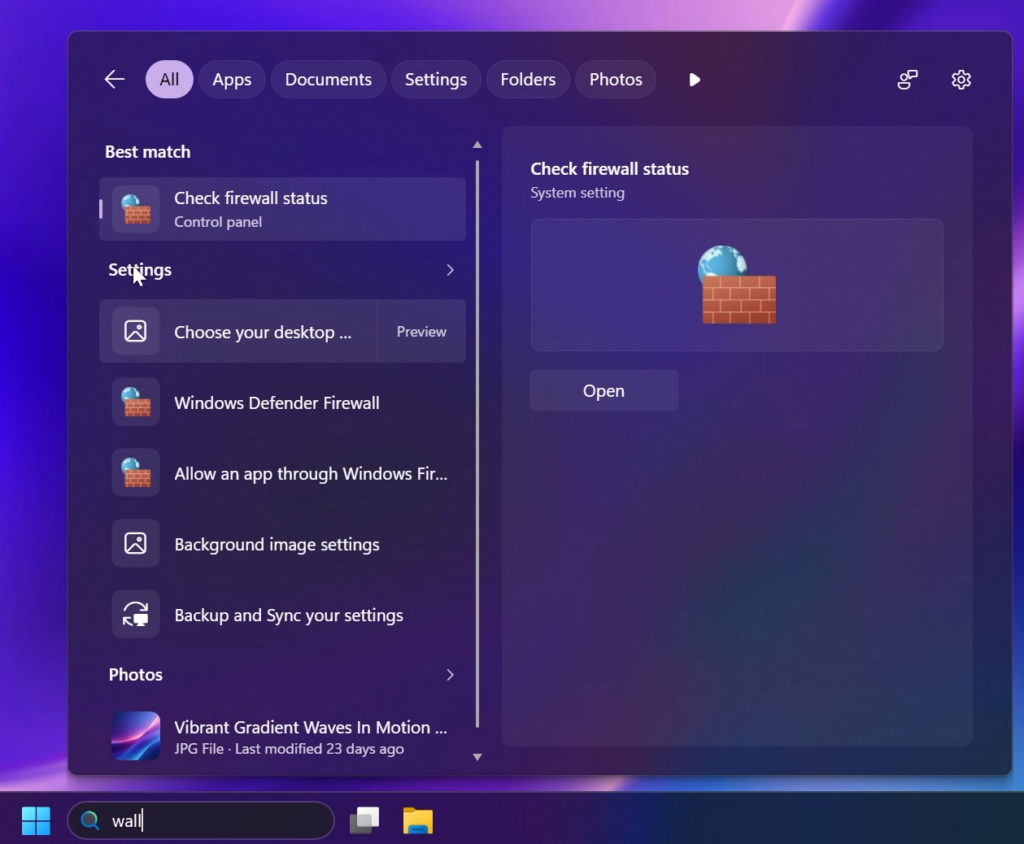
New Search UI
Search does a better job showing where a result comes from—app, setting, file, web result, or Store suggestion—so it’s easier to tell what you’re looking at and where you will go before you click.
Removed Promotional Content from Search
Promotional content has been removed from web results. Web results show the most relevant answer, instead of first showing related products and promotions, helping search feel more focused and less distracting.
New Search Option to Remove Web and Microsoft Store Search Results
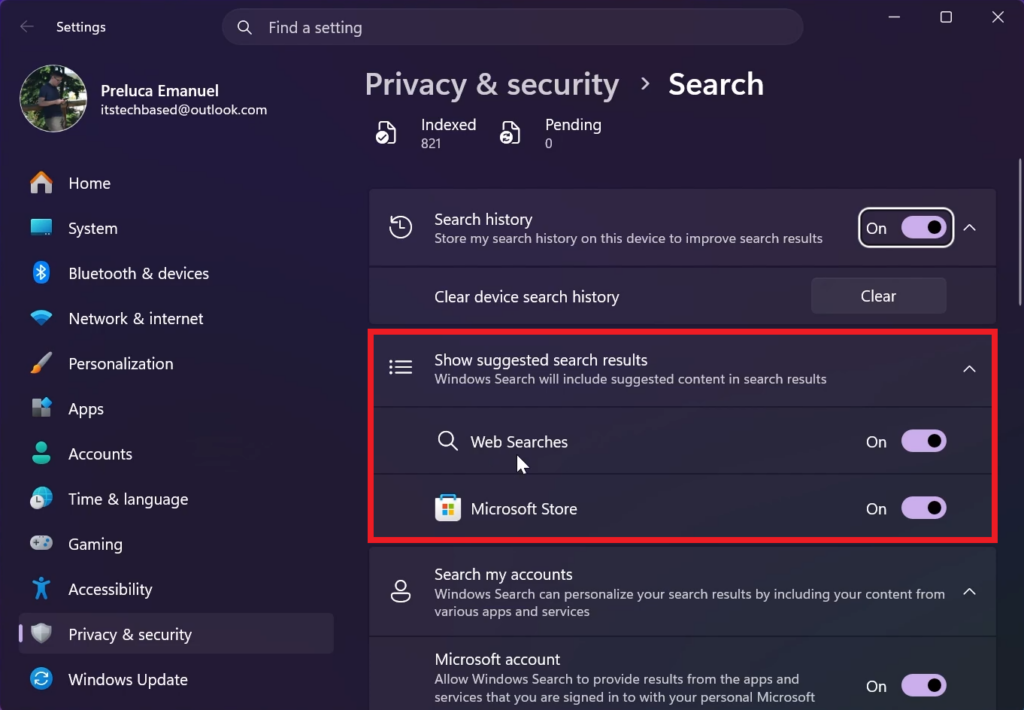
You’re in control of web and Microsoft Store results. A new setting in Settings > Privacy & Security > Search lets you choose whether web and Microsoft Store suggestions appear alongside local results.
Faster Local Search
Local results prioritized when they’re the better match. Apps, settings, and files more reliably appear ahead of web and Store suggestions when your content is the stronger match. System items like This PC and Recycle Bin are easier to discover.
Find Apps Easier
Finding apps is more forgiving. Search is better at handling typos, dropped letters, extra letters, and partial words for apps. Queries like “utlook” can still find Outlook.
Improved Settings Search Results
Settings results are improving. We’ve made a first round of ranking improvements to help more relevant settings appear higher in results, with more tuning planned in the coming months.
Improved File Finding
Finding files is improving. Search is better at surfacing the right local files with added support for two-character file searches. We’ve also made improvements to show cloud and connected files in results when they’re the stronger match. These changes help you get to the document, download, or folder you are looking for faster.
Better Search Reliability
Reliability is improving. Improved search reliability, including reducing likelihood of crashing and loading issue, with more work underway.
New Power Options Design in Search
The Shut Down/Restart actions in the improved Windows Search announced today open a modern version of the Shut Down Windows dialog box to choose a power option.
New File Explorer Improvements
- File deletion in File Explorer is now faster in certain scenarios when deleting large, fragmented files.
- Launching File Explorer Home is now faster and more responsive.
- The Recommended section on Home now supports touch scrolling, making it easier to browse files in the carousel.
New Desktop Background Changes
- Improved desktop background persistence across multiple scenarios, including when using multiple desktops.
- Made small cosmetic improvements to Settings > Personalization > Background.
New Widgets Animated Icons
Microsoft is expanding support for animated icons on the Widgets taskbar entry point. In addition to the animated experiences already available today for Insiders who have dashboard notifications enabled in Widgets Settings, users might begin seeing a broader set of dynamically updated animated content from supported widget providers to make content updates more noticeable and engaging at a glance.
New Privacy & Security Settings Page
New Run Box Change
Pressing F4 now expands the suggestions dropdown for command completion when using the new Run design.
New Search Change
Increased the height of the search box by 4 pixels.
Windows Update Fix
Fixed an issue that could result in recent Insider flights failing to install with error 0xc0000409.
Taskbar Fixes
- Fixed a few small visual issues when using the taskbar in an alternate position.
- Fixed an issue where Notification Center appeared in the wrong location when the taskbar was on top.
Input Fixes
- Fixed an issue causing the mouse cursor to blink repeatedly for some Insiders after recent flights.
- Improved persistence of mouse cursor size.
- Improved persistence of voice typing settings for automatic punctuation and launcher.
For more information about this Build, you can check this article from the Microsoft Blog.
For a more in-depth presentation of the New Build, you can watch the video below from the youtube channel.
 11
11
 20
20

