
In this article, we will talk about the latest Windows 11 24H2 and 25H2 Insider Preview Build for the Release Preview Channel, which is the Build 26200.8968 or KB5101684.
New Features in this Update
- [File Explorer]
- File sizes in Details view now display appropriate units (KB, MB, and GB) instead of KB-only, making them easier to understand at a glance.
- Middle-click to open a folder in a new tab is now supported in the address bar and Home page for a more consistent and efficient tabbed navigation experience across File Explorer.
- This update eliminates a gray flash on load and unexpected scrolling to the top on the Home page in certain cases.
- This update improves the appearance of file thumbnails in the Recommended section on Home so they’re crisper and easier to read.
- [Windows Search]
- This update improves app search to better handle typos and partial app names when finding installed apps.
- This update improves Settings relevance to surface more useful settings higher in search results.
- [Voice Access]
- This update adds Voice Isolation to Voice Access, helping it better recognize your voice by reducing interference from other speakers and background noise.
- Voice Access now offers three speech recognition modes under Voice Access settings > Improve speech recognition:
- Voice Isolation: Filters out other speakers and background noise (one-time voice setup required).
- Remove background noise only: Filters out non-speech sounds like typing or door slams (no additional setup required).
- No filtering: Uses default microphone input with no additional processing.
- To set up Voice Isolation, go to Voice Access settings > Improve speech recognition and select Voice Isolation.
- New! This update adds Korean language support for Voice Access.
- [Widgets]
- Taskbar notification badges now use your Windows accent color instead of appearing red, helping reduce unnecessary attention-grabbing alerts.
- This update also simplifies the Lock screen Widgets experience. For new users, Weather is now the only widget shown on the Lock screen by default.
- [Touchpad] New gesture controls for precision touchpads are available in Settings > Bluetooth & devices > Touchpad:
- Scroll and zoom speed: Adjust the baseline speed for scroll and zoom gestures.
- Accelerated scrolling: Scroll faster the more you repeat the gesture, so you can move quickly through long documents.
- [Start menu]
- This update improves reliability of Start menu view preferences, ensuring your selected view is retained.
- This update improves keyboard navigation when keyboard focus is set to the apps list within Start menu.
- [Voice typing] Fluid dictation is now off by default for new users. A teaching tip is available when the feature is used for the first time.
- [Input] Improved persistence of mouse cursor size.
- [Accessibility] This update improves the Magnifier experience on touch-enabled devices. The horizontal and vertical touch bars used to pan the magnified view are now off by default, so they no longer obstruct magnified content. If you use touch to pan, you can turn the bars back on in Settings > Accessibility > Magnifier.
- [Windows Hello] Windows Hello Enhanced Sign-in Security (ESS) now supports peripheral fingerprint sensors. This extends this secure sign-in option beyond devices with built-in fingerprint sensors to include desktops and other Windows 11 PCs, including Copilot+ PCs. To get started, plug in a supported ESS fingerprint reader, go to Settings > Accounts > Sign in options, and follow the prompts to enroll. This feature was previously disclosed in January 2026 (KB5074105) and is now beginning to roll out.
- [Fonts]
- This update restores support for Unicode variation sequences in the Myanmar Text font.
- This update improves character shaping and rendering for Mongolian Baiti font, providing more accurate and consistent text display.
- [Account Control] This update refreshes the design of the Start menu account control and adds a badge that displays your subscription status. To view account control, open Start menu and select your account picture in the lower-left corner. This experience is available for users signed in with a Microsoft account.
- [Taskbar] This update improves reliability of loading the system tray area of the taskbar when using the taskbar on touch devices in a tablet posture.
- [AI Component] This update allows you to remove the Image Generation AI component from supported Copilot+ PCs where the component is installed.
- [Windows Setup] This update adds a parental controls notice during Windows setup that highlights available family safety features.
- [Power and battery]
- This update improves reliability of power settings by applying changes made in Settings to all power plans so your preferences are consistently maintained.
- [Windows Update]
- This update improves calculation of update progress in Windows Update Settings.
- This update includes changes to update clean-up logic to improve system performance immediately following an update.
- [Sounds] This update improves system sounds when using Windows in dark mode.
- [Date and time]
- This update improves detection for triggering time zone change notifications.
- This update improves daylight saving time (DST) data accuracy for Middle East Standard Time (Beirut), Morocco Standard Time (Casablanca), Israel Standard Time (Jerusalem), and Greenland Standard Time (Nuuk).
- [Network] This update improves reliability of DHCP renewals in a few scenarios, particularly when NACKs are received from the DHCP server and on devices that use Modern Standby.
- [Print] This update improves print time performance (pages per minute) for IPPS (Internet Printing Protocol Secure) printers.
- [Clipboard] This update improves clipboard reliability in some Remote Desktop and Azure Virtual Desktop (AVD) scenarios.
- [Battery] This update restores the ability to set a threshold for when Energy saver should enable within Settings > System > Power & battery.
- [General reliability]
- This update improves explorer.exe reliability, including when opening jump lists and recent files, when sharing files and folders, and when using Task View and multiple desktops.
- This update improves reliability of the Windows sign-in and lock screens, especially when system memory is low.
- This update improves reliability of Start menu and taskbar during startup.
How to Enable All New Features
Thanks to phantomofearth for discovering this, follow him for more hidden features!
You will need to download ViveTool, which is a small app that will help us enable hidden features from Windows.
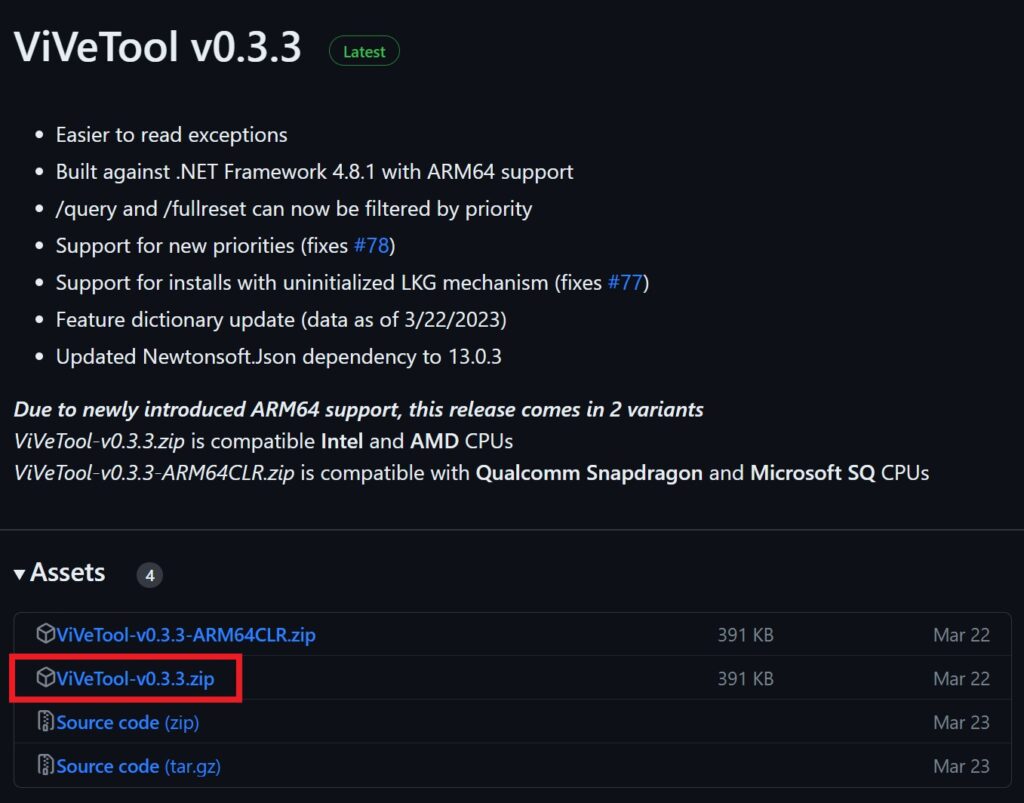
After you download ViveTool, you will need to extract the contents of the archive into a folder of your choice.
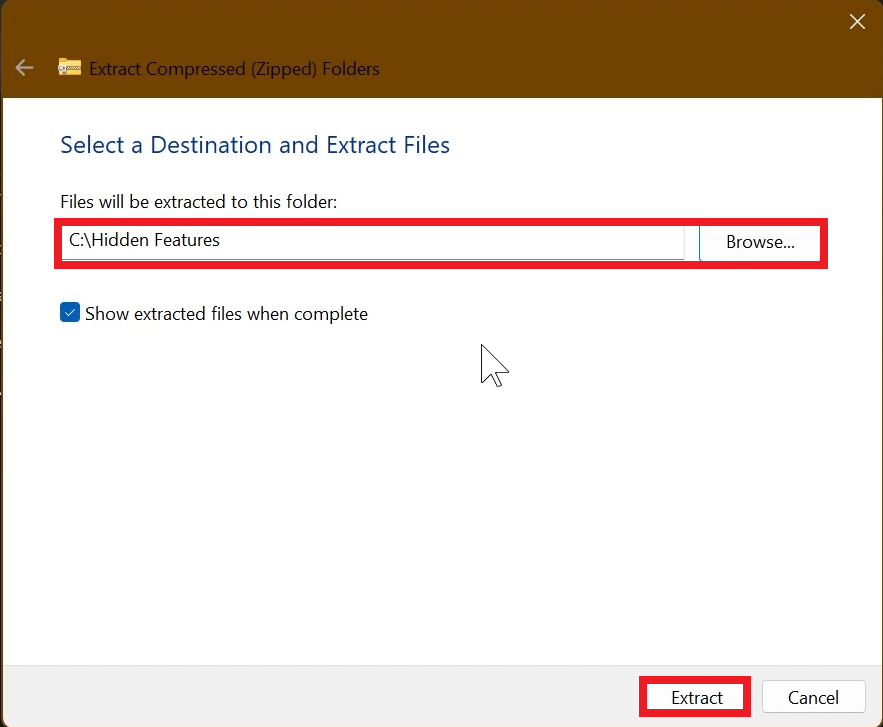
Right-click on the archive and then click on Extract all. Select Your Folder and then click on Extract. You will also need to provide some administrative privileges.
After you’ve done that, you will need to open CMD as administrator. Type the following command in CMD:
cd "your-location"Then copy and paste the following command:
Feature Bundle ID:
vivetool /enable /id:61160789You will now need to restart your computer, for the changes to take effect.
After the restart, you should be able to see the New Features on your Windows 11 PC.
For more information about this Update, you can check this article from the Microsoft Blog and for more information about the New App Updates, you can check this article from the learn.microsoft.com website.
For a more in-depth presentation of the New Build, you can watch the video below from the YouTube channel.
 11
11
 20
20

