
In this article, we will talk about the latest Windows 11 Insider Preview Build for the Experimental Channel, which is the Build 29634.
Microsoft has split the Canary Channel in 2 different Update paths. As Microsoft is stating, this will help them validate platform changes at different stages while continuing to deliver new features and experiences to Insiders in the Canary channel.
What is the purpose for the 2 Update Branches:
- 28000 Builds for Version 26H1 will continue releasing previews for the New X2 Platform Devices (not everyone will get this Update)
- 29500 Builds for the Next Windows 11 Version (most likely 27H2) will be released as previews for the New Platform Krypton, which will most likely be released for everyone in 2027
Going forward, each Canary Channel build will be announced in its own blog post, so you’ll always know exactly what’s new and what to expect.
If you are an Insider in the Canary Channel, note that when you are updating to this New Optional Platform, you will no longer be able to go back without a system reinstall.
The New Builds will be very unstable, as they are testing this New Platform, so if you don’t want to take the risk, make sure to stick to the 28000 Builds for Windows 11 26H1.
New Features in this Build
New Windows Insider Program UI
Microsoft is concluding the full transition of all Windows Insider builds to the updated WIP channel UI, with those on the 29600 Preview Builds now seeing Experimental (Future Platforms) in the Windows Insider channel settings.
New Taskbar, Start Menu, Search UI, File Explorer
Microsoft has also added all the Main Features from other Channel Builds and you can test them out in this Build.
Audio Improvements
- Following up on our previous improvements, we’re making some more adjustments to Settings > System > Sounds based on your feedback. Namely, we’ve updated the “All sound devices” page so:
- You now have the ability to change default devices from this page.
- Each of the devices displayed on this page now has a little volume meter next to it to show if there is audio actively playing.
- We’ve adjusted the page design slightly so now you can filter whether you’re viewing input or output devices.
- We’ve added toggles so you can choose if you want to hide or show disabled, disconnected, and unplugged devices on this page.
- We’ve also updated the input and output audio properties page for devices in Settings to now include jack information for those that need it.
- Continuing our work on improving Sound Settings, we’ve made a few more updates in this build:
- We’ve adjusted the description text for the Allow option in properties for audio devices to include the current state of the device, to improve the clarity of the text and the purpose of the button actions.
- “Listen to this device” is now available in properties for audio devices, so you don’t need to enter Control Panel for this functionality.
Windows Update
As announced in the Windows Update announce blog, Microsoft is now bringing a new unified update experience to reduce the number of reboots you see per month. We are starting by coordinating driver, .NET, and firmware updates to align with the monthly quality update, reducing the update experience to a single monthly restart. See the blog for more information.
New Windows Magnifier
- Magnifier now gives you more control over how you zoom. You can type an exact zoom percentage directly in the magnifier toolbar to land on precisely the level you need.
- We’ve also added preset step increments (5%, 10%, 25%, 50%, 100%, 150%, 200%, and 400%) to the Settings dropdown, so you can jump to common levels in a single click. Whether you need a subtle boost or a dramatic close-up, Magnifier adapts to how you want to zoom.
New Screen Tint
- Microsoft is introducing screen tint, a new accessibility setting that applies a color overlay across your entire display, softening its intensity so it’s easier on your eyes throughout the day. If bright, saturated screens leave you with tired or sensitive eyes by the end of a long session, screen tint can help.Screenshot showing UI for screen tint in Accessibility, with color presets and a strength slider.
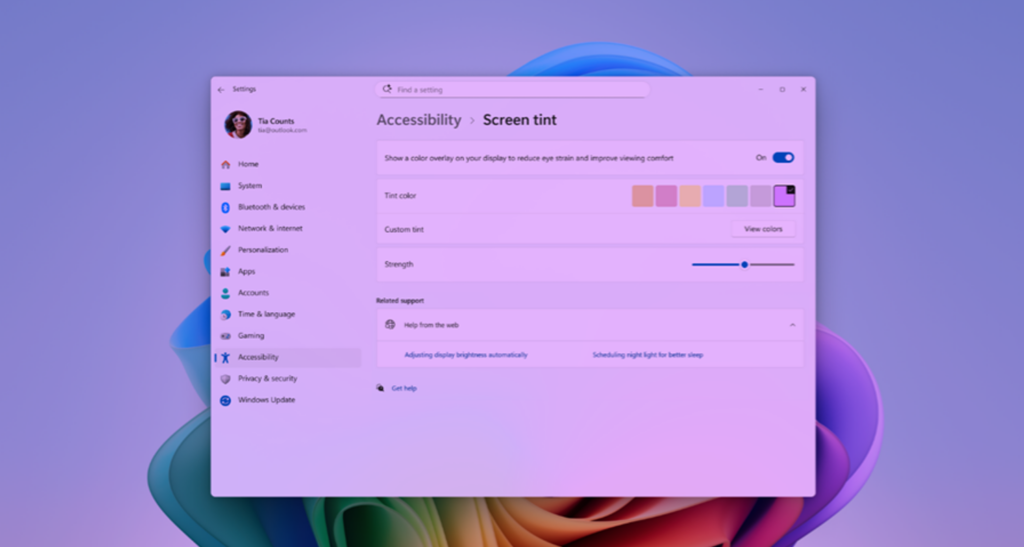
- To get started, open Settings > Accessibility (or press WIN + U) and look for screen tint under the Vision section. From there, you can:
- Pick from six preset colors or choose a custom color of your own.
- Adjust the tint strength slider from a subtle wash to full intensity.
- Night light warms your display to reduce blue light that can interfere with sleep. Screen tint reduces overall screen intensity to ease eye fatigue and light sensitivity during the day. They tackle different problems and you can use both at the same time, one working on warmth and the other on intensity.
- Note that turning on screen tint will disable color filters, and vice versa. If you currently rely on color filters, you might need to keep screen tint turned off.
New Voice Access
- Voice Access now supports Portuguese (Portugal), Portuguese (Brazil), and Korean (South Korea).
- Microsoft is introducing Voice Isolation, a new option in Voice Access that helps it focus on your voice, even when others are speaking nearby. Whether you’re in a shared office, an open floor plan, or at home with family around, Voice Isolation filters out other voices and background noise so Voice Access can better understand you. All processing happens privately on your device.
- Voice Access now offers three speech recognition modes under Voice Access settings > Improve speech recognition
- Voice Isolation — Filters out other speakers and background noise (one-time voice setup required).
- Remove background noise only — Filters out non-speech sounds like typing or door slams. No additional setup needed.
- No filtering — Default microphone input with no additional processing.
- To set up Voice Isolation, select it from the menu and follow the short, guided setup where you’ll read a brief paragraph aloud so Voice Access can learn your voice. It only takes a minute, and your voice data never leaves your device
Multiple Desktops
Improved explorer reliability when switching between multiple desktops.
Storage
Microsoft has updated the dialog when creating a Dev Drive to now support specifying the size in GB instead of only MB. This has also been added when changing the size of volumes under Settings > System > Storage.
Personalization
- This update improves color selection accuracy when adjusting your accent color to match your wallpaper when automatic accent color selection is enabled in Personalization settings.
- This update improves wallpaper persistence reliability across restarts and upgrades, including better support for large-resolution wallpapers and other scenarios to prevent solid color wallpaper fallback.
Display and Graphics
Improves the reliability and persistence of applying color profiles.
New Narrator
- Microsoft is making refreshable braille displays easier to use in Windows. Narrator now supports displays that use the HID standard — an open industry standard for braille displays. If your display supports HID, simply connect it via USB and start reading — true plug-and-play with no additional setup required. For Bluetooth, pair your HID braille display in Settings > Bluetooth & devices just like any other accessory, and you can work wirelessly without being tethered to your PC.
- Compatible HID displays include models like the Orbit Reader 20, Orbit Slate 340, Freedom Scientific Focus 40, and APH Mantis Q40.
- HID braille displays now work during the initial Windows setup experience (OOBE) over USB — meaning users who are deaf-blind can set up their PC independently, right from the first screen. You can customize braille input and output options anytime in Settings > Accessibility > Narrator > Braille.
New Account Control
The Windows 11 Account Control flyout has a refreshed, modern design and a clear subscription badge to make the user’s account status instantly visible. This helps users easily identify their plan, discover benefits, and explore upgrades.
Input
The emoji panel (Windows key + period (.)) now uses GIPHY as the GIF provider, delivering a smoother GIF browsing and sharing experience following the deprecation of the Tenor API.
Settings
Improved reliability of navigating to the Startup apps page in Settings.
Taskbar
Improved reliability of loading the system tray area of the taskbar when using your PC in a tablet posture.
Start menu
- Improved reliability of Start menu view preferences, ensuring your selected view is retained.
- Improved keyboard navigation when keyboard focus is set to the apps list within Start menu.
Date and Time
Improved detection for triggering time zone change notifications.
Display and Graphics
Improves the reliability of rendering content while scrolling for certain apps spanning across multiple monitors.
For more information about this Build, you can check this article from the Microsoft Blog.
For a more in-depth presentation of the New Build, you can watch the video below from the youtube channel.
 11
11
 20
20



