
In this article, we will talk about the latest Windows 11 25H2 Insider Preview Build for the Beta Channel, which is the Build 26220.9568.
Microsoft is moving to two primary channels, with the advanced option to pick specific Windows core versions within those. The new channels are Experimental and Beta.
Beta is a refresh of the previous Beta Channel and previews what Microsoft plans to release in the next few weeks. The big change: Microsoft is ending gradual feature rollouts in Beta. When they announce a feature in a Beta update and you take that update, you will have that feature. You may occasionally see small differences within a feature as they test variations, but the feature itself will always be on your device.
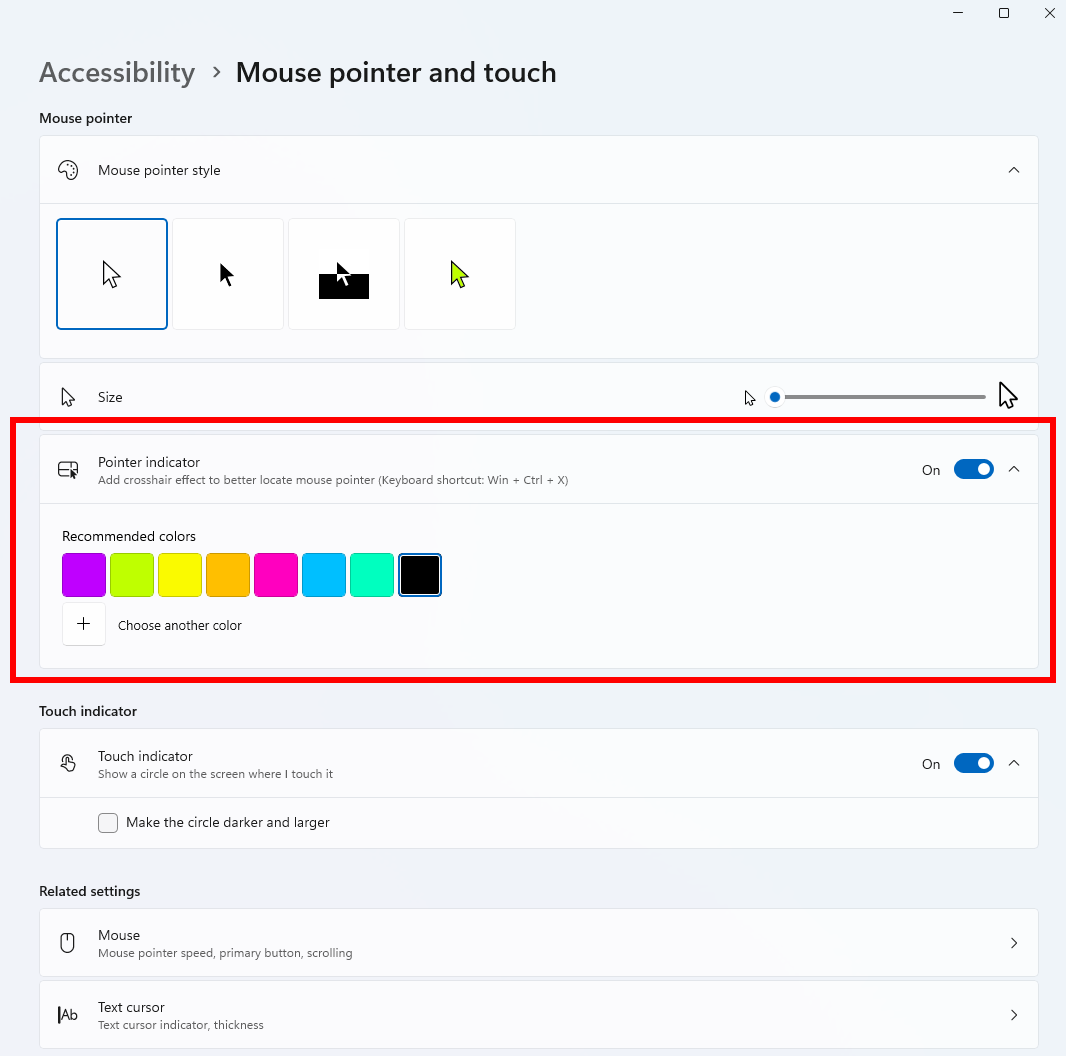
New Pointer Indicator
- Microsoft is introducing the Pointer Indicator accessibility setting. This feature enables Windows users with low vision to easily locate and use their cursor to increase productivity and efficiency when using a Windows device.
- To enable this experience, go to Settings > Accessibility > Mouse pointer and touch, and enable the Pointer indicator setting. You can also search for the setting by name. When the setting is enabled, you can toggle it on or off with the keyboard shortcut, Windows logo key + Ctrl + Shift + X.
New Start Menu Phone Hover
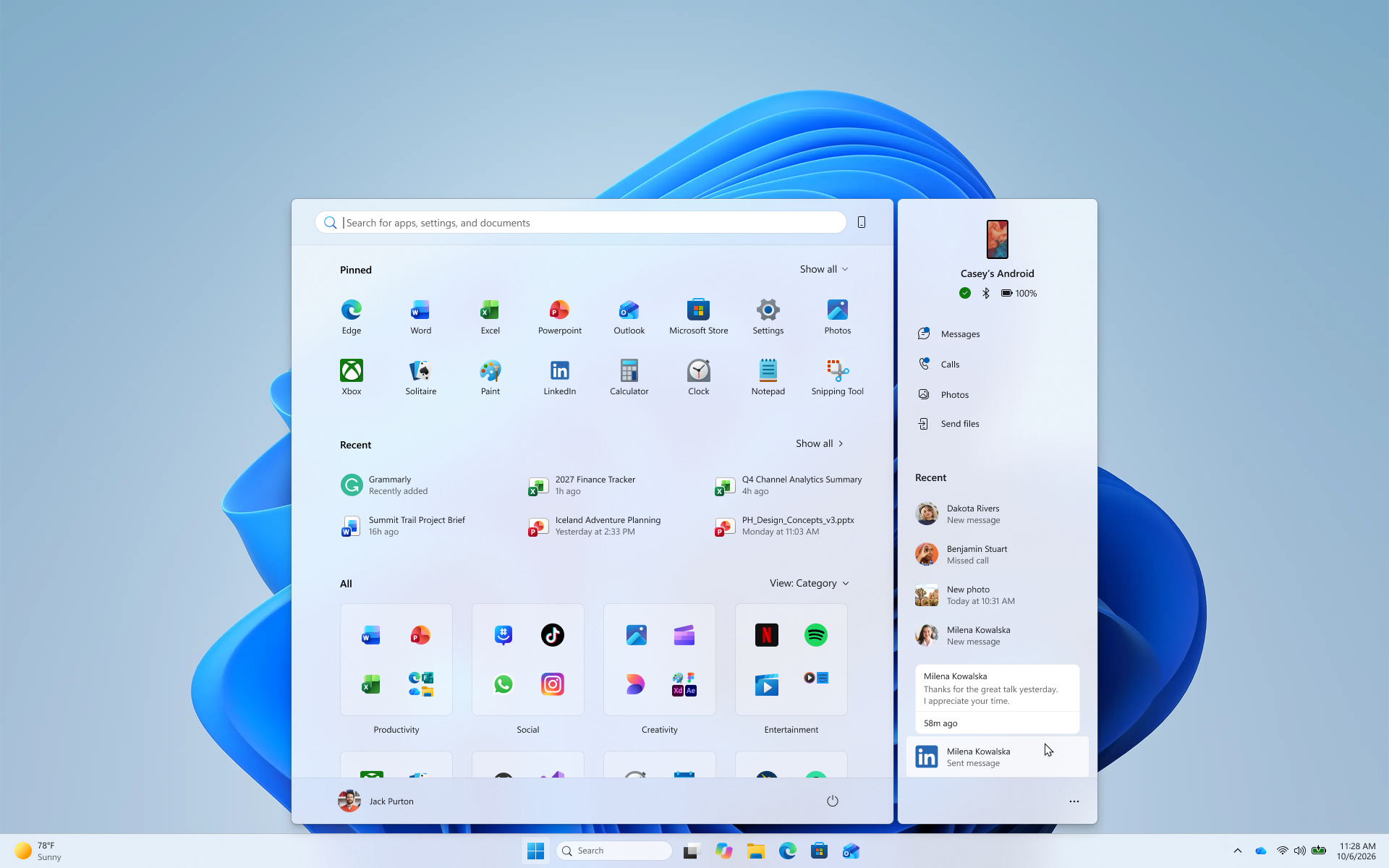
- Hover over a recent message or notification in the Recent section to preview its content directly in Start. There’s no need to pick up your phone or open the item to see what’s new.
- Whether you’re checking a message or deciding if a notification needs attention, these updates make it easier to stay informed and keep your focus.
New Magnifier Contrast Theme
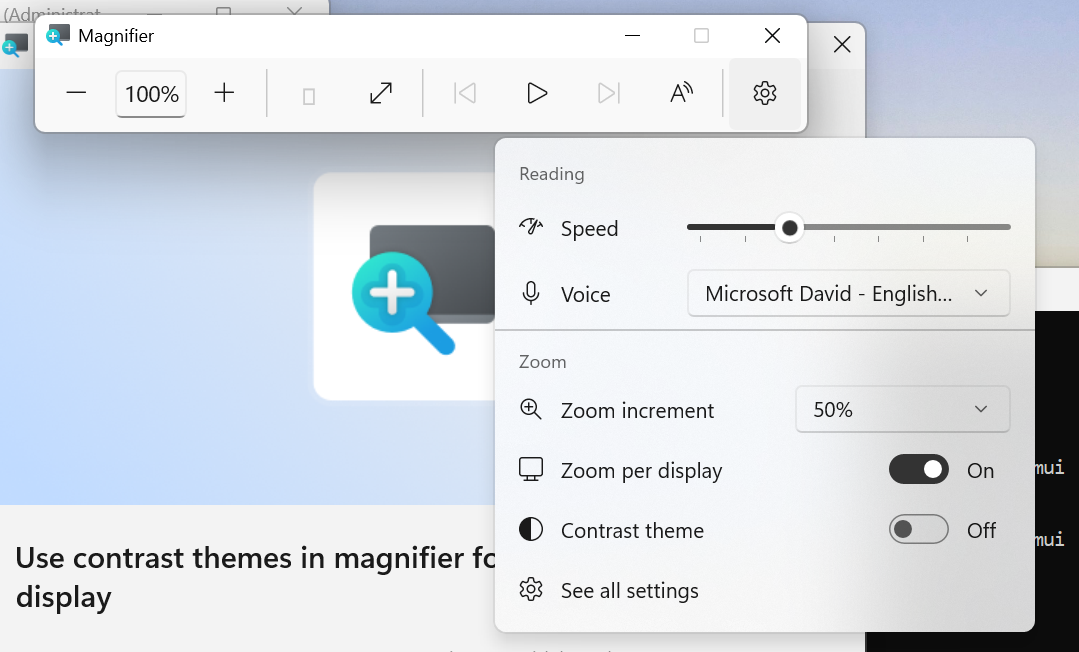
- A new contrast theme toggle for a lower-glare screen. If bright screens are uncomfortable, many people use color inversion to reduce glare. However, inversion changes everything on screen, including photos, charts, and videos. With this update, we’re introducing a new contrast theme toggle in Magnifier.
- Reduce glare with a single toggle. Turn on a contrast theme directly from the Magnifier toolbar for a more comfortable viewing experience.
- Choose the contrast theme that works best for you. The dark theme is applied by default, and you can choose which contrast theme the toggle uses under Settings > Accessibility > Magnifier.
- Photos, videos, and charts keep their original colors. Unlike color inversion, the contrast theme recolors the interface without touching your photos, charts, or videos, so they keep their real colors.
- Color inversion is still here. This isn’t a replacement. If you use inversion today, it works exactly as it always has. The contrast theme is a separate, purpose-built option to reduce glare when you want a darker interface without inverting colors.
New File Explorer Dark Mode Folder Options
This update enables dark mode support in the Folder Options dialog in File Explorer.
New File Explorer Home Saved State
File Explorer Home now preserves the state of sections (expanded or collapsed), so you can pick up where you left off.
New Temporary Files Settings Page
Made some small visual adjustments to improve the design of the Temporary files page under Settings > System > Storage.
New Live Captions Setting
Microsoft is improving Live Captions with a new Include Screen Reader audio setting, which is off by default. With the setting off, Live Captions won’t transcribe audio from screen readers such as Narrator, JAWS, and NVDA, keeping captions focused on microphone and system audio.
New Spotlight Lock Screen Improvements
Made some underlying changes to help improve reliability for Windows Spotlight on the lock screen.
New Cross-device Resume
Microsoft is making it easier to continue where you left off on your PC. When you resume a webpage from your phone and the phone’s browser isn’t installed on your PC, the Resume hovercard now gives you two options: open the page directly in your PC’s default browser or install the phone’s browser for a native experience. This update helps you continue your work immediately without requiring an app installation first.

Settings Fixes
- Fixed an issue causing mouse cursor customization to not work correctly after the latest flights.
- Fixed an issue causing desktop background customization to not persist after a reboot after the latest flights.
Hyper-V Fix
Fixed an issue where some applications that used HCS-managed virtual machines experienced issues when sharing host folders with Linux VMs using Plan9. Folders shared from the Windows host using Plan9 didn’t appear or couldn’t be accessed in the guest environment.
Audio Fix
Fixed an issue affecting certain USB Audio Class 1.0 devices, including some multichannel audio headsets, that could prevent the device from working correctly after installing the latest updates.
Other Fixes
Fixed an issue where backing up using File History unexpectedly failed with an error saying, “No usable drives found.”
For more information about this Build, you can check this article from the Microsoft Blog.
For a more in-depth presentation of the New Build, you can watch the video below from the youtube channel.
 11
11
 20
20

