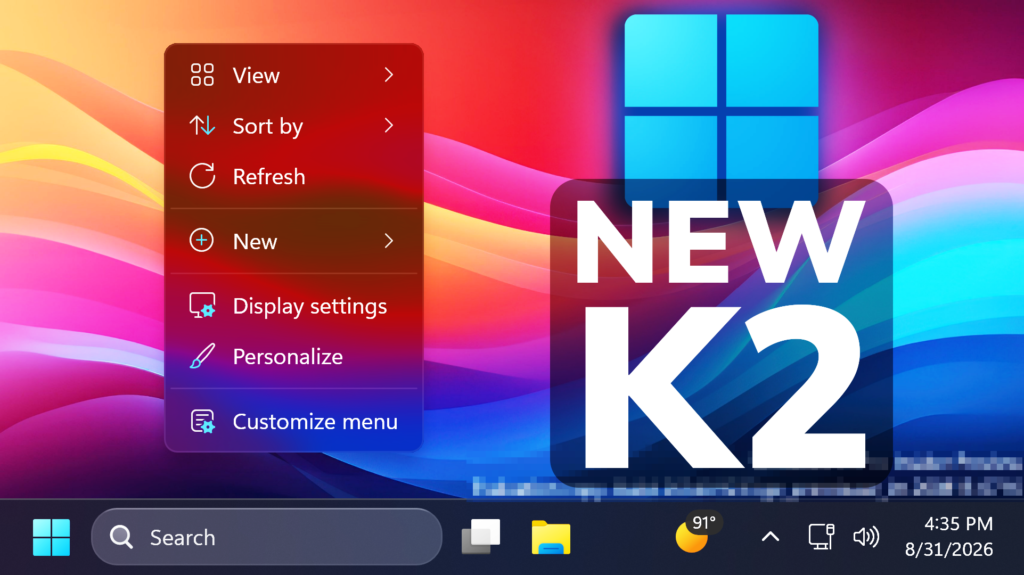
In this article, we will talk about All the New Windows K2 Features that we can test in September 2026, this including the New Context Menu, AutoPlay Dialog, Settings and more.
Windows K2, for those of you who don’t know, if Microsoft Codename for the internal plan that wants to fix Windows 11 and to address the main painpoints that users have reported for years now.
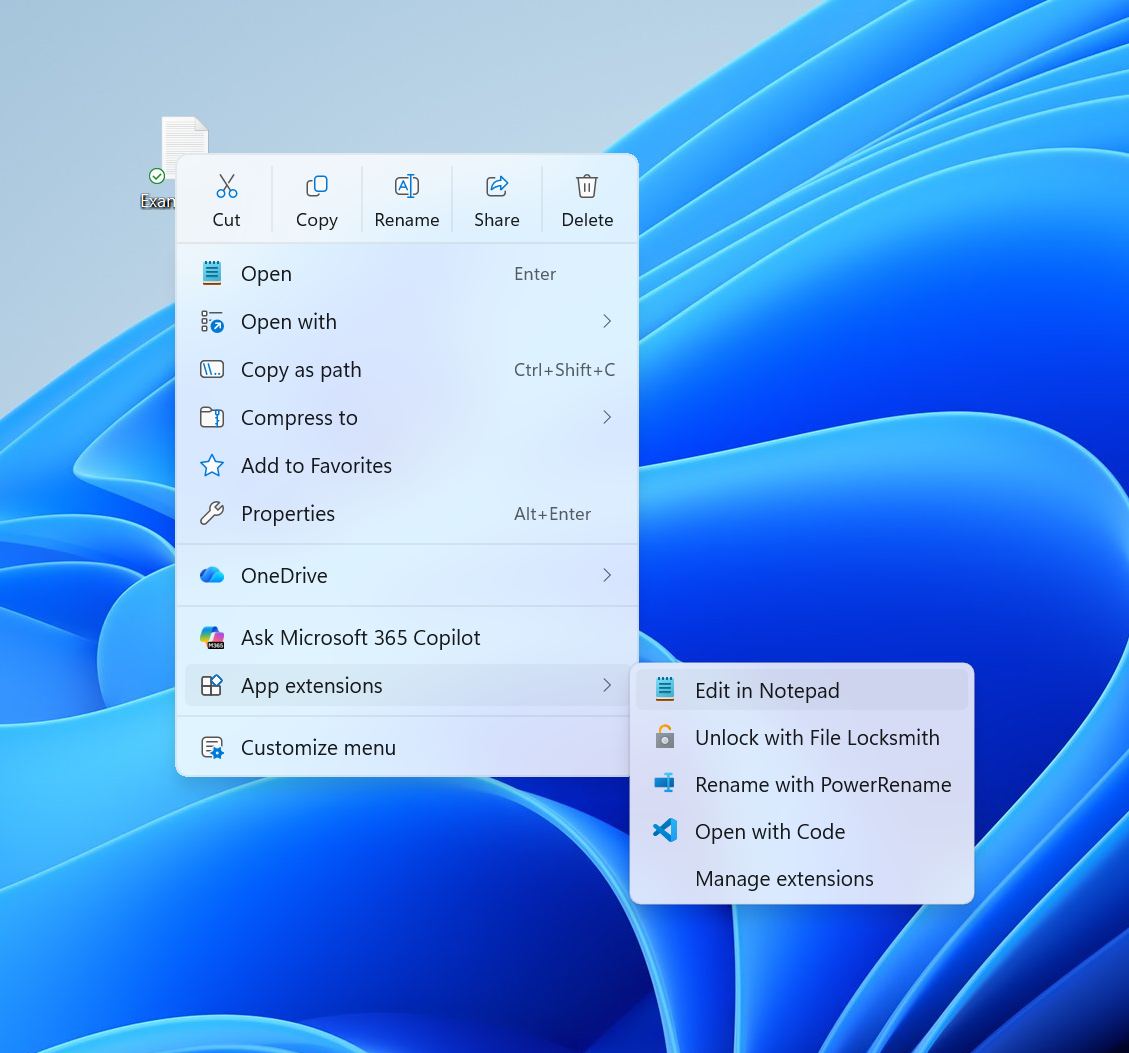
New Context Menu
Microsoft is beginning to roll out an updated context menu experience in File Explorer, designed to feel faster, cleaner, and easier to tailor to the way you work. The new design reduces top-level clutter, keeps commonly used actions easy to access, and adds a new Settings experience that gives you more control over what appears in the menu.
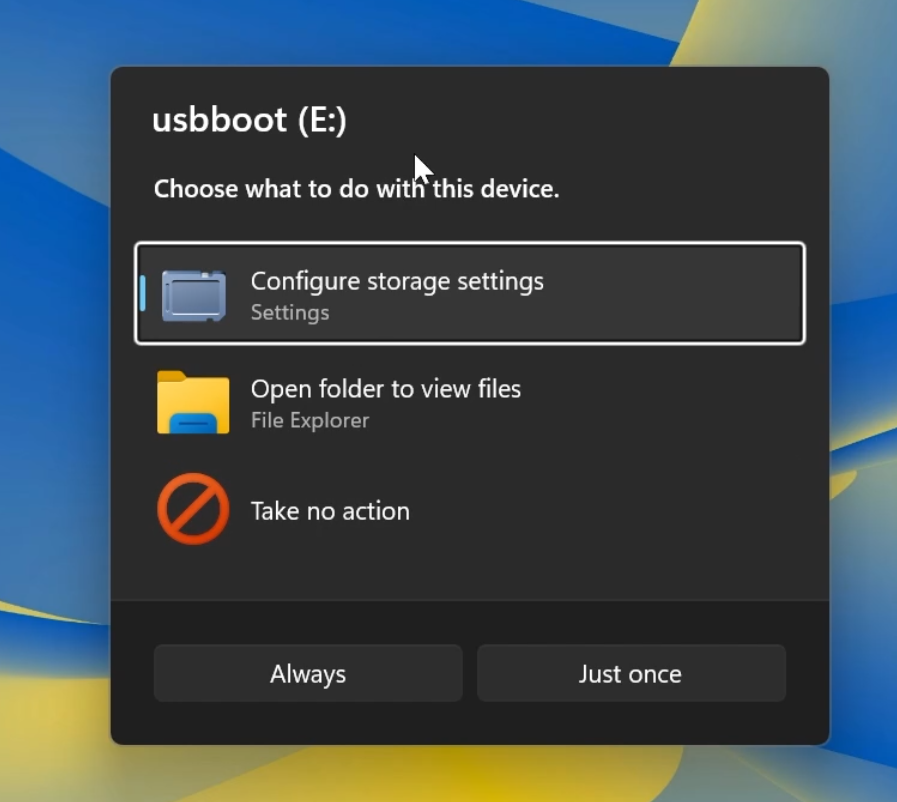
New AutoPlay Dialog
Microsoft is also adding a New AutoPlay Dialog that is completely redesigned using WinUI3 and supports Dark Mode.
New Maximised Apps by Default
Microsoft is also introducing a new accessibility setting, Open apps maximized, that automatically maximizes app windows when they open, so you no longer have to do it yourself every time.
To turn it on, go to Settings > Accessibility > Visual effects, and turn on Open apps maximized. Once enabled, Windows maximizes app windows for you as they open.
Manage Camera and Microphone Access to Desktop Apps
Windows Insiders can now manage camera, microphone, and location permissions for individual desktop apps. Previously, access for traditional desktop applications was managed through a single device-wide setting.
New Wi-Fi Power Saving Energy Recommendation
Microsoft is also adding a New Wi-Fi Power Saving Energy Recommendation that is good especially for Laptops.
New Modern Mouse Indicator
Microsoft has also added a New Modernised Mouse Indicator with New Animation and New Options.
New File Explorer File Previews
PDF and non-HTML files downloaded from the web can now be previewed automatically in the preview pane.
New Get Started App
The Get Started app is updated with new pages. The pages help personalize your device and discover new features. Pages might depend on your device. Close the flow at any time, or revisit it by opening Get Started. The new pages include the app install page, the site pinning page, and the personalized theme page.
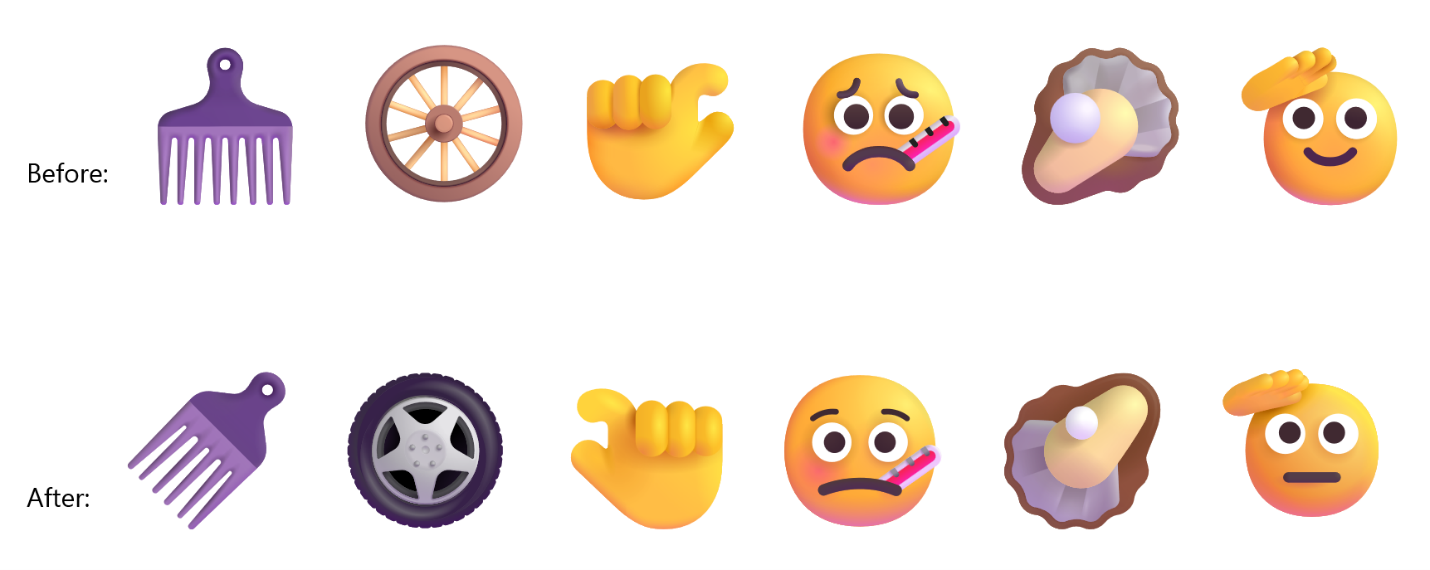
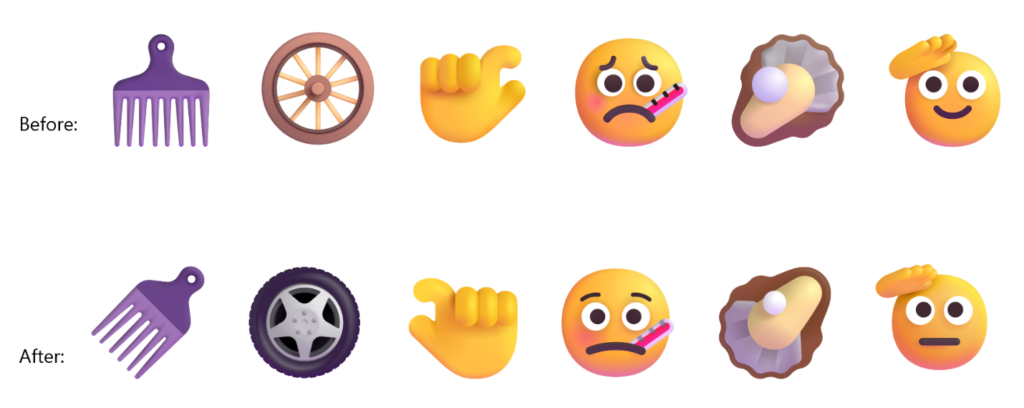
New Emoji 17.0
- Microsoft is adding support for Emoji 17.0. This includes new emoji such as distorted face, fight cloud, and hairy creature. To try the new emoji, press the Windows key plus Period (.) to open the emoji panel and insert them from there.

- As part of this effort, we’ve also made some slight adjustments to the design of some of our current emoji to improve consistency across platforms. This includes the saluting face, face with peeking eye, goose, lotus, and kissing cat emoji.
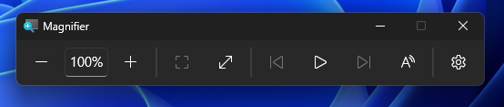
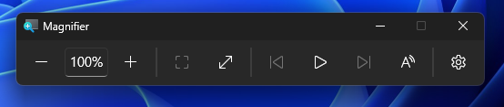
New Magnifier
- Microsoft is giving Magnifier’s toolbar a modernized visual refresh.
- Updated icons. We’ve updated Magnifier’s toolbar icons to align with Windows 11 visual design, giving the tool a cleaner, more modernized feel.
- Refined spacing and padding. We’ve adjusted the padding and spacing across the toolbar for a more polished, consistent layout.
- What’s not changing: The way Magnifier works. Your views, zoom controls, keyboard shortcuts, and Read Aloud all behave exactly as they did in earlier versions.
New Personalization
- Improved reliability of the Personalization > Background page in Settings.
- Added support for using DIB image files as desktop backgrounds.
- Improved reliability of desktop slideshow transitions on newly created accounts.
- Improved the resolution of previews when selecting a desktop background in Personalization > Background.
- Improved the desktop background preview display in Settings for users with portrait mode monitors.
- Improved reliability of processing desktop wallpaper changes when they happen in quick succession.
- Added support for using slideshow wallpapers with multiple desktops so that it won’t automatically switch you back to Picture.
Improved Run Box
- Improved first launch reliability.
- Adjusted verbosity for screen reader users.
Drag Tray Removed
Based on user feedback, Microsoft is removing the Drag Tray Experience in this Windows 11.
For a more in-depth presentation of the New Windows K2 Features, you can watch the video below from the youtube channel.
 11
11
 20
20