
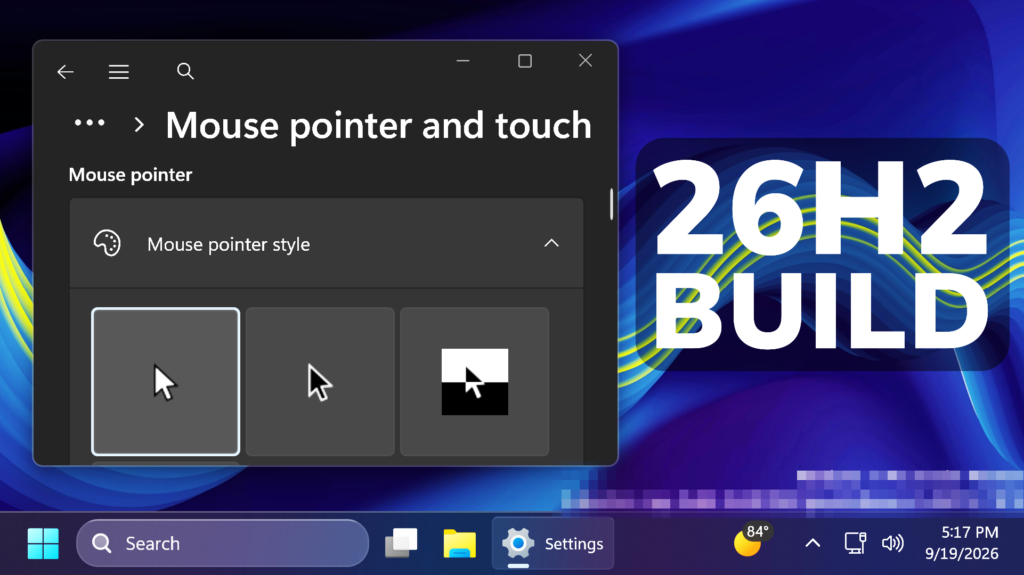
In this article, we will talk about the latest Preview Build for Windows 11 26H2 in the Dev Channel, which is the Build 26340.9502.
Windows 11, version 26H2 represents Microsoft’s yearly second half major update as part of their standard annual Windows 11 update cadence. As Windows 11, version 26H2 shares the same servicing branch as Windows 11, version 25H2, the update is implemented through an enablement package (eKB). This means your device will be updated to the next version through a single restart – providing a familiar, fast, and reliable update experience.
Devices already enrolled in the Experimental channel will begin seeing their versioning updated to version 26H2 under Settings > System > About (and winver). If you are in the Beta channel and would like to switch to the Experimental, you can easily do so under Settings > Windows Update > Windows Insider Program. Remember, you can easily switch back to Beta at any time, without having to do a full Windows reinstall.
Not currently enrolled in the Windows Insider Program and wanting to preview version 26H2? Register for WIP selecting the Dev channel, while it’s transitioning to Experimental. Once the transition is complete, the new channel name to preview version 26H2 will appear as Experimental.
New Modern Mouse Indicator
Microsoft is introducing a sleeker new animation for the Mouse indicator. You can enable this animation under Accessibility settings. We’ve also added the option to keep the indicator activated until you press the Esc key.
New Magnifier Features
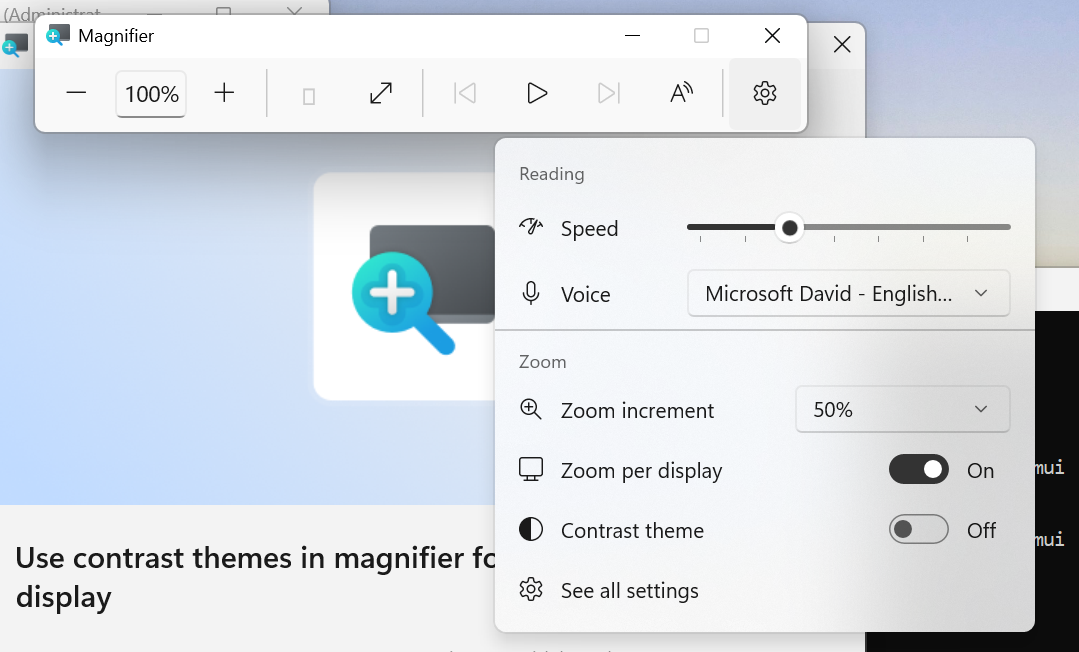
- A new contrast theme toggle for a lower-glare screen. If bright screens are uncomfortable, many people use color inversion to reduce glare. However, inversion changes everything on screen, including photos, charts, and videos. With this update, we’re introducing a new contrast theme toggle in Magnifier.
- Reduce glare with a single toggle. Turn on a contrast theme directly from the Magnifier toolbar for a more comfortable viewing experience.
- Choose the contrast theme that works best for you. The dark theme is applied by default, and you can choose which contrast theme the toggle uses under Settings > Accessibility > Magnifier.
- Photos, videos, and charts keep their original colors. Unlike color inversion, the contrast theme recolors the interface without touching your photos, charts, or videos, so they keep their real colors.
- Color inversion is still here. This isn’t a replacement. If you use inversion today, it works exactly as it always has. The contrast theme is a separate, purpose-built option to reduce glare when you want a darker interface without inverting colors.
New Cloud Rebuild Features
- Microsoft is updating Cloud rebuild, the recovery option that restores a Windows 11 PC to a clean, known-good state by performing a full OS reinstall, with two additions.
- Cloud rebuild can now sanitize the device’s drives as part of the rebuild. When you start a rebuild in WinRE, choose Remove files if you’re keeping the PC, or Remove & sanitize files before recycling, returning, or reassigning it. The sanitize option uses the storage hardware’s erase capability to securely erase data before Windows is reinstalled and is irreversible.
- IT administrators can now configure and start a Cloud rebuild remotely through the Recovery CSP, using either the currently installed build or a target build you specify.


New Live Captions Setting
Microsoft is improving Live Captions with a new Include Screen Reader audio setting, which is off by default. With the setting off, Live Captions won’t transcribe audio from screen readers such as Narrator, JAWS, and NVDA, keeping captions focused on microphone and system audio.
Hyper-V Fix
Fixed an issue where some applications that used HCS-managed virtual machines experienced issues when sharing host folders with Linux VMs using Plan9. Folders shared from the Windows host using Plan9 didn’t appear or couldn’t be accessed in the guest environment.
Other Fixes
Fixed an issue where backing up using File History unexpectedly failed with an error saying, “No usable drives found.”
For more information about this Build, you can check this article from the Microsoft Blog.
For a more in-depth presentation of the New Build, you can watch the video below from the youtube channel.
 11
11
 20
20

