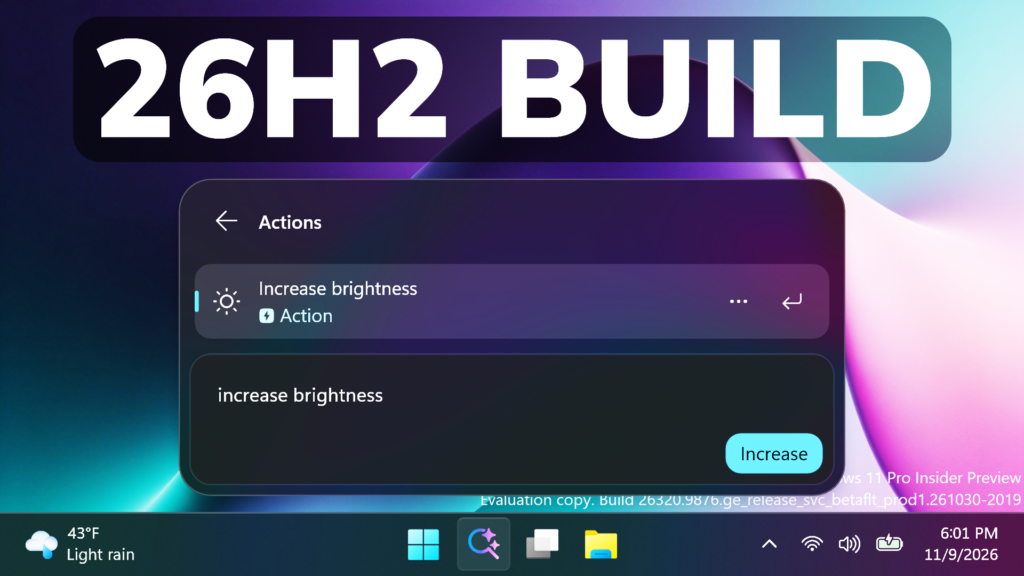
In this article, we will talk about the latest Windows 11 26H2 Insider Preview Builds for the Beta Channel, with the latest Build being 26320.9876.
Microsoft is moving to two primary channels, with the advanced option to pick specific Windows core versions within those. The new channels are Experimental and Beta.
Beta is a refresh of the previous Beta Channel and previews what Microsoft plans to release in the next few weeks. The big change: Microsoft is ending gradual feature rollouts in Beta. When they announce a feature in a Beta update and you take that update, you will have that feature. You may occasionally see small differences within a feature as they test variations, but the feature itself will always be on your device.
Beta Moved to Windows 11 26H2
With this update, the Beta channel moves to Windows 11, version 26H2, with the build number increasing to Build 26320. You shouldn’t expect any significant change from this build number increase alone, as it’s delivered via an enablement package (eKB) update.
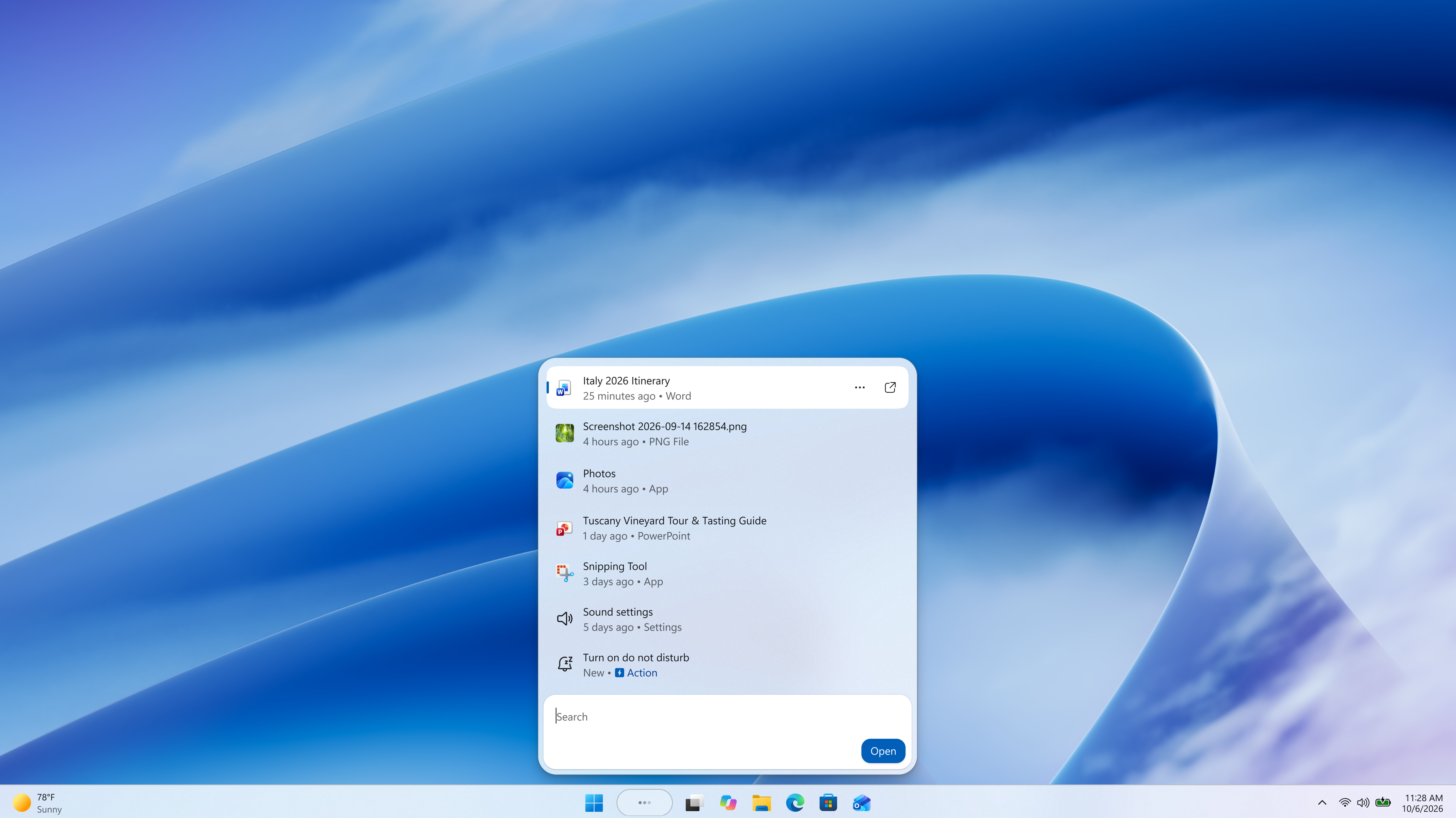
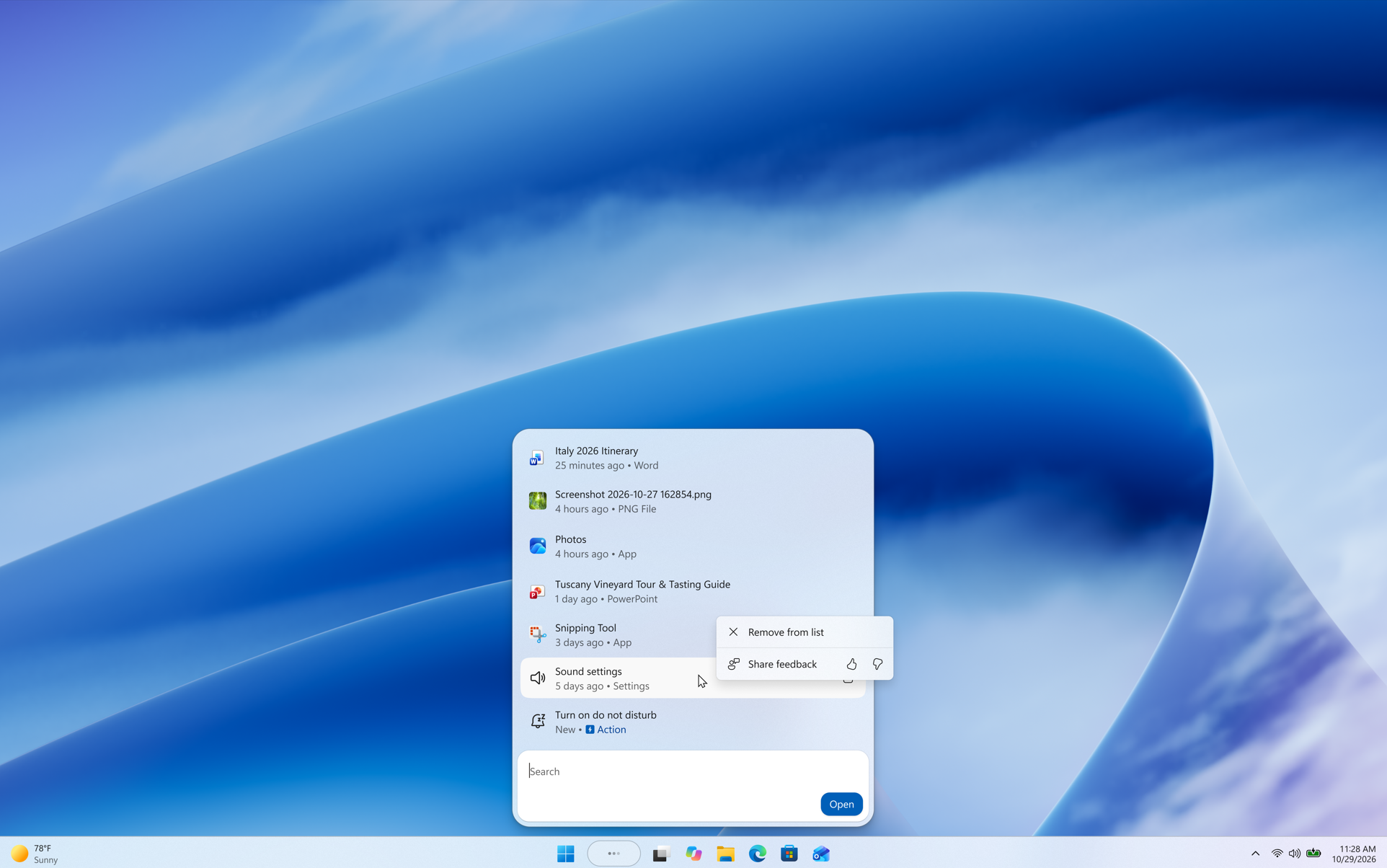
New Modern Windows Search UI
- New Windows Search experience with inline actions: A new Windows Search experience built on WinUI 3 is beginning to roll out. It’s faster, more efficient, and features a streamlined design that makes results easier to scan. Inline actions let you quickly complete tasks directly. Turn on dark mode or Bluetooth, adjust your screen brightness, mute your device, or arrange windows from Windows Search.
- Windows Search is improving how it understands what you’re looking for, including better matching for typos and synonyms. These improvements will continue to be fine-tuned over the coming weeks. For more information about the changes, check out the Windows Insider Blog.
- English is the only supported language for this initial release.
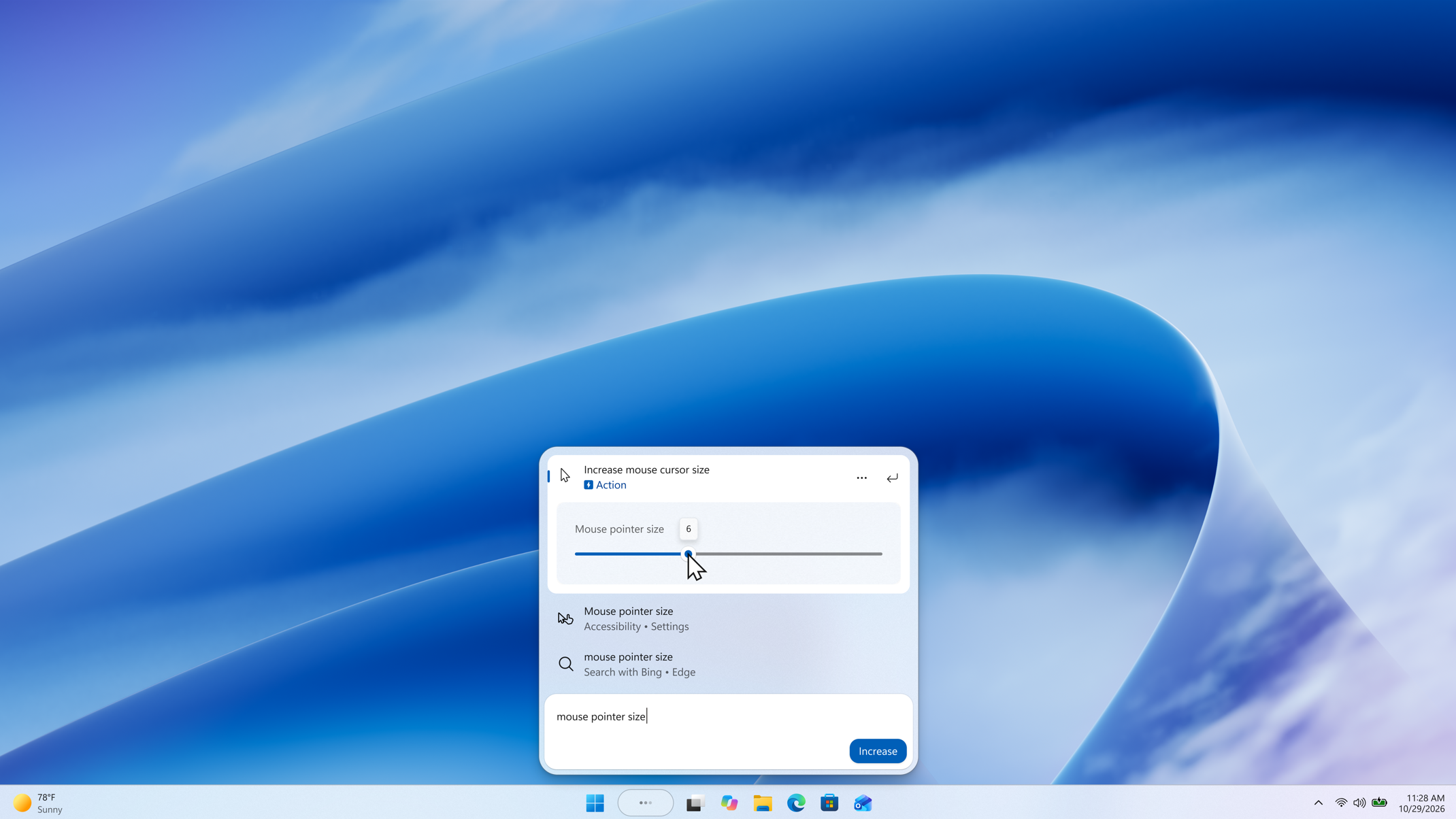
New Search Inline Actions
Adjust your volume, screen brightness, or cursor size with inline sliders. Actions are more clearly labeled, and suggested actions help you discover more things you can do.
New Search Phone Actions
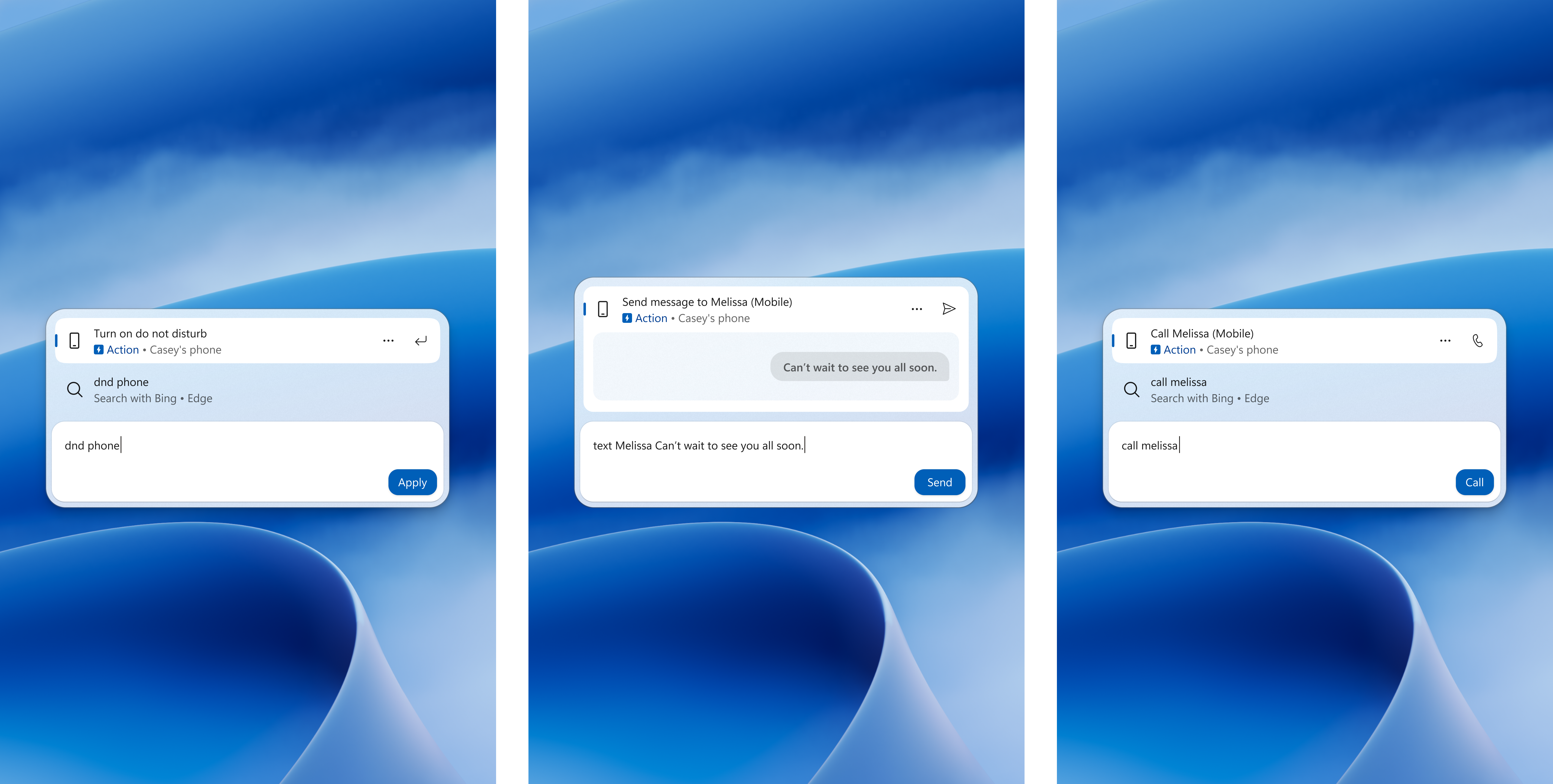
With a supported phone connected through Phone Link, you can now call or text a friend and access phone actions such as Do Not Disturb. Android support is available now with iPhone support coming early next year.
New Search Richer Results
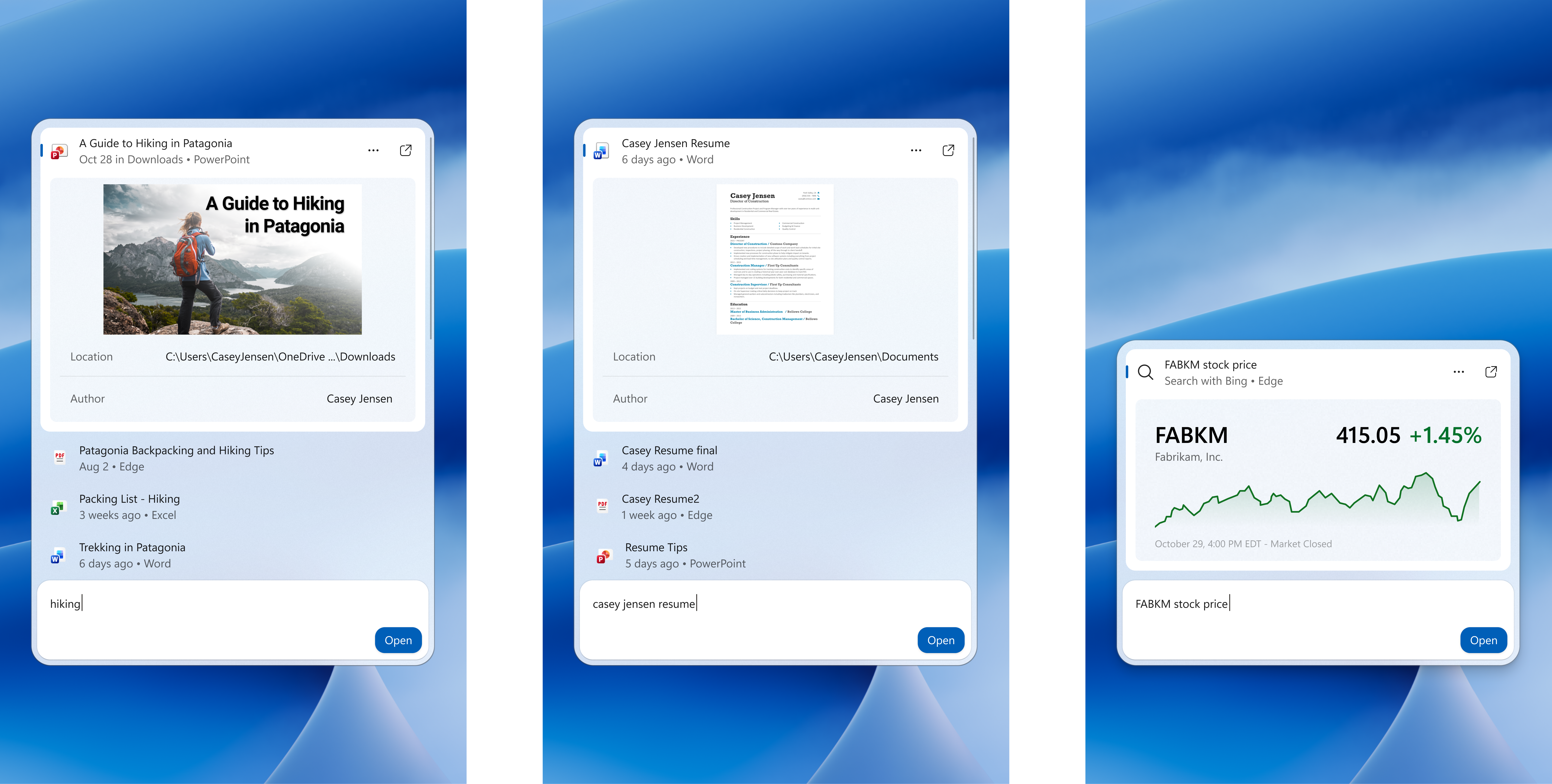
Preview files and see details such as a file’s last modified date, location, and author. Get web answers for weather, stocks, and facts, and discover apps and games from the Microsoft Store. Like web results, app results from the Store can be toggled on or off in Settings > Privacy & security > Search.
New Search Result Filters
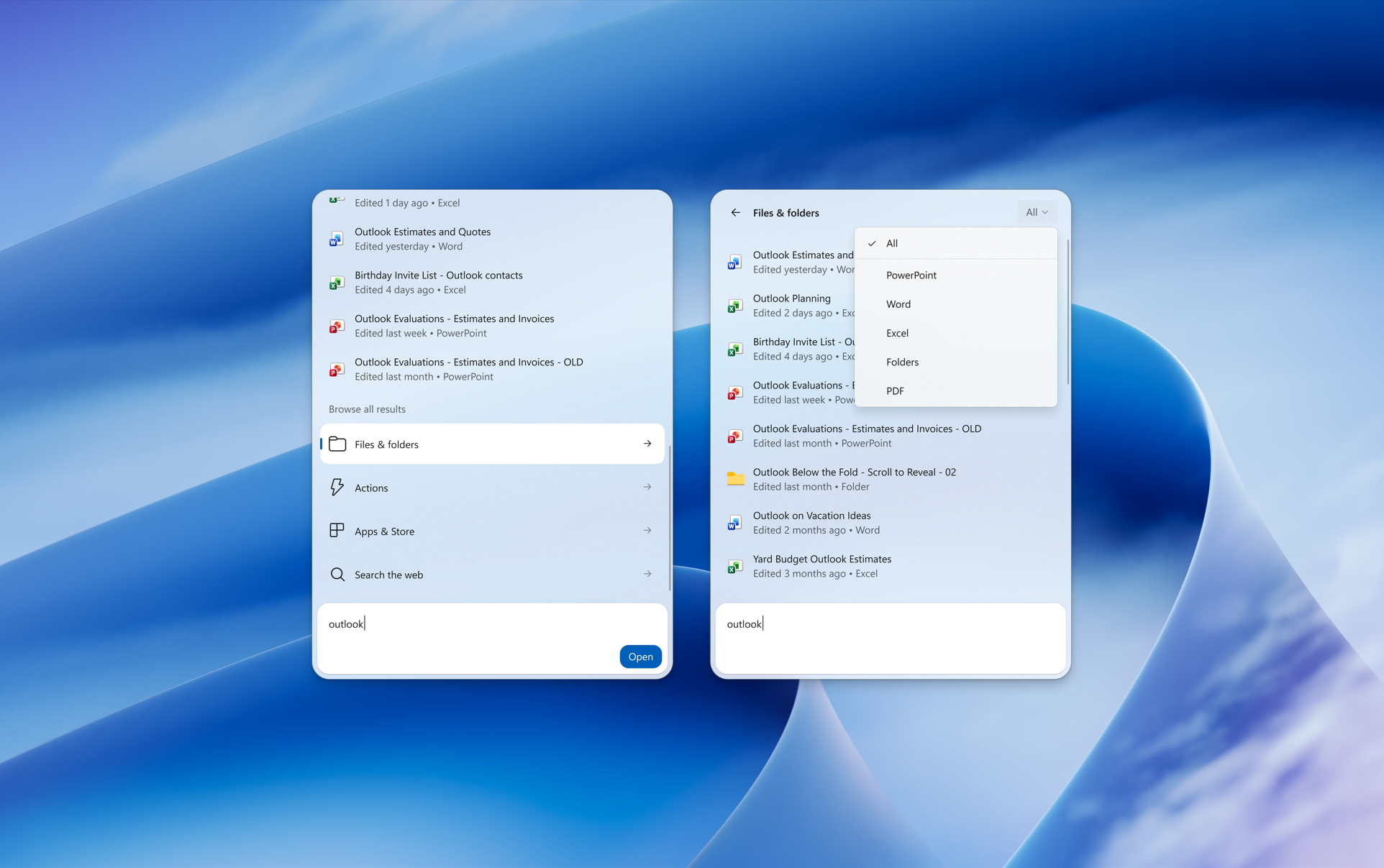
Scroll to see more results and filter by Files & Folders, Settings, Actions, and more.
New Search Feedback Controls
Right-click a result or suggestion and choose thumbs up or thumbs down to tell Microsoft whether it was helpful. You can also remove items from the initial Search view before you type. They’ve also made small polish improvements to the look and feel of Windows Search based on what you’ve shared.
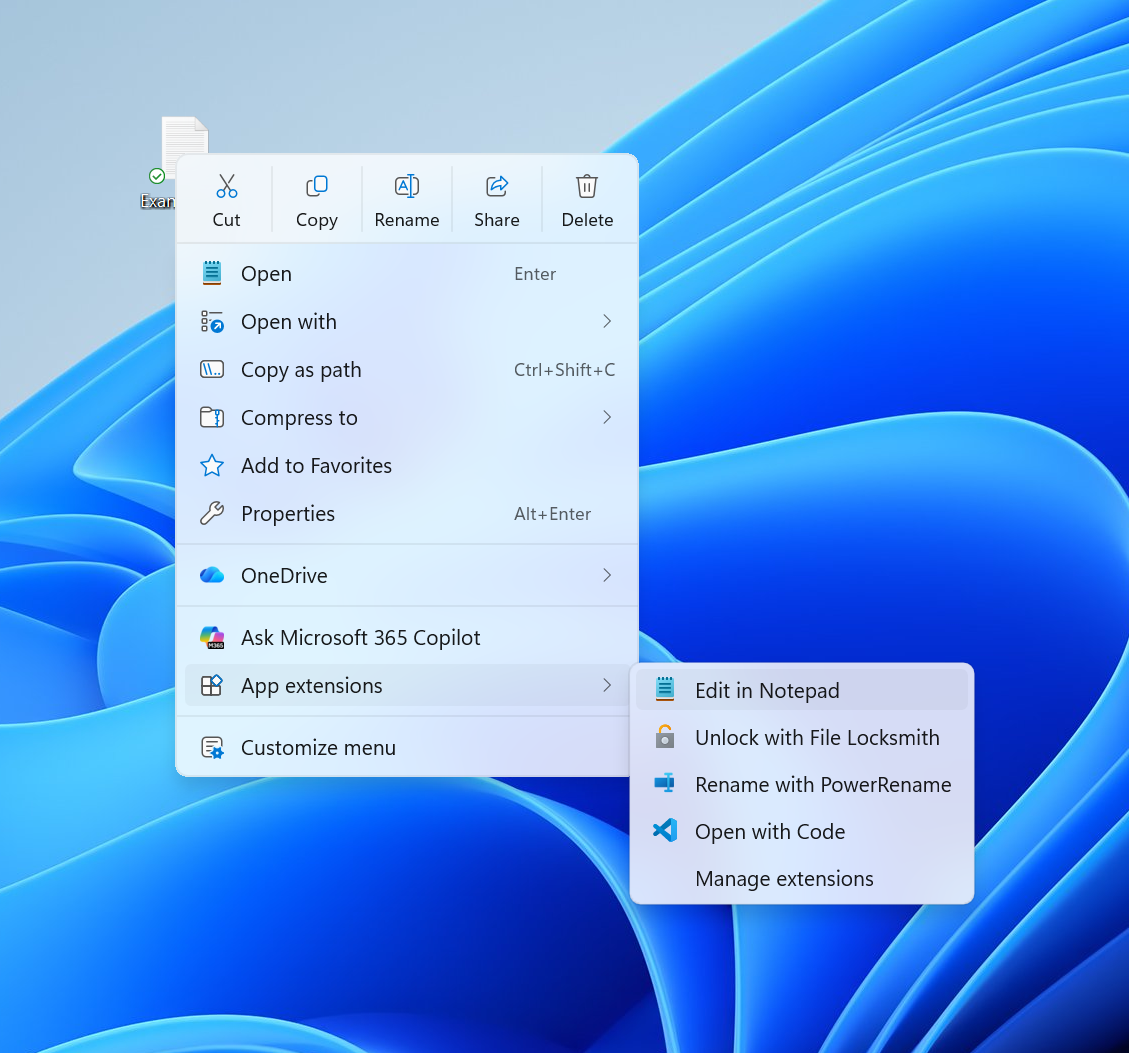
New Context Menu in File Explorer
- Microsoft is rolling out an updated context menu experience in File Explorer, designed to feel faster, cleaner, and easier to tailor to the way you work. The new design reduces top-level clutter, keeps commonly used actions easy to access, and adds a new Settings experience that gives you more control over what appears in the menu. As we continue refining this experience with Insider feedback, our goal is to make right-click feel more responsive, predictable, and personal.
- They are also adding a new teaching tip you might see as a first-time experience to help you learn about the customization options.
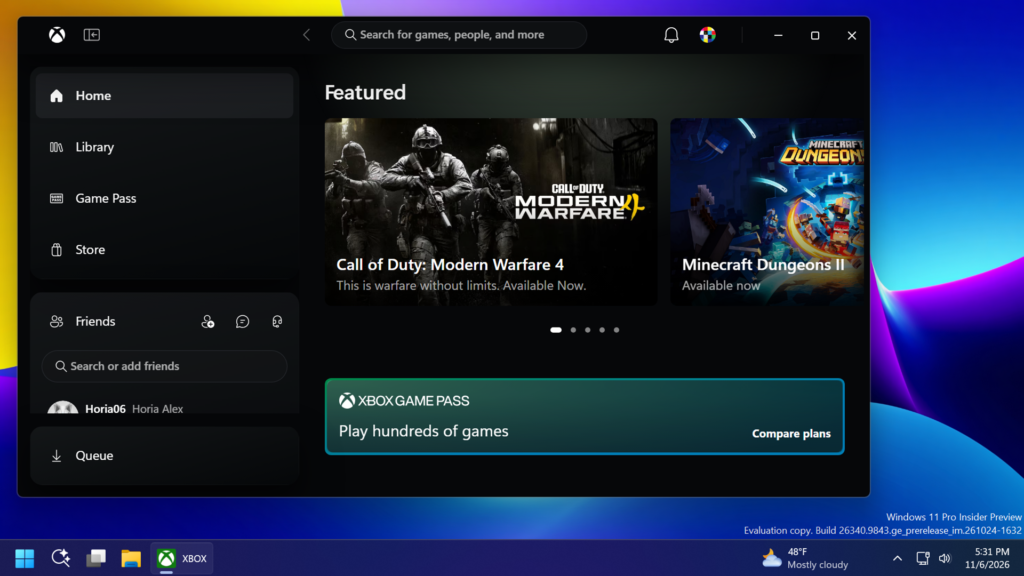
New XBOX App
Starting today, XBOX Insiders can try an updated XBOX PC app that launches up to 60% faster and makes it easier to find games, connect with friends, and play.
XBOX Insiders will start seeing improvements across the XBOX PC app designed to make everyday actions faster and easier:
- A faster, more responsive app: The app now launches up to 60% faster. Pages like Home, Store, and Game Pass load up to 50% faster, and in-app windows open up to 65% faster.*
- An easier-to-use Library: Simpler navigation, updated filters, and new ways to organize your games make it easier to browse your collection and find what you want to play.
- Friends are easier to reach: Friends and social features are now part of the main navigation, making it easier to see what friends are playing, start a chat, or join a party.
- Better search: Search across more of XBOX from one place, with results across games, including installed titles and add-ons, and people, so it’s easier to find what you’re looking for.
- A cleaner look and feel: Refreshed game cards, Home, Settings, and animations make the app easier to scan and navigate.
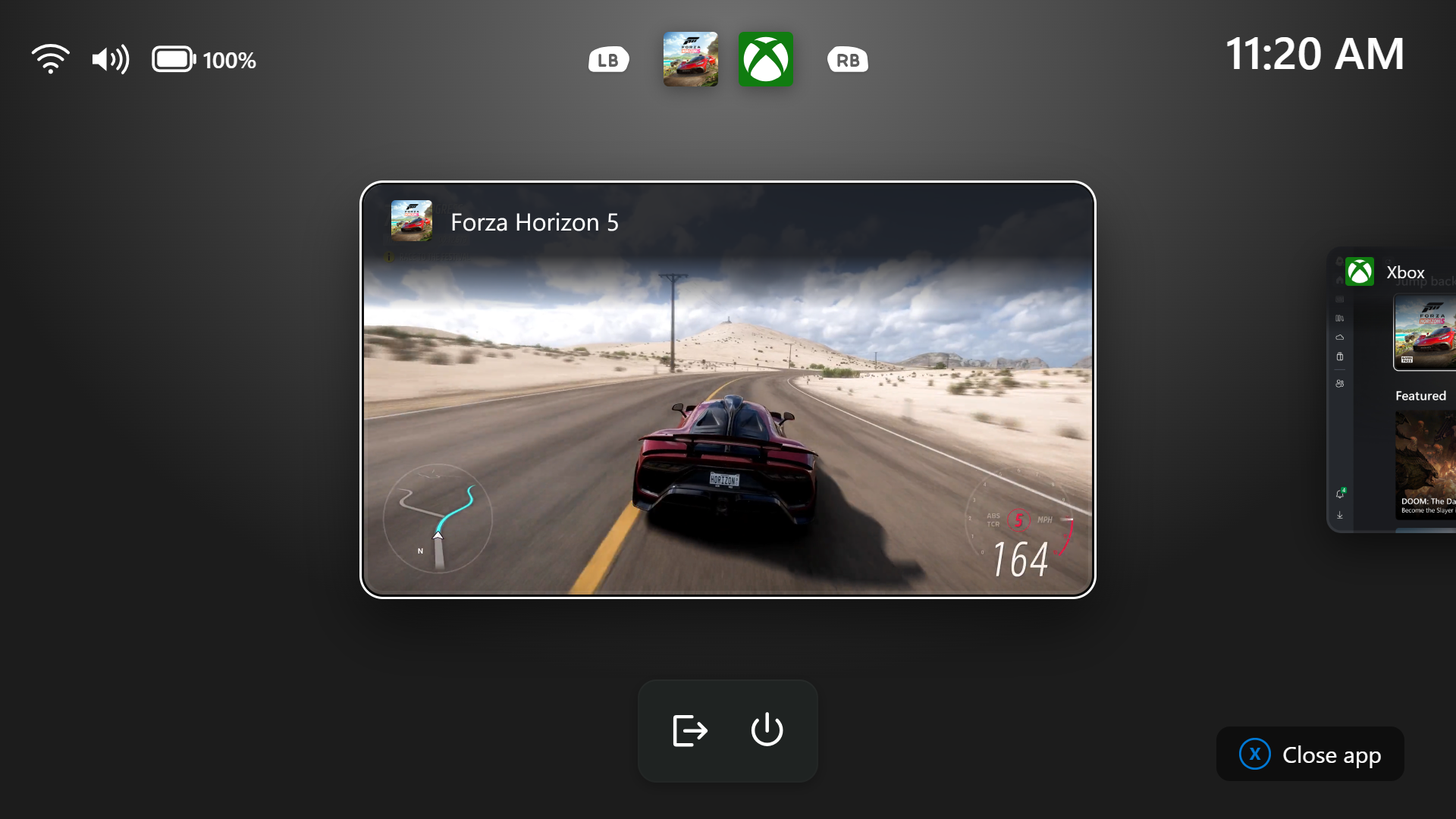
New Gaming Task View in XBOX Mode
Microsoft is introducing a refreshed Gaming Task View experience in XBOX mode, featuring a new navigation bar that provides quick access to Exit to Desktop and Power Options. This update makes key system actions easier to access while gaming.
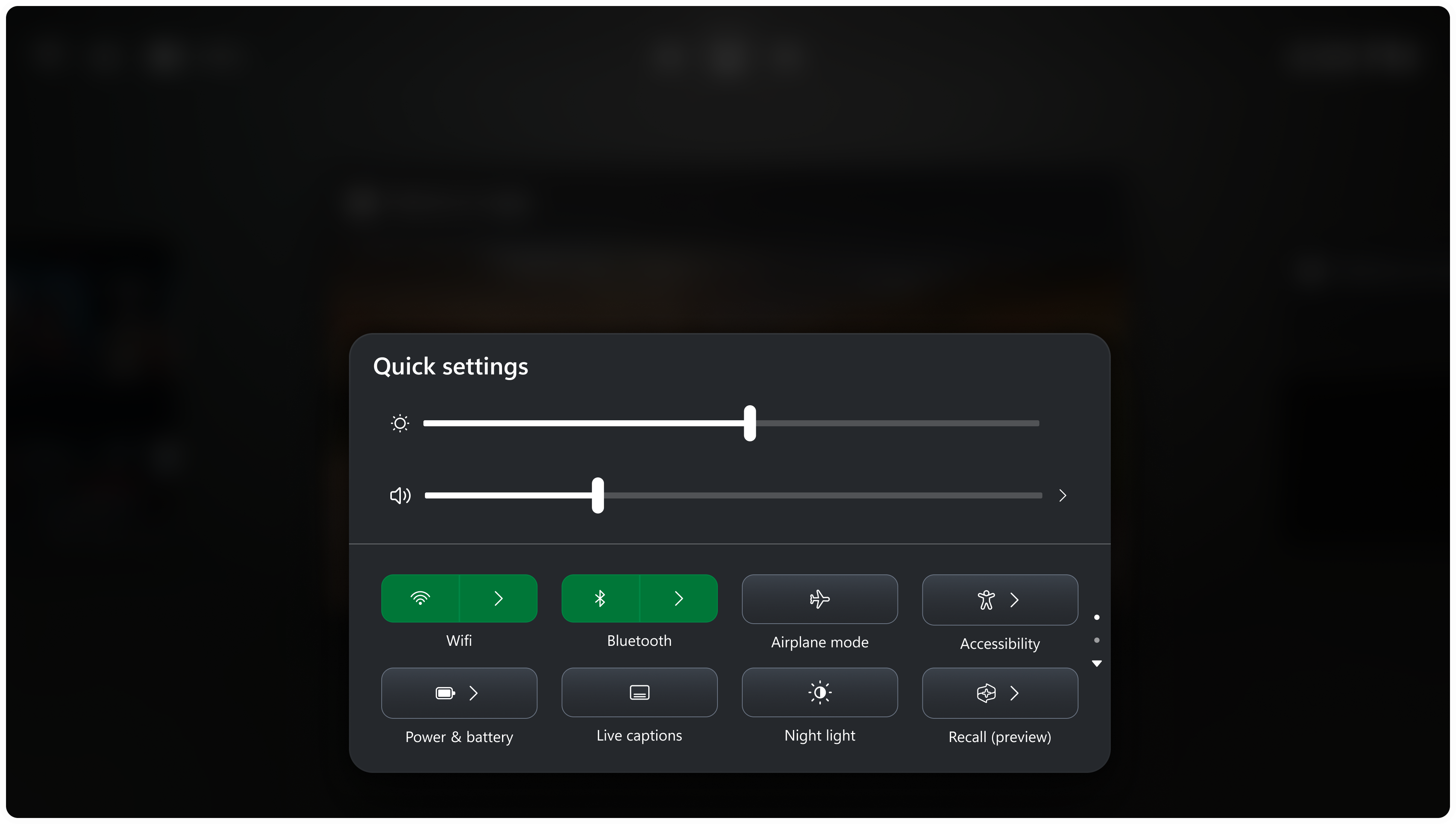
New Quick Settings in Gaming Task View in XBOX Mode
Quick settings is coming to the Gaming Task View navigation bar in XBOX mode, giving you access to the full set of Quick settings available on the Windows taskbar without having to leave XBOX mode.
New File Explorer Folder Options with Dark Mode
The File Explorer Folder Options Dialog, now supports Dark Mode.
New File Explorer Search Results Page
Key file information, such as name, location, and date, now appears in a consistent layout on the File Explorer search results page, making search results easier to scan.
New File Explorer Thumbnails in the Recommended Section
They’ve sharpened file thumbnails in the Recommended section on the Home page so they’re crisper and easier to read.
New File Explorer Tilde Support for the Address Bar
The Address Bar now supports ~, making it quicker to navigate directly to your user profile folder and subfolders, for example, ~\AppData.
New Modern Run Dialog
Microsoft is also introducing a New Modern Run Dialog which now uses WinUI3 and it matches the Windows 11 Design Principles.
For Insiders with the new Run dialog enabled:
- Improved the window position when using an Arabic or Hebrew display language.
- Improved performance of the Run dialog when navigating to very large folders.
- Fixed an issue where your text might unexpectedly disappear if you started typing too quickly after opening Run.
- Made a few other small visual fixes and refinements.
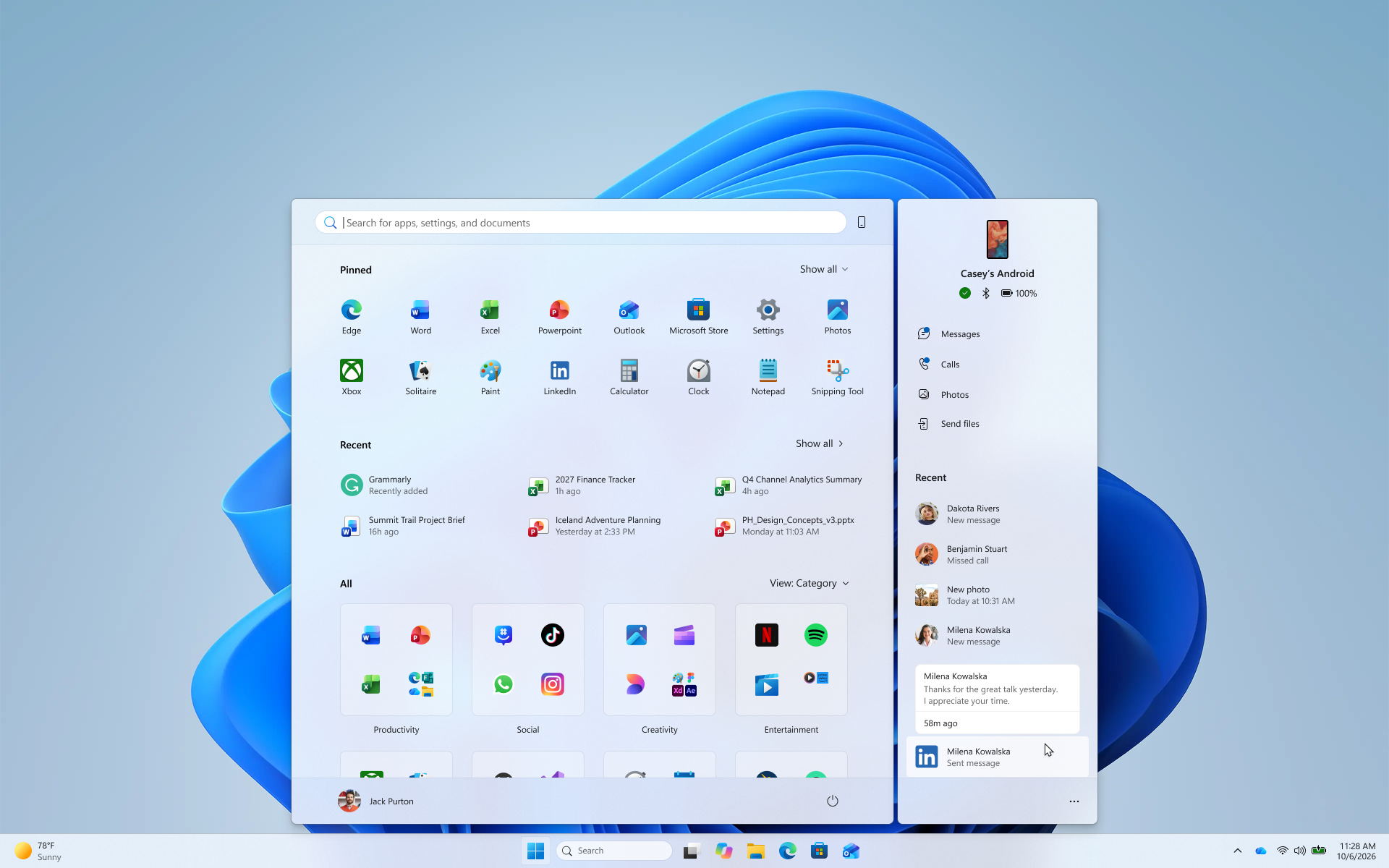
New Start Menu Phone Hover
- Hover over a recent message or notification in the Recent section to preview its content directly in Start. There’s no need to pick up your phone or open the item to see what’s new.
- Whether you’re checking a message or deciding if a notification needs attention, these updates make it easier to stay informed and keep your focus.
New Taskbar Thumbnail Preview Animations
Microsoft is also bringing back the New Taskbar Thumbnail Preview Animations and Transitions.
Better Settings Performance
Microsoft is also making performance improvements to the Settings home page, which should result in reduced loading times in certain scenarios.
New Device Info Card in Settings Home
Microsoft is beginning to expand the new Device Info Card experience for Settings Home to additional markets globally. Available for Windows Insiders signed in with their Microsoft account, the Device Info Card provides a quick snapshot of your PC’s key specifications and usage. From the card, you can go directly to Settings > System > About to see more detailed information about your PC.

New Settings Mouse Indicator
The New Settings Mouse Indicator is making its way back again to Windows 11 in the Beta Channel.
New Cloud Rebuild Feature
- This update introduces Cloud rebuild, a new recovery option that reinstalls Windows 11 using a Windows image and device drivers downloaded from Windows Update, including when Windows is unable to start. No USB media or custom image is required. Cloud rebuild includes:
- Drive sanitization: Choose to remove your files or securely erase data using the storage hardware’s erase capability before Windows is reinstalled. Sanitization is irreversible.
- Remote management: IT administrators can configure and start a Cloud rebuild remotely through the Recovery CSP using either the currently installed build or a specified target build.
- To start Cloud rebuild:
- In Windows, go to Settings > System > Recovery, and then select Rebuild PC. The device restarts into the Windows Recovery Environment and starts Cloud rebuild.
- Alternatively, if Windows can’t start, the device enters the Windows Recovery Environment automatically after repeated boot failures. From the Windows Recovery Environment (WinRE), select Troubleshoot > Recovery and uninstall > Cloud rebuild.
- Connect to a wired Ethernet or Wi-Fi network.
- Review the target Windows build, edition, and language, and then confirm the data loss warning before the rebuild begins. You can choose whether to remove files or remove and sanitize files prior to Windows reinstalling.
- To learn more, see Cloud rebuild.
New Privacy & Security Settings Page
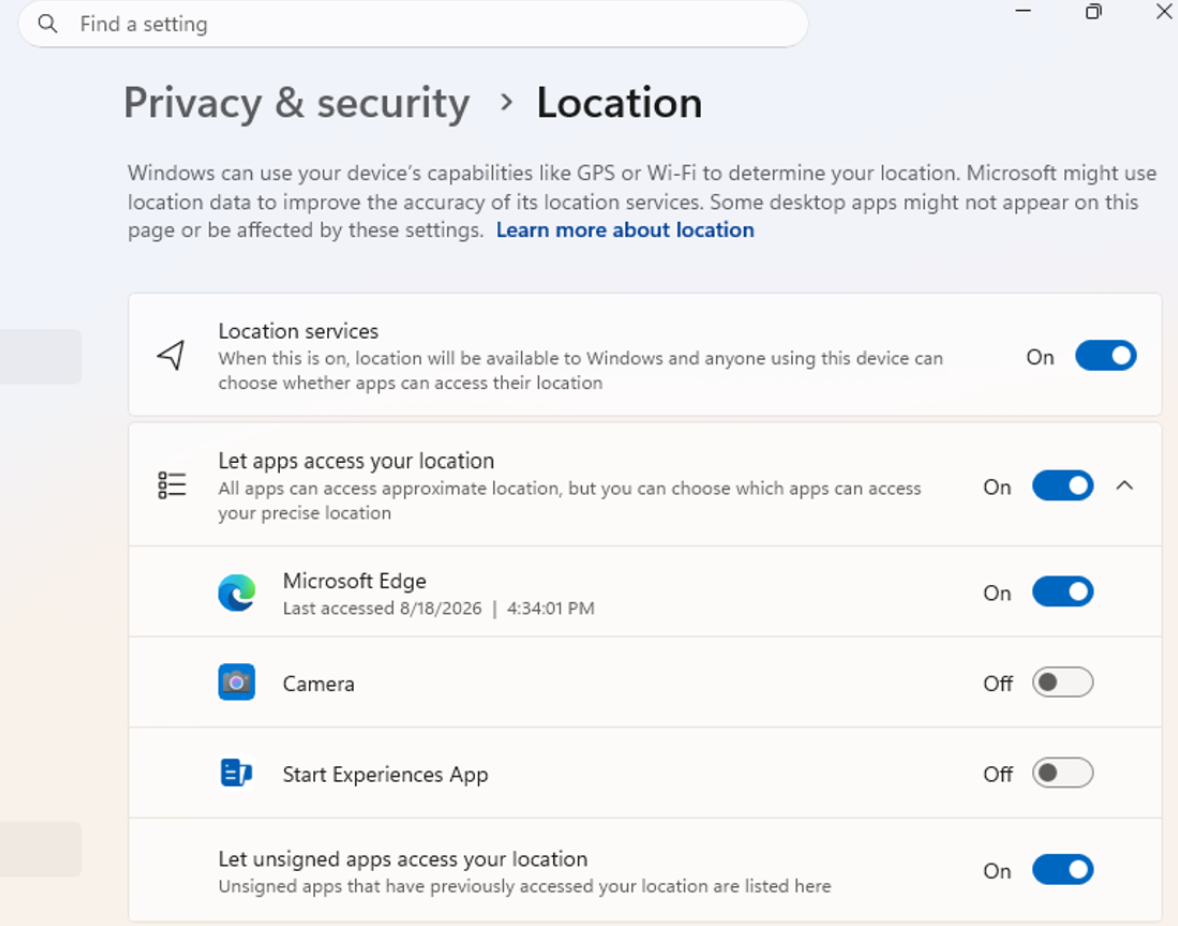
The improved Privacy & security page in Windows Settings helps you find the Camera, Microphone, and Location privacy controls more easily. It groups similar controls across the page and brings usage information from deeper linked pages onto this page.
New Settings to Manage Camera, Microphone and Location Access for Desktop Apps
With this update, you can review and control access on an app-by-app basis, giving you greater visibility into which apps are requesting access to sensitive resources and more control over your privacy choices. Our goal is to make privacy permissions easier to understand and manage across the wide range of desktop apps people use every day.
New Settings Temporary Files Page
This update makes some small visual refinements to the design of the temporary files section under Settings > System > Storage.
New Windows Hello Automatic Screen Brightness
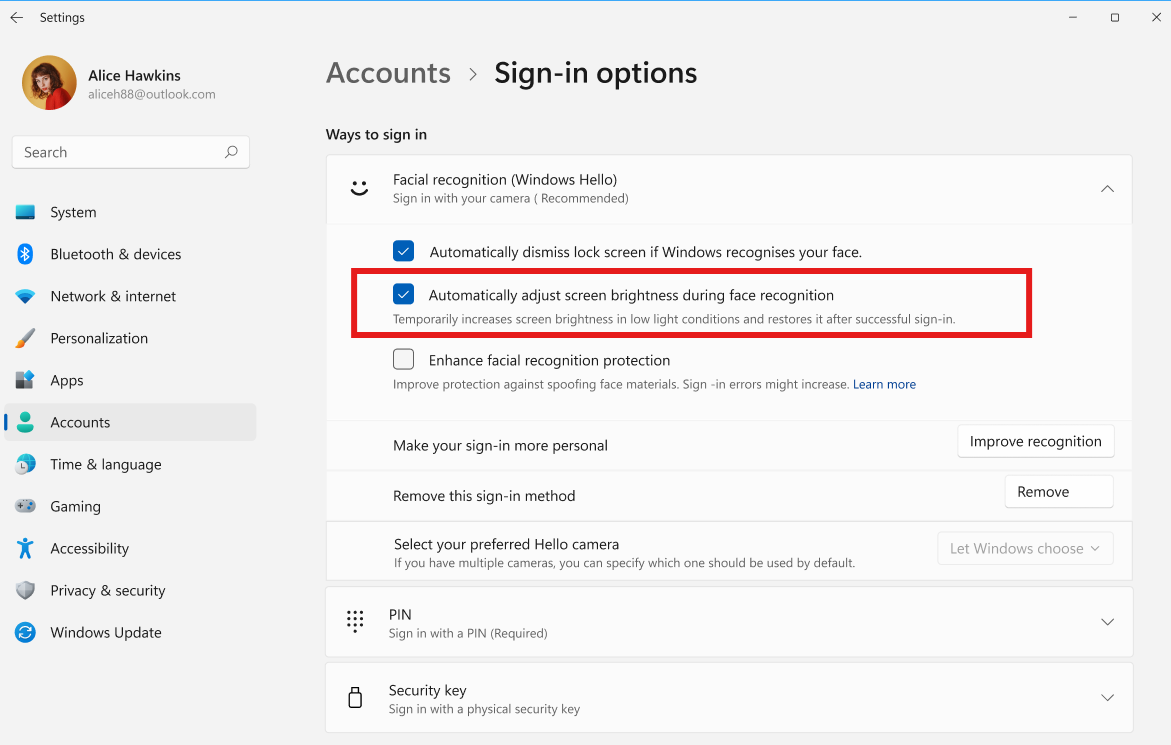
- Windows Hello facial recognition can temporarily brighten your screen to help you sign in when you’re in a dark or dimly lit room.
- To turn on this feature, go to Settings > Accounts > Sign-in options > Facial recognition (Windows Hello) and turn on Automatically adjust screen brightness during face recognition.
New Sound Settings Page
- Microsoft has updated the design of the volume sliders in Sound Settings so that they display audio activity on the side when audio is playing.

- If your audio device supports hardware acceleration, an option to allow hardware acceleration is now available in the Advanced section of the device’s properties.
- You can now configure exclusive mode for an audio device in the Advanced section of the device’s properties, so you don’t have to go to Control Panel.
- You can now configure adaptive communication sound levels, which reduce the volume of other sounds when communications activity is detected, directly in Settings.
- The option to set an audio device as the default sound device for communication now always appears in Properties. The option is unavailable if the device is already the default instead of being hidden.
- We’ve updated the text for allowing audio devices to make it clearer.
- We’ve added a new banner when mono audio is enabled to make it clear that some properties don’t take effect while mono audio is active.
- We’ve updated the All sound devices page:
- You can now change default devices from this page.
- We’ve adjusted the page design so that you can filter whether you’re viewing input or output devices.
- We’ve added toggles so that you can choose whether to hide or show disabled, disconnected, and unplugged devices.
- We’ve also updated the input and output audio properties pages in Settings to include jack information for devices that need it.
New Settings Microsoft 365 Cloud Storage
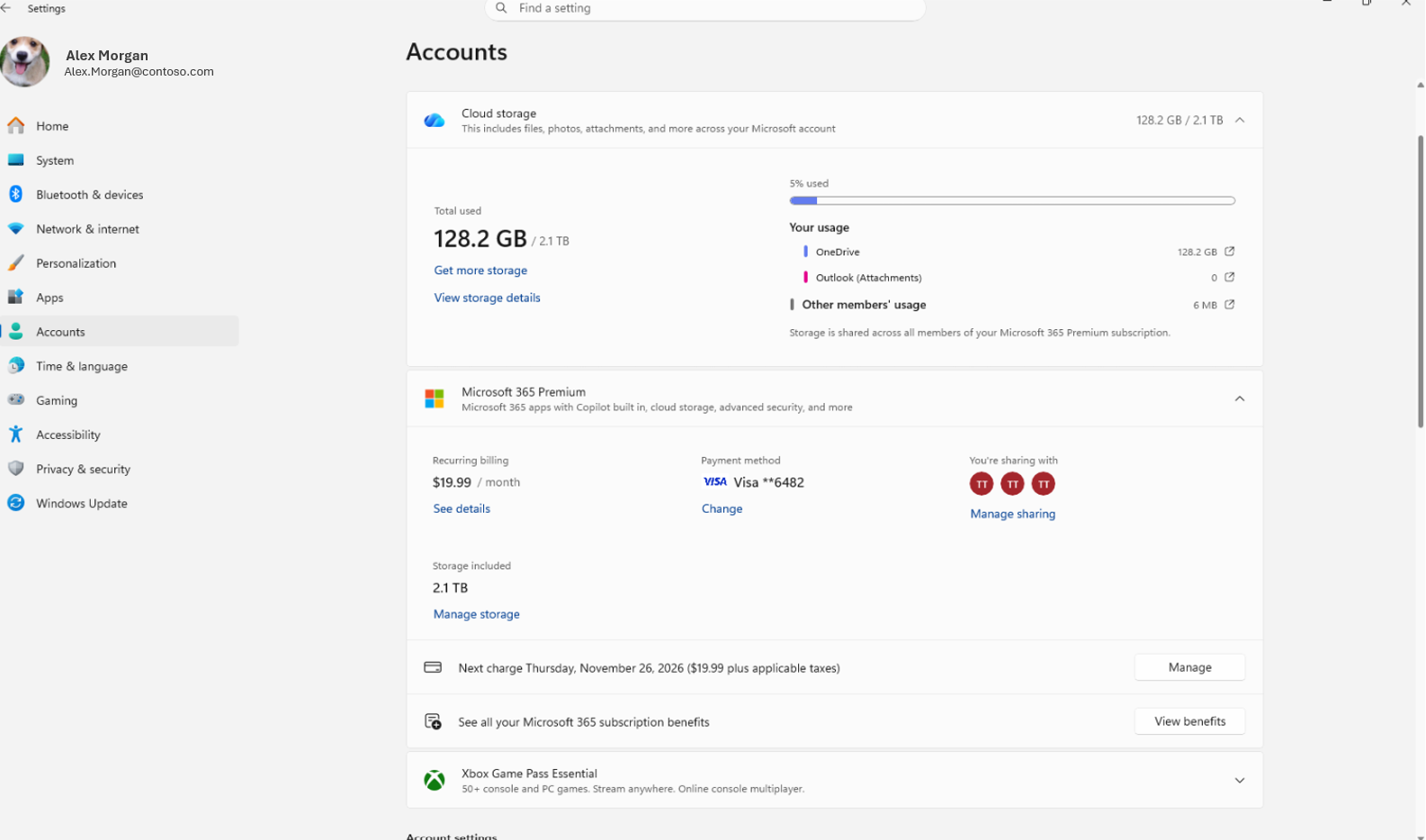
Windows Settings now contains shared storage usage across Microsoft 365 Family subscriptions. A breakdown for each family member is coming soon. If your subscription was purchased after October 8, 2026, you can check the view by going to Settings > Accounts > Cloud storage. If your subscription was purchased before October 8, 2026, this view will be available for you after the first subscription renewal on or after May 2, 2027. Learn more about the changes to Microsoft 365 storage.
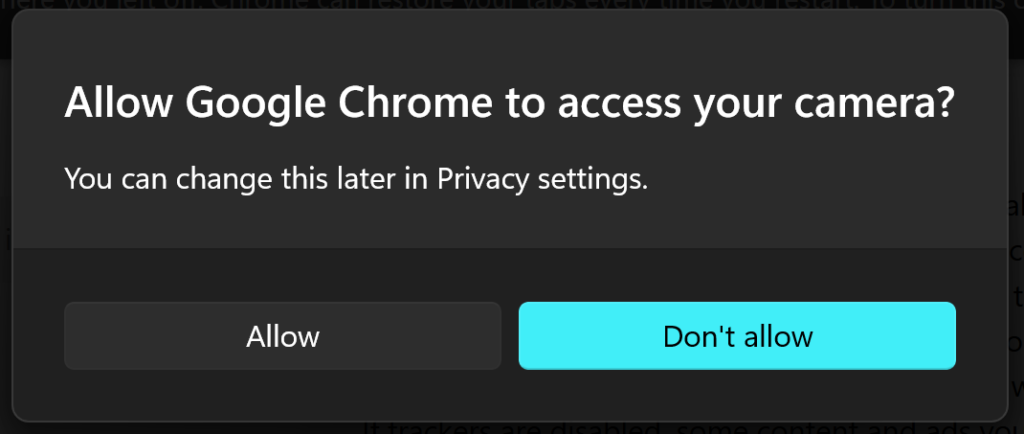
New Modern Permissions and Low Battery Dialogs
The dialog for certain system messages, like low battery and permissions, should use the expected modern design again.
New Default Widget on Lock Screen
Microsoft is updating the default lock screen widget experience for Insiders on newer builds. With this change, Weather will be the primary widget shown on the lock screen, reducing recommended widget content and making the experience feel more focused. We’re also giving users more control of personalizing the widgets on lock, curating the ones they find most useful for them. Users can access these settings by going to Settings > Personalization > Lock screen.
New Sticky Keys Disable Option
The dialogs that ask whether you’d like to turn on Sticky Keys or Filter Keys are being updated, making it easier to dismiss these prompts permanently. If you don’t use these keyboard features, you can choose not to be asked again directly from the dialog, helping you continue what you’re doing with fewer interruptions.
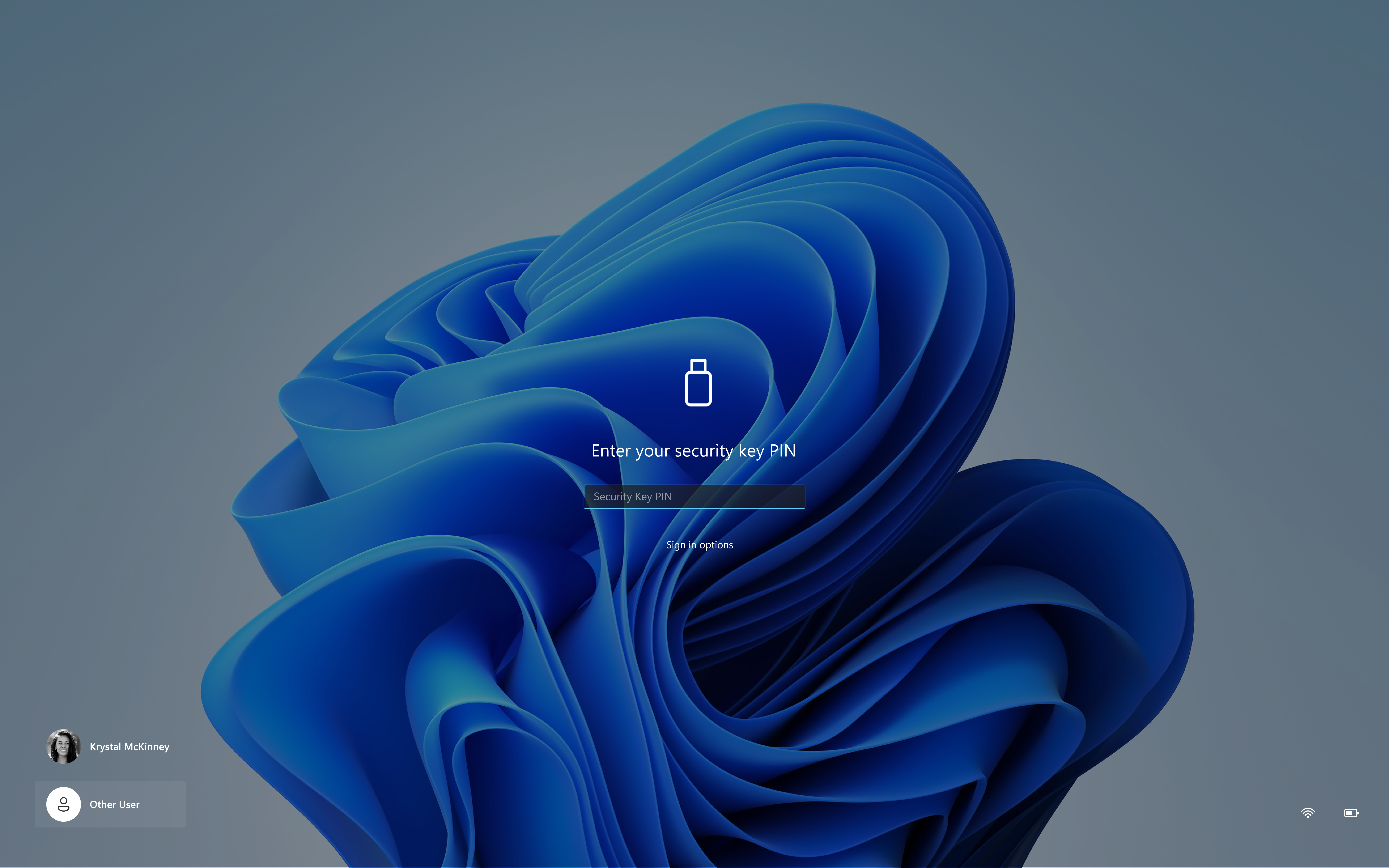
New PIN Login Experience
Microsoft has also updated the security key PIN entry experience, removing the “other user” icon for a clearer sign-in experience.
New Web Sign-In
Web sign-in now works on Microsoft Entra hybrid joined devices. Before this update, it was only available on Microsoft Entra joined devices. You can sign in to Windows at the lock screen with a passwordless credential: a FIDO2 security key, a passkey on your phone, or a Temporary Access Pass (TAP). You don’t need a password. Once you’re signed in, Windows gets a Kerberos ticket, so on-premises file shares and internal sites keep working. For more information, see Use web sign-in to enable passwordless sign-in in Windows.
New Magnifier Zoom on Different Displays
- Magnifier now supports per-monitor zoom, allowing each display to use its own zoom level while keeping the magnified view within that display. To use per-monitor zoom, set your displays to Extend under Settings > System > Display.
- To adjust a display, move your pointer to it and press Windows key + Plus (+) or Windows key + Minus (-), use Ctrl + Alt with the mouse wheel or move the Magnifier toolbar to that display and use its controls.
- Per-monitor zoom is on by default. You can turn it off or adjust individual zoom levels from the Magnifier toolbar or under Settings > Accessibility > Magnifier.
New Magnifier Contrast Theme
Magnifier now includes a contrast theme toggle that can reduce screen glare while keeping the original colors in photos, videos, and charts. The toggle applies a dark contrast theme by default and is available from the Magnifier toolbar. To choose a different contrast theme, go to Settings > Accessibility > Magnifier. Color inversion remains available as a separate option.
New Magnifier Keyboard Shortcut Option
- Microsoft has also added a Keyboard shortcut for Magnifier toggle in Settings > Accessibility > Magnifier. It lets you choose whether pressing Windows logo key + Plus (+) launches Magnifier.
- The shortcut stays on by default, so nothing changes unless you want it to. If you find that Magnifier starts by accident, or the shortcut conflicts with another app or keyboard layout, turn the toggle off. You can still start Magnifier from Settings, and you can turn the shortcut back on at any time.
New Magnifier Help Button
Microsoft has also added a Help Button into the Magnifier Interface that helps you find additional information related to Magnifier.
New Live Captions Settings
Live captions now gives you control over what gets transcribed. Previously, captions used system audio, with an option to add your microphone. Now you can choose system audio, your microphone, or both, so captions follow the sound you care about. Caption an in-person conversation without picking up system audio, or follow audio from your PC during a meeting or while watching a video.
New Narrator Languages for Math Reading
Narrator now supports additional languages for math reading, including Greek, Hungarian, Indonesian, Norwegian (Bokmål), Polish, Russian, Swedish, and Vietnamese.
New Unicode 17
- Microsoft has updated Windows text shaping support for Unicode 17.0, helping Windows correctly display and shape newly encoded characters and scripts. Unicode 17.0 added 4,803 characters, including support for four newly encoded scripts: Beria Erfe, Sidetic, Tai Yo, and Tolong Siki.
- These updates help keep Windows text support current as the Unicode Standard evolves and improve support for languages and writing systems used by people around the world.
Improved Family Safety
Improved family safety messaging when applications are blocked because of age-restricted parental controls.
Games Crash Fix
Fixed an issue with msmpeg2ac3dec.dll which was leading to some apps and games crashing recently.
Personalization Fix
If you’d been continuing to have issues personalizing your mouse, or with your wallpaper resetting on reboot in the latest Insider builds, that should now be resolved.
Shutdown Reliability Fix
Improved shutdown reliability, reducing the chance of a hang on shutdown in certain cases.
For more information about this Build, you can check this article from the Microsoft Blog.
For a more in-depth presentation of the New Build, you can watch the video below from the youtube channel.
 11

 20