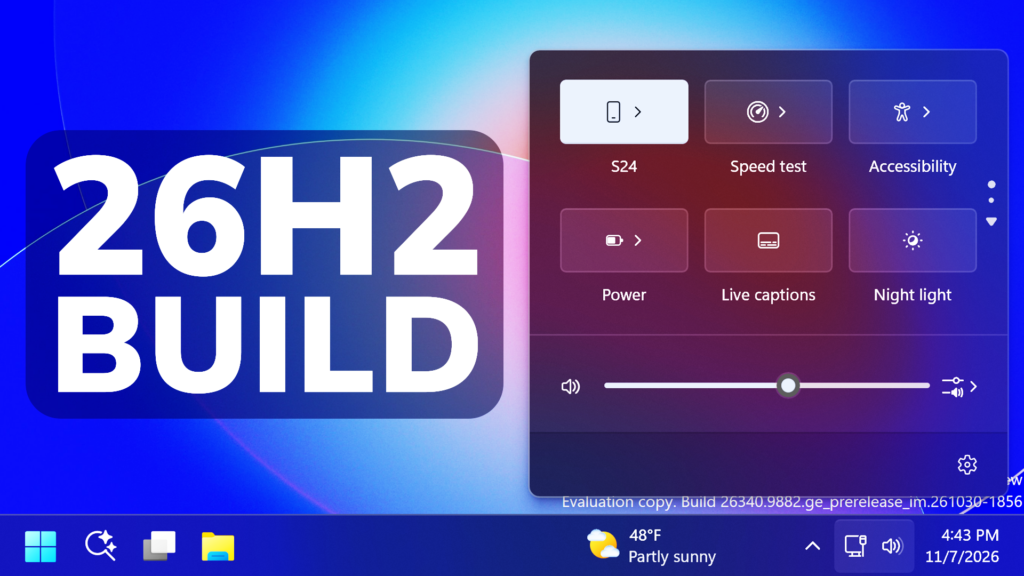
In this article, we will talk about the latest Preview Build for Windows 11 26H2 in the Experimental Channel, which is the Build 26340.9882.
Windows 11, version 26H2 represents Microsoft’s yearly second half major update as part of their standard annual Windows 11 update cadence. As Windows 11, version 26H2 shares the same servicing branch as Windows 11, version 25H2, the update is implemented through an enablement package (eKB). This means your device will be updated to the next version through a single restart – providing a familiar, fast, and reliable update experience.
Devices already enrolled in the Experimental channel will begin seeing their versioning updated to version 26H2 under Settings > System > About (and winver). If you are in the Beta channel and would like to switch to the Experimental, you can easily do so under Settings > Windows Update > Windows Insider Program. Remember, you can easily switch back to Beta at any time, without having to do a full Windows reinstall.
New Sign-In Improvement
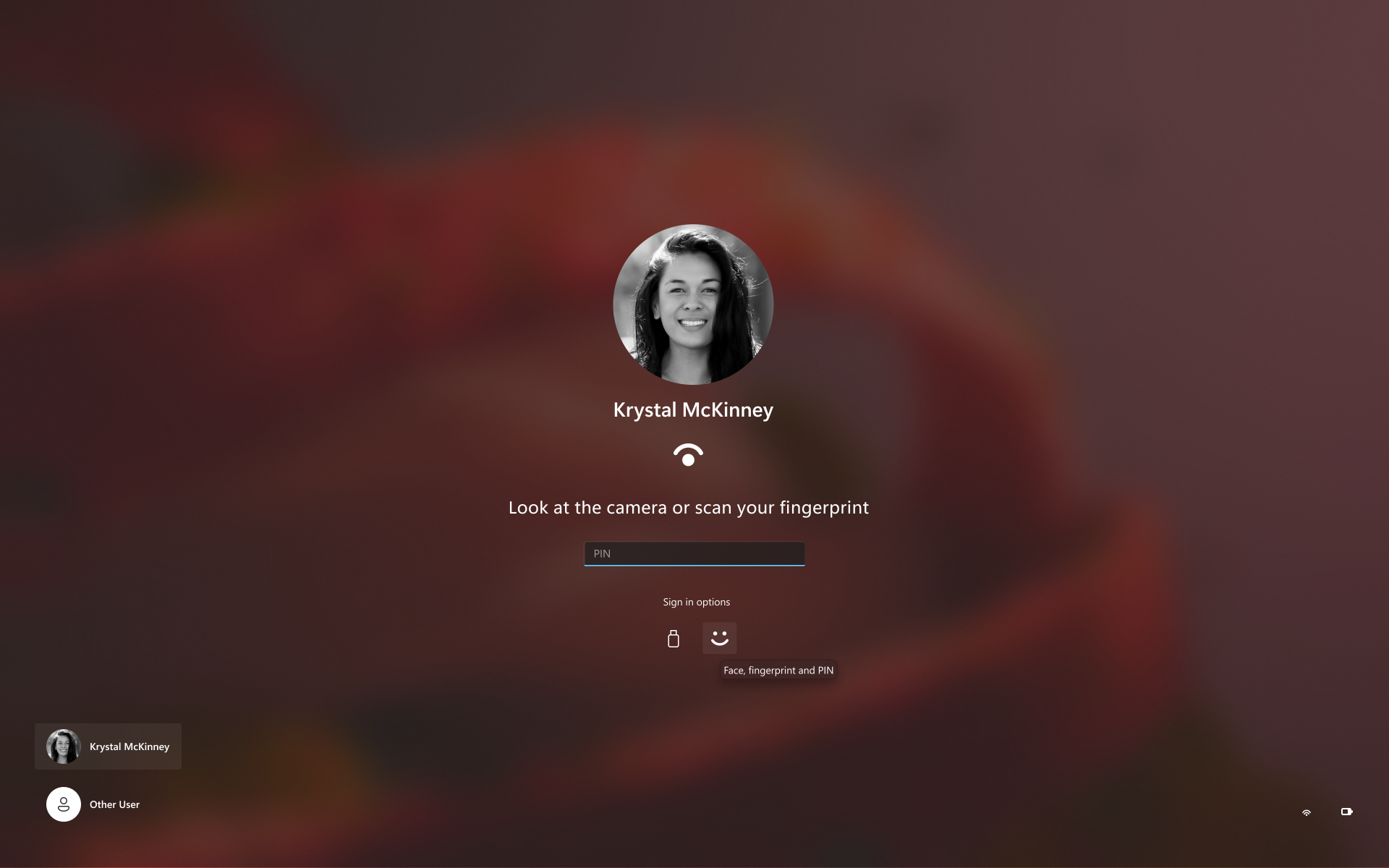
Sign-in and unlock now behave more consistently and give clearer guidance. You no longer have to wait for face or fingerprint recognition to finish before entering your PIN. Use whichever method works first. At certain times, such as after a restart, you’ll need your PIN first. After that, biometrics work as usual.
New Windows Hello Logging for IT Admins
- New Windows Hello events let IT admins see how users sign in. The sign-in experience doesn’t change. In Event Viewer > Windows Logs > Security, event 4628 records the Windows Hello methods a user has set up and which method they used to sign in (PIN, face, fingerprint, or no Windows Hello). Event 4629 records failed Windows Hello sign-in attempts. Both events use the existing Audit Logon policy.
- For troubleshooting, events 5010 and 7010 in Event Viewer > Applications and Services Logs > Microsoft > Windows > HelloForBusiness > Operational record each Windows Hello sign-in and unlock, along with the result.
New Live Captions Settings
Live captions now gives you control over what gets transcribed. Previously, captions used system audio, with an option to add your microphone. In Live captions settings, you can now choose system audio, your microphone, or both, so captions follow the sound you care about. Caption an in-person conversation without picking up system audio, or follow audio from your PC during a meeting or while watching a video.
New Sticky Keys Disable Option
The dialogs that ask whether you’d like to turn on Sticky Keys or Filter Keys are being updated, making it easier to dismiss these prompts permanently. If you don’t use these keyboard features, you can choose not to be asked again directly from the dialog, helping you continue what you’re doing with fewer interruptions.
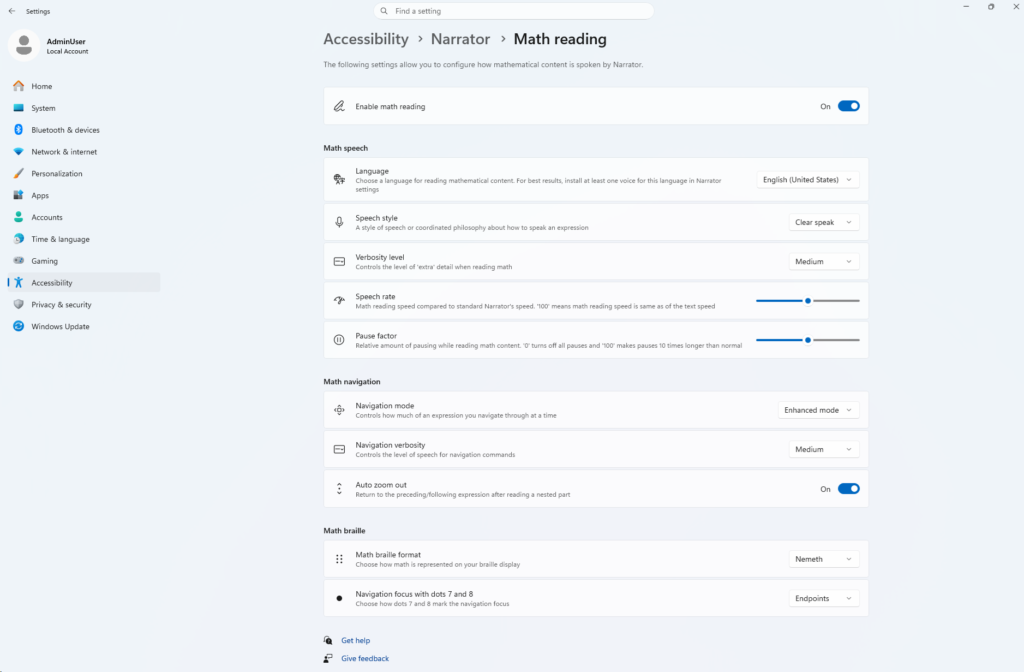
New Narrator Math Equations in Braille
Building on Narrator’s math reading and navigation support, the experience is expanding to refreshable Braille displays. When Narrator reads supported equations in Microsoft Word, PowerPoint, Edge, or Google Chrome, Narrator Math is now shown on your connected Braille display, letting you explore them by touch while listening to Narrator.
New Settings Options
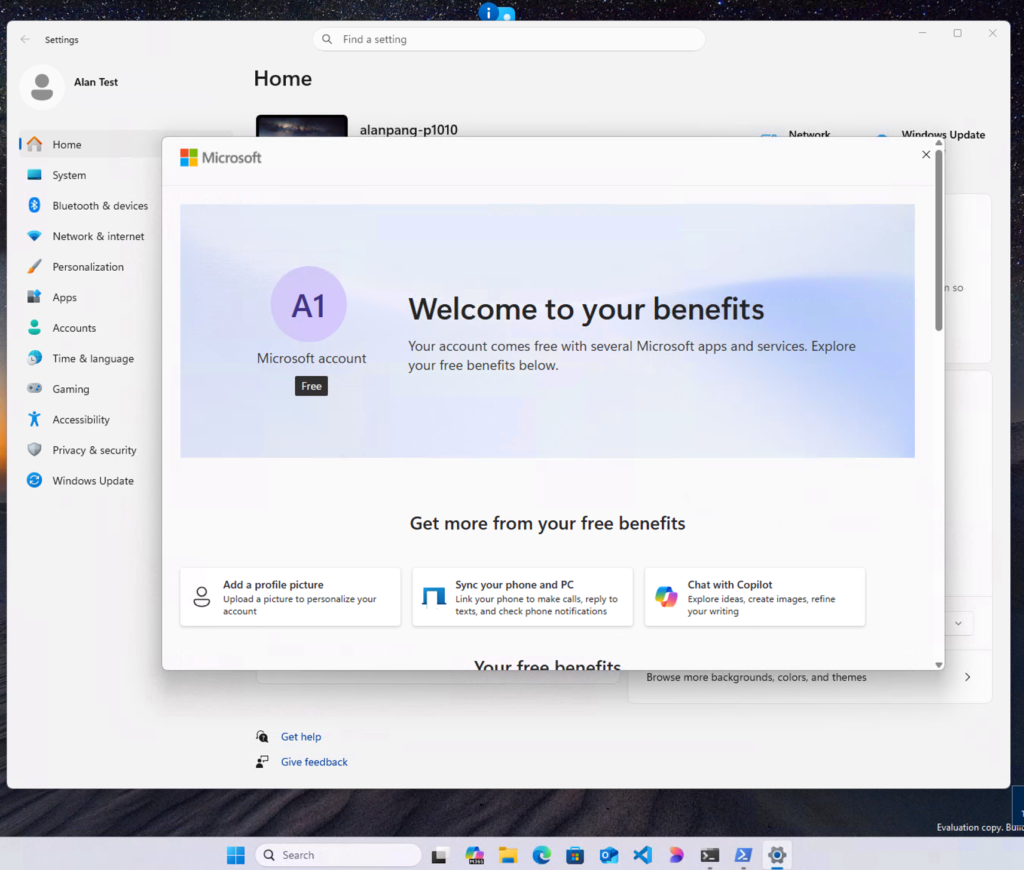
Discover your account benefits in Settings. It’s now easier to discover the benefits and services available with your Microsoft account, right in Windows Settings.
Known Issue
Reports from Insiders that the CPU speed shown in Task Manager no longer updates after the latest flights are under investigation.
For more information about this Build, you can check this article from the Microsoft Blog.
For a more in-depth presentation of the New Build, you can watch the video below from the youtube channel.
 11

 20