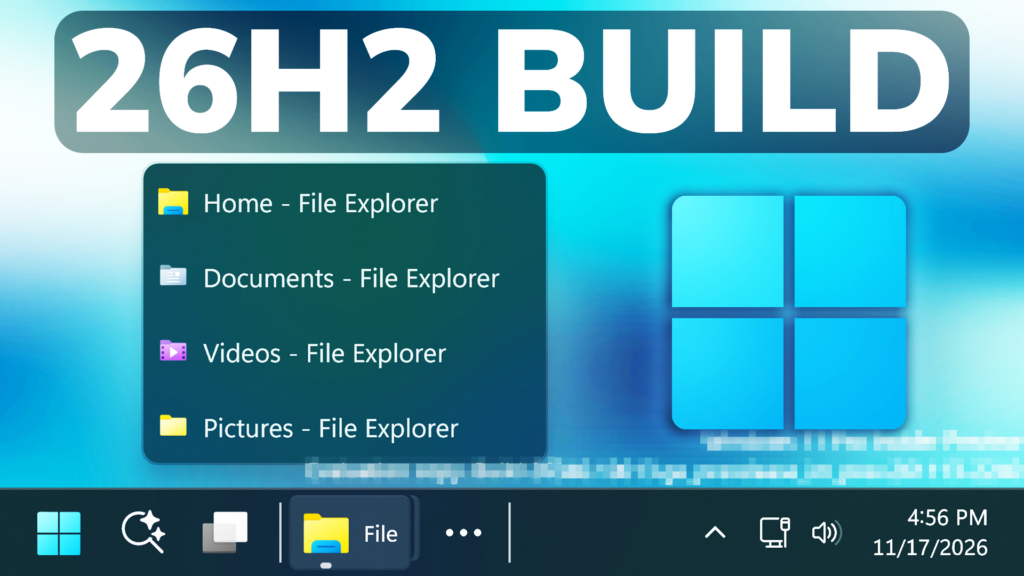
In this article, we will talk about the latest Preview Build for Windows 11 26H2 in the Experimental Channel, which is the Build 26340.10013.
Windows 11, version 26H2 represents Microsoft’s yearly second half major update as part of their standard annual Windows 11 update cadence. As Windows 11, version 26H2 shares the same servicing branch as Windows 11, version 25H2, the update is implemented through an enablement package (eKB). This means your device will be updated to the next version through a single restart – providing a familiar, fast, and reliable update experience.
Devices already enrolled in the Experimental channel will begin seeing their versioning updated to version 26H2 under Settings > System > About (and winver). If you are in the Beta channel and would like to switch to the Experimental, you can easily do so under Settings > Windows Update > Windows Insider Program. Remember, you can easily switch back to Beta at any time, without having to do a full Windows reinstall.
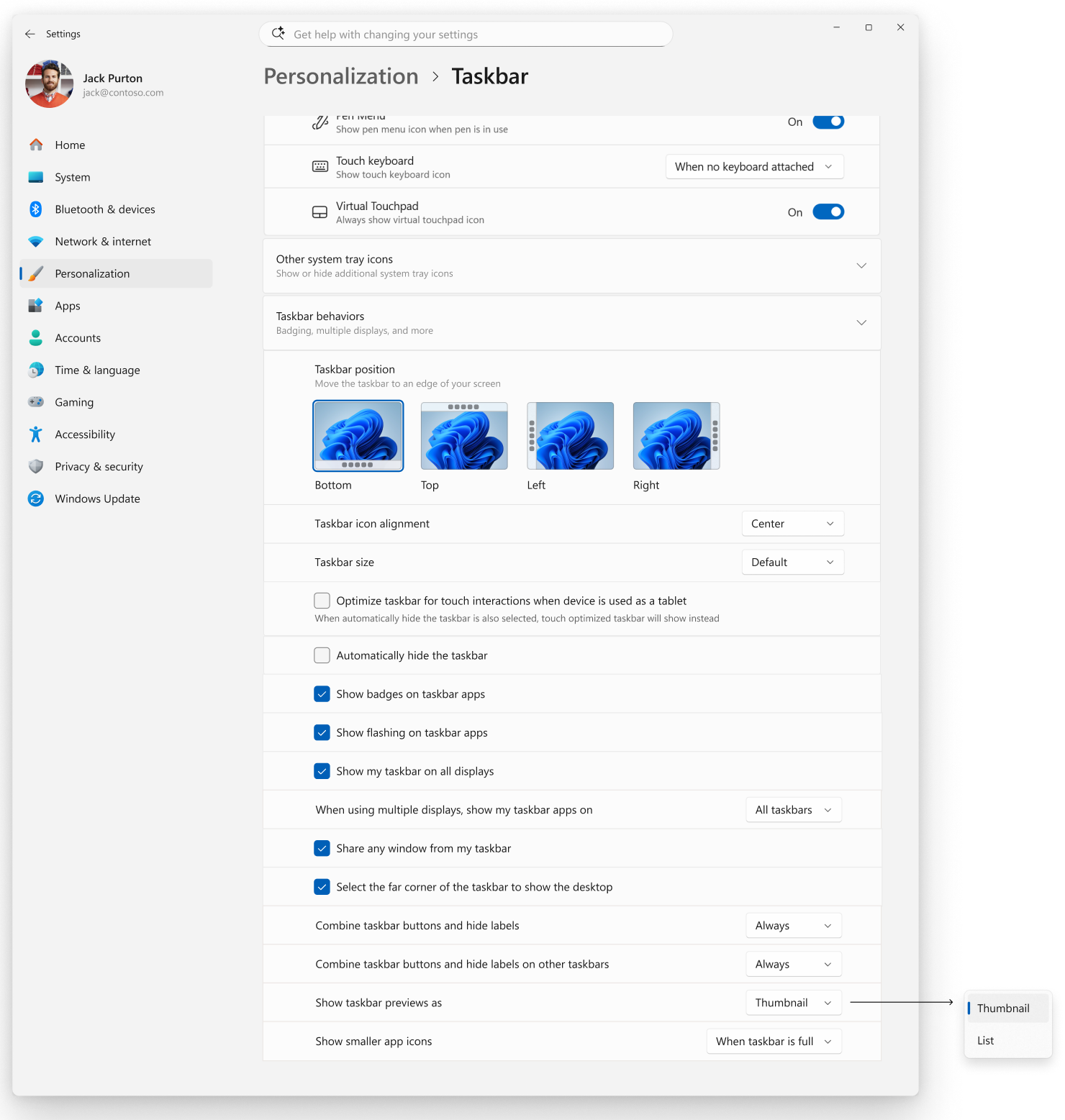
New Taskbar List Previews
- When you hover over an app on the taskbar, Windows shows previews of its open windows to help you tell them apart and quickly see what’s in each one.
- Now, you can choose to use the list view anytime. When list view is on, hovering over an app on the taskbar shows all its open windows by title in a list instead of as previews.
- To turn on list view, go to Settings > Personalization > Taskbar.
New Security Settings Page
New App & Browser Protection Settings Page
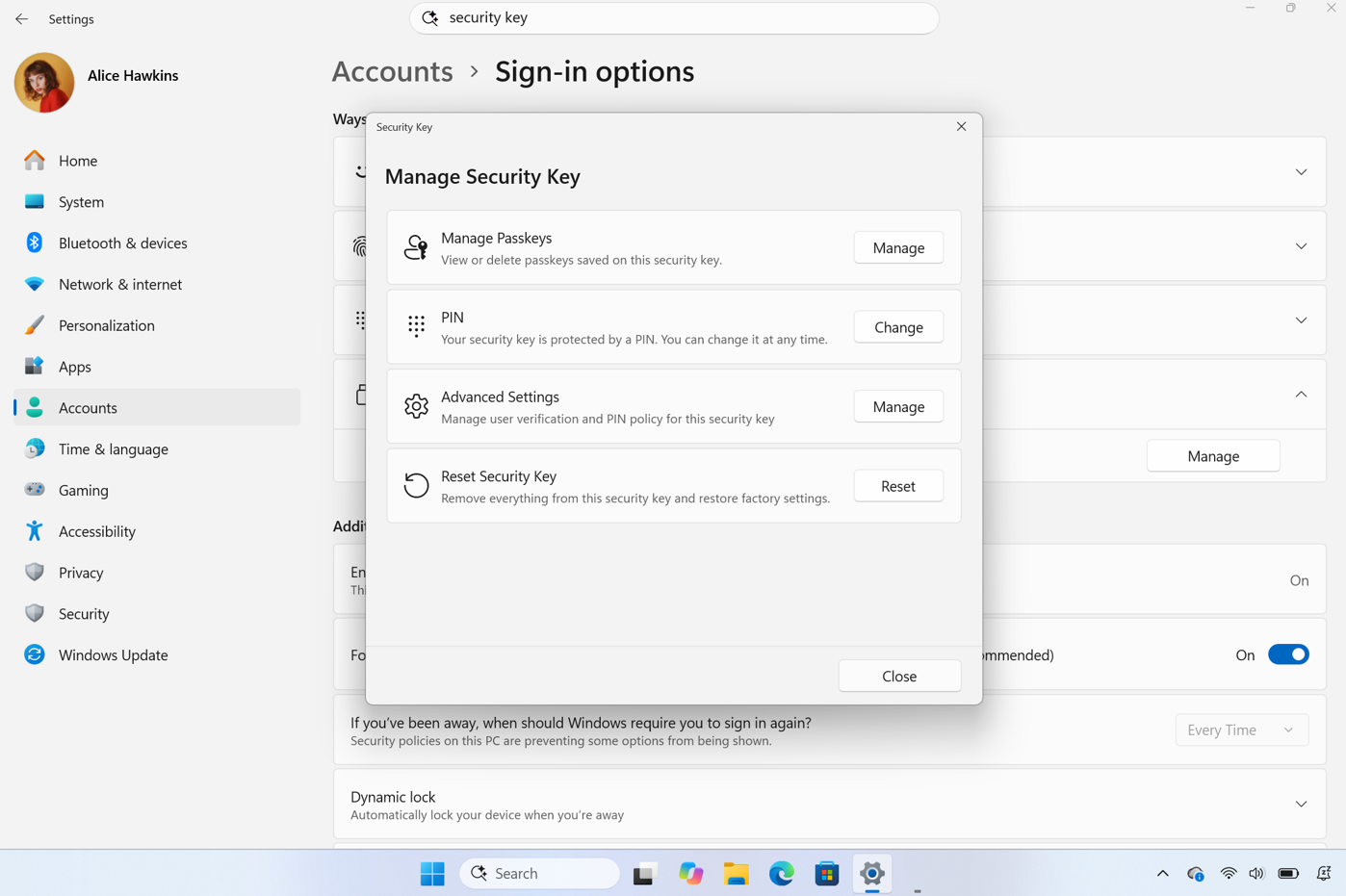
New Advanced Security Key Management
You can now see the passkeys stored on a FIDO2 (Fast Identity Online 2) security key and remove them one at a time, instead of resetting the entire key. Admins can also configure enterprise settings such as minimum PIN length, always-required user verification, and enterprise attestation.
New Agentic Settings Search for Copilot+ PCs
New Live Captions Transcript Recording Length Option
New Reading Assist Accessibility Feature
New Magnifier Touchpad and Touchscreen Gestures
- Magnifier already works with your keyboard, mouse, and scroll wheel. Now it also supports touchpad and touch gestures, so you can zoom and move around in whatever way feels most natural to you.
- Before you start: Make sure Magnifier is running. Press Windows key + Plus (+) to turn it on. The gestures below work while Magnifier is on.
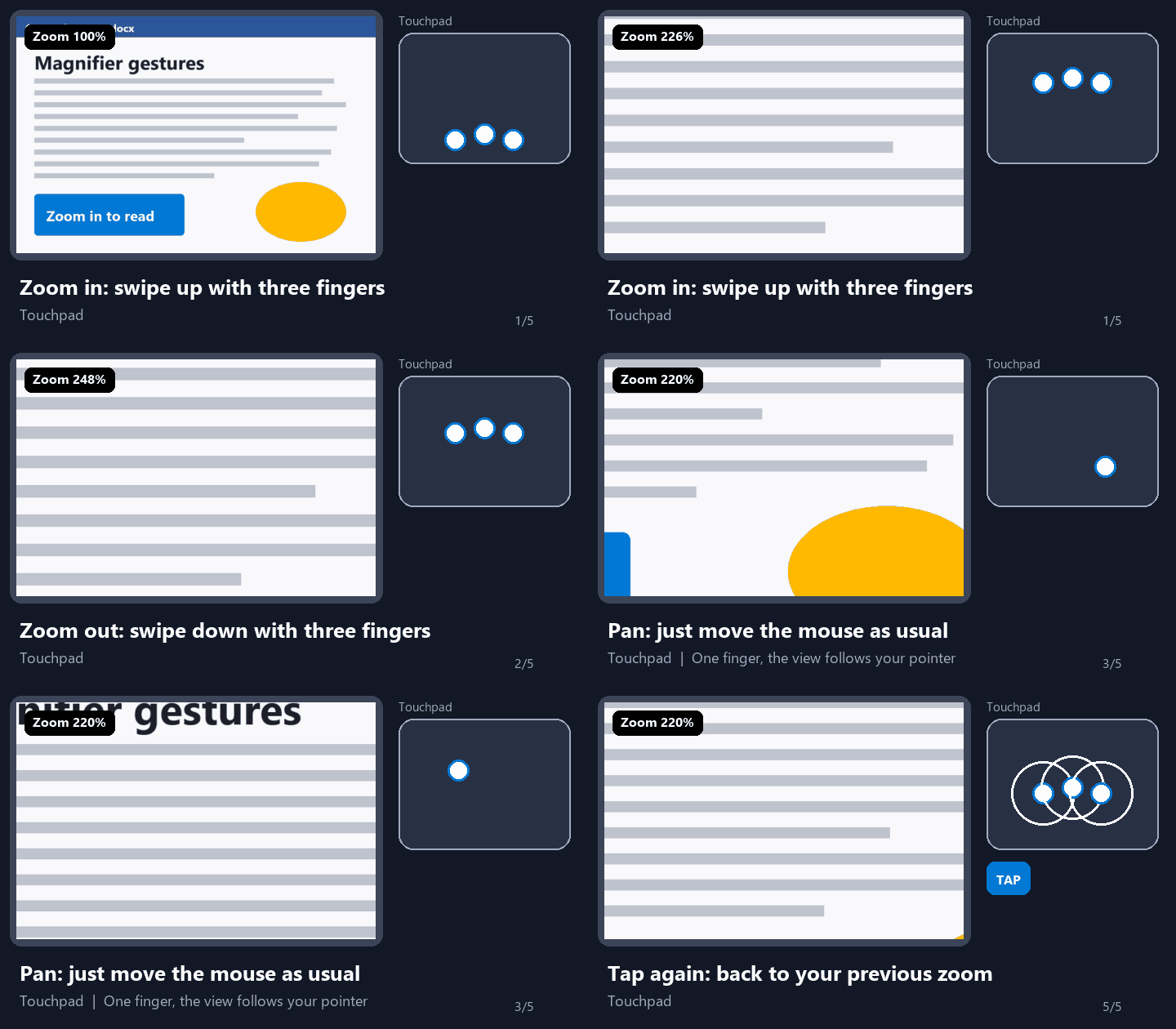
On a touchpad
- Zoom in or out: Swipe up with three fingers to zoom in or swipe down to zoom out.
- Pan around the screen: Move one finger as you normally would, and the magnified view follows your pointer.
- Toggle between 100% and your previous zoom level: Tap with three fingers.
On a touchscreen
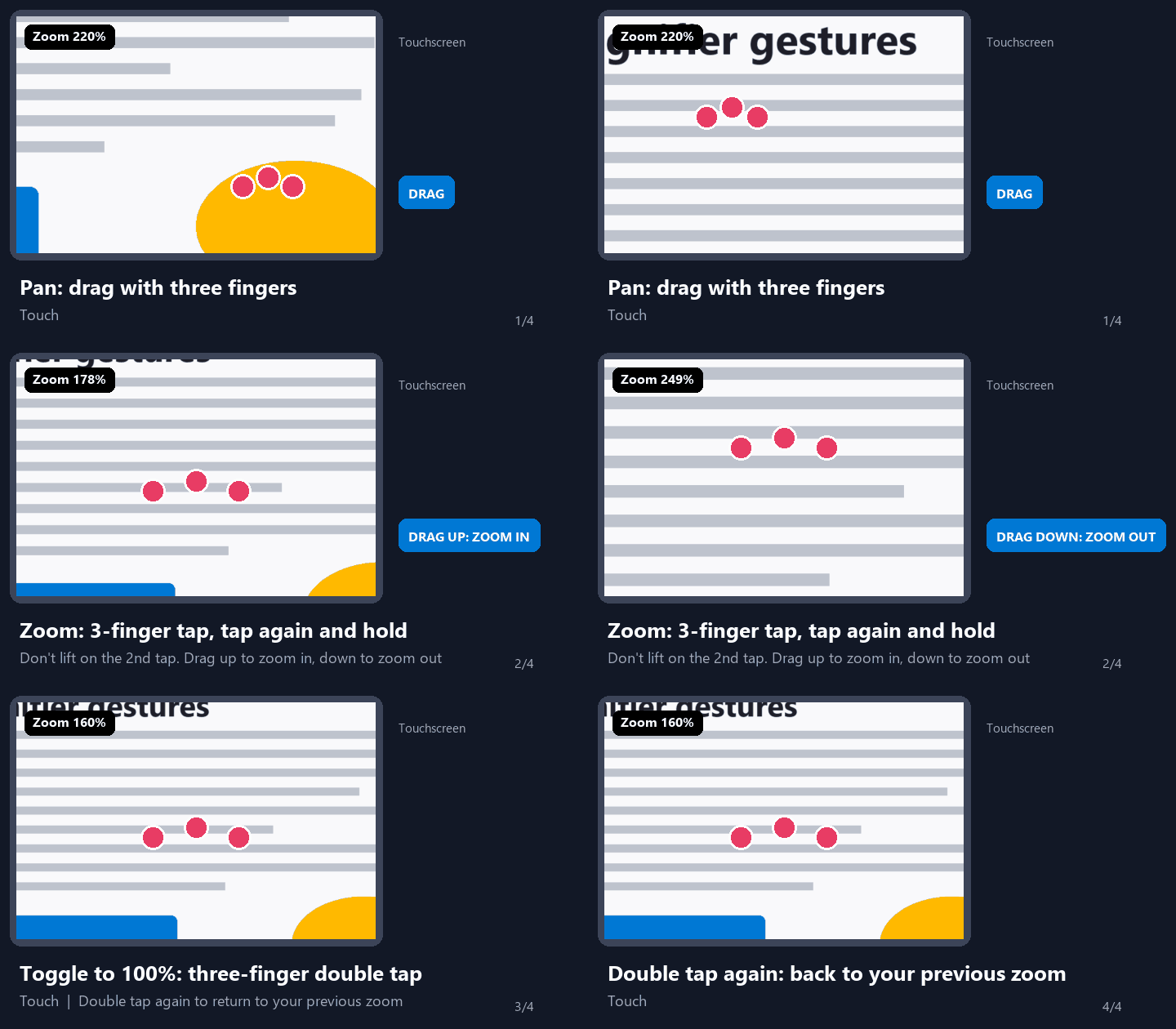
- Pan around the screen: Drag with three fingers.
- Zoom in or out: With three fingers, tap once, then tap again and keep your fingers down. Without lifting your fingers, drag up to zoom in or down to zoom out.
- Toggle between 100% and your previous zoom level: Double-tap with three fingers.
- Both gesture sets are on by default. To turn either one off, go to Settings > Accessibility > Magnifier and turn off Control Magnifier with touchpad gestures or Control Magnifier with touch gestures.
New Magnifier Help Button
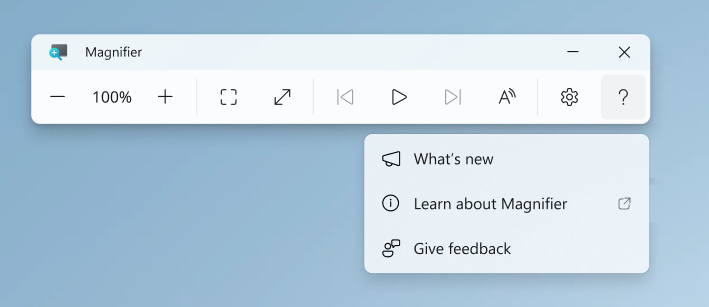
Magnifier now has a help (?) button on its toolbar. Select it to:
- Get help: Open the Magnifier support articles.
- See what’s new: Catch up on the latest Magnifier features.
- Send feedback: Share your thoughts in Feedback Hub.
New Remote Lock Feature
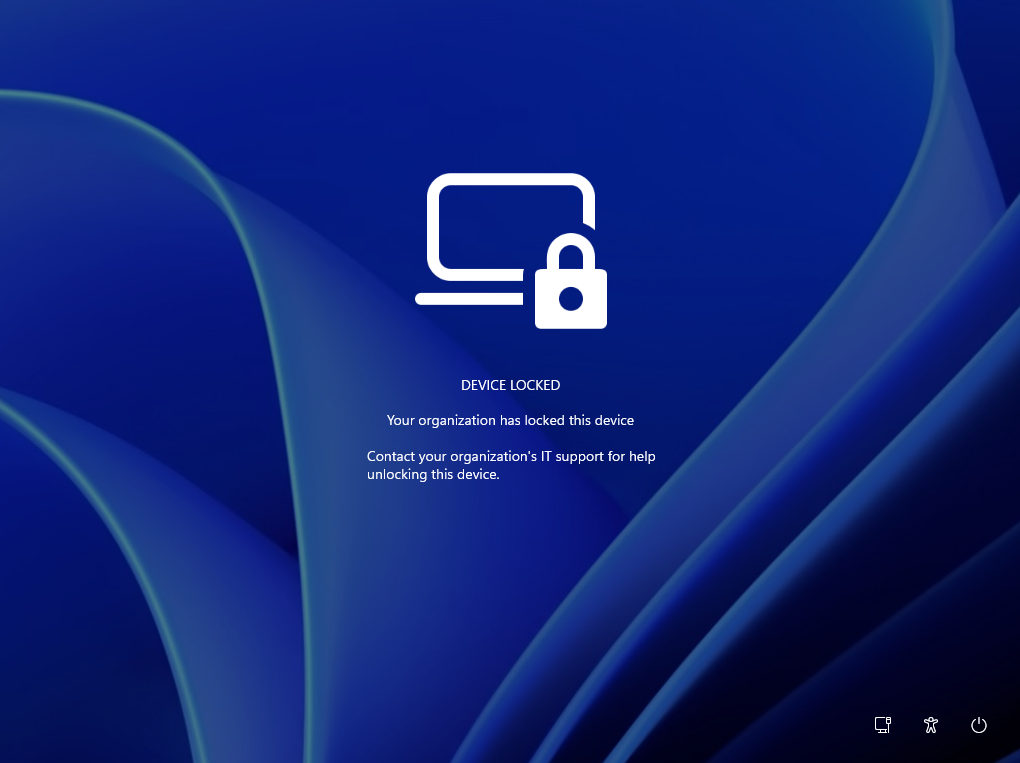
- Remote Lock lets IT lock a lost, stolen or compromised Windows device from Microsoft Intune without wiping it. Windows signs out every active session, hides all sign-in options and shows a Device Locked screen. Nothing is erased: the device stays enrolled and managed; BitLocker stays on, and user data stays in place. Only an admin can lift it remotely, so the user picks up where they left off. Learn more: https://aka.ms/remotelock
What the user sees on a locked device:
New BitLocker PIN for Standard Users
- Standard users can now set a BitLocker preboot PIN. Before this change, users without admin rights couldn’t add the TPM+PIN protector. Now, standard users on managed devices can add the PIN themselves.
- How it works: When the policies below apply to a device that doesn’t have a PIN yet, you get a notification asking you to add one. Selecting the notification opens a window where you can set the preboot PIN.
New MSA to Local Account Settings
Users who switch from MSA to local account from settings would be always prompted to back up their BitLocker recovery key with updated instructions in order to prevent any data loss.
New Microsoft Pluton
Microsoft is introducing a preview of the Microsoft Pluton Cryptographic Provider, enabling developers on supported devices to use the Pluton security processor for hardware-protected cryptographic key storage and operations through standard Windows CNG APIs. Learn more here.
Offline Maps Removed
- Following the April 2025 announcement of the upcoming deprecation of the Windows UWP Map control and Windows Maps platform APIs, we are removing the Offline Maps feature and related UX from Windows Settings. With the upcoming removal of the Maps control and APIs, the offline maps feature will no longer be functional. The removal includes these features in Windows Settings:
- Offline Maps – located under Settings > Apps > Offline Maps
- Maps storage – located under Settings > Storage > Local Disk
- For resources related to the upcoming removal of the Maps control and platform APIs, see this documentation.
Remote Desktop Fix
Fixed an issue where Remote Desktop Protocol (RDP) connections might fail on the client due to a certificate mismatch after the latest flights.
Windows Spotlight Fix
Fixed a recent issue where the Explore Background option in the context menu for Windows Spotlight for your desktop background wasn’t working.
Input Fixes
- Fixed an underlying issue which was causing the mouse cursor to be unexpectedly invisible in a few different scenarios in recent flights.
- Improved reliability of configuring voice typing settings.
Known Issue
Reports from Insiders that the CPU speed shown in Task Manager no longer updates after the latest flights are under investigation.
For more information about this Build, you can check this article from the Microsoft Blog.
For a more in-depth presentation of the New Build, you can watch the video below from the youtube channel.
 11

 20