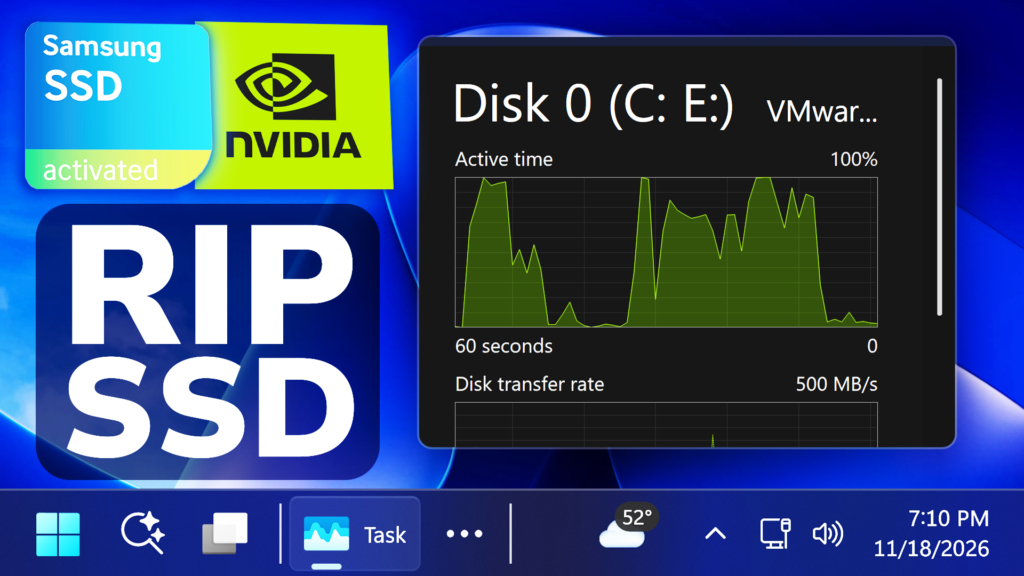
In this article, we will talk about the latest Windows 11 NVIDIA Drivers that can destroy your SSD, by constantly writing data.
With the recent issue that AMD GPU Drivers had, now it’s NVIDIA’s time to have issue with it’s drivers and users are reporting that the latest 2 drivers can have up to 30GB of writes per hour causing unnecessary SSD wear.
NVIDIA Drivers Versions that Cause SSD Wear
The issue appears to be linked to NVDisplay.Container.exe, part of NVIDIA’s Display Container service, which keeps rewriting a driver log file instead of simply adding new entries.
The nvlog.nvlgstg log is rewritten every ~6 seconds. AMD admitted and fixed the same bug. NVIDIA doesn’t even mention the problem in the driver release notes.
Some users have reported:
-Up to 30GB of writes per hour.
-More than 3GB written in just 10 minutes.
-Write spikes of 500MB to 1GB when switching between apps using Alt+Tab.
-Stuttering in games and video playback.
The reports involve NVIDIA drivers 621.14 and 621.24, while version 621.01 has reportedly been unaffected.
Check if you are Affected with Resource Monitor
To check, you can open Resource Monitor, click Disk, then watch NVDisplay.Container.exe.
Check if you are Affected with Task Manager
To check using Task Manager go to Task Manager > Details > Right-click the column headers and select “Select columns” > I/O write bytes.
Sort by clicking the new column and check.
How to Roll Back the NVIDIA Driver
Using the NVIDIA App, go to Drivers in the left side, scroll down and look for the previous driver and then click Reinstall to reinstall it.
If the previously installed driver is 621.14, you should try another method of fixing the issue, as that driver is most likely affected as well.
Manually Install Older NVIDIA Driver Version
Go to NVIDIA’s Official Website, search by your GPU, click on Find, scroll down to click on View More Versions and make sure you get the 621.01 Version to manually install it.
Prevent the Log File from Constantly Writing to SSD
You can also try to go to the file “C:\ProgramData\NVIDIA Corporation\nvtopps\nct\nvlog.nvlgstg”, right-click it > Properties > Check the “Read-only” box.
For a more in-depth tutorial, you can watch the video below from the youtube channel.
 11

 20