In this article, I will show you How to Remove AI Completely in Windows 11 25H2.
We all know that in 2025 and especially with Windows 11 25H2, Microsoft has started pushing a lot of New AI Features inside the OS, and Users are complaining that this is making their PCs work slow and all the bloatware is too much.
In this article, we will talk about a Script that was created by ZOICWARE which can help you completely remove AI in Windows 11 25H2.
Here’s the Official List of AI Features that this Script will remove from the OS:
- Disable Registry Keys
- Disable Copilot
- Disable Recall
- Disable Input Insights and typing data harvesting
- Copilot in Edge
- Image Creator in Paint
- Remove AI Fabric Service
- Disable AI Actions
- Disable AI in Paint
- Disable Voice Access
- Disable AI Voice Effects
- Disable AI in Settings Search
- Prevent Reinstall of AI Packages
- Installs custom Windows Update package to prevent reinstall of AI packages in the CBS (Component-Based Servicing) store
- Disable Copilot policies
- Disables policies related to Copilot and Recall in IntegratedServicesRegionPolicySet.json
- Remove AI Appx Packages
- Removes all AI appx packages including
Nonremovablepackages and WindowsWorkload
- Removes all AI appx packages including
- Remove Recall Optional Feature
- Remove AI Packages in CBS
- This will remove hidden and locked AI packages in the CBS (Component-Based Servicing) store
- Remove AI Files
- This will do a full system cleanup removing all remaining AI installers, registry keys, and package files
- Hide AI Components
- This will hide the settings page
AI Components
- This will hide the settings page
- Disable Rewrite AI Feature in Notepad
- Remove Recall Tasks
- Forceably removes all instances of Recall’s scheduled tasks
To launch the Script, simply run Powershell as Admin and run the following command:
& ([scriptblock]::Create((irm "https://raw.githubusercontent.com/zoicware/RemoveWindowsAI/main/RemoveWindowsAi.ps1")))Once launched, the following UI will appear and here you can customize which AI Features to be removed and also you will have the option to Backup before running the script. Once you’re ready, just click on Apply.
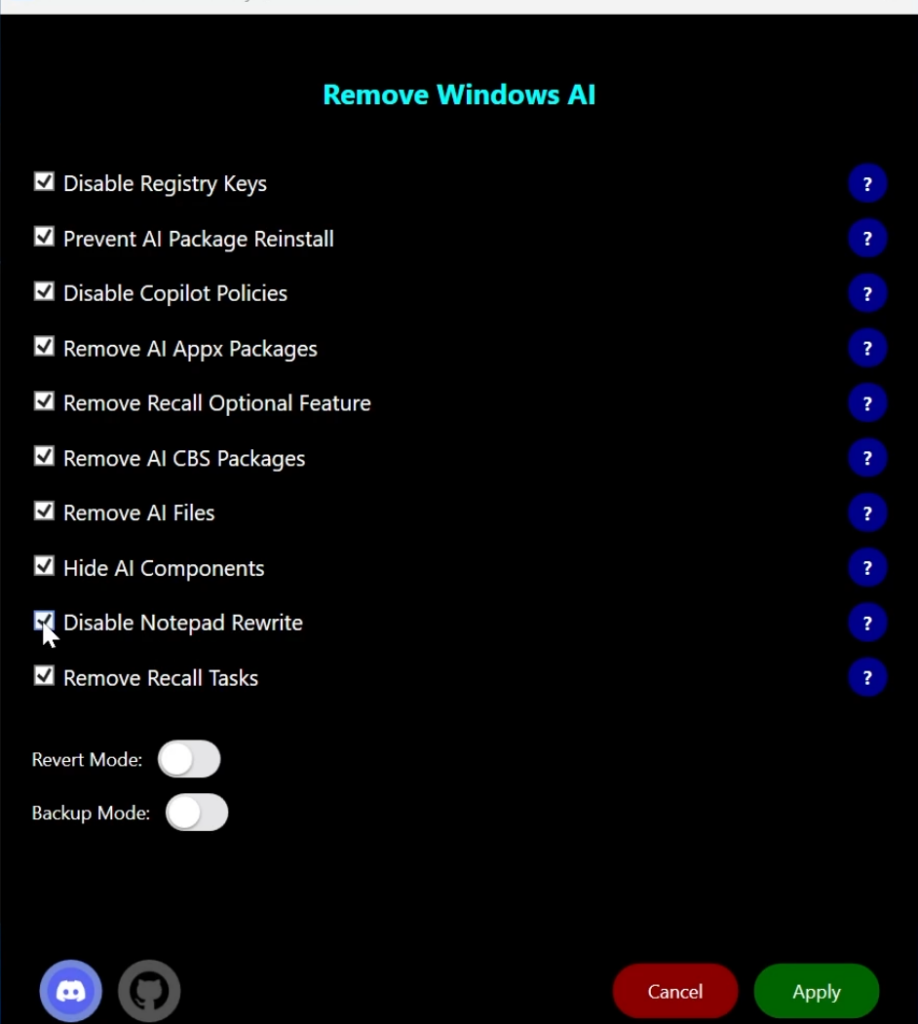
While the Script is running, you will be able to see in real-time everything that is being removed and after the process is finished, you will need to restart your computer for the changes to take effect.
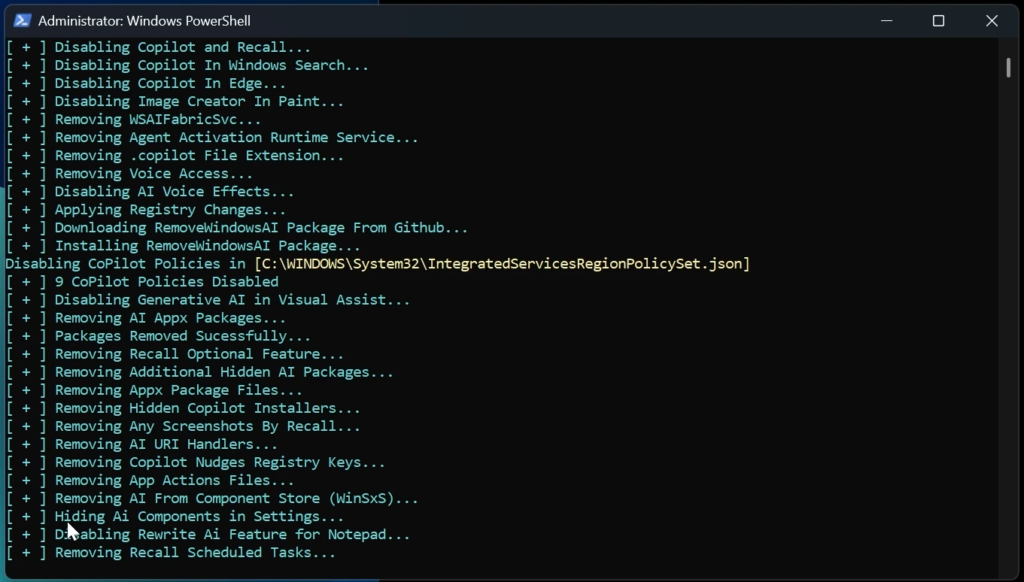
After the restart, every AI Component in Windows is nowhere to be seen, the OS has less bloatware and better performance.
For a more in-depth tutorial, you can watch the video below from the youtube channel.
 11
11
 20
20