
In this article, I will show you some solutions to EA FC 27 not Opening in Windows, with certain error related to Secure Boot and AntiCheat.
EA FC 27 was just launched, and by implementing an AntiCheat, EA causes a lot of errors to Windows users. In this article, we will go through some steps of fixing certain common EA FC 27 Launching Errors.
1. Update Windows
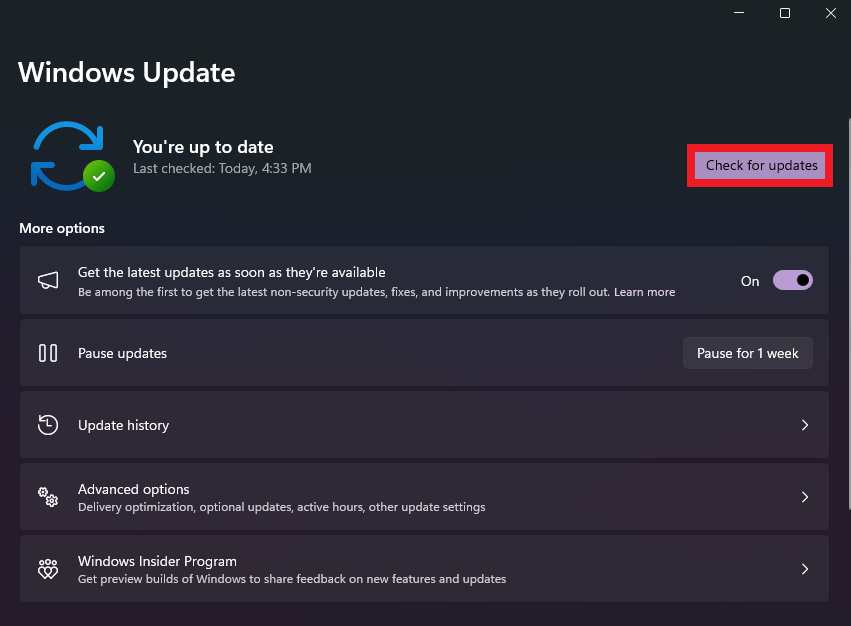
First of all, it is very important to have the Windows OS updated, because certain Microsoft updates/patches and fix issues related to certain apps/games not launching on Windows.
Depending on if you’re using Windows 10 or Windows 11, you will need to open the Settings App, go to Windows Update, then click on Check for updates and Install all the updates.
2. Update NVIDIA Graphics Card Driver
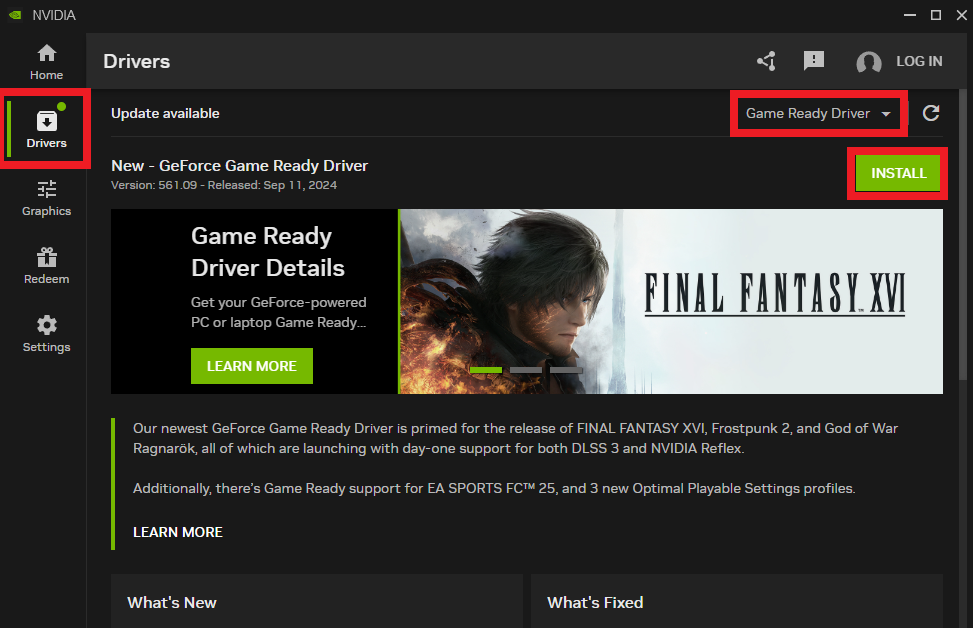
Having the Graphics Card Driver updated is also very important. Go into the Geforce Experience App or the New Nvidia App, then Drivers, Game Ready Driver and then click on Install.
3. Update AMD Graphics Card Driver
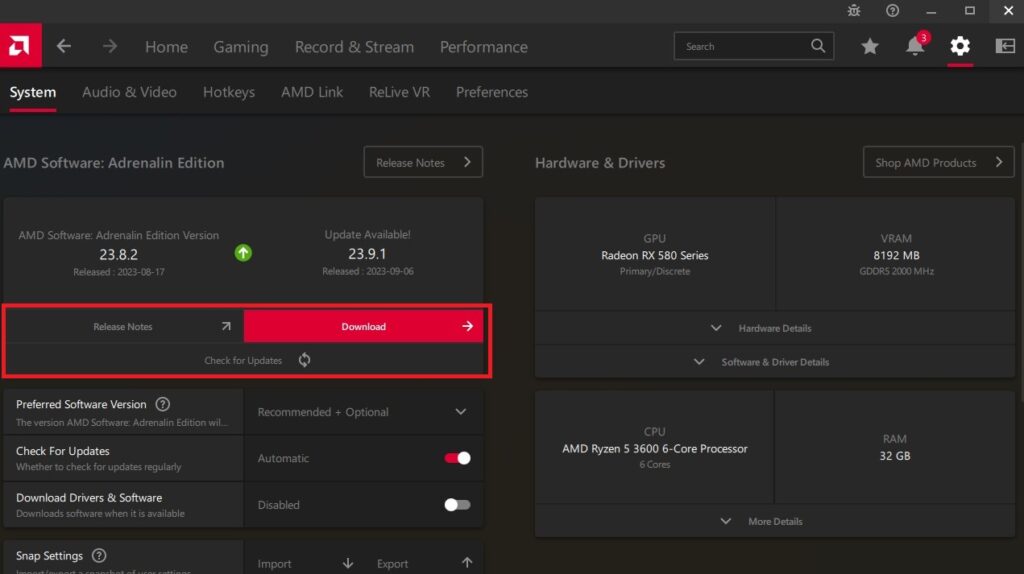
Open AMD Software: Adrenalin Edition. Once the application opens, click the arrow in the corner of the DRIVER & SOFTWARE section of the home tab. If there are any available, there will be a red button saying Download. If you would like to manually check for updates, you can also click the Check for Updates button.
Click Download and the download and installation will automatically begin.
4. Enable Secure Boot
For this error, you will most likely need to enable Secure Boot on your Motherboard. If you are running Windows 10, simply running the game as Administrator could bypass this error.
On Windows 11, you will need to enable Secure Boot and the process can be a bit tricky if you didn’t ever do this before. For this process, you can follow this article, or this video tutorial, to see an in-depth tutorial, on how to enable Secure Boot on your computer.
I’ve also encountered this error, even when running Windows 11 and this article helped me change a few settings in the BIOS, in order to run the game properly.
5. Run EA FC 27 as Administrator
Running the game as Administrator is another method that can help both in Windows 10 or 11, which can bypass some of the connection errors between your user and EA Servers.
6. Restart the EA App
With the New EA App, just a simple restart of the App, could help you fix the issue not letting you open or launch the game.
Make sure you completely close it using the System Tray, or even the Task Manager. After that launch the EA App again and check if EA FC 27 is running properly now.
7. Restart Steam
If you have FC 27 installed on Steam, you can also try to Restart the Steam App completely.
8. Open FC 27 from a Different Shortcut
Additionally, you can try to open FC 27 by using the Main AntiCheat Shortcut from the installation folder.
9. Clear EA App Cache
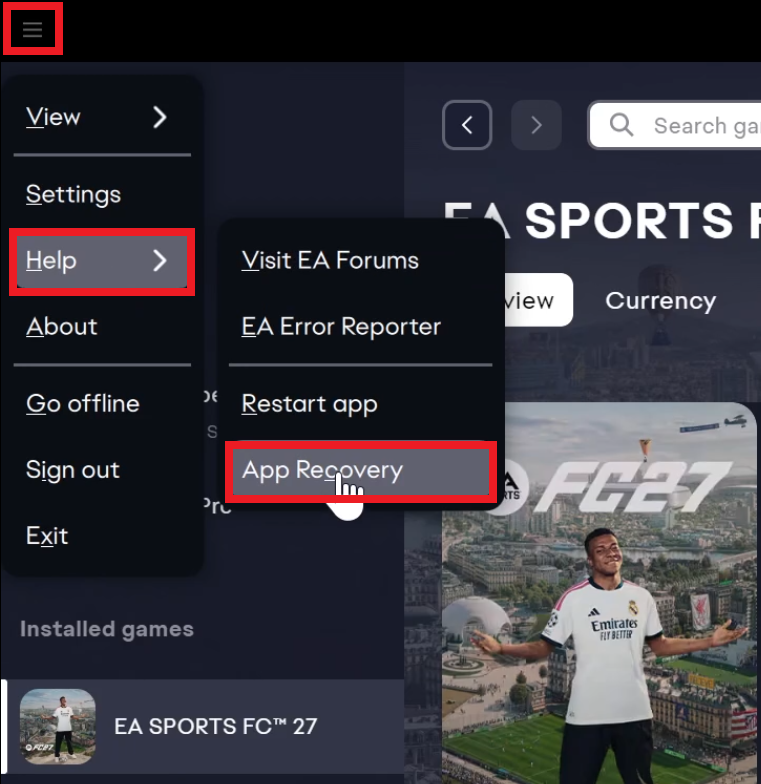
Another thing that you can try, is to clear the EA App Cache. Go to the 3 lines in the left side, click on Help and then on App Recovery.
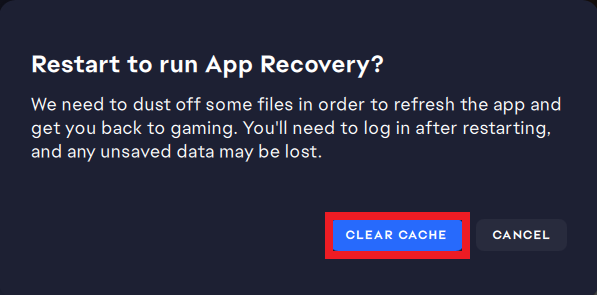
After that, click on Clear cache, and the EA App Cache will be cleared.
10. Clear Steam Cache
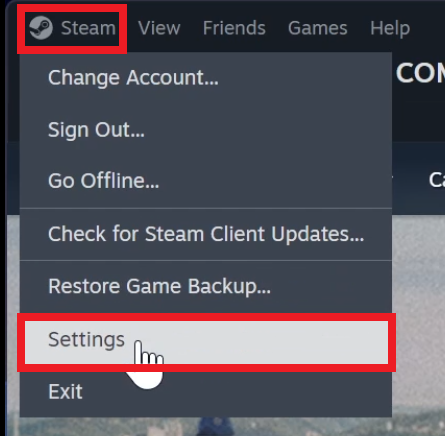
To clear the Steam Cache, click on Steam in the left top corner and then on Settings.
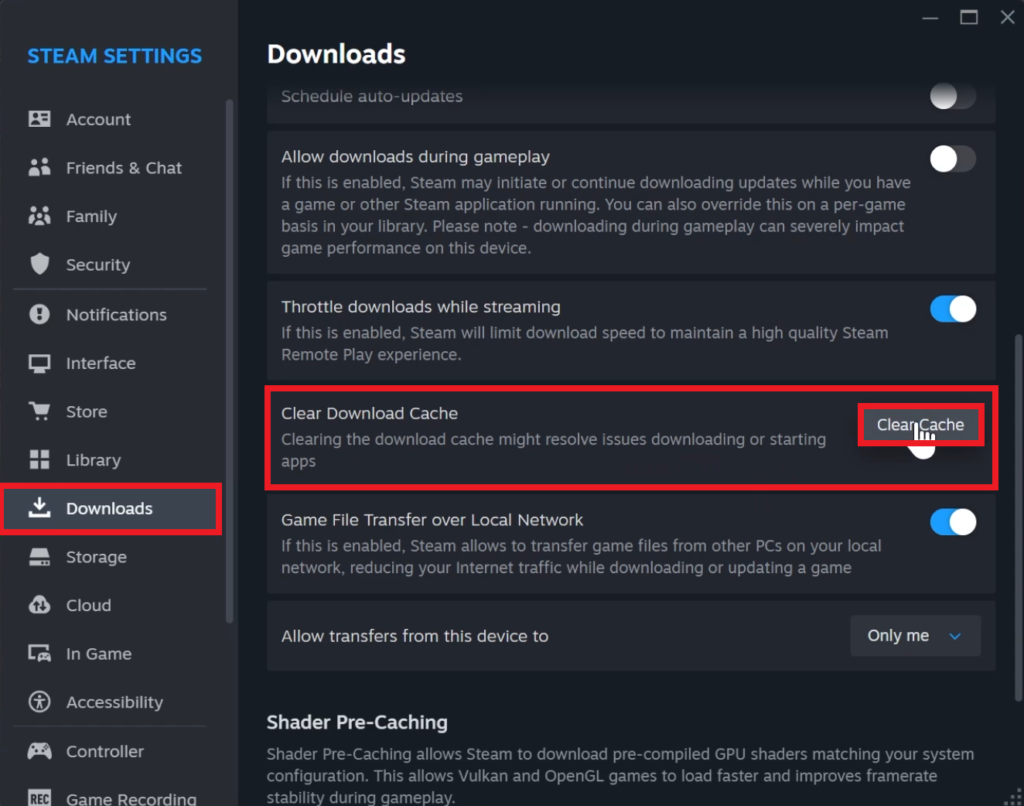
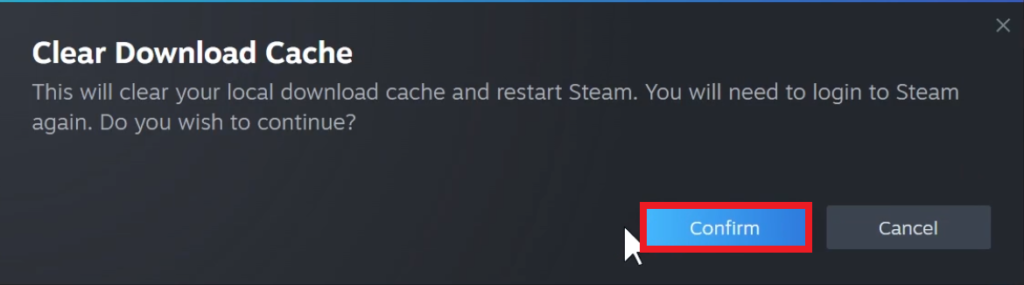
Click on Downloads, scroll down until you find the Clear Download Cache section and then click on Clear Cache.
To finish the process, click on Confirm.
11. Enable Offline Mode in EA App
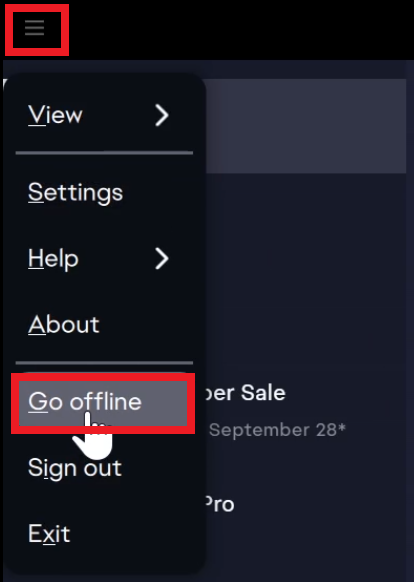
Another thing that helped me before, was to just Enable Offline Mode in the EA App. This way, everything related to the connection not letting open or launch the game, should be fixed.
Simply click on the button from the top left and then click on Go Offline and then on Yes, I’m sure. After that, do the same process, but this time, click on Go Online.
12. Enable Offline Mode in Steam
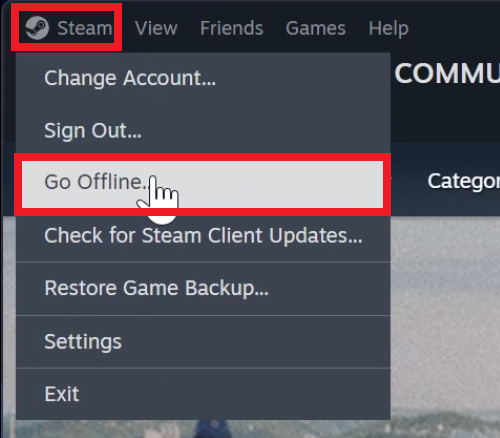
In case of Steam, you can click on Steam and then on Go Offline. After that, do the same process, but this time, click on Go Online.
13. Repair EA FC 27 on EA App
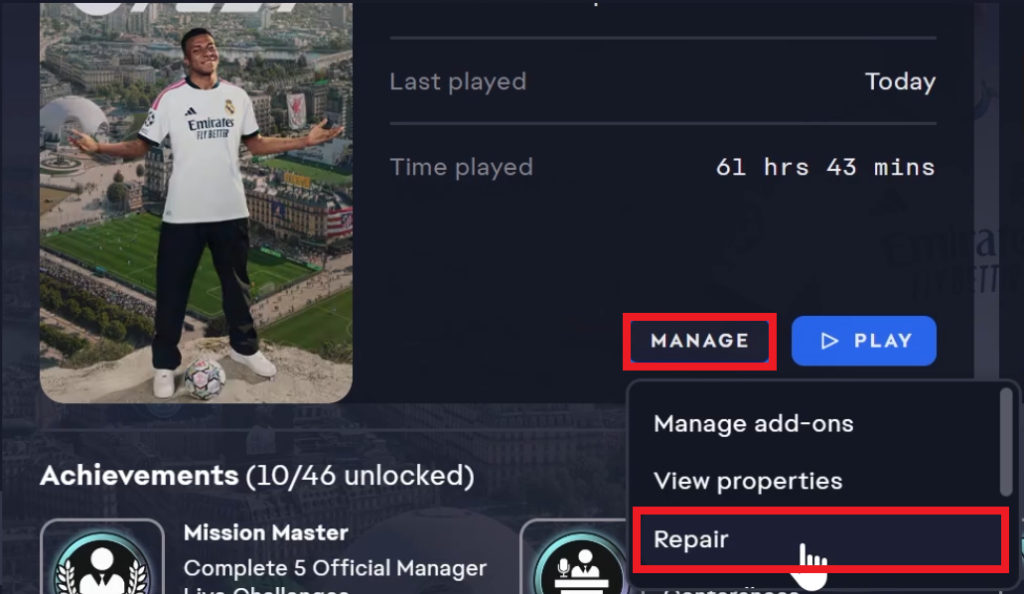
Another good thing to try, is to Repair the Game, in case somehow, certain game files were corrupted or deleted.
In the EA App, next to EA FC 27, click on Manage and then Repair. The process will take some time, because the EA App, will re-download some game files.
14. Repair EA FC 27 on Steam
For Steam, open FC 27 in the Steam Library, click on the Manage button and then on Properties.
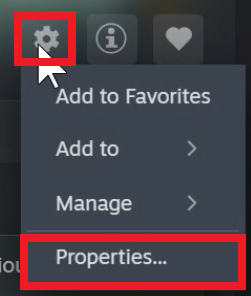
Then click on Installed Files and then Verify integrity of game files.
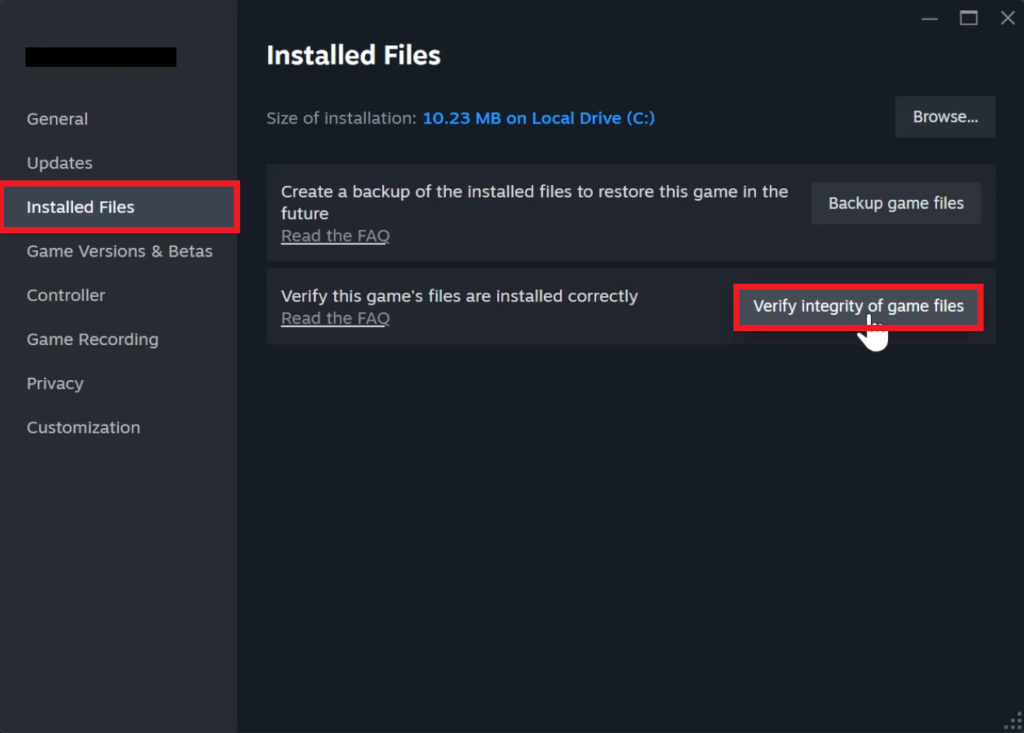
15. Uninstall FACEIT AntiCheat
On FC 27, a lot of users reported that simply uninstalling the FACEIT Anti-Cheat has fixed the issues with the game launching.
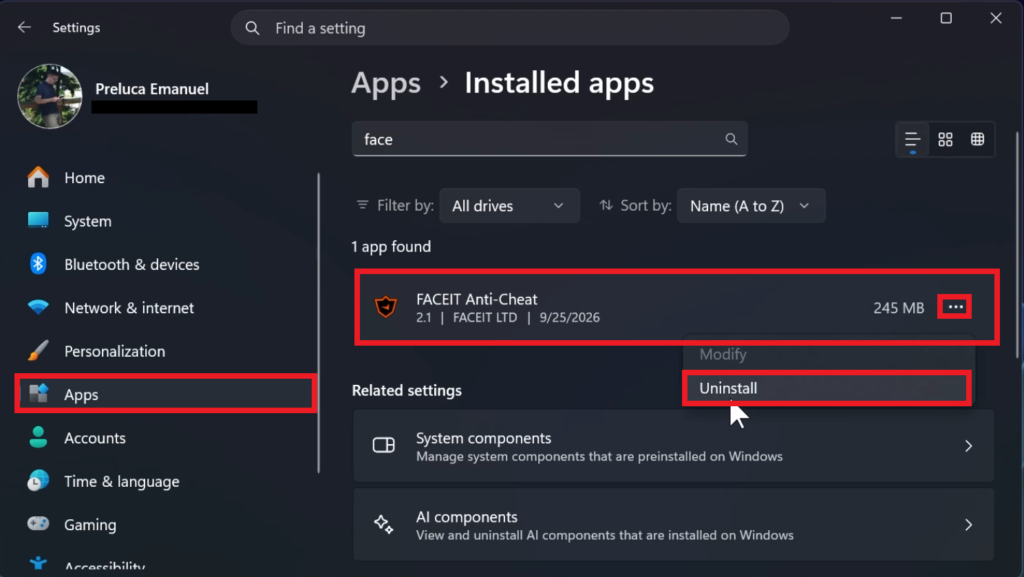
To uninstall the FACEIT Anti-Cheat, go to Windows Settings > Apps > Installed Apps > FACEIT Anti-Cheat, click on the 3 dots and then on Uninstall.
Make sure to also restart your computer after the process is finished.
16. Repair, Update, and Uninstall EA AntiCheat
One of the main causes of EA FC 27 not opening or launching is the New EA AntiCheat, which EA implemented a while ago.
A simple fix to this issue would be to repair, update, and then uninstall the EA AntiCheat.
For this, you will need to navigate to the location where you have EA FC 27 installed. If you have the default location, it will be this one:
C:\Program Files\EA Games\EA SPORTS FC 27In this location go into the _Installer folder and then open EAAntiCheat. Double-click on EAAntiCheat.Installer.
From the dropdown at the top, select FC 27 and then click on Repair. For this, you will also need to specify the game installation folder.
After the repair is finished, also click on Update, so that you make sure you have the latest version of the EA AntiCheat.
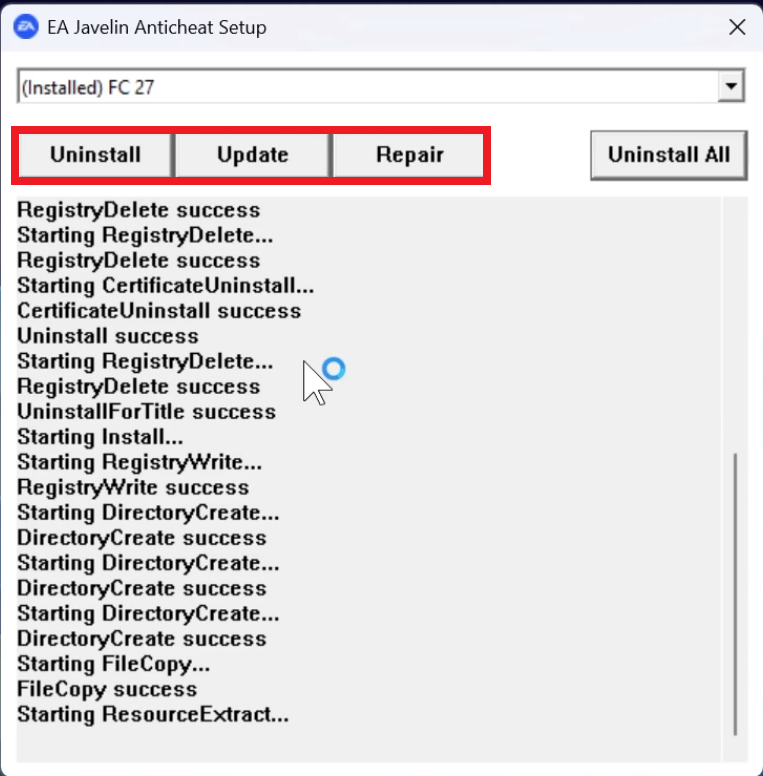
You can try to run the game after this, and if it’s still not working, you can also Uninstall the EA AntiCheat and then reinstall it. It can also be automatically installed the next time you run the game.
17. Delete EA FC 27 Game Files
Open the Run Box in Windows by pressing the keyboard shortcut Windows + R. Type inside %programdata% and then press Enter.
From this location, you can delete the EA Desktop folder, but keep in mind that certain saves that you have in-game, will be deleted.
18. Reinstall EA FC 27 in Default Directory
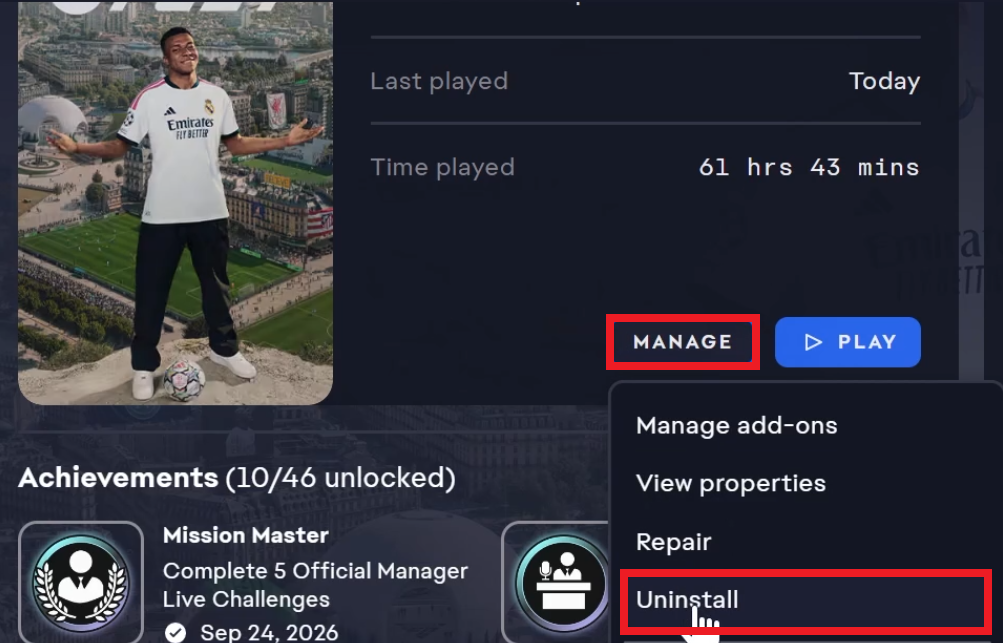
Another solution would be to completely reinstall the game in the Default Directory by clicking on Manage and then Uninstall.
You can then install the game again, and most likely this way, your EA FC 27 game will now work, if none of the above solutions worked for you.
19. Reset Windows
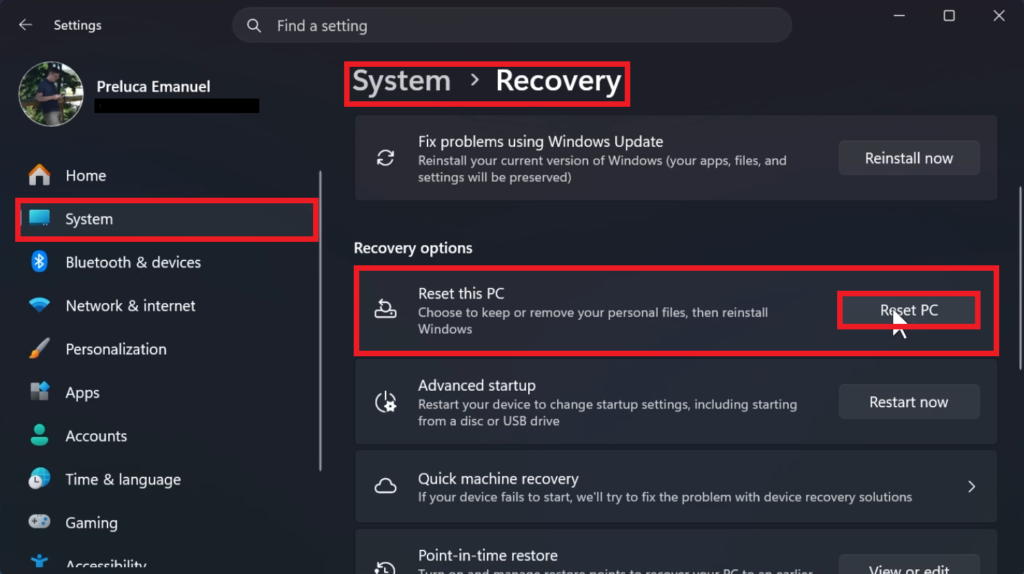
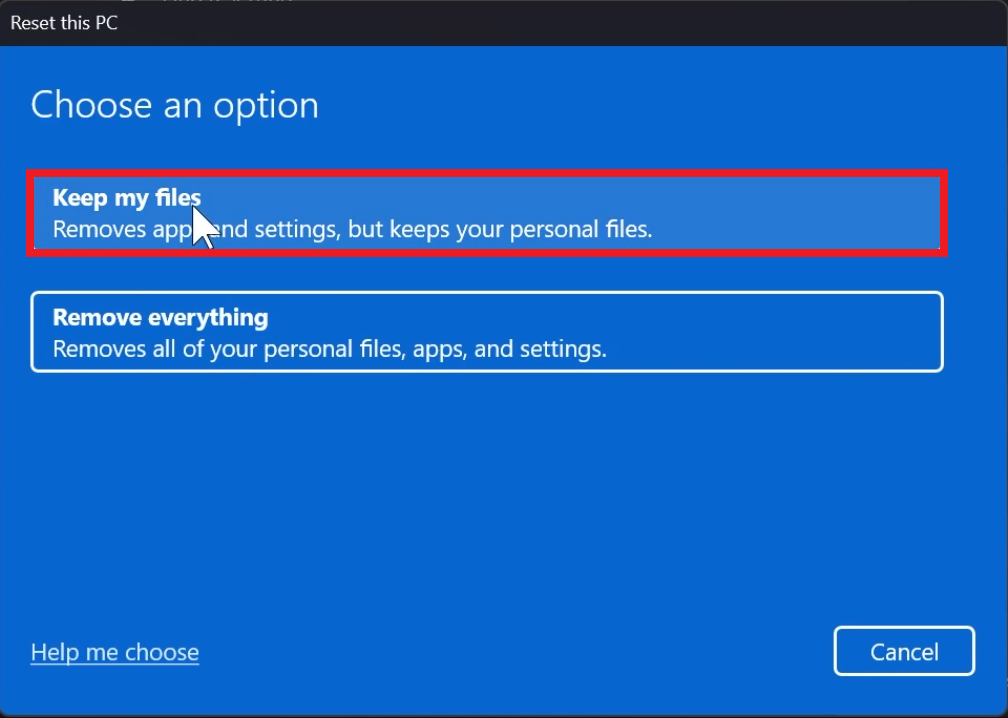
A last method that you can try, is to Reset Windows without losing Files.
Navigate to Settings > System > Recovery > Reset PC.
Click on Keep my files and follow the next steps.
For a more in-depth tutorial, you can watch the video below from the YouTube channel.
 11
11
 20
20

