
In this article, we will talk about some of the Recent Reported Windows 11 25H2 Issues, which include Broken Mouse Cursor, Theme and False Defender Notifications.
These issues can be encountered in the Windows 11 25H2 Summer Update in the Main Release and Microsoft has finally acknowledged these issues.
Broken Mouse Cursor
Microsoft has received reports indicating that mouse cursor personalization settings are being changed or reverted to certain standard settings. This occurs following installation of Windows updates released August 27 2026 (KB5120998) and later.
The issue is described as resulting in appearance regressions and intermittent animation changes. Some reports mention that high-DPI mouse cursors are replaced with larger, white cursors, and custom cursor animations reverting to standard settings. Attempts to restore the previous cursor customization are reported to be unsuccessful.
Microsoft is advising people to file feedback through the Feedback Hub and they are now investigating to determine if this is an issue caused by Microsoft.
In addition to this, a lot of users reported similar issues with the Windows Theme.
More information about this Issue, can be found in this Microsoft Article.
False Defender Notifications
After installing the latest updates for Microsoft Defender Antivirus, notifications might appear stating that “Microsoft Defender Antivirus is turned off,” even though the antivirus is functioning correctly and all settings show it as active. These notifications can appear when Windows starts and intermittently afterward. They persist even if notification settings are turned off.
This issue can be observed in any version of Windows or Windows Server with Microsoft Defender Antivirus running with the latest Defender updates.
Next steps: We are working to release a resolution in a future Microsoft Defender Antivirus update and will provide more information when it is available.
More information about this Issue, can be found in this Microsoft Article.
How to Fix
The only way to fix the Broken Mouse Issues for example, is to Uninstall the Update and revert to the Previous One.
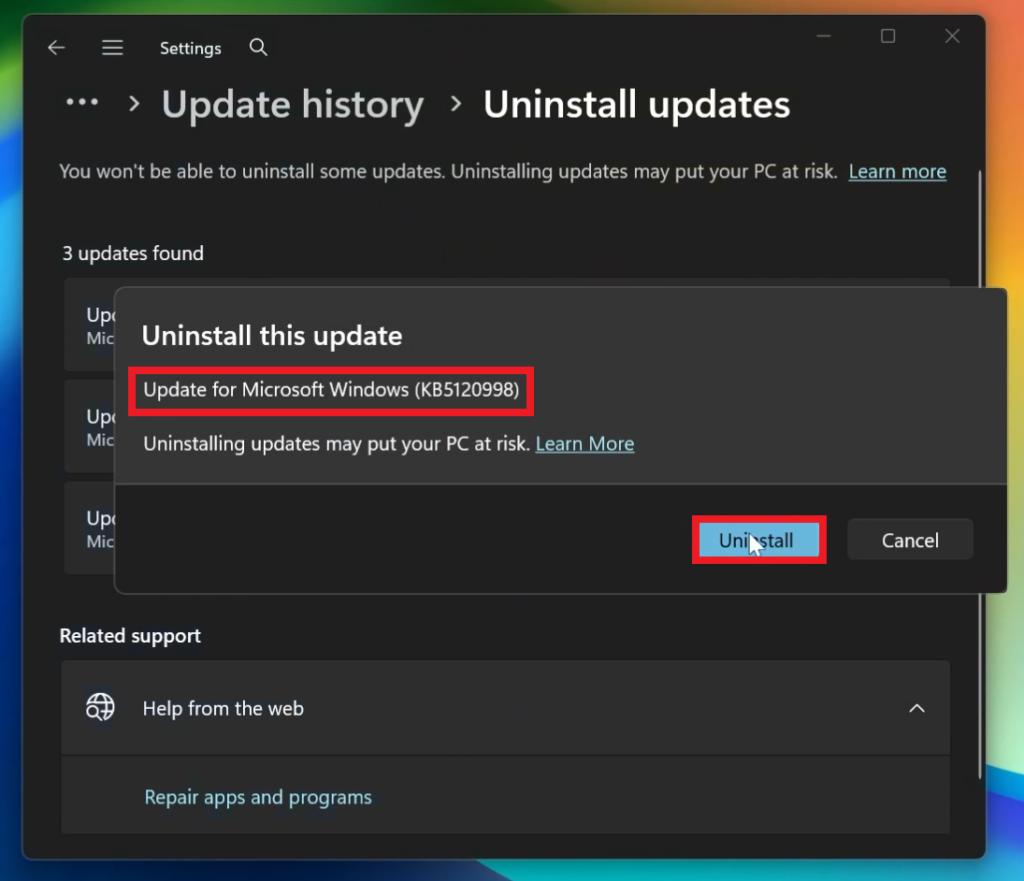
Open Settings, go to Windows Update, go to Update History and then Uninstall Updates.
From there make sure you Uninstall the KB5120998 Update and you should be good to go.
For a more in-depth tutorial, you can watch the video below from the youtube channel.
 11
11
 20
20

