
In this article, we will talk about the New Windows 11 26H2 and all its New Features.
Windows 11 26H2 is set to be released later this year, most likely in October. It will bring a lot of Improvements to Windows 11, along with a lot of New Features that were highly requested.
New Taskbar, Start Menu, Search (Rolling out to more users)
Although these Features have already started rolling out in Windows 11 25H2 Main Release, Microsoft will extend the rollout to more users once they upgrade to Windows 11 26H2. If you are on 25H2 and you want to enable these New Features, check this article.
New Context Menu
Microsoft is beginning to roll out an updated context menu experience in File Explorer, designed to feel faster, cleaner, and easier to tailor to the way you work. The new design reduces top-level clutter, keeps commonly used actions easy to access, and adds a new Settings experience that gives you more control over what appears in the menu.
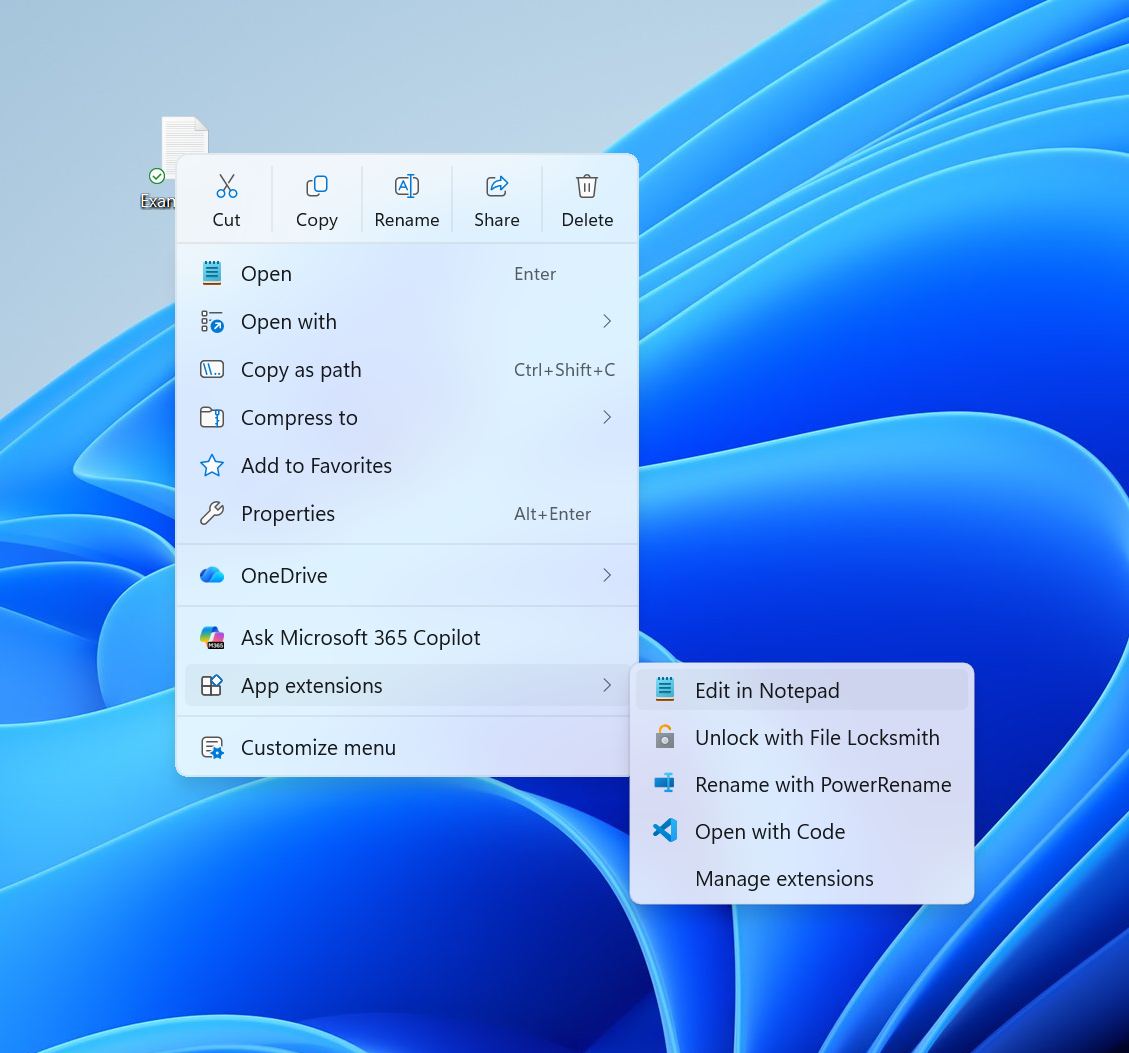
- Microsoft has added a new teaching tip you might see as a first-time experience to help you learn about the customization options.
- In theme with giving you more control, you can also now turn off the customize context menu entry in the new context menu settings.
- They’ve fixed a few small issues with the Send To option in the context menu not working as expected.
New Modern AutoPlay Dialog
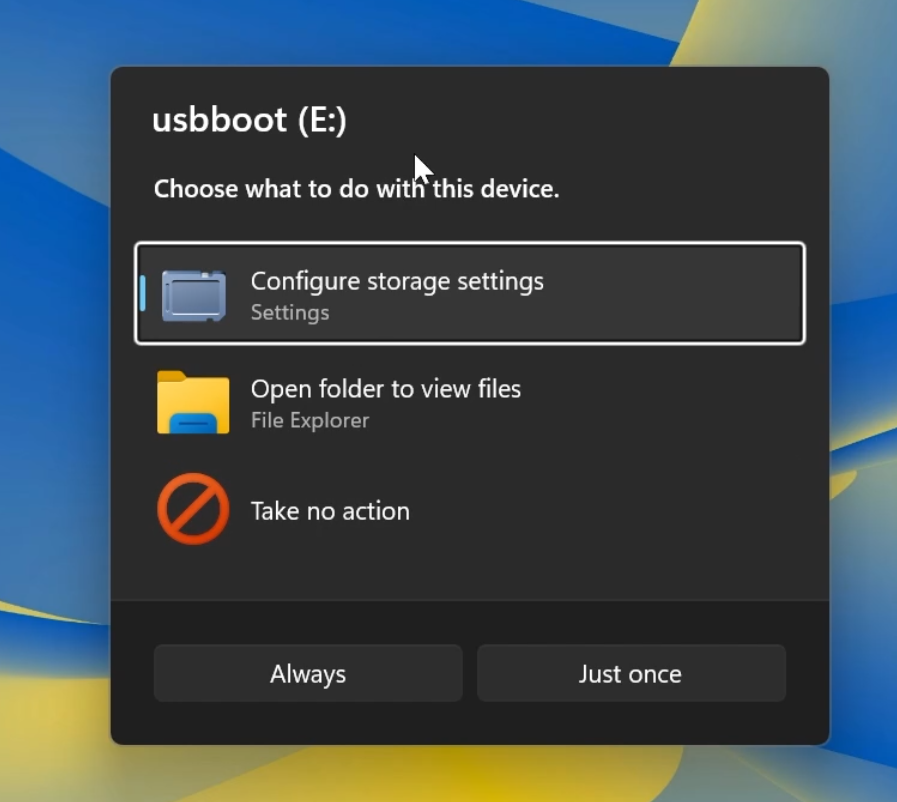
Microsoft is also adding a New AutoPlay Dialog that is completely redesigned using WinUI3 and supports Dark Mode.
New Modern File Properties
The File Properties Dialog is finally getting rebuilt with WinUI 3 and Dark Mode support and at the moment it only works with Deleted Files, such as those from the Recycle Bin.
More Dialogs will be redesigned in the coming Builds for the Experimental Channel.
Faster File Explorer (File Deletion, Homepage)
- Launching File Explorer Home is now faster and more responsive.
- File deletion in File Explorer is now faster in certain scenarios when deleting large, fragmented files.
New File Explorer Touch Recommended Section
The Recommended section on Home now supports touch scrolling, making it easier to browse files in the carousel.
New File Explorer Home Search
File Explorer Home Search will be more reliable and faster in Windows 11 26H2.
Faster This PC Search
Search from This PC in File Explorer is now indexer-based, making it much faster and consistent with search from File Explorer Home.
New File Explorer Address Bar Improvements
New File Explorer Address Bar Improvements include better reliability when dismissing the drop down, and support for more file paths types.
New File Explorer Rename Improvements
Improvements will be applied to the Rename function as well, such as reliability and certain bugs fixed.
Improved Context Menu Keyboard Navigation in File Explorer
Keyboard navigation inside the File Explorer Context Menu, will also be improved.
New Cross-Device Resume
Microsoft is making it easier to continue where you left off on your PC. When you resume a webpage from your phone and the phone’s browser isn’t installed on your PC, the Resume hovercard now gives you two options: open the page directly in your PC’s default browser or install the phone’s browser for a native experience. This update helps you continue your work immediately without requiring an app installation first.

New Taskbar Animations
Microsoft is restarting the rollout of enhanced taskbar preview animations, providing smoother transitions between app groups.
New Notification Center
Notification tips can now be saved to Notification Center after they’re dismissed or time out, making them easier to find again later.
New Taskbar Widgets Animations
In the Taskbar you may start to notice some New Widgets Animations depending on the weather displayed.
New System Tray Improvements
The reliability of opening the System Tray has also been improved.
New Default Lock Screen Widget (Weather)
For New Devices, Microsoft has set the Default Lock Screen Widget to be the Weather Widget.
New Settings Options to Customize Widgets on Lock Screen
New Customization Options include the ability to add other widgets and receive widgets suggestion inside Settings.
New Start Menu Phone Link Notifications Hover Previews
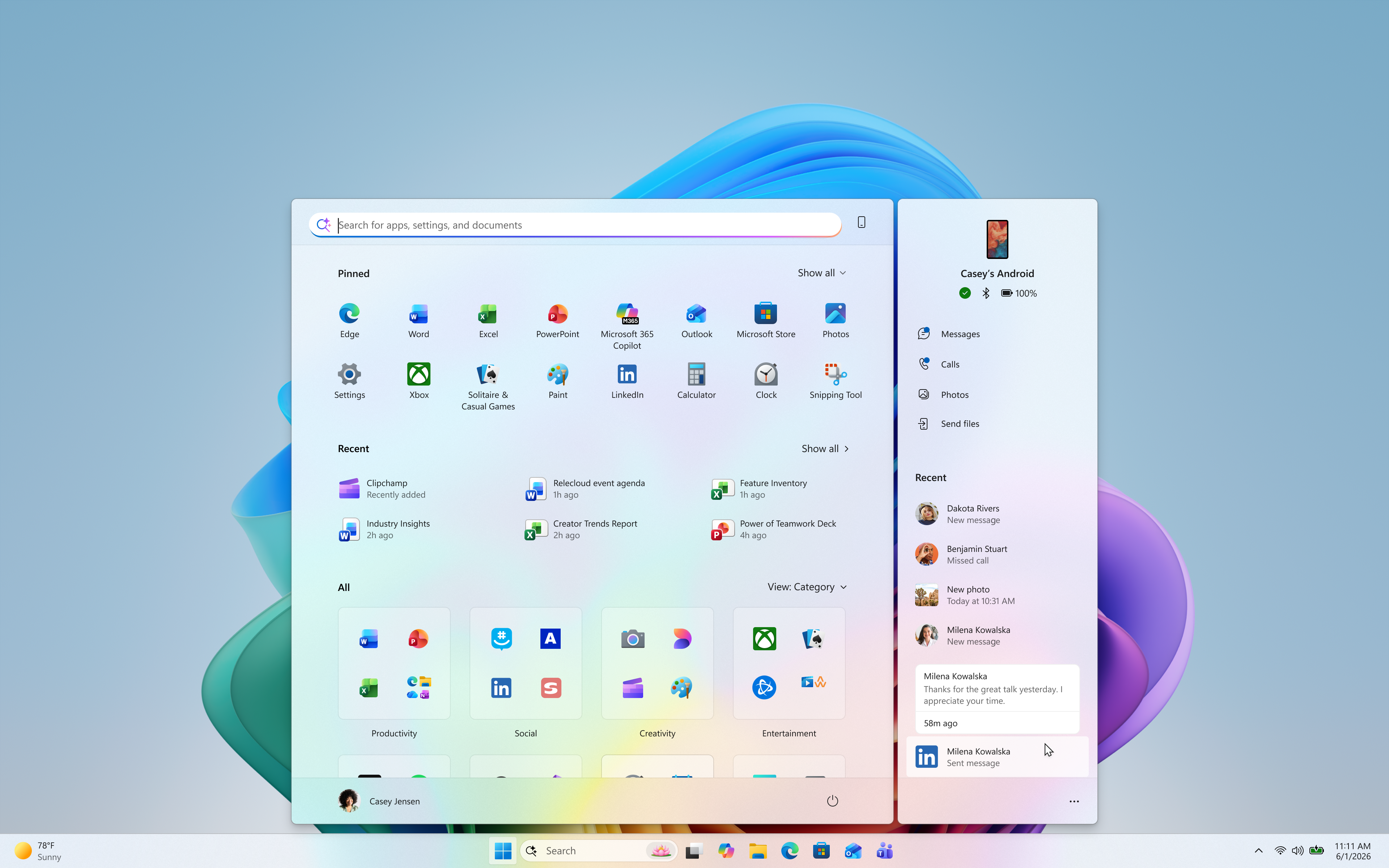
- Get more from your latest activities: Hover over a recent message or notification in the Recent section to preview its content directly in Start. There’s no need to pick up your phone or open the item to see what’s new.
- Whether you’re checking a message or deciding if a notification needs attention, these updates make it easier to stay informed and keep your focus.
New Start Menu Recent Section Hover Previews
The same previews will be available in the Recent Section of the Start Menu as well.
New Settings Home
- Microsoft is beginning to expand the new Device Info Card experience for Settings Home to additional markets globally. Available for Windows Insiders signed in with their Microsoft account, the Device Info Card provides a quick snapshot of your PC’s key specifications and usage. From the card, you can go directly to Settings > System > About to see more detailed information about your PC.
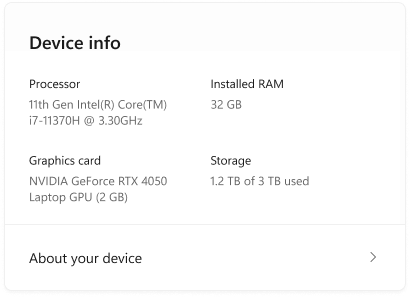
Improved Settings App Search
App Searching inside the Settings App will also be faster, more reliable and better categorized.
Manage Camera and Microphone Access to Desktop Apps
Windows Insiders can now manage camera, microphone, and location permissions for individual desktop apps. Previously, access for traditional desktop applications was managed through a single device-wide setting.
New Wi-Fi Power Saving Energy Recommendation
Microsoft is also adding a New Wi-Fi Power Saving Energy Recommendation that is good especially for Laptops.
New Modern Mouse Indicator
Microsoft is introducing a sleeker new animation for the Mouse indicator. You can enable this animation under Accessibility settings. We’ve also added the option to keep the indicator activated until you press the Esc key.
New Temporary Files Storage Settings Page
Made some small visual adjustments to improve the design of the Temporary files page under Settings > System > Storage.
New Auto Dark Mode Feature
New Privacy & Security Settings Page
The improved Privacy & security page in Windows Settings helps you find the Camera, Microphone, and Location privacy controls more easily. It groups similar controls across the page and brings usage information from deeper linked pages onto this page.
New Sound Settings
- We’ve updated the design of the volume sliders in Sound Settings so that they display audio activity on the side when audio is playing.

- If your audio device supports hardware acceleration, an option to allow hardware acceleration is now available in the Advanced section of the device’s properties.
- You can now configure exclusive mode for an audio device in the Advanced section of the device’s properties, so you don’t have to go to Control Panel.
- You can now configure adaptive communication sound levels, which reduce the volume of other sounds when communications activity is detected, directly in Settings.
- The option to set an audio device as the default sound device for communication now always appears in Properties. The option is unavailable if the device is already the default instead of being hidden.
- We’ve updated the text for allowing audio devices to make it clearer.
- We’ve added a new banner when mono audio is enabled to make it clear that some properties don’t take effect while mono audio is active.
- We’ve updated the All sound devices page:
- You can now change default devices from this page.
- We’ve adjusted the page design so that you can filter whether you’re viewing input or output devices.
- We’ve added toggles so that you can choose whether to hide or show disabled, disconnected, and unplugged devices.
- We’ve also updated the input and output audio properties pages in Settings to include jack information for devices that need it.
New Touchpad Features
- Additional gesture controls for precision touchpads are available in Settings > Bluetooth & devices > Touchpad:
- Single-finger scrolling — Scroll vertically with one finger starting from the left or right side of the touchpad.
- Automatic scrolling — Keep scrolling without lifting your fingers by moving them near the edge of your touchpad while scrolling.
- Previously, gesture controls for scroll and zoom speed and accelerate scrolling were released in the July 2026 update (KB5101684).
New Live Captions Screen Reader Audio Option
Microsoft is improving Live Captions with a new Include Screen Reader audio setting, which is off by default. With the setting off, Live Captions won’t transcribe audio from screen readers such as Narrator, JAWS, and NVDA, keeping captions focused on microphone and system audio.
New Windows Recovery Environment Features
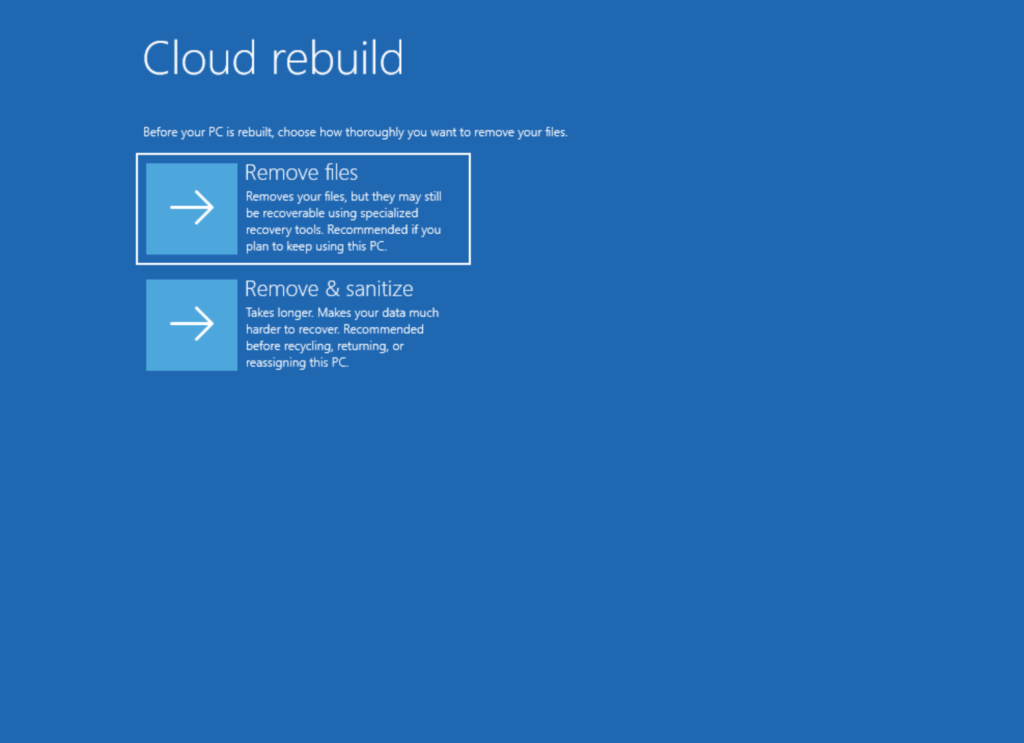
Microsoft is adding a new WinRE networking capability that allows the Windows Recovery Environment to automatically reuse eligible Wi-Fi profiles already saved in the main Windows OS, including supported certificate-based Wi-Fi networks. Previously, WinRE could automatically connect only to wired unauthenticated Ethernet or Wi-Fi networks that were separately preconfigured for WinRE, while users had to manually connect to other WPA2/3 networks by entering a password. With this update, WinRE can use saved Wi-Fi profile information when a recovery workflow requires connectivity, helping devices get online automatically during scenarios such as quick machine recovery or cloud rebuild without requiring users or IT admins to separately preconfigure Wi-Fi credentials in WinRE. By default, this capability is enabled. However, IT admins can disable this functionality if desired.
New WinRE Cloud Rebuild Feature
Cloud rebuild can now sanitize the device’s drives as part of the rebuild. When you start a rebuild in WinRE, choose Remove files if you’re keeping the PC, or Remove & sanitize files before recycling, returning, or reassigning it. The sanitize option uses the storage hardware’s erase capability to securely erase data before Windows is reinstalled and is irreversible.
Memory Integrity Automatically Enabled
Starting in October, Memory Integrity will be Automatically Enabled on most systems.
New Visual Indicator during Screen Capture
Microsoft updated the visual indicator shown during screen capture, changing the capture border from yellow to red to make active capture sessions easier to identify.

New Assisted Setup in OOBE
Assisted Setup is a new, optional way to finish setting up a Windows PC. At the end of setup, you can choose to have Windows guide you through installing apps, personalizing your device, and getting up to date so that the PC is ready to use. The experience is entirely optional, and you can skip it to go directly to the desktop.
New Narrator Features
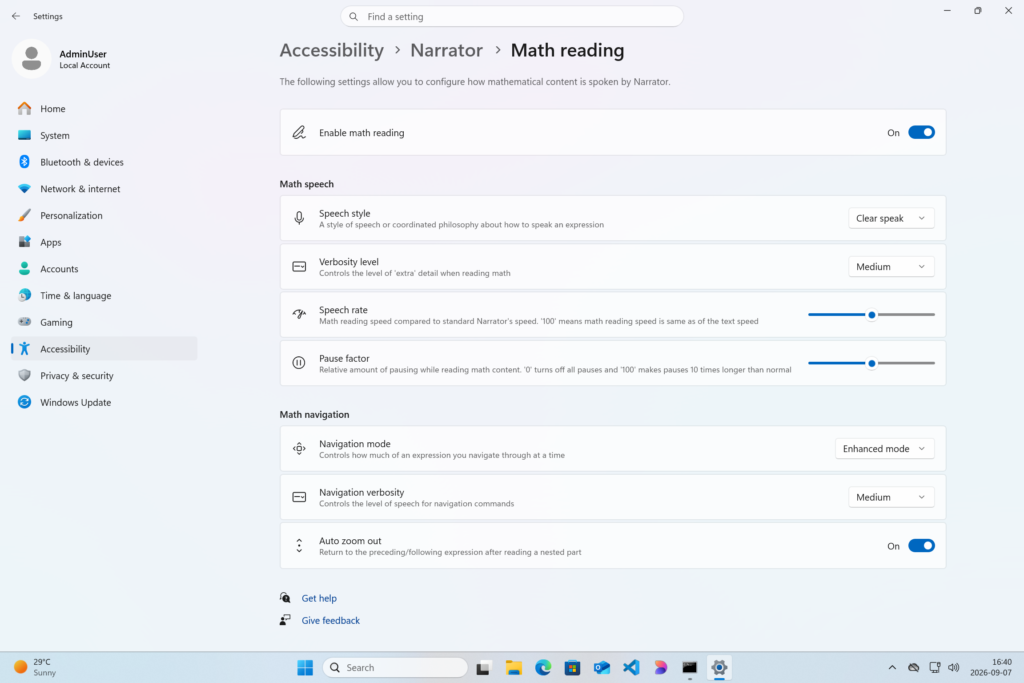
Microsoft is adding math reading and navigation support in Narrator, bringing clearer and more natural math experiences to users who are blind or have low vision.
New Magnifier Features
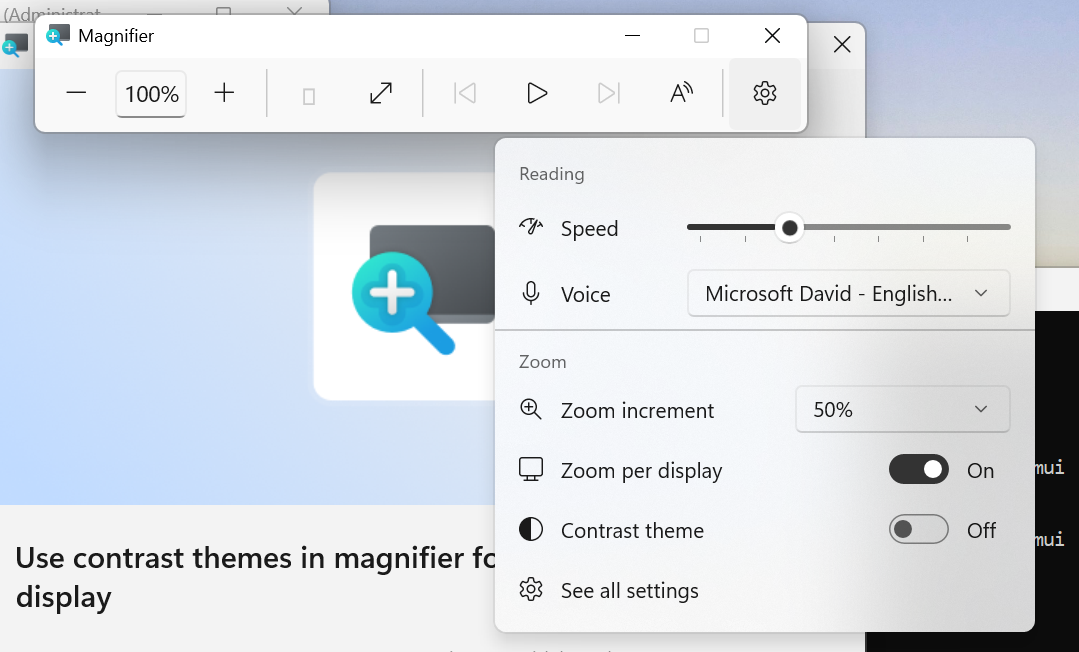
- A new contrast theme toggle for a lower-glare screen. If bright screens are uncomfortable, many people use color inversion to reduce glare. However, inversion changes everything on screen, including photos, charts, and videos. With this update, we’re introducing a new contrast theme toggle in Magnifier.
- Reduce glare with a single toggle. Turn on a contrast theme directly from the Magnifier toolbar for a more comfortable viewing experience.
- Choose the contrast theme that works best for you. The dark theme is applied by default, and you can choose which contrast theme the toggle uses under Settings > Accessibility > Magnifier.
- Photos, videos, and charts keep their original colors. Unlike color inversion, the contrast theme recolors the interface without touching your photos, charts, or videos, so they keep their real colors.
- Color inversion is still here. This isn’t a replacement. If you use inversion today, it works exactly as it always has. The contrast theme is a separate, purpose-built option to reduce glare when you want a darker interface without inverting colors.
New Modern Print Management
Improved Run Box
- Pressing F4 now expands the suggestions dropdown for command completion when using the new Run design.
- Improved first launch reliability.
- Adjusted verbosity for screen reader users.
Improved Hibernate Policy for Better Battery Life
Updates to the adaptive hibernate policy increase instances of instant-on resumes from Modern Standby and increase battery preservation at the low end of the battery. Noticeable changes include less hibernation while the battery is above 80% and hibernating sooner when the battery is below 10%.
Improved Family Safety
Improved family safety messaging when applications are blocked because of age-restricted parental controls.
For a more in-depth presentation of Windows 11 26H2, you can watch the video below from the YouTube channel.
 11
11
 20
20

