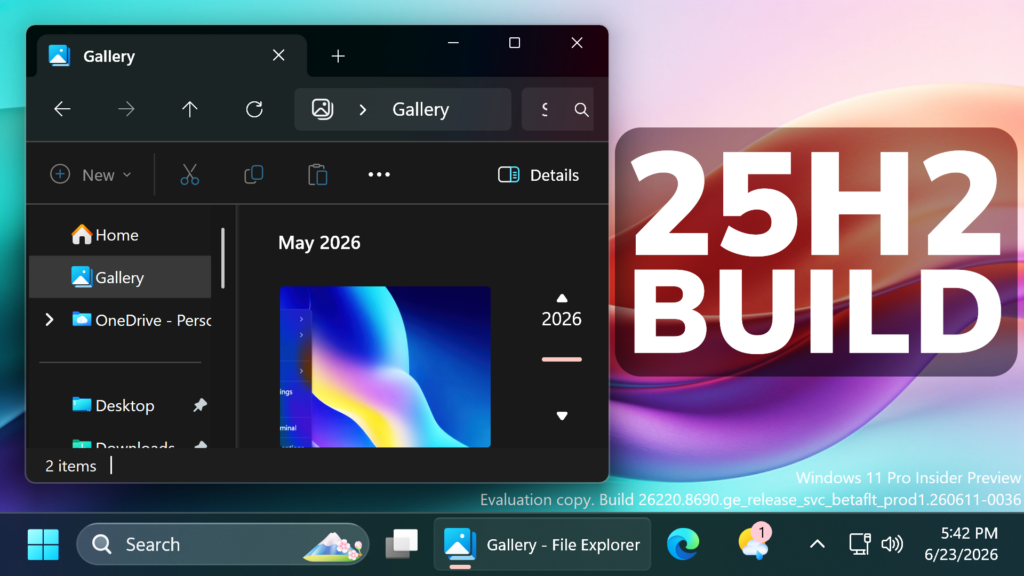
In this article, we will talk about the latest Windows 11 25H2 Insider Preview Build for the Beta Channel, which is the Build 26220.8690.
Microsoft is moving to two primary channels, with the advanced option to pick specific Windows core versions within those. The new channels are Experimental and Beta.
Beta is a refresh of the previous Beta Channel and previews what Microsoft plans to release in the next few weeks. The big change: Microsoft is ending gradual feature rollouts in Beta. When they announce a feature in a Beta update and you take that update, you will have that feature. You may occasionally see small differences within a feature as they test variations, but the feature itself will always be on your device.
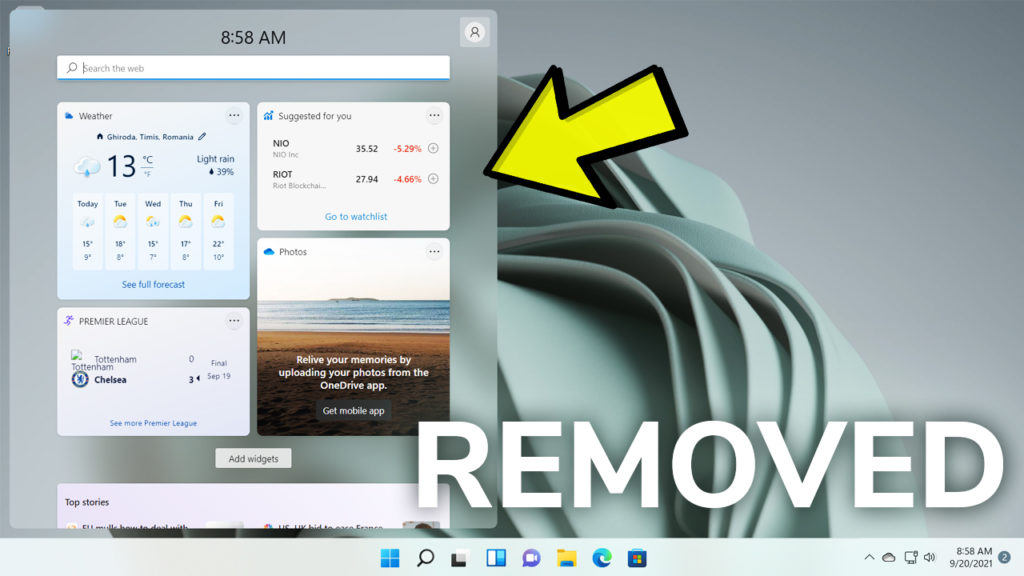
New Widgets
- Microsoft is working to make Widgets feel less distracting and overwhelming by making the experience quiet by default. To do this, we’re releasing a new set of default settings designed to reduce unexpected alerts and visual interruptions. These changes include:
- Disabling Open on hover by default
- Turning off Taskbar badging by default
- Opening to widgets experience on first launch
- Placing Weather as the only default widget on the lockscreen
- Restricting the number of Taskbar alerts that can be sent daily
- Limiting Taskbar alerts until you choose to open and engage with the Widgets experience
- As they continue to make Widgets feel less distracting, we’ve also made a small but meaningful visual update to taskbar badging. For those that have taskbar badging on, the badge color will now match your Windows accent color instead of always appearing red, reducing the sense of urgency that something needs your immediate attention.
- However, they still want it to be easy to find missed information so we now support badges on the icons in the Widget navigation bar that can show you the number of missed alerts from that specific dashboard; and badges clear automatically when you leave a dashboard, making it easy to track what’s new. And if you don’t want badges at all in your navigation bar, there’s a setting to turn them off.
- They’re also quieting down a user’s experience based on their level of engagement, so that existing users also have a less distracting experience. For example, a user who barely engages with Widgets and would benefit from having the experience quieted down with taskbar badging turned off as it is for new users who experience it as quiet by default, as compared to a user who highly engages with Widgets and likely has their settings set to a state that works best for them and don’t need some adjustments. You can also easily turn features like Taskbar badging on or off through Widgets settings, which is now a full screen experience that’s easier to read.
- In pursuit of memory savings across the system, Widgets also now leverages device characteristics and user behavior patterns to optimize memory use. This includes things like a smaller default memory footprint, giving back memory faster when not in use, and limiting pre-launch on devices with lower memory capacity.
New Screen Tint
- Microsoft is introducing screen tint, a new accessibility setting that applies a color overlay across your entire display, softening its intensity so it’s easier on your eyes throughout the day. If bright, saturated screens leave you with tired or sensitive eyes by the end of a long session, screen tint can help.
 Screenshot showing UI for screen tint in Accessibility, with color presets and a strength slider.
 - To get started, open Settings > Accessibility (or press Win + U) and look for screen tint under the Vision section. From there you can:
- Pick from six preset colors or choose a custom color of your own.
- Adjust the tint strength slider from a subtle wash to full intensity.
- Night light warms your display to reduce blue light that can interfere with sleep. Screen tint reduces overall screen intensity to ease eye fatigue and light sensitivity during the day. They tackle different problems and you can use both at the same time, one working on warmth and the other on intensity.
- Note that turning on screen tint will disable color filters, and vice versa. If you currently rely on color filters, you may need to keep screen tint turned off.
New Windows Magnifier
- Magnifier now gives you more control over how you zoom. You can type an exact zoom percentage directly in the magnifier toolbar to land on precisely the level you need.
- They’ve also added preset step increments (5%, 10%, 25%, 50%, 100%, 150%, 200%, and 400%) to the Settings dropdown, so you can jump to common levels in a single click. Whether you need a subtle boost or a dramatic close-up, Magnifier adapts to how you want to zoom.

New Emoji Panel
The emoji panel (Windows key + period (.)) now uses GIPHY as the GIF provider, delivering a smoother GIF browsing and sharing experience following the deprecation of the Tenor API.
New Remote Recovery Management
Adding recovery remote management plug-in for extending WinRE management capabilities for MDM providers
New File Explorer Features
- The address bar now supports paths containing double backslashes and quotation marks (for example, C:\Users\user or “C:\Users\user”), improving compatibility with a wider range of inputs.
- Improved performance when mounting large ISO files by preventing File Explorer from becoming unresponsive during SmartScreen checks.
- The address bar suggestion dropdown is more reliable and now consistently closes after an item is selected.
- This update addresses an issue on File Explorer Home where OneDrive files could appear duplicated in the Favorites section.
- This update includes several refinements to the Rename experience:
- Addresses an issue where text was repeatedly selected when renaming items in folder views.
- Addresses an issue where case-only name changes were not immediately reflected in folder views for items stored locally or in the cloud.
Windows Update Fix
If you were seeing error 0x800f0843 when attempting to install the previous update, that should be resolved now.
Virtualization Fix
This update addresses an issue that could result in bugchecks citing HYPERVISOR_ERROR (0x20001) and KMODE_EXCEPTION_NOT_HANDLED (0x1E) errors after installing the latest flights on some devices during system restarts, virtual machine operations, or while running some gaming applications.
Start Menu Fix
Improved reliability of Start menu reflecting newly installed or removed apps without requiring sign-out or restart.
Settings Fix
Improved reliability of Settings > Apps > Startup.
For more information about this Build, you can check this article from the Microsoft Blog.
For a more in-depth presentation of the New Build, you can watch the video below from the youtube channel.
 11
11
 20
20