
In this article, we will talk about All the New Windows K2 Features that we can test in August 2026, this including the New Search, File Explorer, Start Menu and more.
Windows K2, for those of you who don’t know, if Microsoft Codename for the internal plan that wants to fix Windows 11 and to address the main painpoints that users have reported for years now.
New Screen Tint Quick Settings Option
New Taskbar Animations
Microsoft is also adding New Animations for the Taskbar Thumbnails.
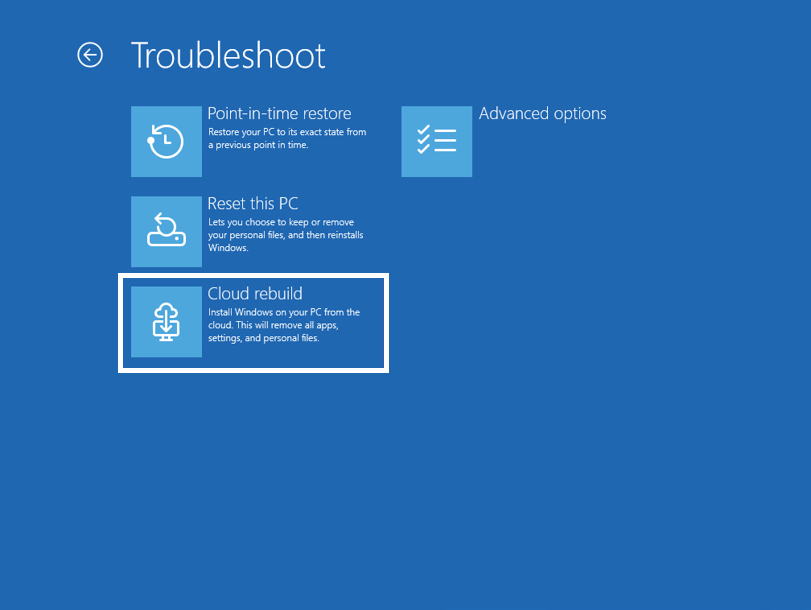
New Cloud Rebuild Recovery
- Microsoft is introducing Cloud rebuild, a new recovery option that restores a Windows 11 PC to a clean, known-good state by performing a full OS reinstall, even when Windows won’t boot. Unlike Reset this PC, Cloud rebuild downloads both the target Windows image and the device’s drivers from Windows Update, so the device comes back fully functional without USB media, without a custom image, and without depending on the health of the currently installed OS.
- In this preview, you can try Cloud rebuild today:
- Start it directly from the Windows Recovery Environment (WinRE) by selecting Troubleshoot > Recovery and uninstall > Cloud rebuild.
- Connect over wired Ethernet or a Wi-Fi network from within WinRE.
- Review the target Windows build, edition, and language, then confirm the data-loss warning before the rebuild begins.
New Account Control Flyout
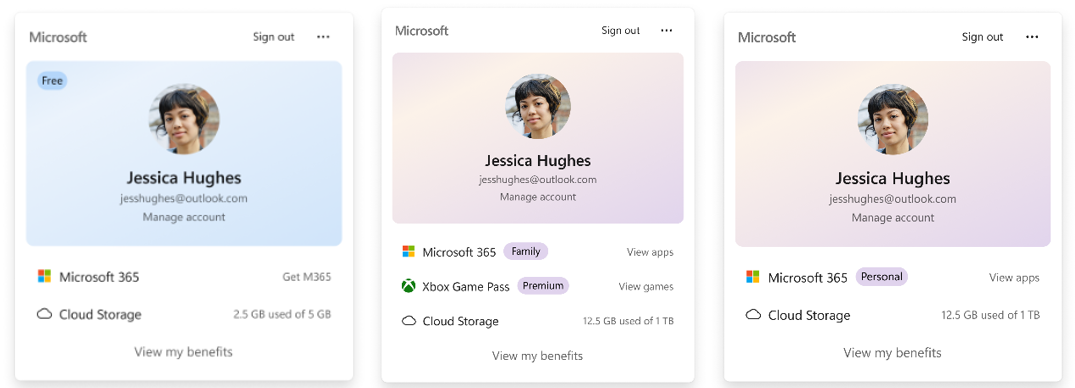
The Windows 11 Account Control flyout has a refreshed, modern design and a clear subscription badge to make the user’s account status instantly visible. This helps users easily identify their plan, discover benefits, and explore upgrades.
New Search Home
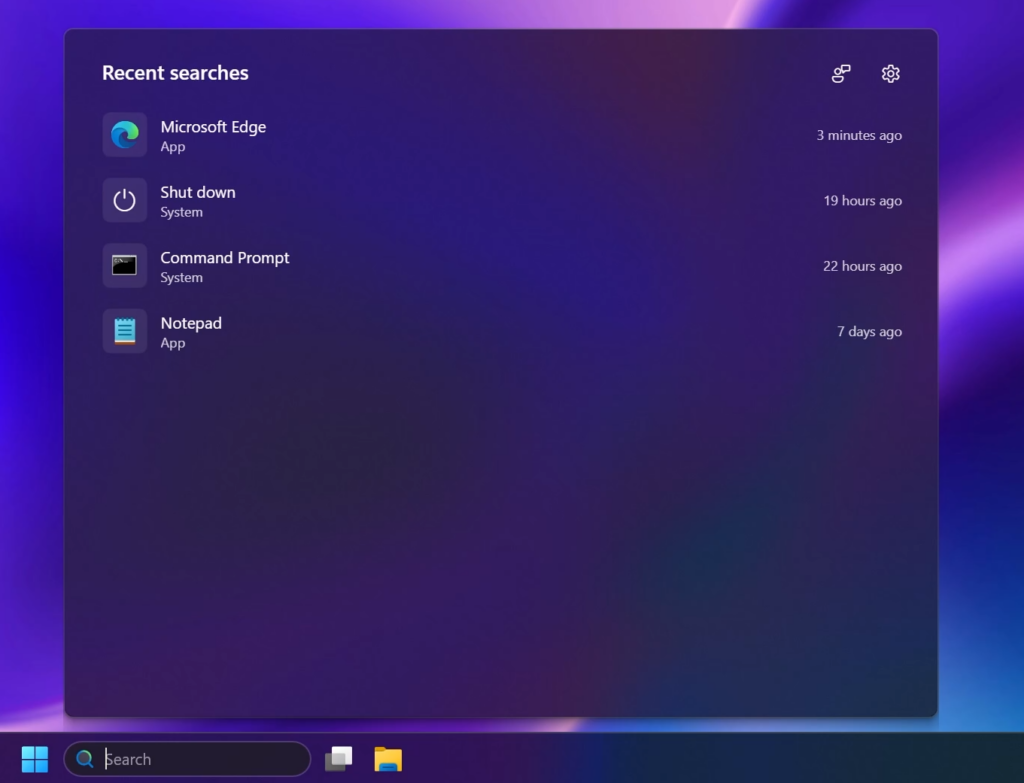
Search home has been simplified to reduce visual clutter and make it easier to get back to recent searches quickly.
New Search UI
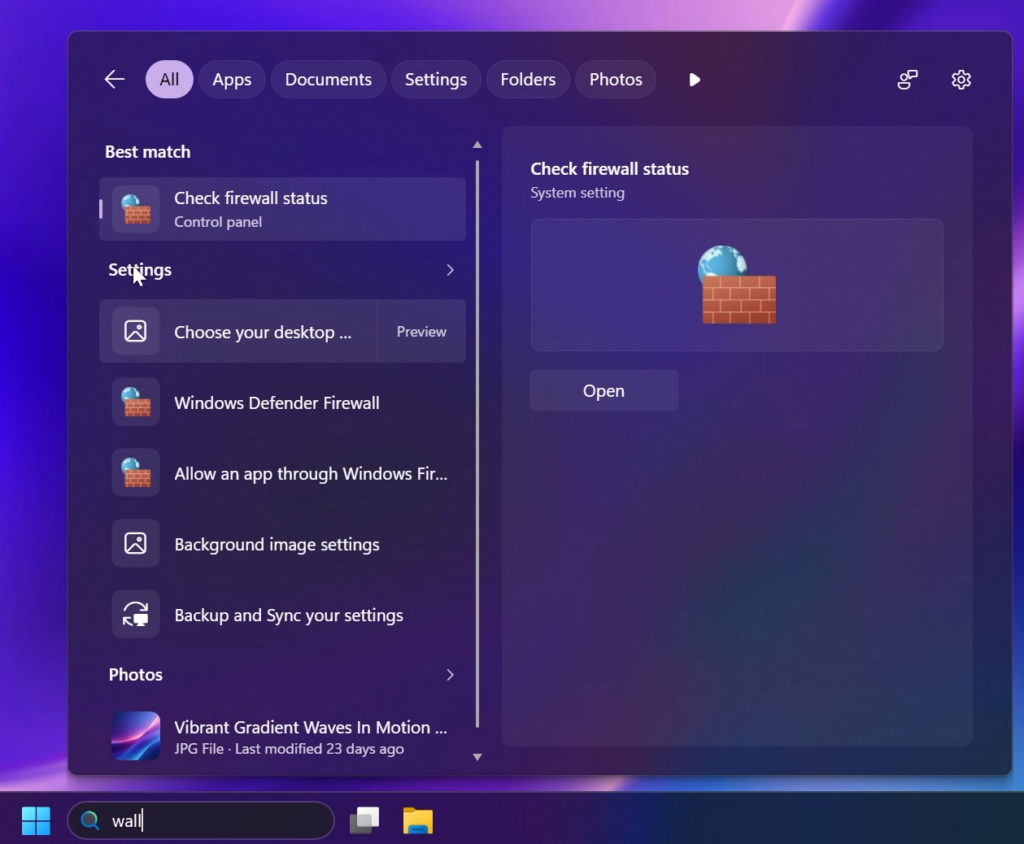
Search does a better job showing where a result comes from—app, setting, file, web result, or Store suggestion—so it’s easier to tell what you’re looking at and where you will go before you click.
New Search Option to Remove Web and Microsoft Store Search Results
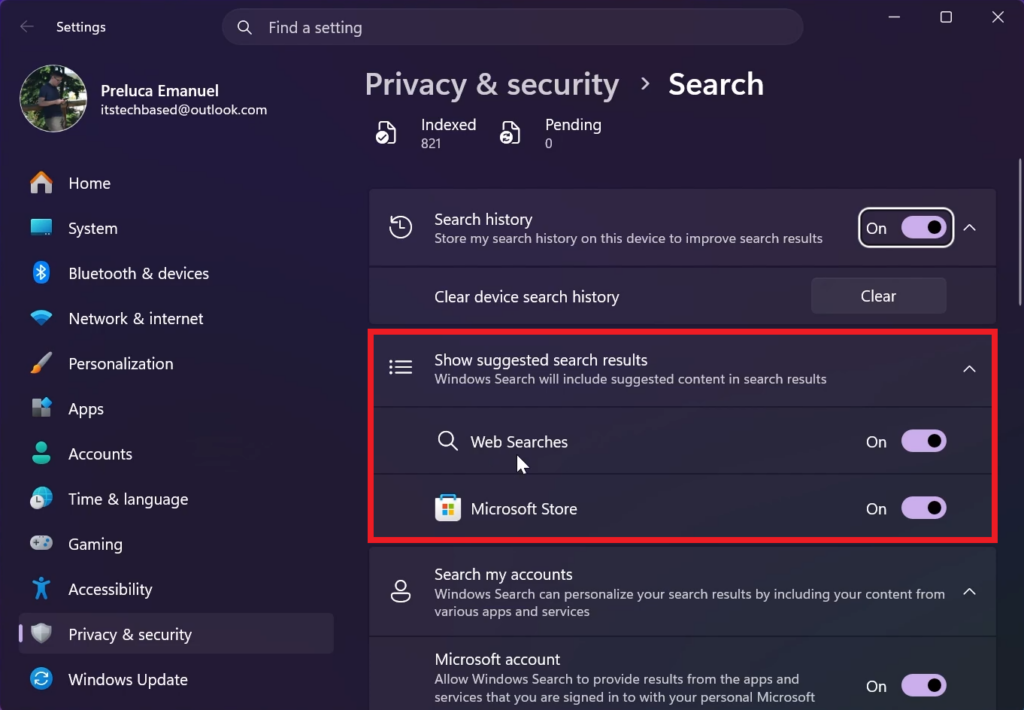
You’re in control of web and Microsoft Store results. A new setting in Settings > Privacy & Security > Search lets you choose whether web and Microsoft Store suggestions appear alongside local results.
New Search Indexing Toggle
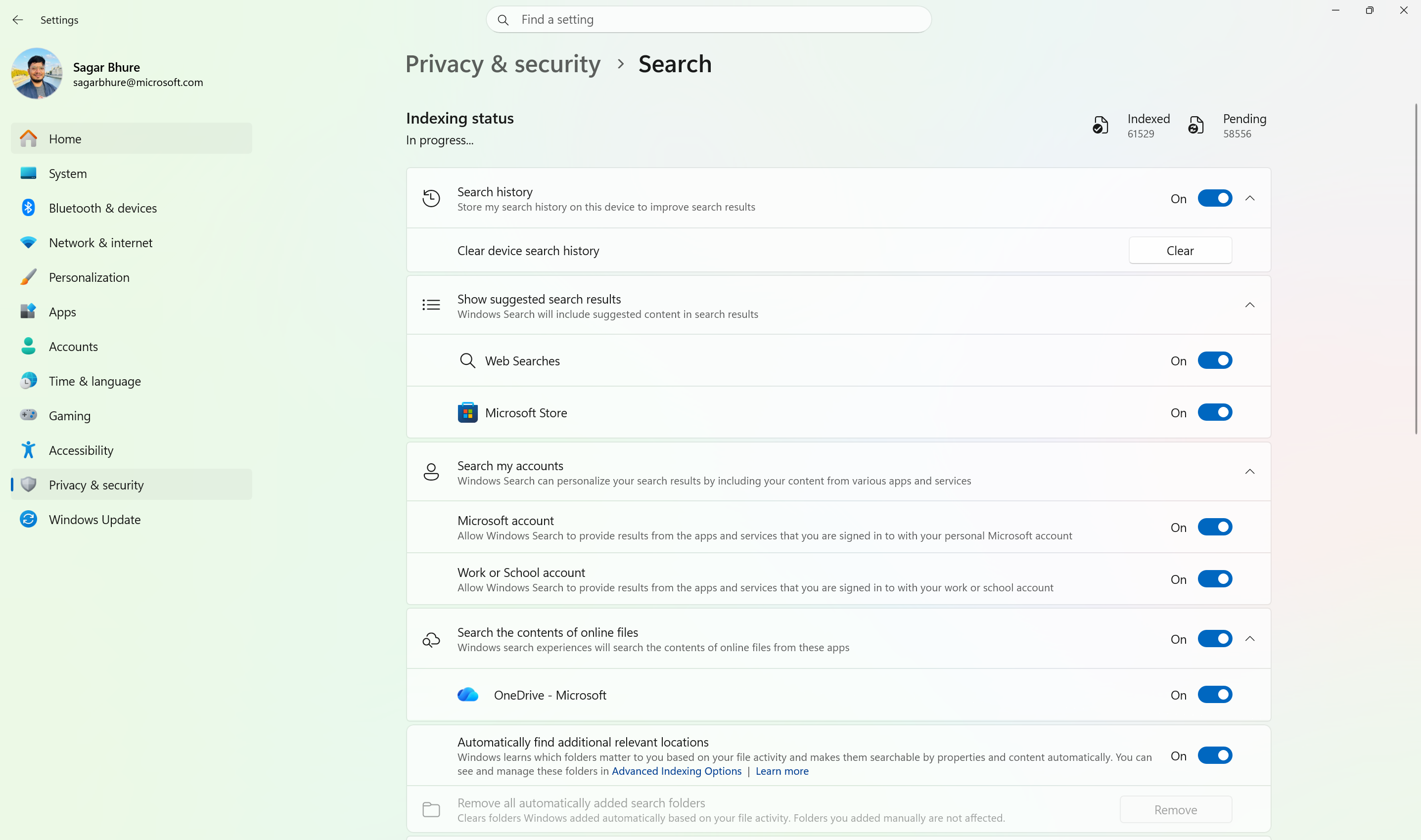
- Windows Search can now automatically expand its indexing scope based on your activity, using signals like recent files and frequently accessed locations. This helps ensure that relevant files across your device are discoverable without requiring manual indexing configuration.
- To manage this feature, go to Settings > Privacy & security > Search.
Faster Local Search
Local results prioritized when they’re the better match. Apps, settings, and files more reliably appear ahead of web and Store suggestions when your content is the stronger match. System items like This PC and Recycle Bin are easier to discover.
New Start Menu Phone Notifications Hover
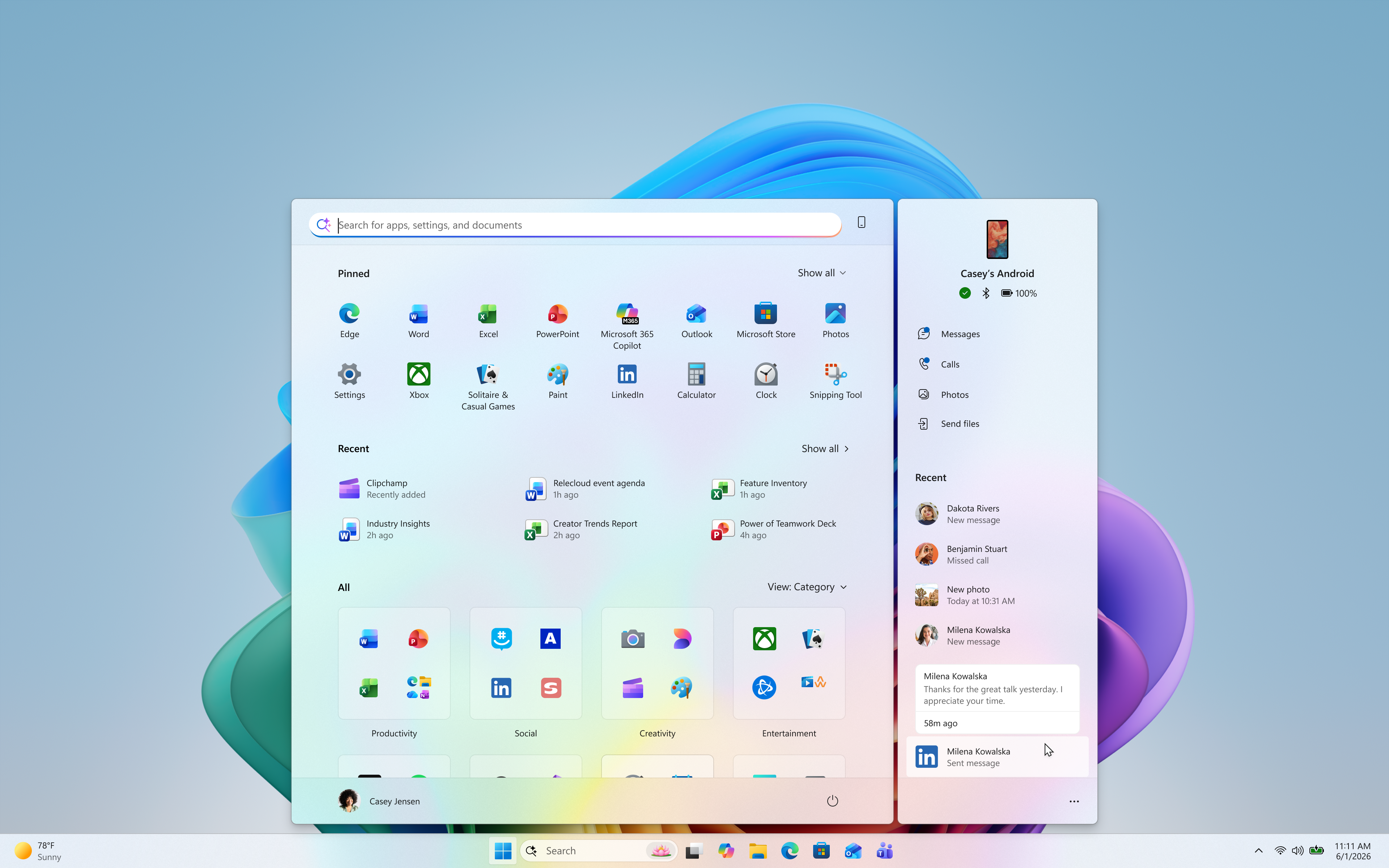
- Get more from your latest activities: Hover over a recent message or notification in the Recent section to preview its content directly in Start. There’s no need to pick up your phone or open the item to see what’s new.
- Whether you’re checking a message or deciding if a notification needs attention, these updates make it easier to stay informed and keep your focus.
New Low Latency Profile for Files
Microsoft is also expanding the Low Latency Profile for Files, making Launching Files faster in the latest Preview Builds.
New File Explorer Improvements
- File deletion in File Explorer is now faster in certain scenarios when deleting large, fragmented files.
- Launching File Explorer Home is now faster and more responsive.
- The Recommended section on Home now supports touch scrolling, making it easier to browse files in the carousel.
New File Properties Dialog
The File Properties Dialog is finally getting rebuilt with WinUI 3 and Dark Mode support and at the moment it only works with Deleted Files, such as those from the Recycle Bin.
More Dialogs will be redesigned in the coming Builds for the Experimental Channel.
For a more in-depth presentation of the New Windows K2 Features, you can watch the video below from the youtube channel.
 11
11
 20
20

