
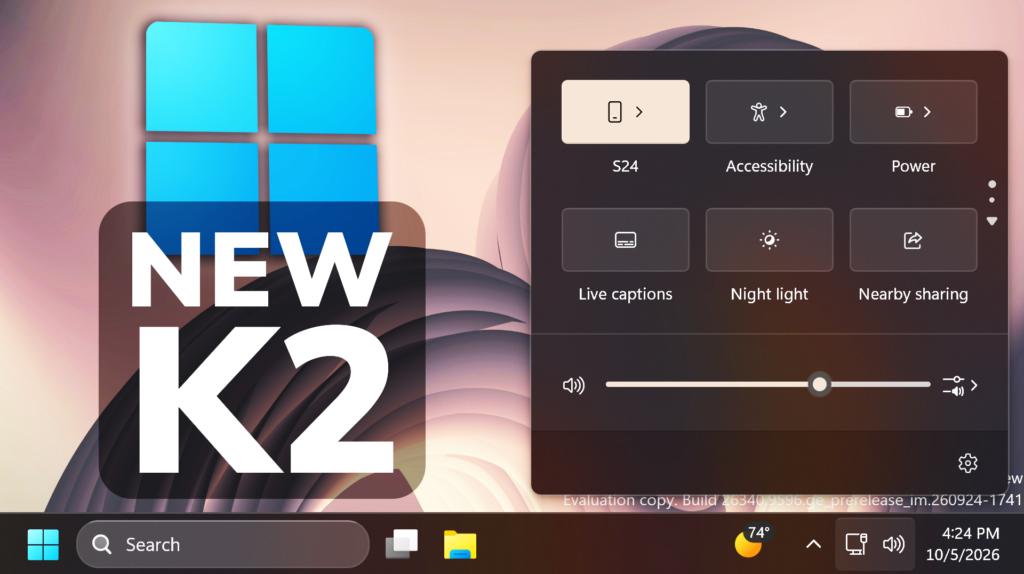
In this article, we will talk about All the New Windows K2 Features that we can test in October 2026, this including the New Taskbar Features, Start Menu, Quick Settings and more.
Windows K2, for those of you who don’t know, if Microsoft Codename for the internal plan that wants to fix Windows 11 and to address the main painpoints that users have reported for years now.
New Quick Settings Energy Recommendations
Windows Insiders will now see Energy Recommendations directly in Quick Settings, making it easier to discover and take actions that can help reduce energy consumption and improve device sustainability.

New Quick Settings Phone Integration
In this Build, Microsoft adds the Phone Integration in Quick Settings as well, with some quick actions that you can apply to your phone quickly.
New Context Menu Improvements
- Microsoft has added a new teaching tip you might see as a first-time experience to help you learn about the customization options.
- In theme with giving you more control, you can also now turn off the customize context menu entry in the new context menu settings.
- They’ve fixed a few small issues with the Send To option in the context menu not working as expected.
New Settings Home Device Info Card
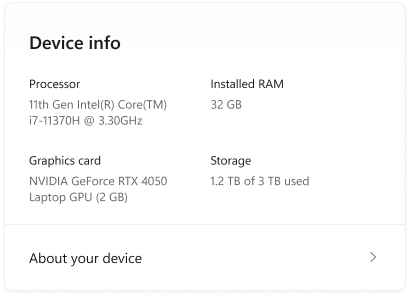
Microsoft is beginning to expand the new Device Info Card experience for Settings Home to additional markets globally. Available for Windows Insiders signed in with their Microsoft account, the Device Info Card provides a quick snapshot of your PC’s key specifications and usage. From the card, you can go directly to Settings > System > About to see more detailed information about your PC.
New Auto Dark Mode Feature
New Privacy & Security Settings Page
The improved Privacy & security page in Windows Settings helps you find the Camera, Microphone, and Location privacy controls more easily. It groups similar controls across the page and brings usage information from deeper linked pages onto this page.
New Temporary Files Page in Settings
Made some small visual adjustments to improve the design of the Temporary files page under Settings > System > Storage.
New Modern Mouse Indicator
Microsoft is introducing a sleeker new animation for the Mouse indicator. You can enable this animation under Accessibility settings. We’ve also added the option to keep the indicator activated until you press the Esc key.
New Live Captions Setting
Microsoft is improving Live Captions with a new Include Screen Reader audio setting, which is off by default. With the setting off, Live Captions won’t transcribe audio from screen readers such as Narrator, JAWS, and NVDA, keeping captions focused on microphone and system audio.
New Sound Settings
- We’ve updated the design of the volume sliders in Sound Settings so that they display audio activity on the side when audio is playing.

- If your audio device supports hardware acceleration, an option to allow hardware acceleration is now available in the Advanced section of the device’s properties.
- You can now configure exclusive mode for an audio device in the Advanced section of the device’s properties, so you don’t have to go to Control Panel.
- You can now configure adaptive communication sound levels, which reduce the volume of other sounds when communications activity is detected, directly in Settings.
- The option to set an audio device as the default sound device for communication now always appears in Properties. The option is unavailable if the device is already the default instead of being hidden.
- We’ve updated the text for allowing audio devices to make it clearer.
- We’ve added a new banner when mono audio is enabled to make it clear that some properties don’t take effect while mono audio is active.
- We’ve updated the All sound devices page:
- You can now change default devices from this page.
- We’ve adjusted the page design so that you can filter whether you’re viewing input or output devices.
- We’ve added toggles so that you can choose whether to hide or show disabled, disconnected, and unplugged devices.
- We’ve also updated the input and output audio properties pages in Settings to include jack information for devices that need it.
New Start Menu Phone Feature
Phone companion for the Start menu now shows more of your recent activity, with a scrollable side pane so you can view even more without leaving the Start menu.

New Taskbar List Previews
Also in this Build, the option to replace Taskbar Previews with List View is hidden in Taskbar Settings.
New Cross-Device Resume
Microsoft is making it easier to continue where you left off on your PC. When you resume a webpage from your phone and the phone’s browser isn’t installed on your PC, the Resume hovercard now gives you two options: open the page directly in your PC’s default browser or install the phone’s browser for a native experience. This update helps you continue your work immediately without requiring an app installation first.

New Taskbar Animations
Microsoft is restarting the rollout of enhanced taskbar preview animations, providing smoother transitions between app groups.
New Notification Center
Notification tips can now be saved to Notification Center after they’re dismissed or time out, making them easier to find again later.
New File Explorer Faster Search
Key file information, such as name, location, and date, now appears in a consistent layout on the File Explorer search results page, making search results easier to scan.
Search from This PC in File Explorer is now indexer-based, making it much faster and consistent with search from File Explorer Home.
Memory Integrity Automatically Enabled
Memory Integrity protection expands automatically to more eligible devices. As outlined in our recent blog, Windows might now enable Memory Integrity (HVCI) during updates on supported PCs to help improve security and prepare devices for advanced Windows security features, while respecting existing user or IT administrator choices.
New Assisted Setup in OOBE
Assisted Setup is a new, optional way to finish setting up a Windows PC. At the end of setup, you can choose to have Windows guide you through installing apps, personalizing your device, and getting up to date so that the PC is ready to use. The experience is entirely optional, and you can skip it to go directly to the desktop.
New Cloud Rebuild Features
- Microsoft is updating Cloud rebuild, the recovery option that restores a Windows 11 PC to a clean, known-good state by performing a full OS reinstall, with two additions.
- Cloud rebuild can now sanitize the device’s drives as part of the rebuild. When you start a rebuild in WinRE, choose Remove files if you’re keeping the PC, or Remove & sanitize files before recycling, returning, or reassigning it. The sanitize option uses the storage hardware’s erase capability to securely erase data before Windows is reinstalled and is irreversible.
- IT administrators can now configure and start a Cloud rebuild remotely through the Recovery CSP, using either the currently installed build or a target build you specify.


New Visual Indicator during Screen Capture
Microsoft updated the visual indicator shown during screen capture, changing the capture border from yellow to red to make active capture sessions easier to identify.

New Narrator Features
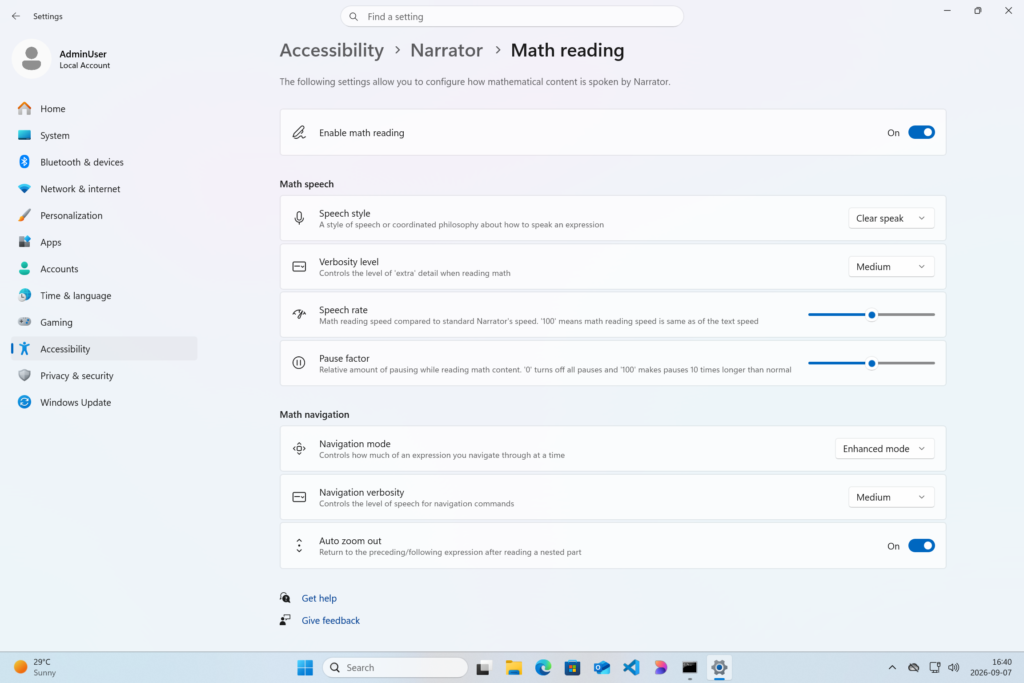
Microsoft is adding math reading and navigation support in Narrator, bringing clearer and more natural math experiences to users who are blind or have low vision. Math is at the heart of STEM education and learning, and this update helps students and professionals independently read, understand, and explore equations, formulas, and scientific notation with confidence.
New Magnifier Features
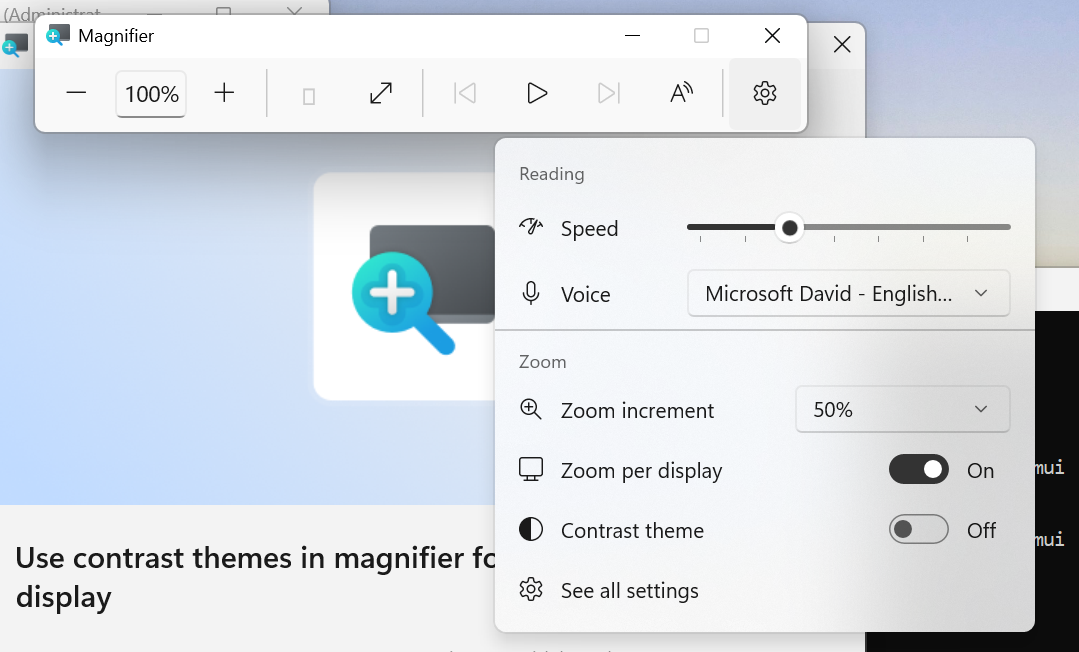
- More and more of the work people do happens across more than one screen. You draft on one display and keep source material open on another. You fill in a form while a reference document sits beside it. Those extra displays can be more helpful when each one can do its own job, and now Magnifier supports exactly that.
- To use this update, set your monitors to Extend in System > Display, not Duplicate, so Windows treats each screen as its own space.
- Every screen keeps its own view at its own zoom. In earlier versions of Magnifier, zooming in stretched a single magnified view across all of your displays, so one screen’s zoom followed you everywhere and screen edges blurred together. With this update, each monitor’s boundary is respected, and each monitor can have its own zoom percentage. Your writing screen can be at 300% while your reference screen stays at 150%, and the magnified view no longer spills from one display into the next. This behavior matters because different tasks and screen resolutions often require different levels of magnification to remain comfortable to read.
Setting the zoom on each screen is easy. Choose whichever method feels natural:
- Move your mouse pointer onto the screen you want to adjust, then press Windows key + Plus (+) or Windows key + Minus (-), or hold Ctrl + Alt and rotate your mouse wheel.
- Set the percentages directly in Accessibility > Magnifier.
- Drag the Magnifier toolbar onto a specific screen to adjust that screen from its on-screen controls.
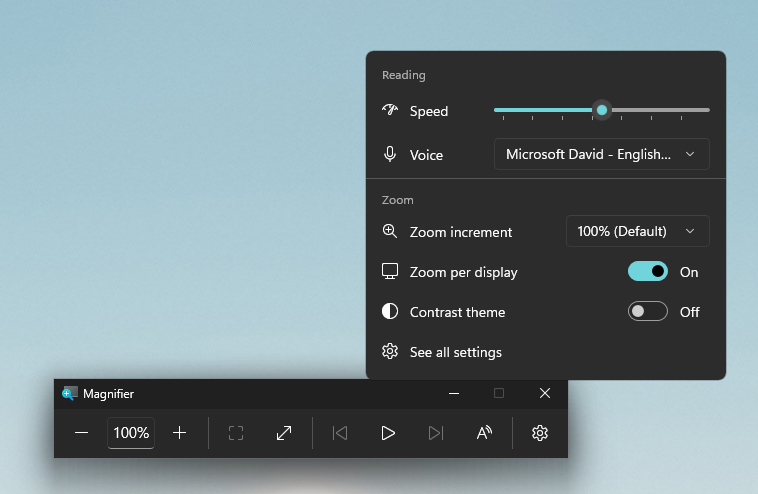
- Per-monitor zoom is turned on by default. If you prefer the classic behavior where a single zoom spans all of your displays, you can turn per-monitor zoom off at any time from either the Magnifier toolbar or Accessibility > Magnifier. You can turn it back on whenever you like.
Keep the view that matters, right where you need it
- As you move your mouse from screen to screen, the magnified view naturally follows your pointer. Sometimes this might cause you to lose sight of the content that you’re actively working on.
- Viewport locking keeps that view in place. For example, you might be drafting an email based on a section of a document open on another display. Position that display so the paragraph you need is in view, press Ctrl + Windows key + K, and the screen holds its view steady while you move your cursor over to write. The locked screen stays fully live and interactive, so you can glance back, click, or copy from it whenever you need to, and its view stays put until you release it.
- A message appears on the screen when it’s locked, so you always know what’s being held. To lock or unlock a screen, point your mouse at that screen and press Ctrl + Windows key + K again. To release everything at once, press Windows key + Esc to dismiss all locks. You can change the lock shortcut to Ctrl + Alt + P in Accessibility > Magnifier.

- A new contrast theme toggle for a lower-glare screen. If bright screens are uncomfortable, many people use color inversion to reduce glare. However, inversion changes everything on screen, including photos, charts, and videos. With this update, we’re introducing a new contrast theme toggle in Magnifier.
- Reduce glare with a single toggle. Turn on a contrast theme directly from the Magnifier toolbar for a more comfortable viewing experience.
- Choose the contrast theme that works best for you. The dark theme is applied by default, and you can choose which contrast theme the toggle uses under Settings > Accessibility > Magnifier.
- Photos, videos, and charts keep their original colors. Unlike color inversion, the contrast theme recolors the interface without touching your photos, charts, or videos, so they keep their real colors.
- Color inversion is still here. This isn’t a replacement. If you use inversion today, it works exactly as it always has. The contrast theme is a separate, purpose-built option to reduce glare when you want a darker interface without inverting colors.
For a more in-depth presentation of the New Windows K2 Features, you can watch the video below from the youtube channel.
 11
11
 20
20

